---
title: Retarget Failed or Not Reply contacts
description: >-
From a Broadcast report, create a Retarget draft for Failed or Not Reply
contacts and send a new message.
sidebar:
order: 5
---
In this tutorial, you will retarget contacts from an earlier Broadcast who are **Failed** or **Not Reply**.
**Time needed:** 10 minutes
## Before you start
Make sure:
- You are logged in to Wabot.
- You already have a Broadcast with a **Report**.
- You can see **Retarget** on that report. You need Broadcast write and audience permission.
> **Retarget** starts a new Broadcast. It does not resend the same campaign in place.
> **Unknown** contacts are not in Retarget. Use **Retry Unknown** on the report if you need that set.
## 1. Open the Broadcast report
On the left menu, click **Broadcast**.
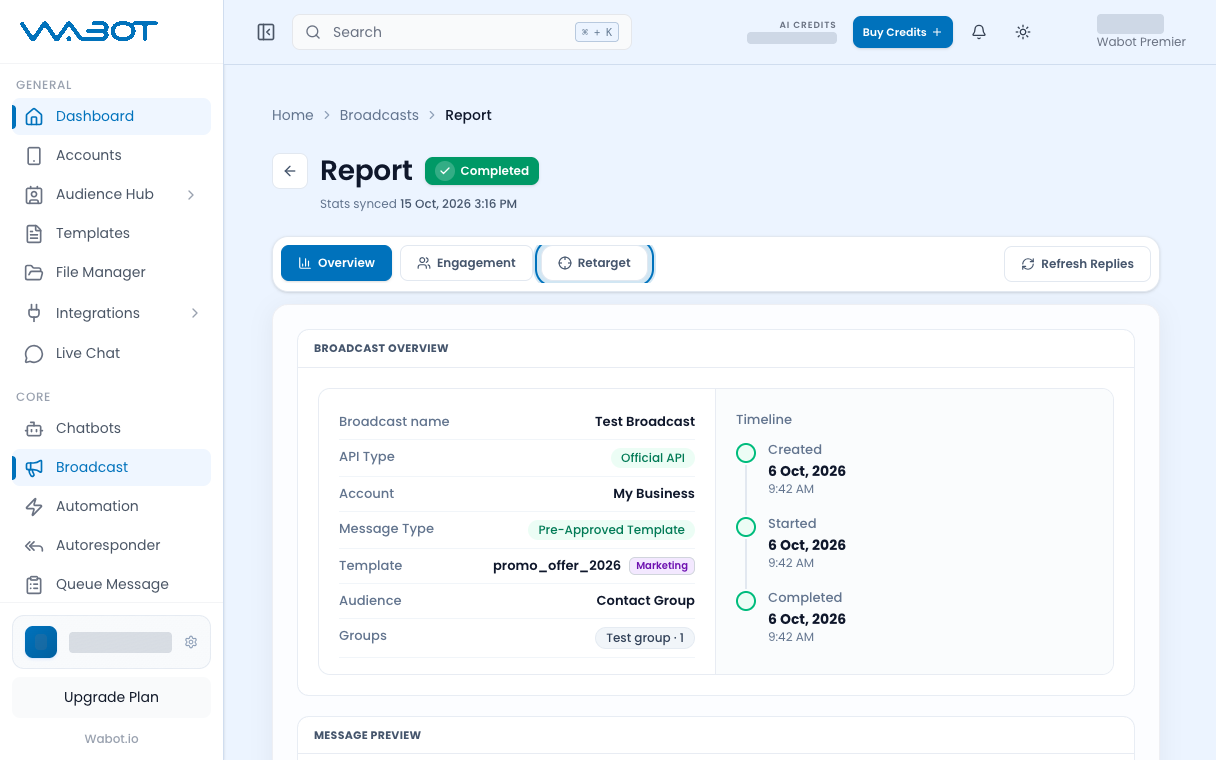
Open the finished campaign, then click **Report**.
Open the finished campaign's Report, then click Retarget.
## 2. Open Retarget
Click **Retarget**.
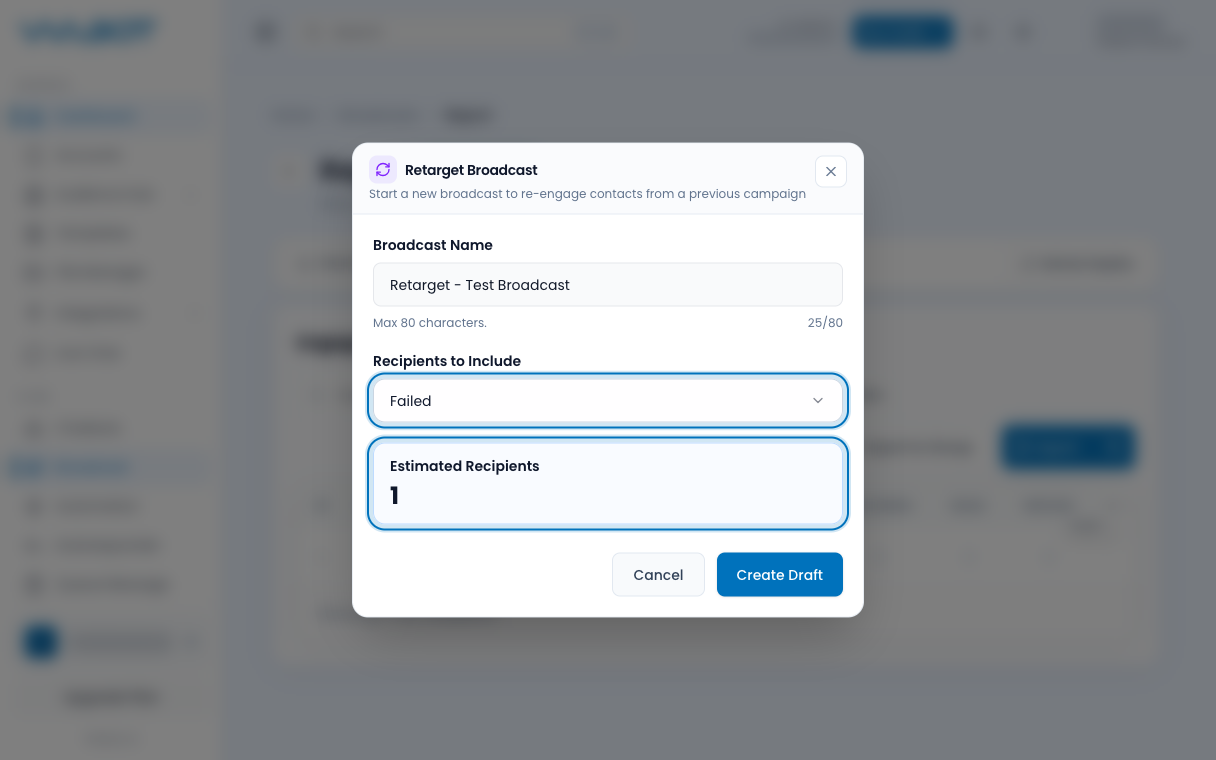
The **Retarget Broadcast** dialog opens.
## 3. Choose Failed or Not Reply
Enter a **Broadcast Name**.
**Example:** `Raya Promo — Not Reply`
Under **Recipients to Include**, choose **Failed** or **Not Reply**.
Check **Estimated Recipients**. If the number is `0`, pick the other status or open a different campaign.
> If you searched the engagement table first, that search is also applied.
Click **Create Draft**.
Pick who to include, check Estimated Recipients, then click Create Draft.
## 4. Change the message
Wabot opens the new draft on the message step.
The retarget group is locked. Do not change the audience.
Write a new message, or pick another template.
If you see **Send Test Message**, send one to your own number first.
Click **Continue**.
## 5. Send the retarget Broadcast
Choose **Send Now**.
Review the locked audience and the new message. Click **Launch Broadcast**.
## Make sure it worked
This tutorial worked when:
- A new Broadcast appears in the list.
- The recipient count matches **Estimated Recipients**.
- The retarget group stays locked.
- The new campaign moves to **Sending** or **Completed**.
## If it didn’t work
### You cannot see Retarget
You need Broadcast write permission and audience permission.
### Estimated Recipients is 0
- Confirm the original campaign has **Failed** or **Not Reply** rows in **Engagement**.
- Clear the search box if a phone filter is still active.
- Try **All Recipients** only if you really want the full set.
### The audience cannot be edited
That is expected. Retarget locks the recipient set from the previous campaign.
### This is not Retry Unknown
**Retry Unknown** is a separate button on the report. **Retarget** does not include **Unknown**.
## Next
The retarget send is done. Next, read the report and export a status group.
[Read a Broadcast report and export to a group →](/features/broadcast/report)