---
title: Send a test Broadcast
description: >-
Create an Unofficial API Broadcast, pick a contact group, write a text
message, and send it now.
sidebar:
order: 1
---
In this tutorial, you will send one small test Broadcast from an **Unofficial API** account to a contact group.
**Time needed:** 10 minutes
## Before you start
Make sure:
- You are logged in to Wabot.
- The WhatsApp account you will send from shows **Online**.
- You have a small test group or **Broadcast List**. Put only your own number in it first.
> If WhatsApp is not connected yet, finish [Connect Your WhatsApp Account](/getting-started/connect-account) first.
> Only send to people who asked to get messages from you. A phone number in your list is not the same as permission.
## 1. Open Broadcast
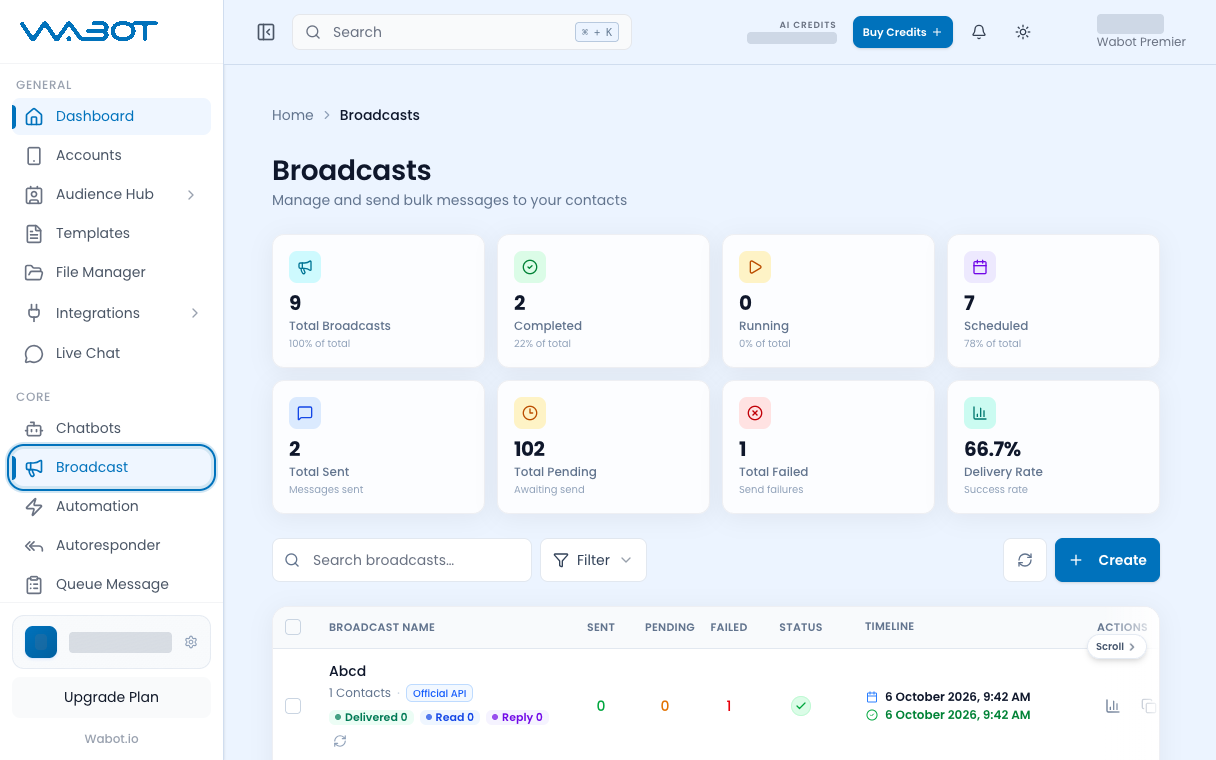
On the left menu, click **Broadcast**.
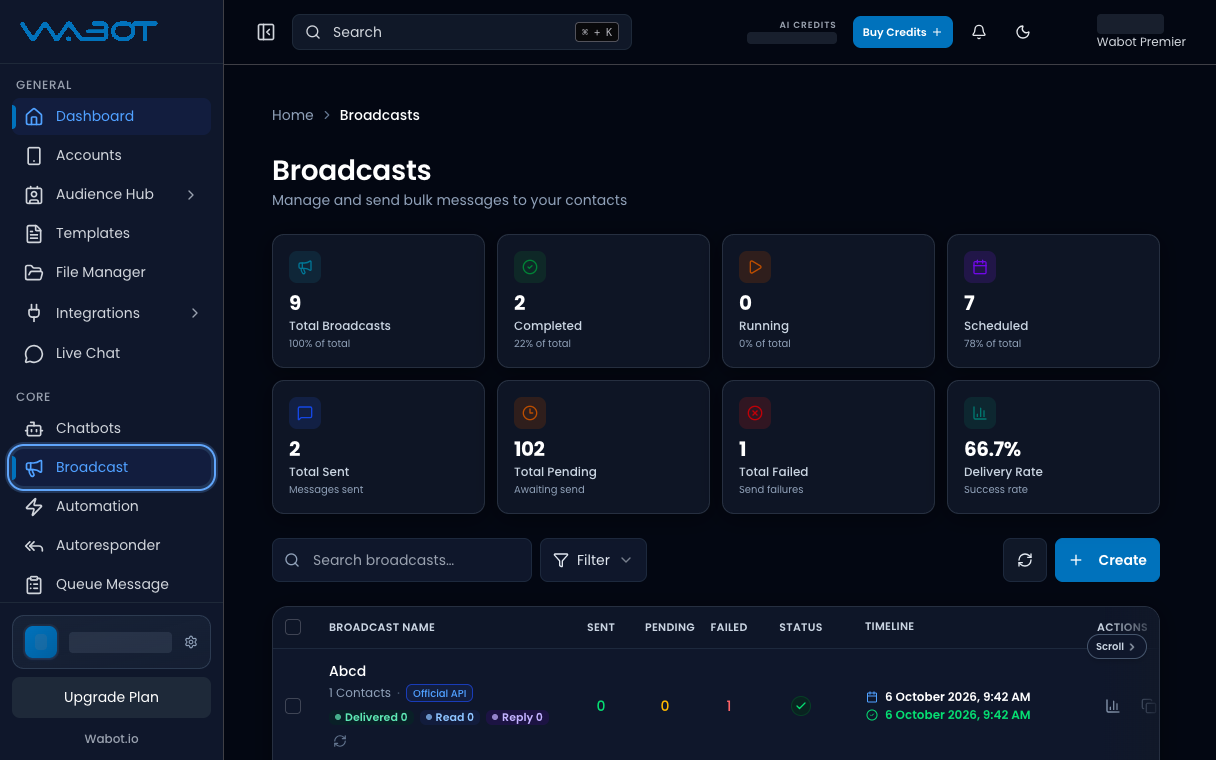
Click Broadcast in the left menu to open Broadcasts.
## 2. Start a new Broadcast
Click **Create**.
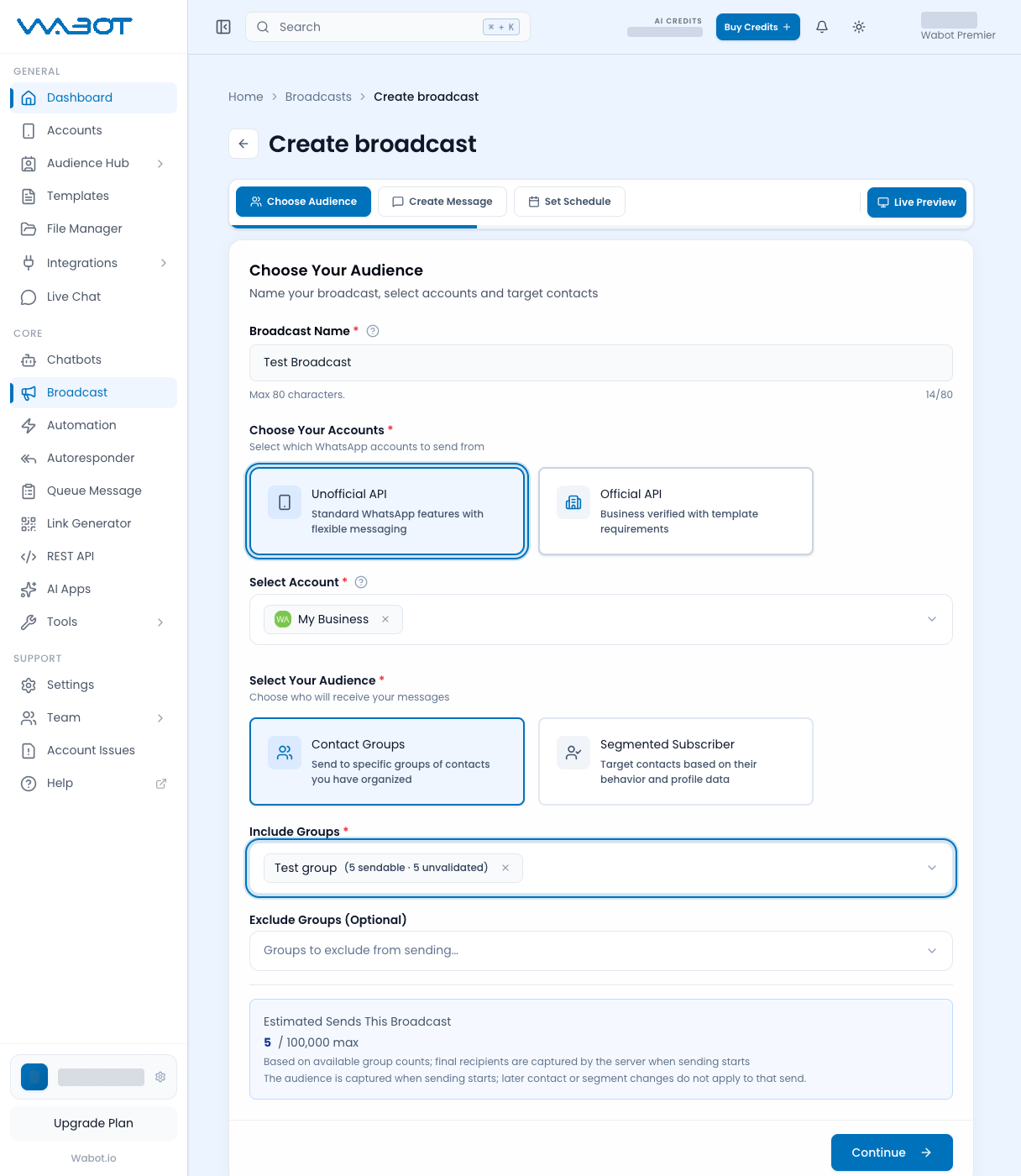
Enter a **Broadcast Name** you will recognise later.
**Example:** `Test Broadcast`
## 3. Choose Unofficial API and a small group
1. Select **Unofficial API**.
2. Pick the WhatsApp account that is **Online**.
3. Choose **Contact Groups**.
4. Under **Include Groups**, pick your test group or **Broadcast List**.
5. Check the recipient count. For this tutorial, keep it to a few numbers only.
Click **Continue**.
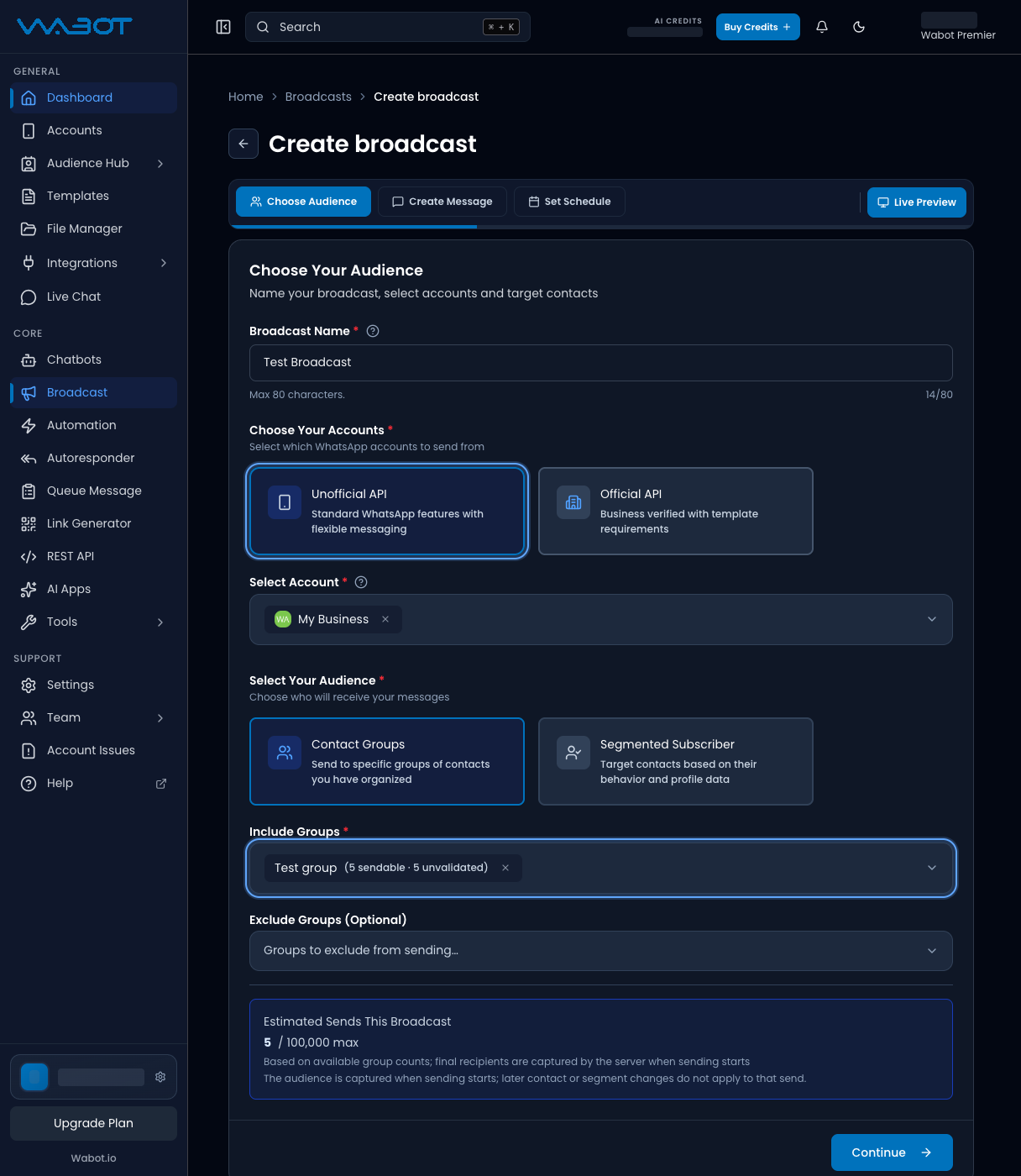
Pick Unofficial API, your account, then your test group under Include Groups. Sample names shown.
## 4. Write a text message
Choose **Text & Media**, then **Caption Only**.
Type a short message.
> This is a test Broadcast from Wabot.
You can add `{name}` if you want each person to see their name.
If you see **Send Test Message**, send one to your own number first.
Use the country code, with no `+` and no spaces.
**Right:** `60123456789`
**Wrong:** `+60 12-345 6789`
Click **Continue**.
## 5. Send it now
Choose **Send Now**.
Review the account, audience, and message. Click **Launch Broadcast** only when those look right.
## Make sure it worked
This tutorial worked when:
- The Broadcast appears in the list.
- The status moves to **Sending** or **Completed**.
- The test phone receives the WhatsApp message.
- There is no **Failed** status for that recipient.
## If it didn’t work
### The message did not arrive
- Check the account is still **Online**.
- Open the Broadcast and click **Report**.
- Confirm the test number is in the group, with country code and no `+`.
**Right:** `60123456789`
**Wrong:** `+60 12-345 6789`
### You cannot click Continue
- Fill in **Broadcast Name**.
- Select an **Unofficial API** account.
- Select at least one group under **Include Groups**.
### Official API asks for a template
This tutorial uses **Unofficial API**. If you selected **Official API**, go back and switch, or follow [Send a Broadcast with a Pre-Approved Template](/features/broadcast/pre-approved-template).
### Status is Failed
Open **Report** and read the error. Do not send again to a large list until the test works.
## Next
Your test Broadcast is done. Next, send with a Meta-approved template from an Official API account.
[Send a Broadcast with a Pre-Approved Template →](/features/broadcast/pre-approved-template)