---
title: Create a keyword chatbot item
description: Add a New Chatbot item with a keyword like harga and a fixed text reply.
sidebar:
  order: 2
---
In this tutorial, you will create one **New Chatbot** item that replies when the customer writes `harga`.

**Time needed:** 10 minutes

## Before you start

Make sure:

- This instance is on **Keyword**. If not, finish [Choose Keyword mode](/features/chatbots/keyword-mode) first.
- The WhatsApp account shows **Online**.
- You can send a test message from your own phone.

> Keep **Reply Mode** on **Normal**. Do not choose **AI** on this item.

## 1. Open Chatbots & Tools

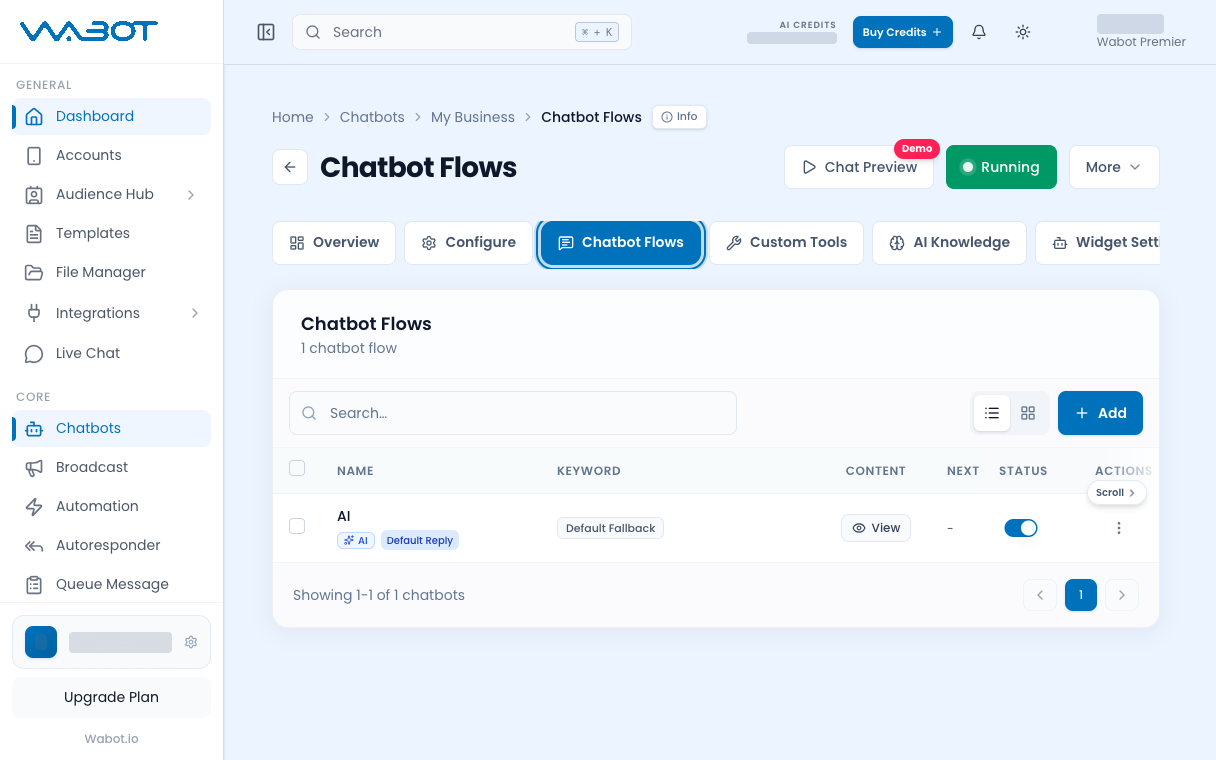
On the instance page, open the **Chatbots & Tools** tab.

<figure class="doc-shot">
  <img class="doc-shot__light" src="/images/features/chatbots/cb-flows-tab-light.png" alt="Chatbot Flows tab highlighted" width="1216" height="760" loading="lazy" decoding="async" />
  <img class="doc-shot__dark" src="/images/features/chatbots/cb-flows-tab-dark.png" alt="Chatbot Flows tab highlighted" width="1216" height="760" loading="lazy" decoding="async" />
  <figcaption>Open the <strong>Chatbot Flows</strong> tab.</figcaption>
</figure>

## 2. Start a new item

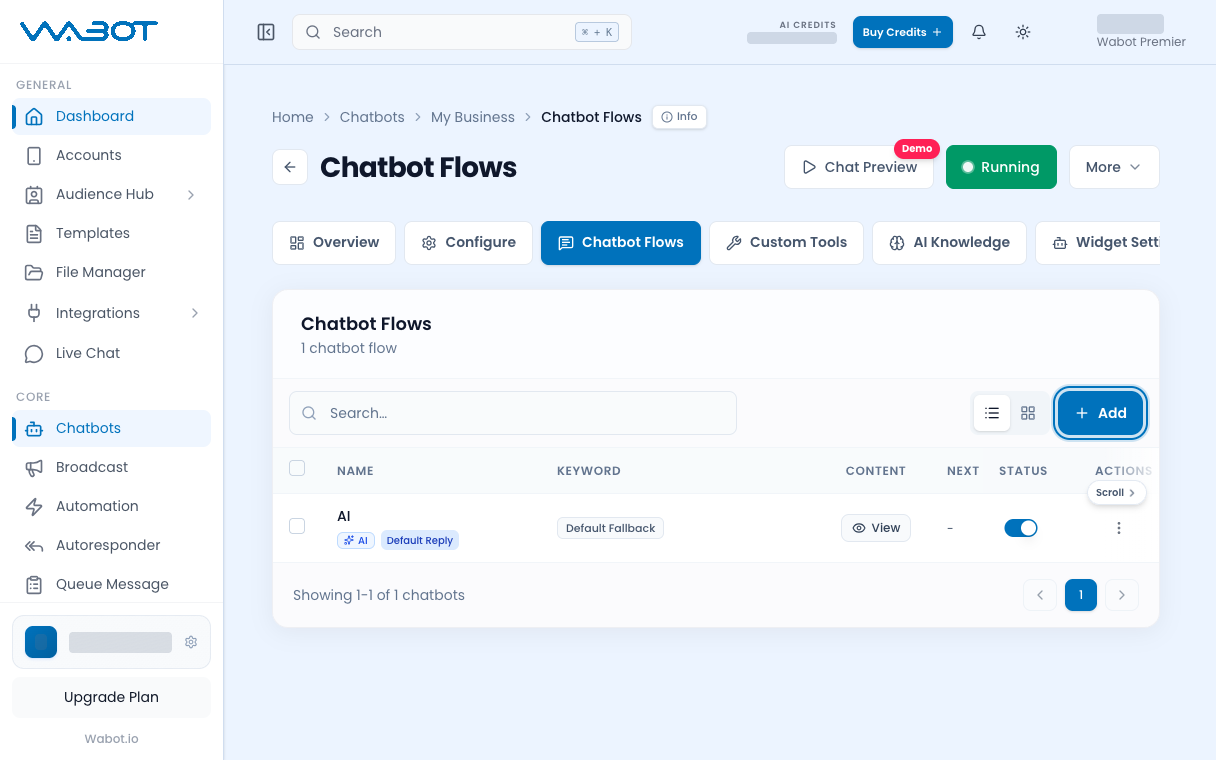
Click **New Chatbot**.

<figure class="doc-shot">
  <img class="doc-shot__light" src="/images/features/chatbots/cb-add-light.png" alt="Chatbot Flows tab with the Add button highlighted" width="1216" height="760" loading="lazy" decoding="async" />
  <img class="doc-shot__dark" src="/images/features/chatbots/cb-add-dark.png" alt="Chatbot Flows tab with the Add button highlighted" width="1216" height="760" loading="lazy" decoding="async" />
  <figcaption>On <strong>Chatbot Flows</strong>, click <strong>Add</strong>.</figcaption>
</figure>

## 3. Fill Basic Settings

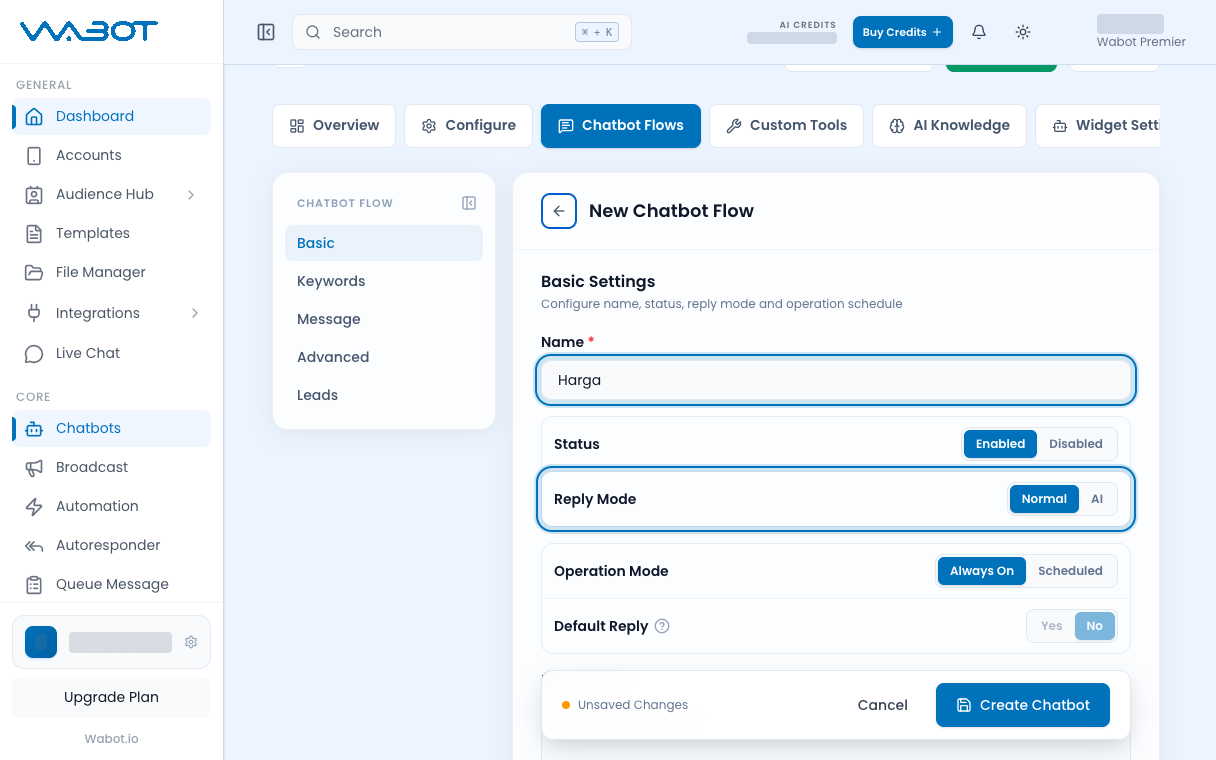
In **Basic Settings**:

1. Enter a **Name**.

**Example:** `Harga`

2. Leave **Status** on **Enable**.
3. Leave **Reply Mode** on **Normal**.
4. Leave **Default Reply** on **No**. It stays locked in Keyword mode.

<figure class="doc-shot">
  <img class="doc-shot__light" src="/images/features/chatbots/cb-kw-basic-light.png" alt="Name Harga and Reply Mode Normal highlighted" width="1216" height="760" loading="lazy" decoding="async" />
  <img class="doc-shot__dark" src="/images/features/chatbots/cb-kw-basic-dark.png" alt="Name Harga and Reply Mode Normal highlighted" width="1216" height="760" loading="lazy" decoding="async" />
  <figcaption>Name it, keep <strong>Reply Mode</strong> on <strong>Normal</strong>.</figcaption>
</figure>

## 4. Add the keyword

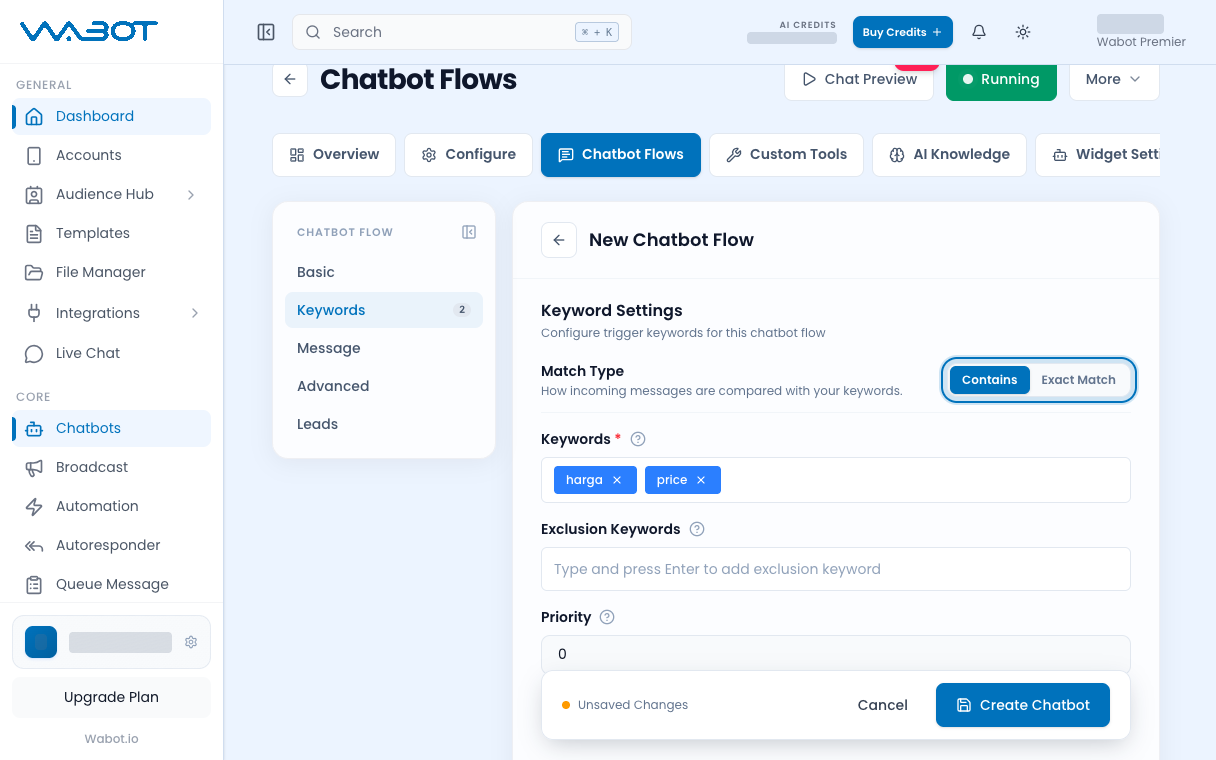
Open **Keyword Settings**.

1. Set **Match Type** to **Contains**.
2. In **Keywords**, add `harga`.

<figure class="doc-shot">
  <img class="doc-shot__light" src="/images/features/chatbots/cb-kw-keywords-light.png" alt="Keyword Settings with Match Type and keywords harga and price" width="1216" height="760" loading="lazy" decoding="async" />
  <img class="doc-shot__dark" src="/images/features/chatbots/cb-kw-keywords-dark.png" alt="Keyword Settings with Match Type and keywords harga and price" width="1216" height="760" loading="lazy" decoding="async" />
  <figcaption>Add your keywords and press Enter after each.</figcaption>
</figure>

## 5. Write the reply

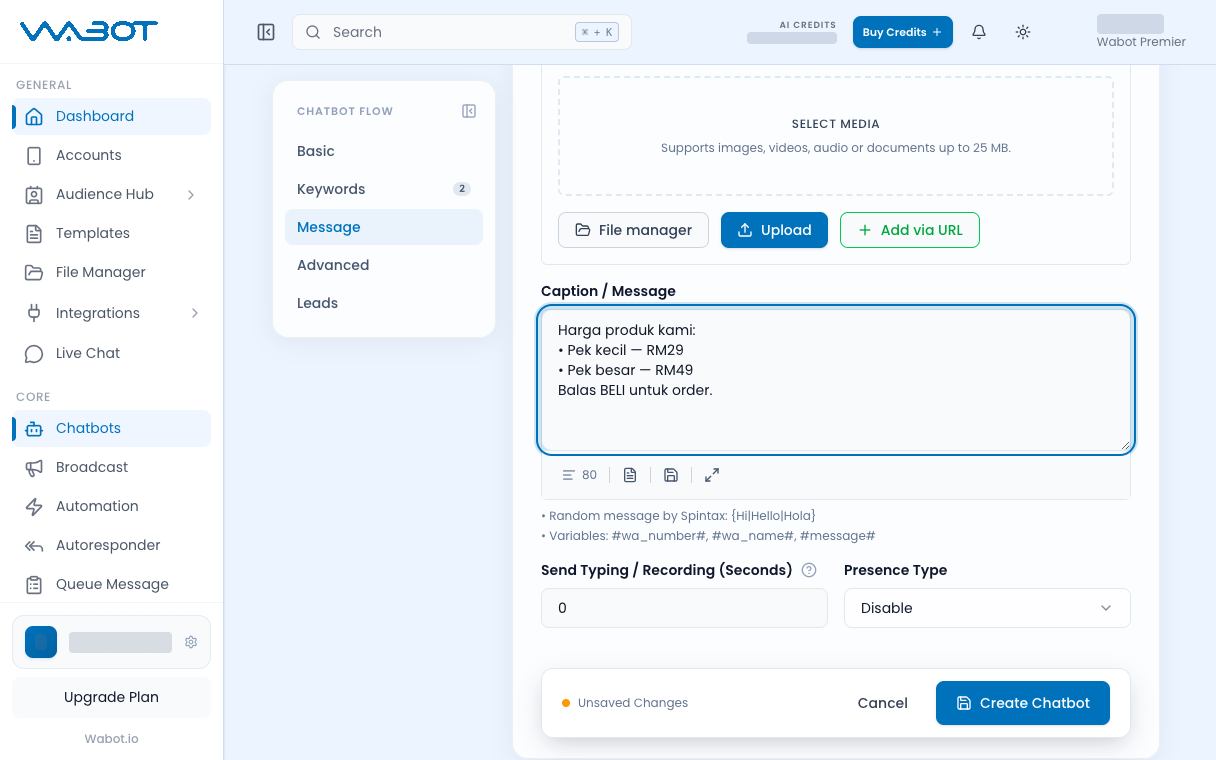
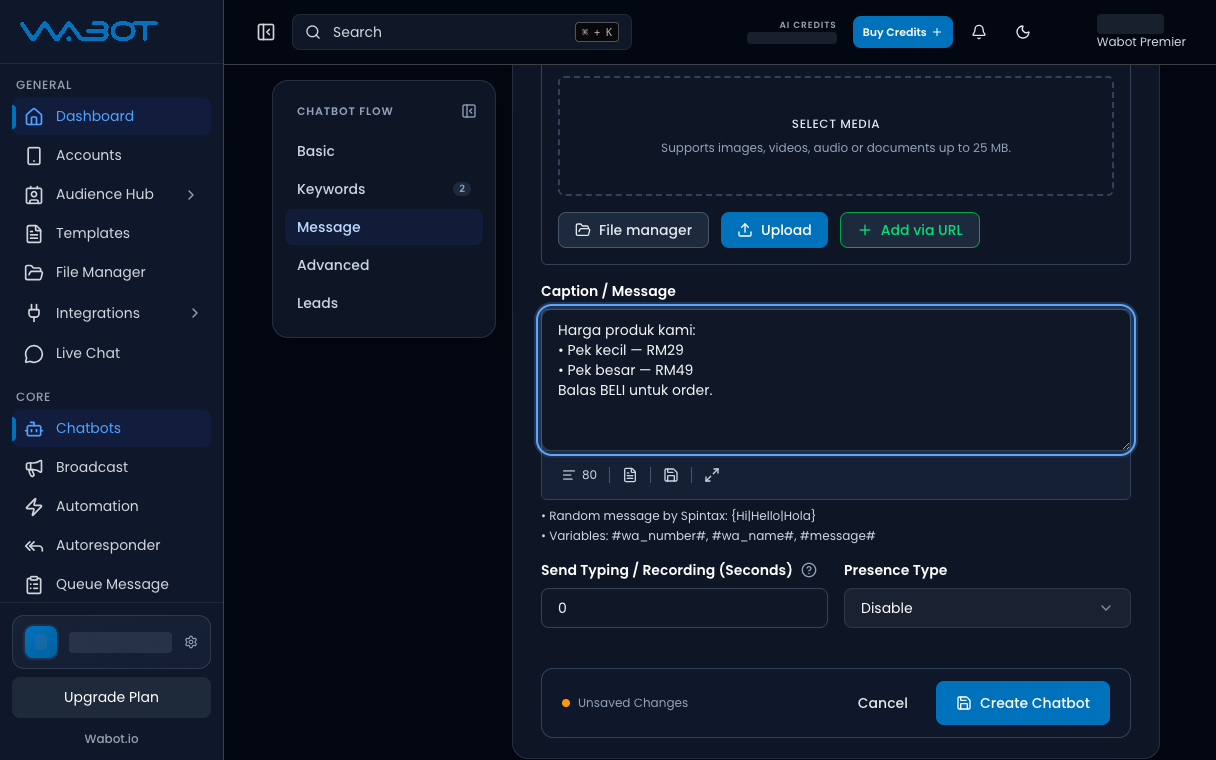
In the message area, choose a text reply.

Write the message customers should get.

> Harga semasa: RM25. WhatsApp kami untuk tempahan.

<figure class="doc-shot">
  <img class="doc-shot__light" src="/images/features/chatbots/cb-kw-reply-light.png" alt="Caption / Message with a sample price reply" width="1216" height="760" loading="lazy" decoding="async" />
  <img class="doc-shot__dark" src="/images/features/chatbots/cb-kw-reply-dark.png" alt="Caption / Message with a sample price reply" width="1216" height="760" loading="lazy" decoding="async" />
  <figcaption>Write the reply. Sample text shown.</figcaption>
</figure>

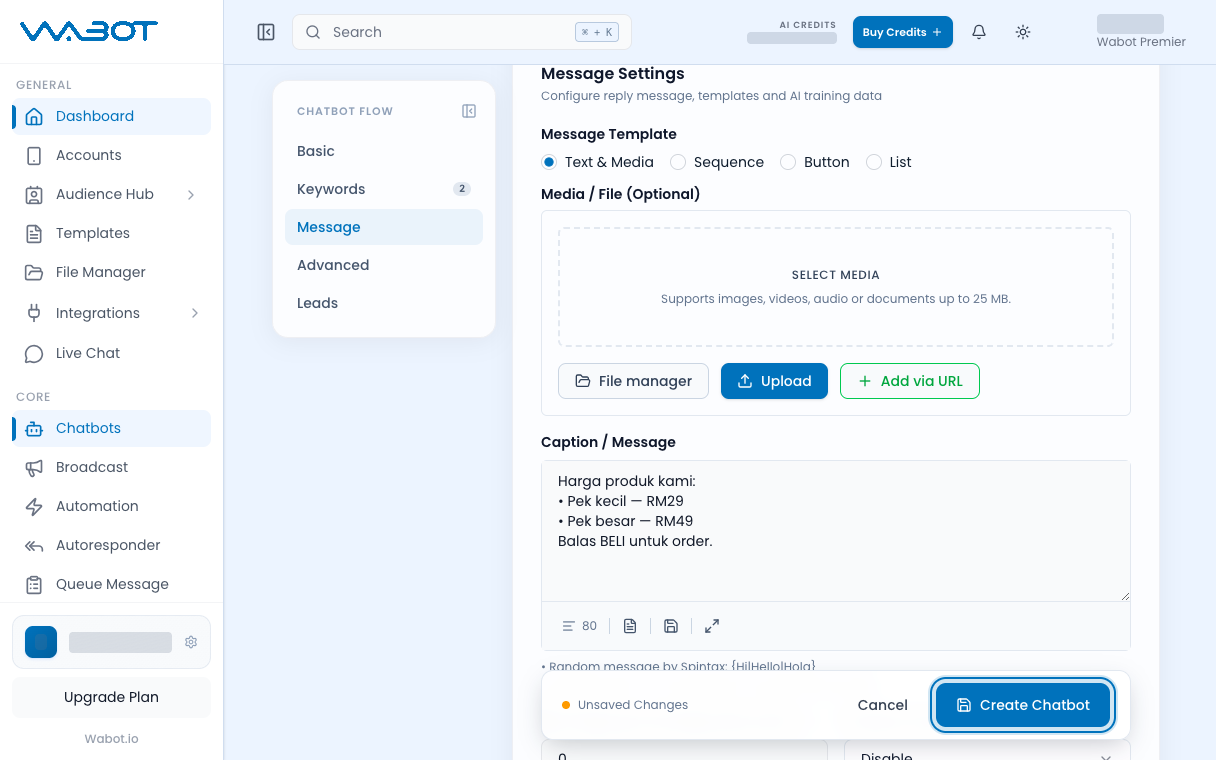
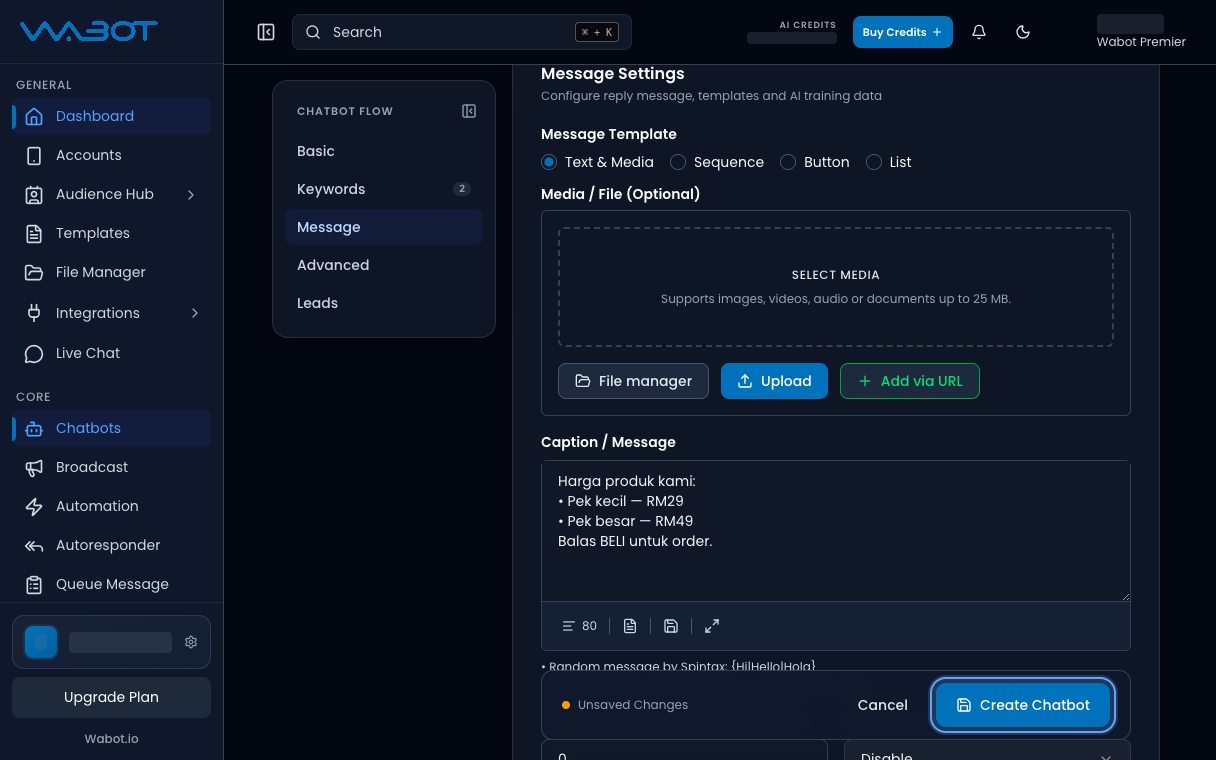
## 6. Save the item

Click **Create Chatbot**.

<figure class="doc-shot">
  <img class="doc-shot__light" src="/images/features/chatbots/cb-kw-create-light.png" alt="New Chatbot Flow form with the Create Chatbot button highlighted" width="1216" height="760" loading="lazy" decoding="async" />
  <img class="doc-shot__dark" src="/images/features/chatbots/cb-kw-create-dark.png" alt="New Chatbot Flow form with the Create Chatbot button highlighted" width="1216" height="760" loading="lazy" decoding="async" />
  <figcaption>Click <strong>Create Chatbot</strong> to save.</figcaption>
</figure>

## Make sure it worked

The new item appears in **Chatbots & Tools**.

From your phone, send `harga` to the connected WhatsApp number. You should get the fixed reply.

## If it didn’t work

### Nothing replies

Check **Status** is **Enable**. Check the instance is still **Keyword**. Send the word `harga` with no extra spelling.

### The form asks for Keywords

You left **Keywords** empty. Add at least one word, then click **Create Chatbot** again.

### I turned on AI by mistake

Open the item. Set **Reply Mode** back to **Normal**. Click **Save Chatbot**.

## Next

Add an opt-out word in [Add a STOP chatbot item](/features/chatbots/stop-item).