---
title: Train AI Knowledge
description: >-
  Turn on AI Knowledge and upload one document so the bot can answer from your
  shop facts.
sidebar:
  order: 7
---
In this tutorial, you will turn on **AI Knowledge** and upload one file about your shop.

**Time needed:** 10 minutes

## Before you start

Make sure:

- This instance is on **AI**.
- You have one short PDF or document. A price list or FAQ is enough.

> Start with one file. Add more only after the first file shows **Ready**.

## 1. Turn on AI Knowledge

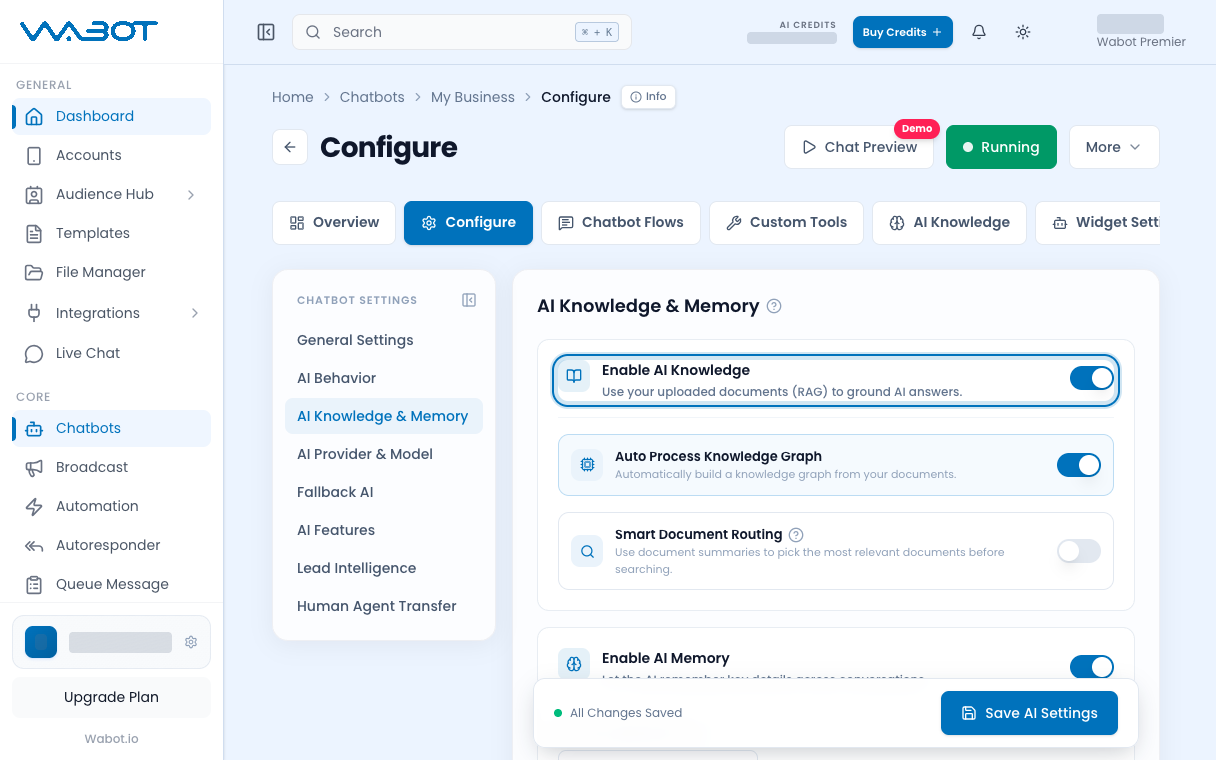
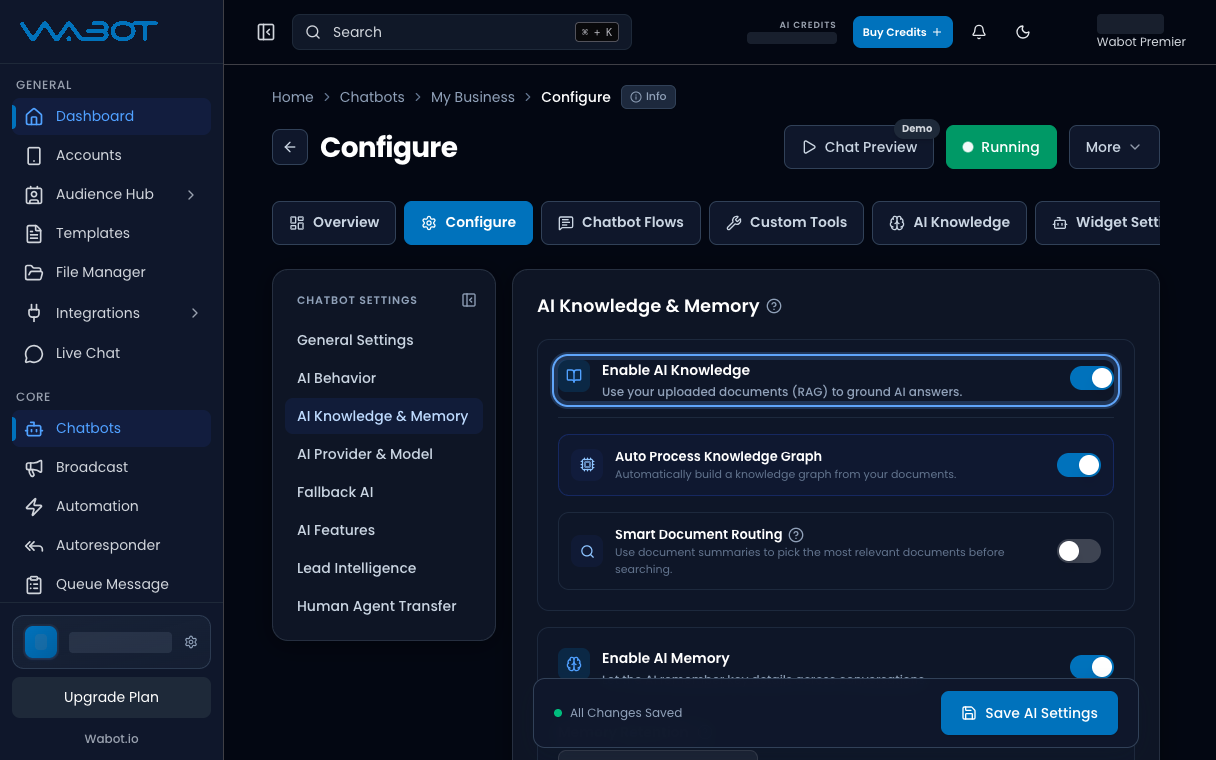
On the instance page, find **AI Knowledge**.

Turn the switch on.

<figure class="doc-shot">
  <img class="doc-shot__light" src="/images/features/chatbots/cb-know-switch-light.png" alt="Enable AI Knowledge switch turned on" width="1216" height="760" loading="lazy" decoding="async" />
  <img class="doc-shot__dark" src="/images/features/chatbots/cb-know-switch-dark.png" alt="Enable AI Knowledge switch turned on" width="1216" height="760" loading="lazy" decoding="async" />
  <figcaption>In <strong>Configure → AI Knowledge &amp; Memory</strong>, turn on <strong>Enable AI Knowledge</strong>.</figcaption>
</figure>

## 2. Open Add Knowledge

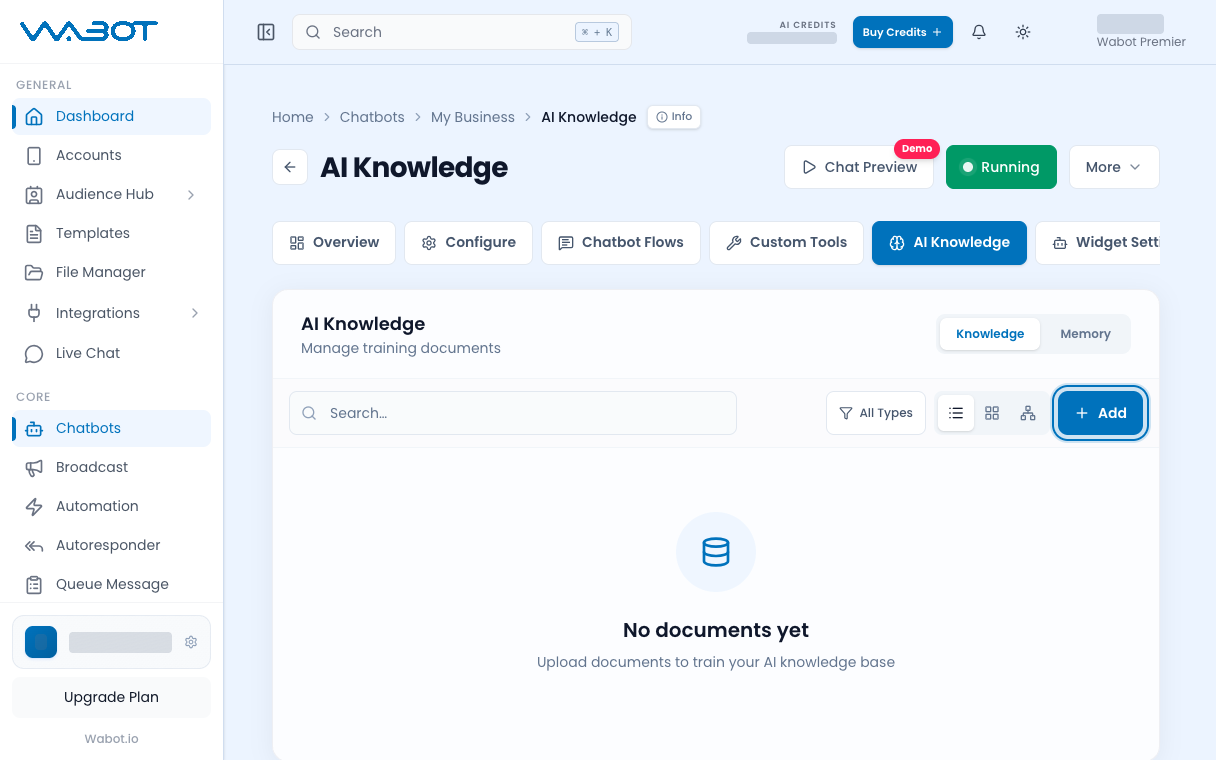
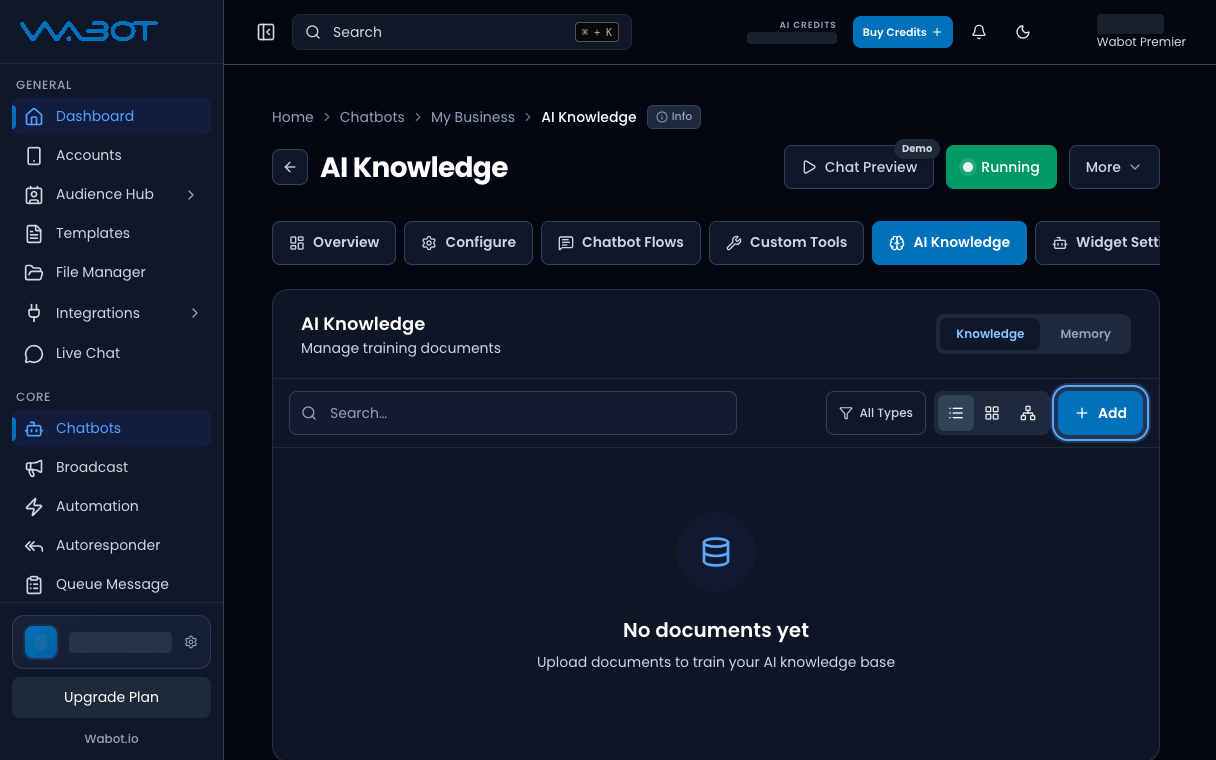
In the **AI Knowledge** section, click **Add Knowledge**.

<figure class="doc-shot">
  <img class="doc-shot__light" src="/images/features/chatbots/cb-know-add-light.png" alt="AI Knowledge tab with the Add button highlighted" width="1216" height="760" loading="lazy" decoding="async" />
  <img class="doc-shot__dark" src="/images/features/chatbots/cb-know-add-dark.png" alt="AI Knowledge tab with the Add button highlighted" width="1216" height="760" loading="lazy" decoding="async" />
  <figcaption>On <strong>AI Knowledge</strong>, click <strong>Add</strong>.</figcaption>
</figure>

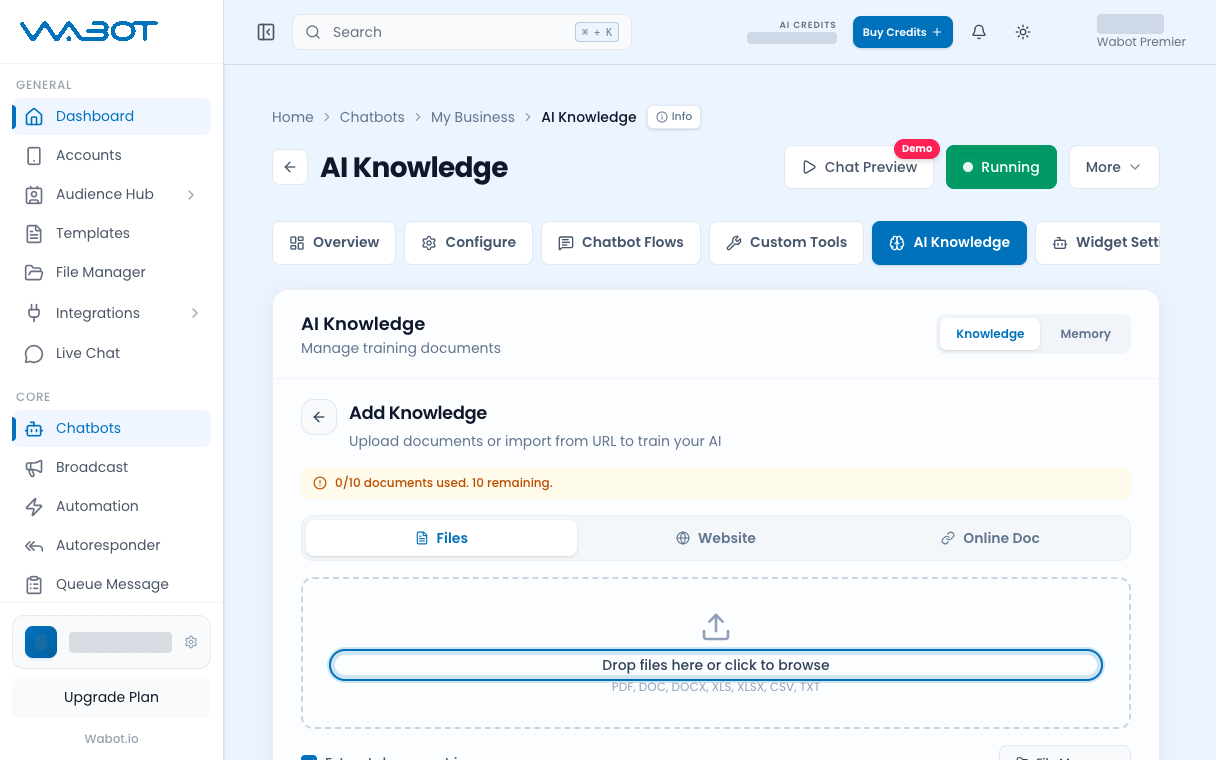
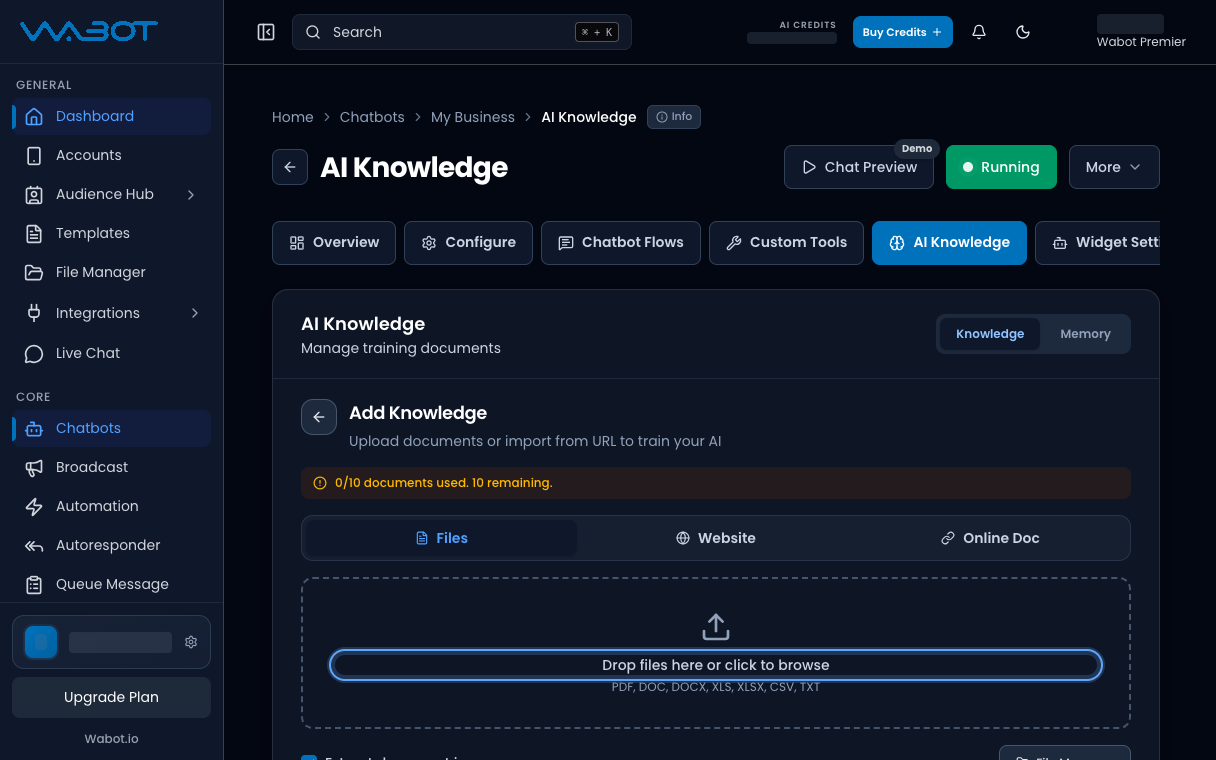
## 3. Upload one file

In the **Add Knowledge** dialog, add your file.

Click **Upload 1 File(s)**.

Wait until the upload finishes.

<figure class="doc-shot">
  <img class="doc-shot__light" src="/images/features/chatbots/cb-know-upload-light.png" alt="Add Knowledge Files upload area highlighted" width="1216" height="760" loading="lazy" decoding="async" />
  <img class="doc-shot__dark" src="/images/features/chatbots/cb-know-upload-dark.png" alt="Add Knowledge Files upload area highlighted" width="1216" height="760" loading="lazy" decoding="async" />
  <figcaption>Drop a file in, or click to browse.</figcaption>
</figure>

## 4. Wait for Ready

Close the dialog.

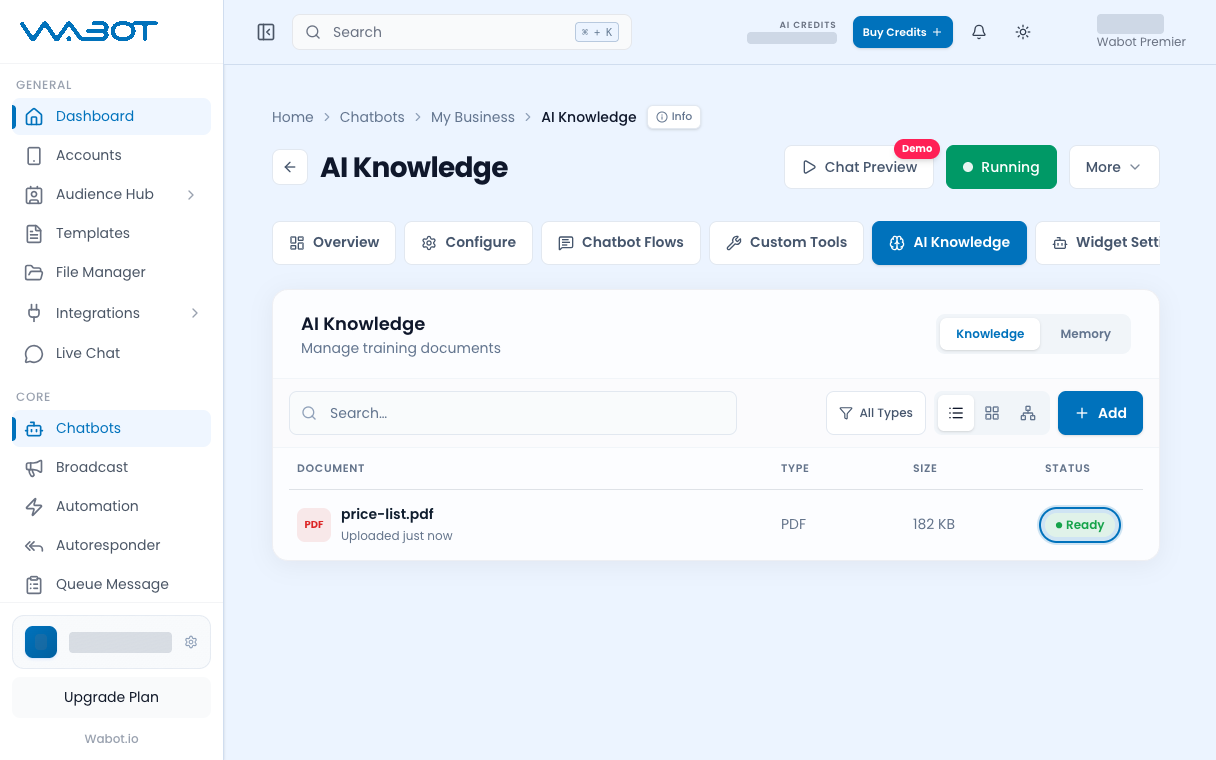
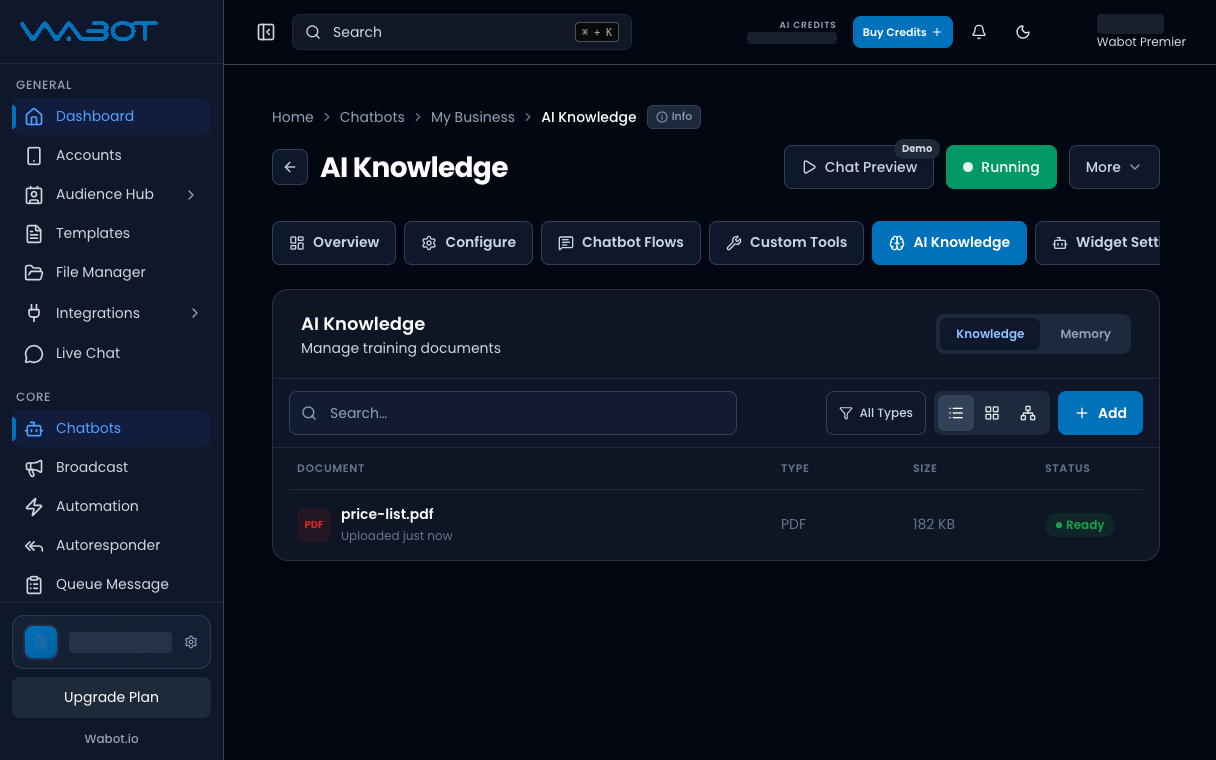
Watch the file in the **AI Knowledge** list.

Wait until the status shows **Ready**.

<figure class="doc-shot">
  <img class="doc-shot__light" src="/images/features/chatbots/cb-know-ready-light.png" alt="Knowledge list with price-list.pdf marked Ready" width="1216" height="760" loading="lazy" decoding="async" />
  <img class="doc-shot__dark" src="/images/features/chatbots/cb-know-ready-dark.png" alt="Knowledge list with price-list.pdf marked Ready" width="1216" height="760" loading="lazy" decoding="async" />
  <figcaption>Wait until the file shows <strong>Ready</strong>. Example file shown.</figcaption>
</figure>

## Make sure it worked

**AI Knowledge** is on.

Your file is in the list with **Ready**.

## If it didn’t work

### I cannot see AI Knowledge

The instance is still **Keyword**. Finish [Turn on AI mode](/features/chatbots/ai-mode) first.

### The file stays processing

Wait a few minutes and refresh the page. If it still fails, upload a smaller PDF.

### Upload is blocked

Your plan may not include **AI Knowledge**, or the file is too large. Use a shorter document.

## Next

Test a real question in [Test in AI Playground](/features/chatbots/playground).