---
title: Test in AI Playground
description: 'Ask a real customer question in AI Playground, check the answer, then Publish.'
sidebar:
  order: 8
---
In this tutorial, you will test the bot in **AI Playground** and click **Publish**.

**Time needed:** 10 minutes

## Before you start

Make sure:

- This instance is on **AI**.
- Your knowledge file shows **Ready**. If not, finish [Train AI Knowledge](/features/chatbots/knowledge) first.

> Test here before you ask real customers to chat.

## 1. Open AI Playground

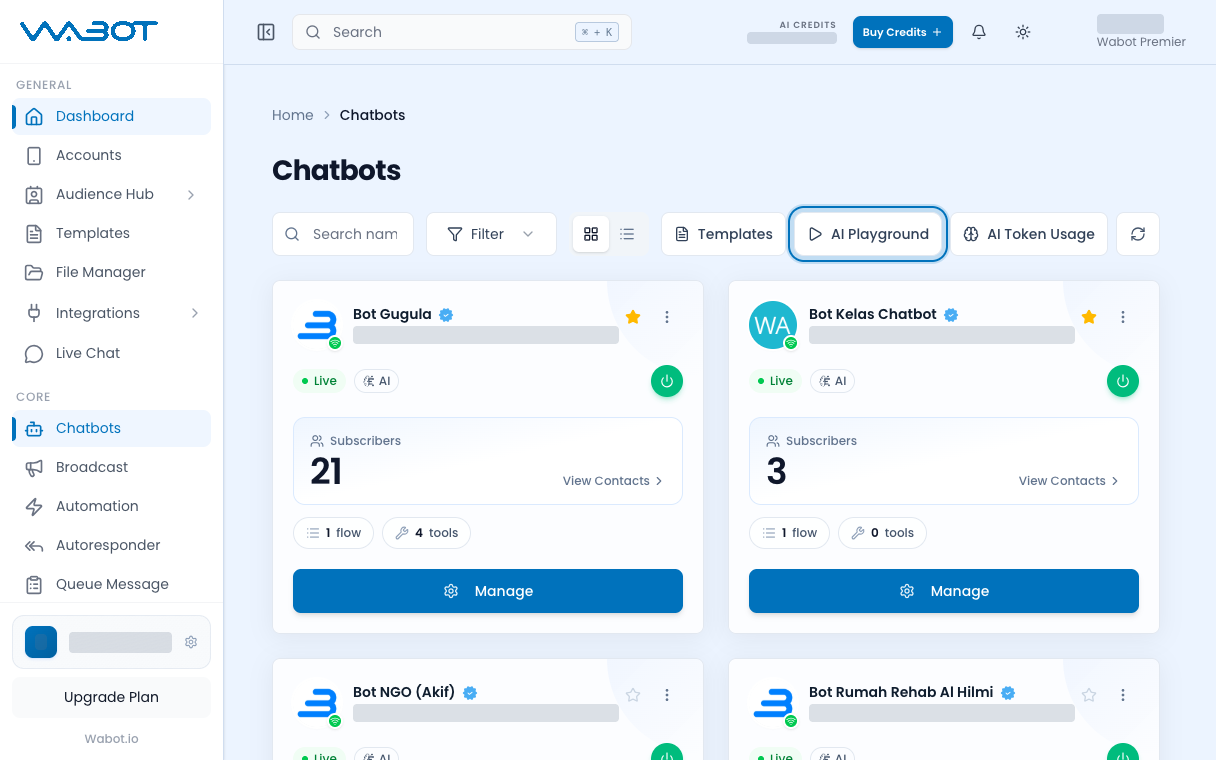
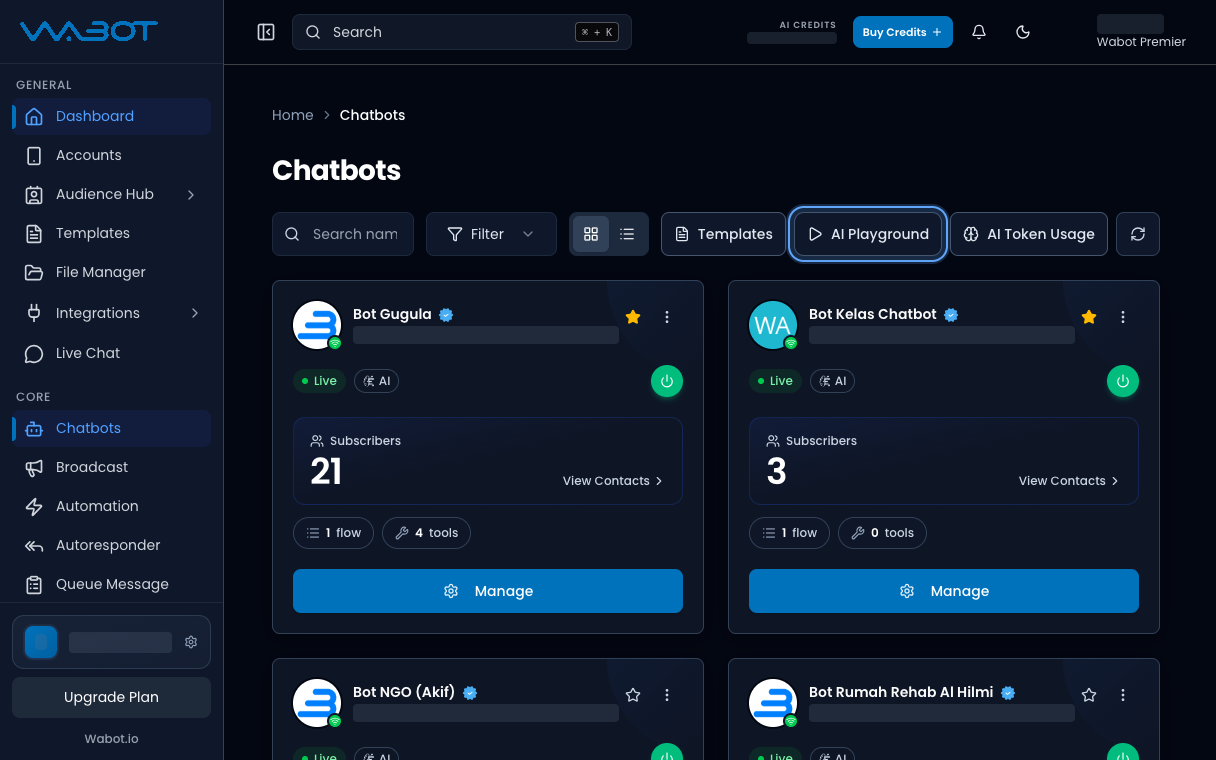
On the instance page, click **AI Playground**.

<figure class="doc-shot">
  <img class="doc-shot__light" src="/images/features/chatbots/cb-pg-open-light.png" alt="Chatbots page with AI Playground highlighted" width="1216" height="760" loading="lazy" decoding="async" />
  <img class="doc-shot__dark" src="/images/features/chatbots/cb-pg-open-dark.png" alt="Chatbots page with AI Playground highlighted" width="1216" height="760" loading="lazy" decoding="async" />
  <figcaption>Click <strong>AI Playground</strong> on <strong>Chatbots</strong>.</figcaption>
</figure>

## 2. Ask one real question

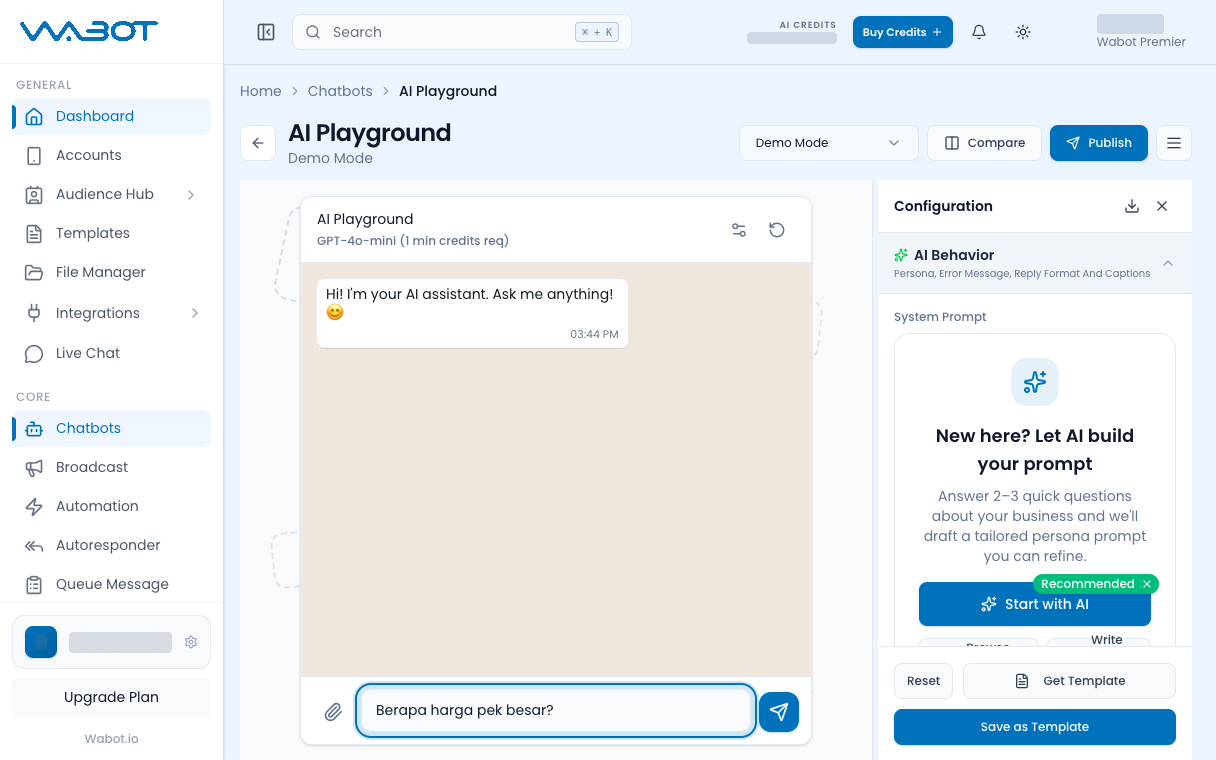
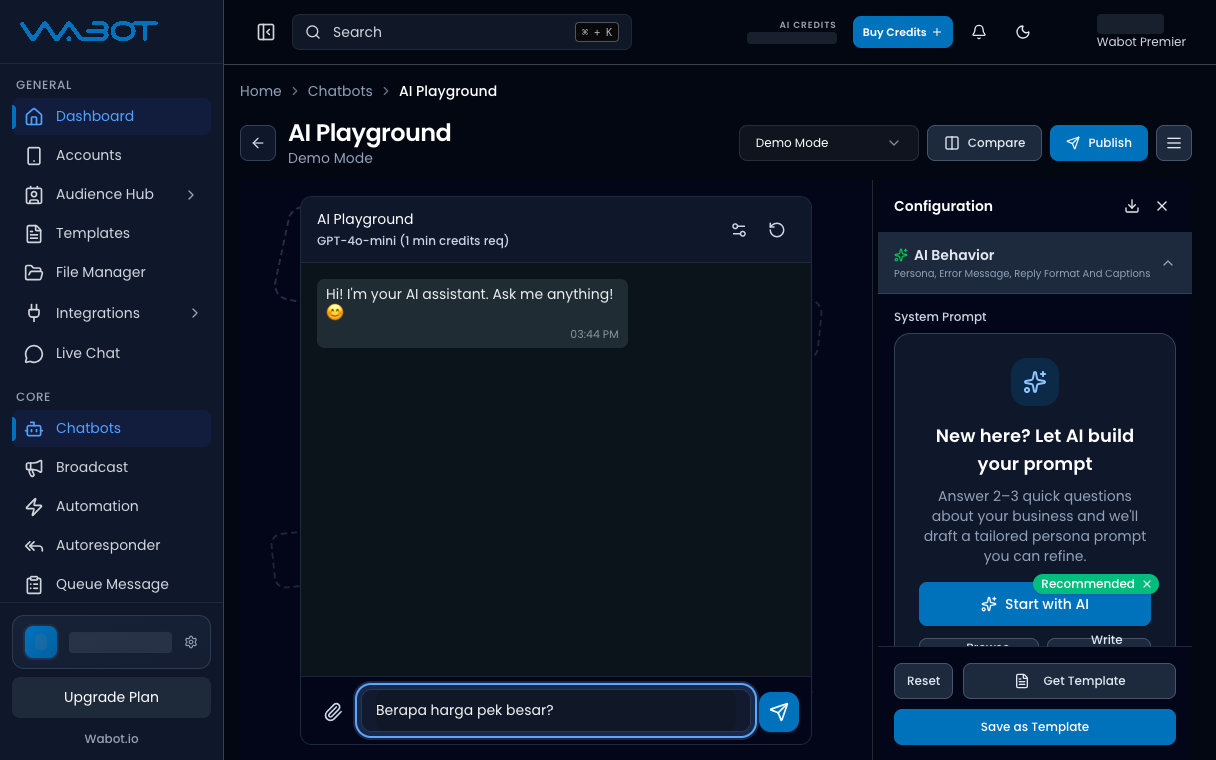
Type a question a customer would send.

> Ada stok baju raya saiz L?

Send the message.

<figure class="doc-shot">
  <img class="doc-shot__light" src="/images/features/chatbots/cb-pg-ask-light.png" alt="AI Playground with a test question typed" width="1216" height="760" loading="lazy" decoding="async" />
  <img class="doc-shot__dark" src="/images/features/chatbots/cb-pg-ask-dark.png" alt="AI Playground with a test question typed" width="1216" height="760" loading="lazy" decoding="async" />
  <figcaption>Type a real customer question.</figcaption>
</figure>

## 3. Check the answer

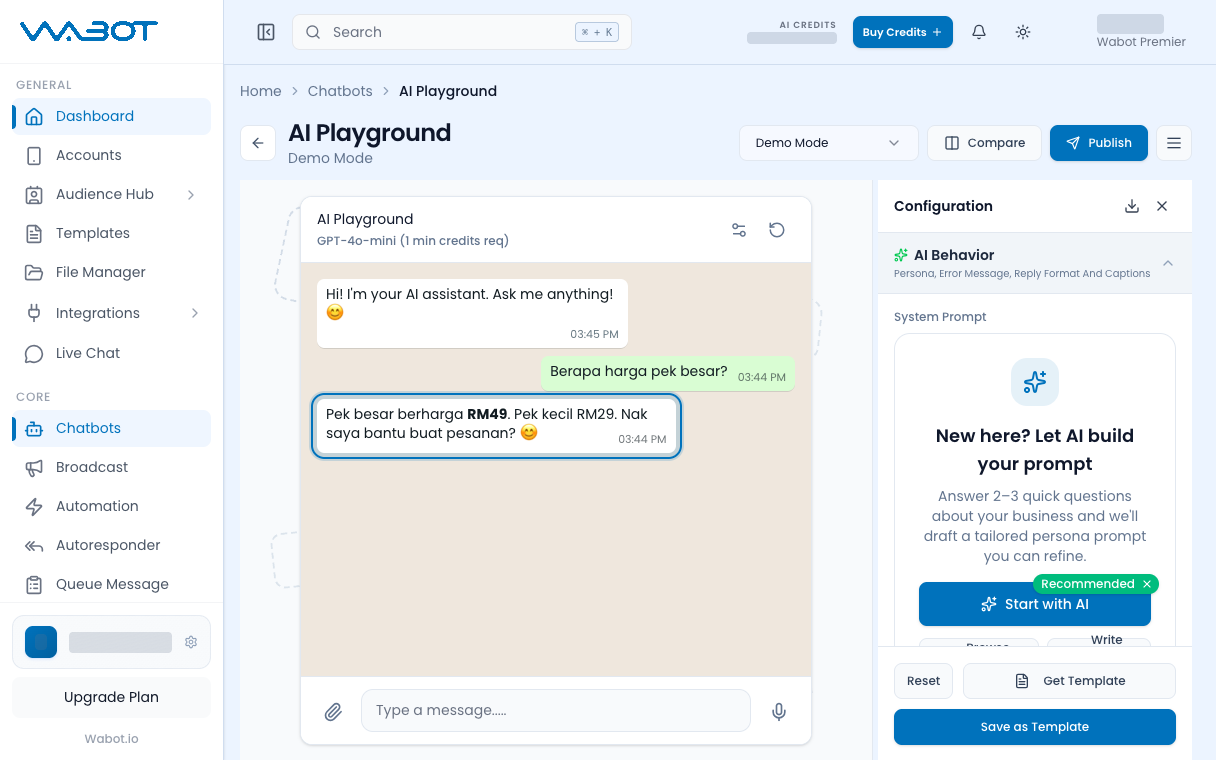
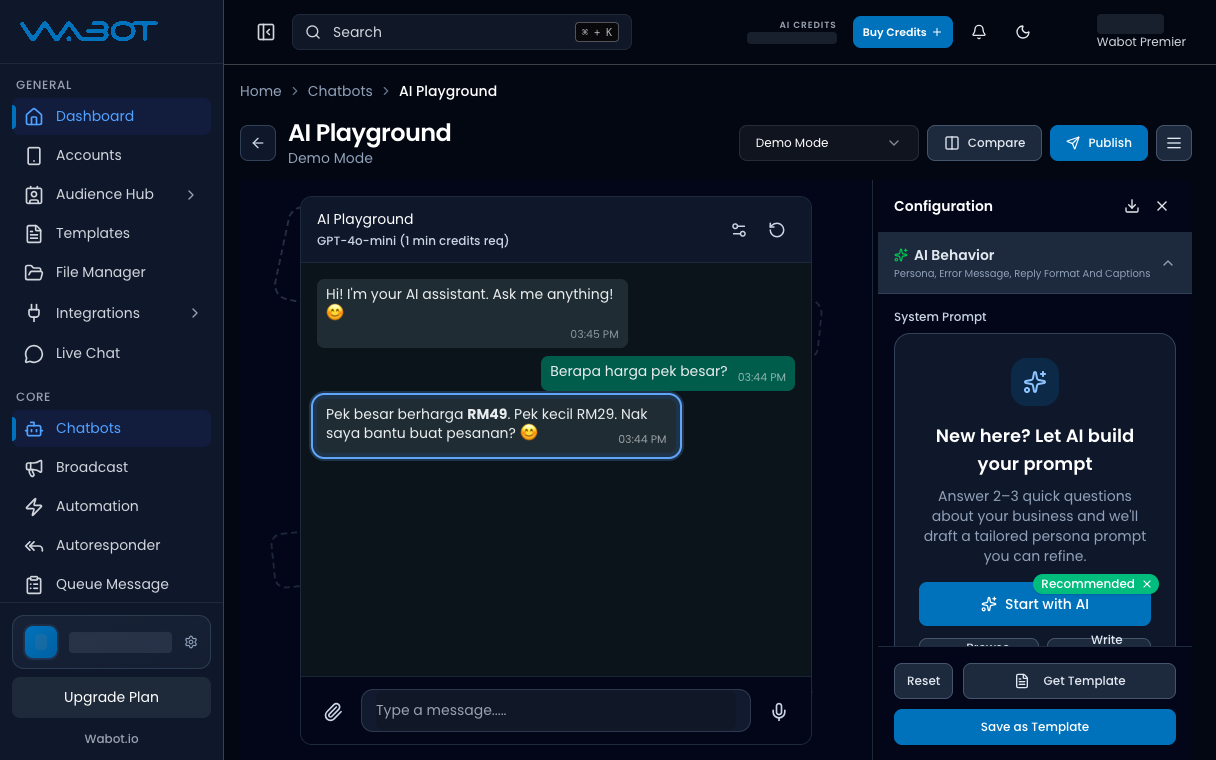
Read the bot reply.

It should match your persona and the file you uploaded.

If the answer is wrong, go back to **Configure Setting** or **AI Knowledge**, fix it, then test again.

<figure class="doc-shot">
  <img class="doc-shot__light" src="/images/features/chatbots/cb-pg-answer-light.png" alt="AI Playground showing a sample answer" width="1216" height="760" loading="lazy" decoding="async" />
  <img class="doc-shot__dark" src="/images/features/chatbots/cb-pg-answer-dark.png" alt="AI Playground showing a sample answer" width="1216" height="760" loading="lazy" decoding="async" />
  <figcaption>Check the answer. Example answer shown.</figcaption>
</figure>

## 4. Publish

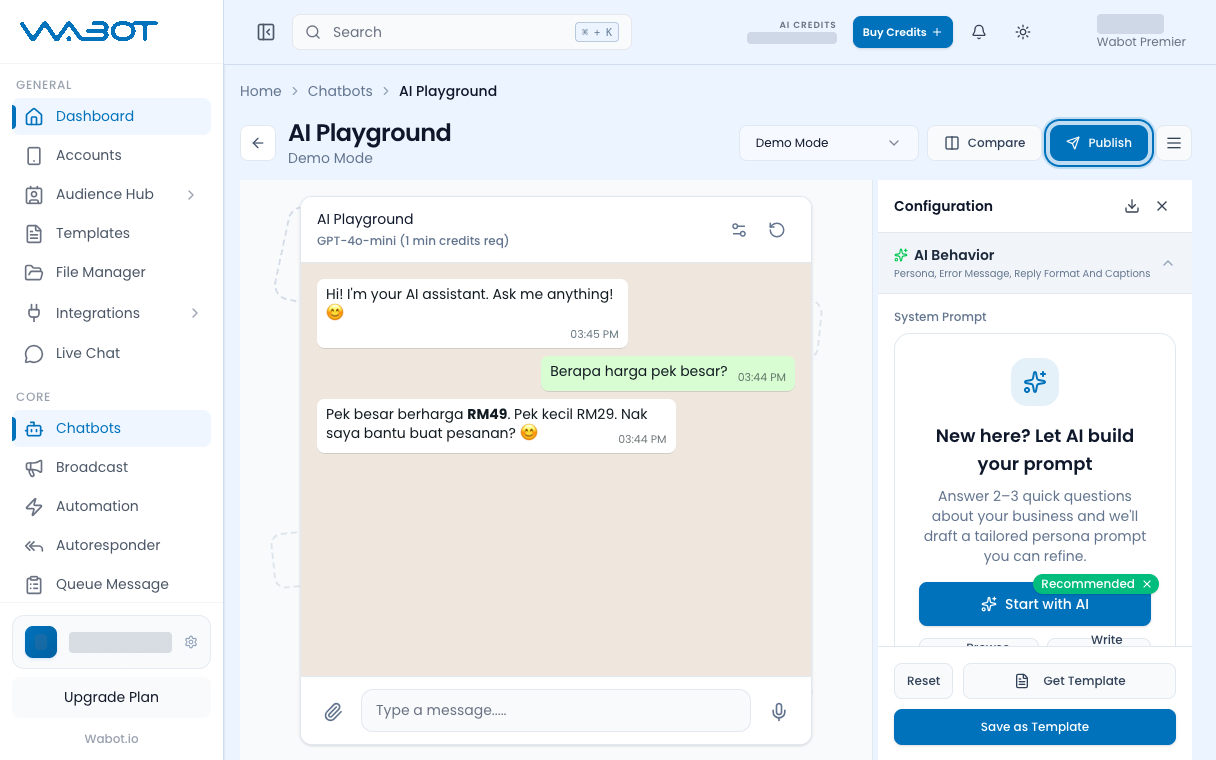
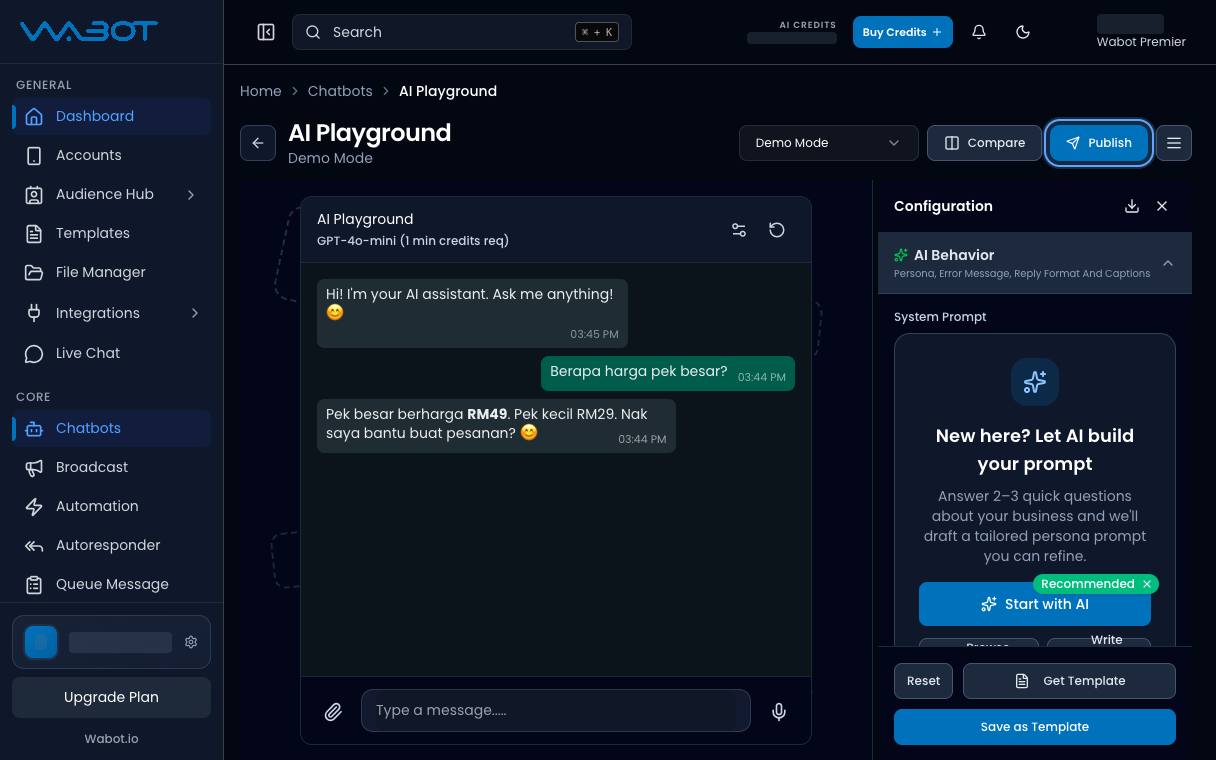
When the answer looks right, click **Publish**.

Confirm the dialog.

<figure class="doc-shot">
  <img class="doc-shot__light" src="/images/features/chatbots/cb-pg-publish-light.png" alt="Publish button highlighted in AI Playground" width="1216" height="760" loading="lazy" decoding="async" />
  <img class="doc-shot__dark" src="/images/features/chatbots/cb-pg-publish-dark.png" alt="Publish button highlighted in AI Playground" width="1216" height="760" loading="lazy" decoding="async" />
  <figcaption>When happy, click <strong>Publish</strong>.</figcaption>
</figure>

## Make sure it worked

**AI Playground** showed an answer you accept.

You clicked **Publish**.

A message from your own phone now gets a similar answer.

## If it didn’t work

### I cannot see AI Playground

Your login may not include playground access, or the instance is still **Keyword**.

### The answer ignores my file

The file is not **Ready**, or **AI Knowledge** is off. Wait for **Ready**, then test again.

### Publish did nothing

Confirm the dialog after **Publish**. Then send one more WhatsApp test from your phone.

## Next

When a customer needs a human, reply from [Reply to a conversation](/features/live-chat/reply).