---
title: Filter the inbox
description: >-
  Open Filters, pick one status such as Expired or Bot Inactive, then Reset when
  you are done.
sidebar:
  order: 9
---
In this tutorial, you will filter the Live Chat list to one status.

**Time needed:** 5 minutes

## Before you start

Make sure:

- You are in **Live Chat**.
- You have more than one conversation, so the filter change is easy to see.

> **Unread**, **All**, and **Archived** are tabs. **Filters** is the extra panel.

## 1. Open Filters

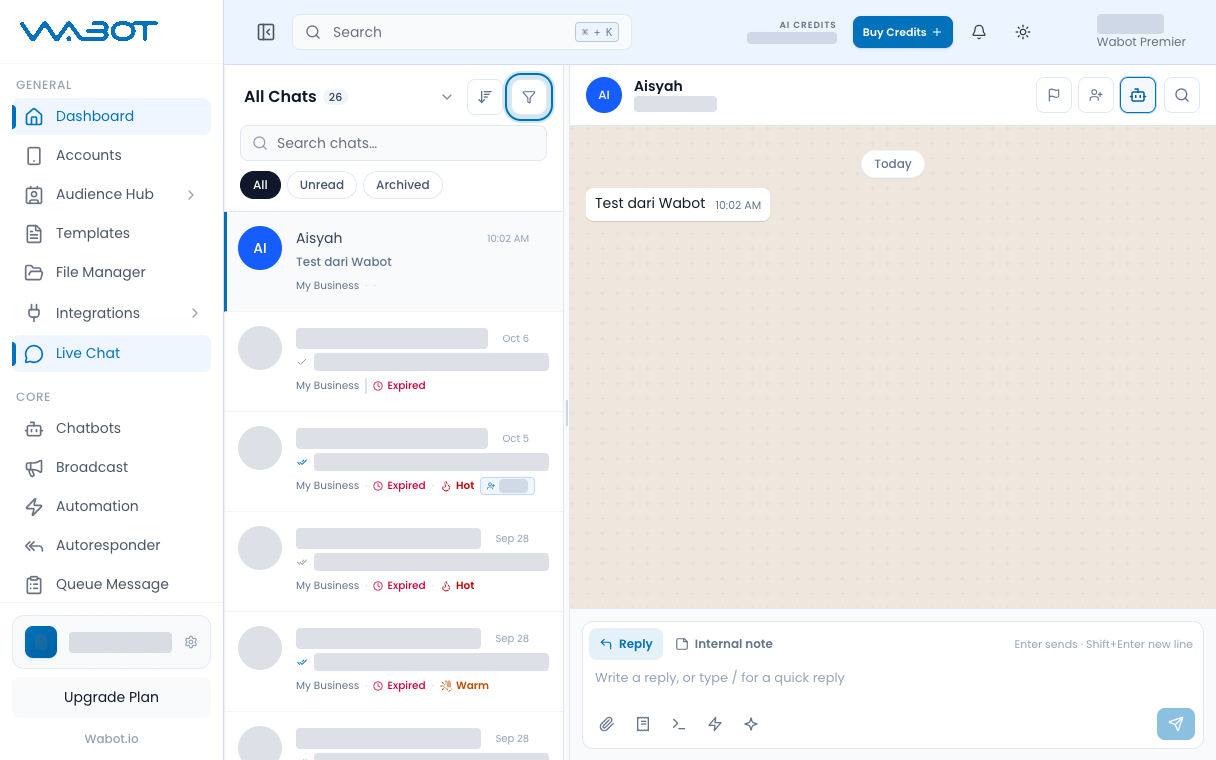
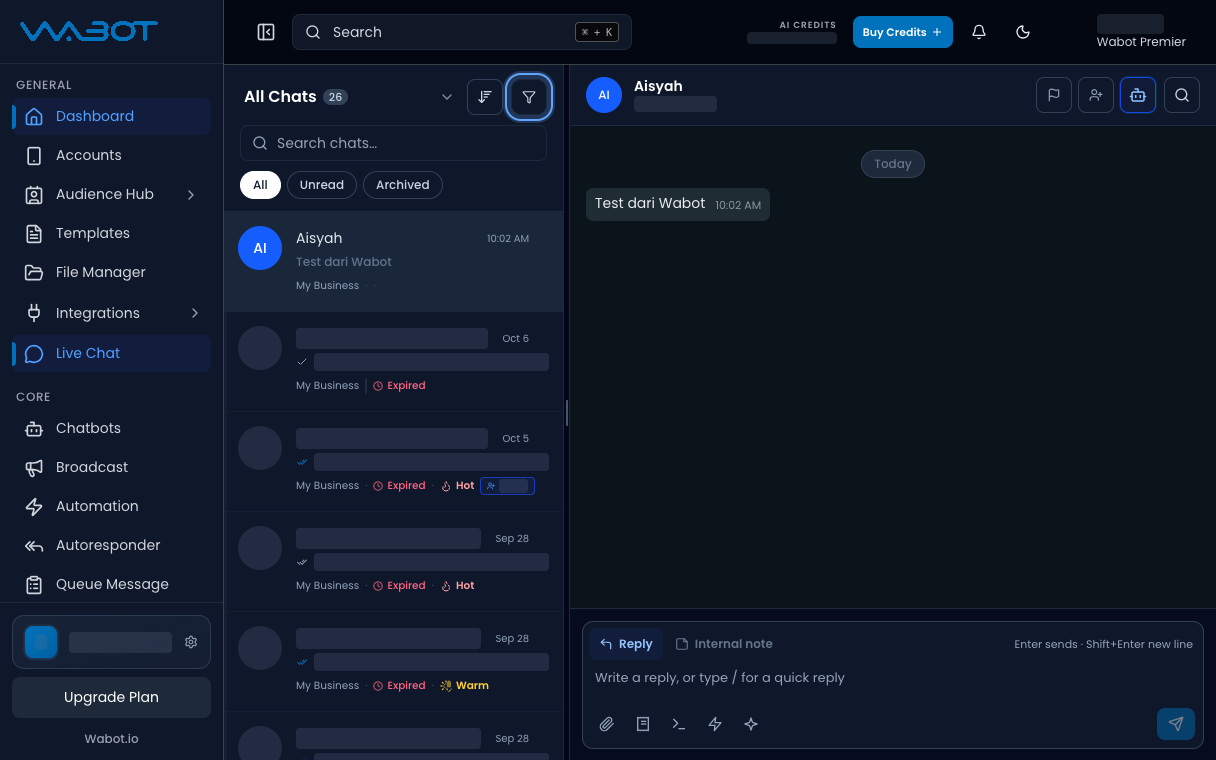
At the top of the conversation list, click **Filters**.

The **Filter chats** panel opens.

<figure class="doc-shot">
  <img class="doc-shot__light" src="/images/features/live-chat/lc-filters-btn-light.png" alt="Filters button highlighted above the chat list" width="1216" height="760" loading="lazy" decoding="async" />
  <img class="doc-shot__dark" src="/images/features/live-chat/lc-filters-btn-dark.png" alt="Filters button highlighted above the chat list" width="1216" height="760" loading="lazy" decoding="async" />
  <figcaption>Click the <strong>Filters</strong> icon.</figcaption>
</figure>

## 2. Pick one status

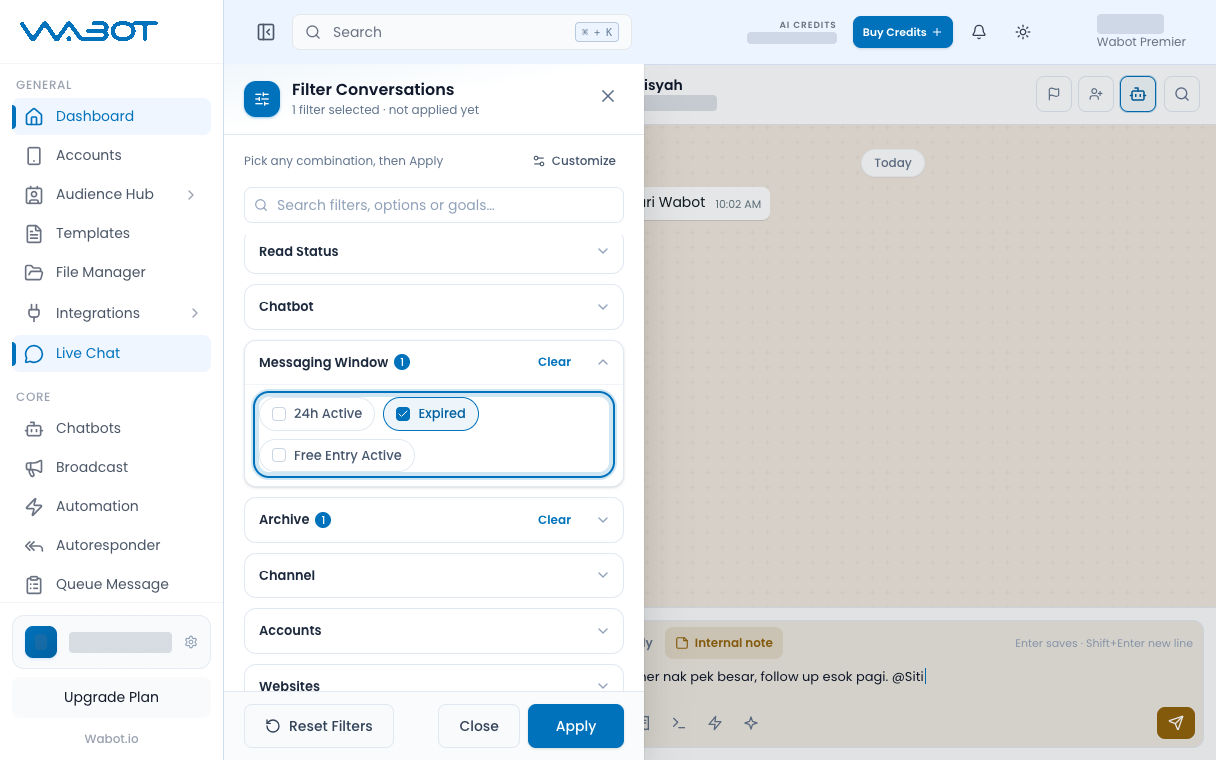
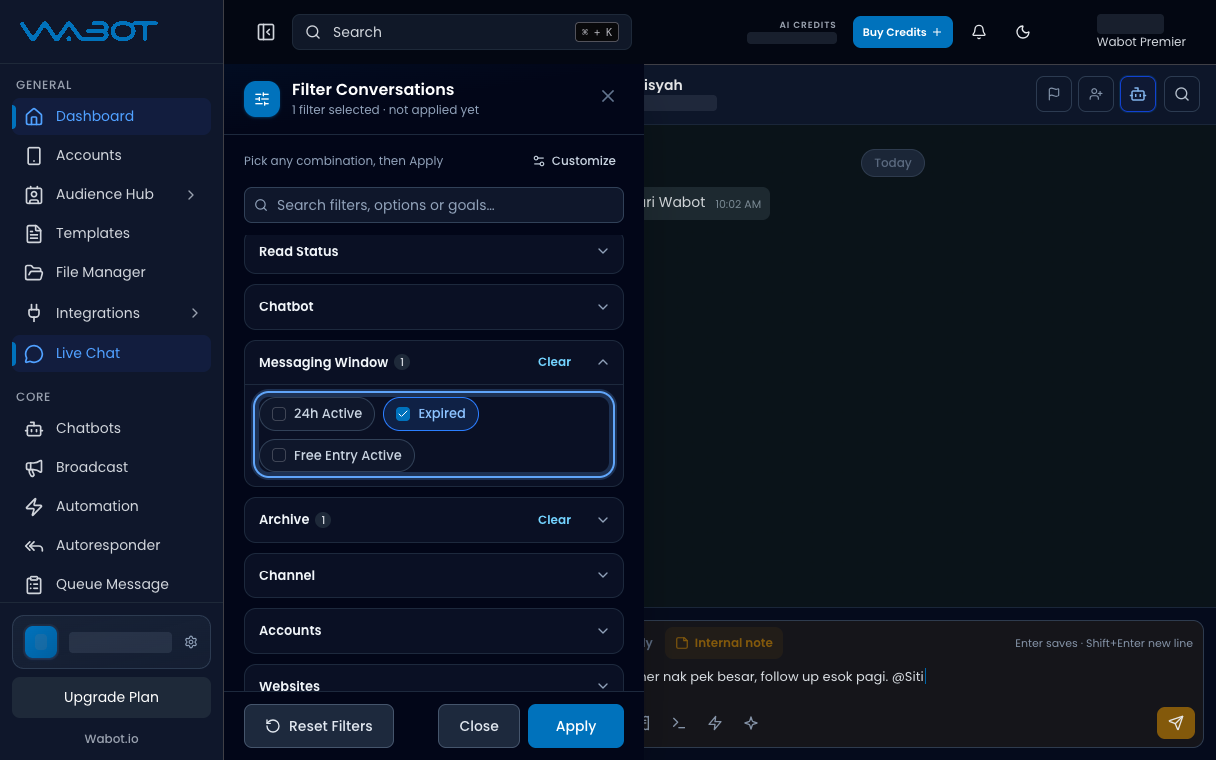
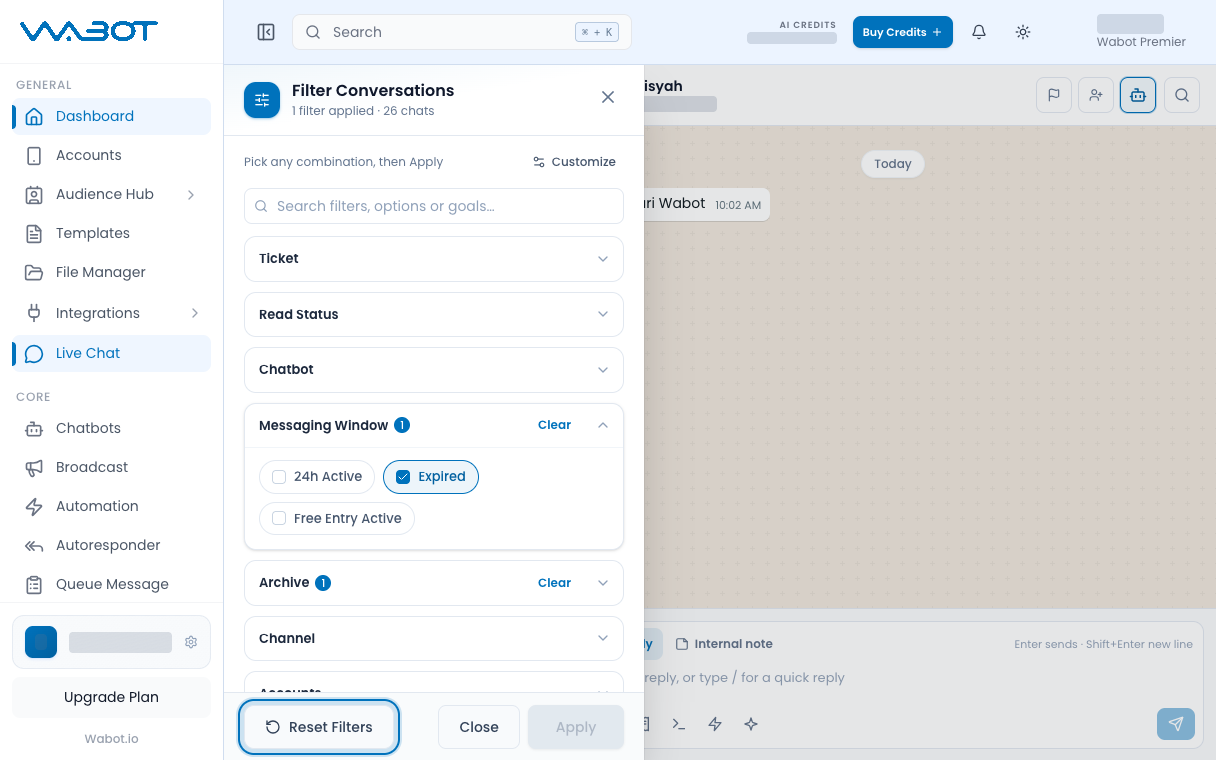
Under **Status**, click **Expired**.

If you use Unofficial API and have no Official chats, click **Bot Inactive** instead.

<figure class="doc-shot">
  <img class="doc-shot__light" src="/images/features/live-chat/lc-filter-expired-light.png" alt="Filter Conversations with Messaging Window Expired ticked" width="1216" height="760" loading="lazy" decoding="async" />
  <img class="doc-shot__dark" src="/images/features/live-chat/lc-filter-expired-dark.png" alt="Filter Conversations with Messaging Window Expired ticked" width="1216" height="760" loading="lazy" decoding="async" />
  <figcaption>Under <strong>Messaging Window</strong>, tick <strong>Expired</strong>, then <strong>Apply</strong>.</figcaption>
</figure>

## 3. Read the list

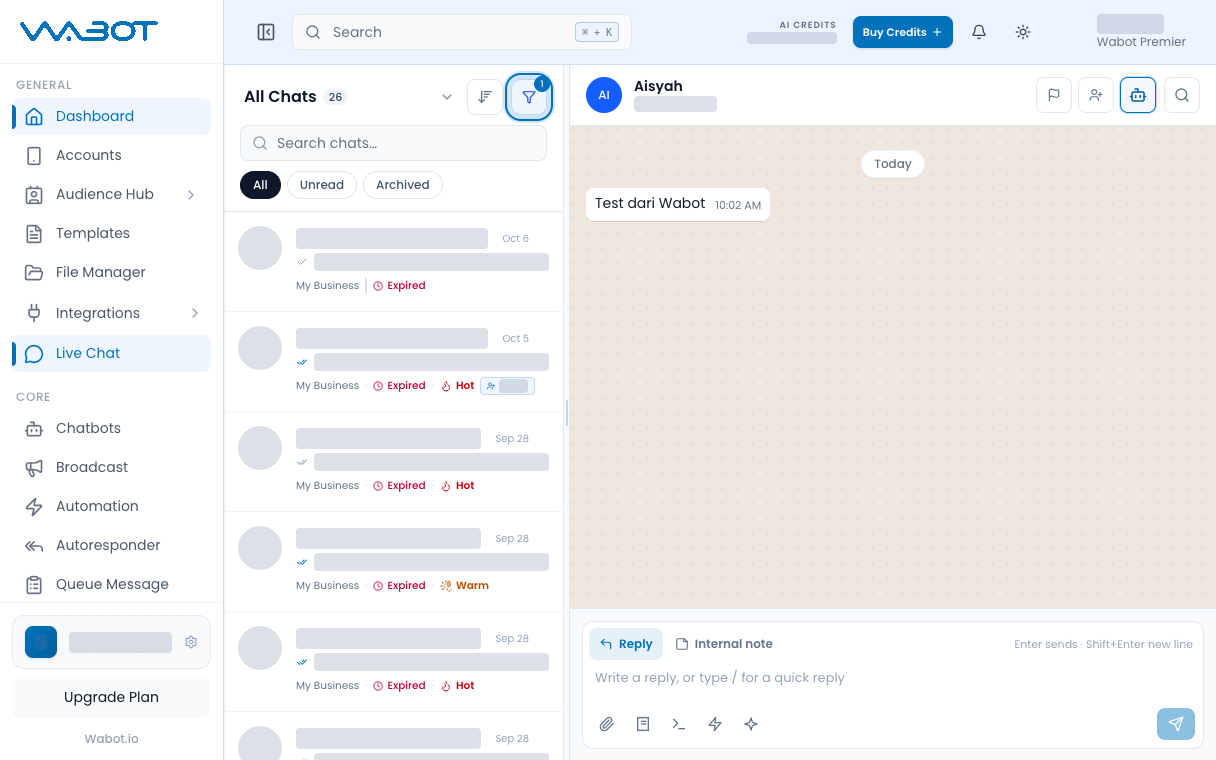
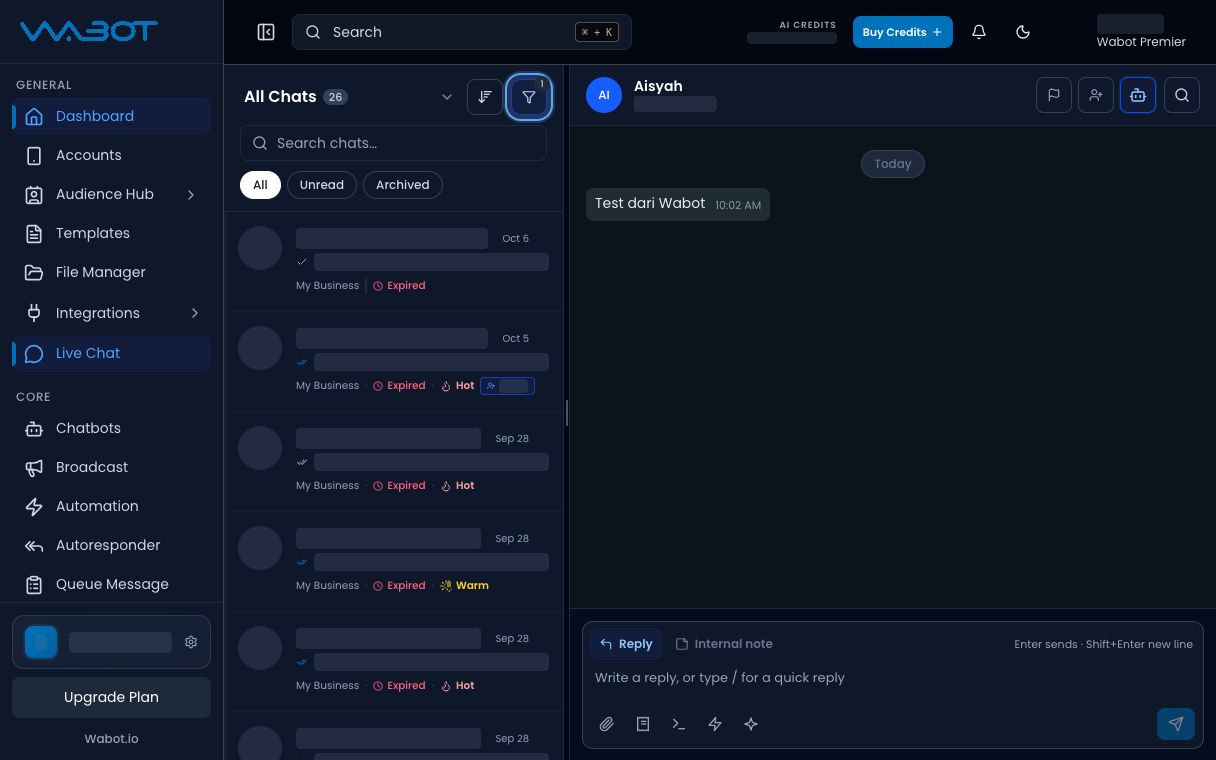
Close or leave the panel.

The list now matches that status.

<figure class="doc-shot">
  <img class="doc-shot__light" src="/images/features/live-chat/lc-filter-list-light.png" alt="Filtered chat list with the Filters badge showing 1" width="1216" height="760" loading="lazy" decoding="async" />
  <img class="doc-shot__dark" src="/images/features/live-chat/lc-filter-list-dark.png" alt="Filtered chat list with the Filters badge showing 1" width="1216" height="760" loading="lazy" decoding="async" />
  <figcaption>The list now shows only matching chats.</figcaption>
</figure>

## 4. Reset the filter

Open **Filters** again.

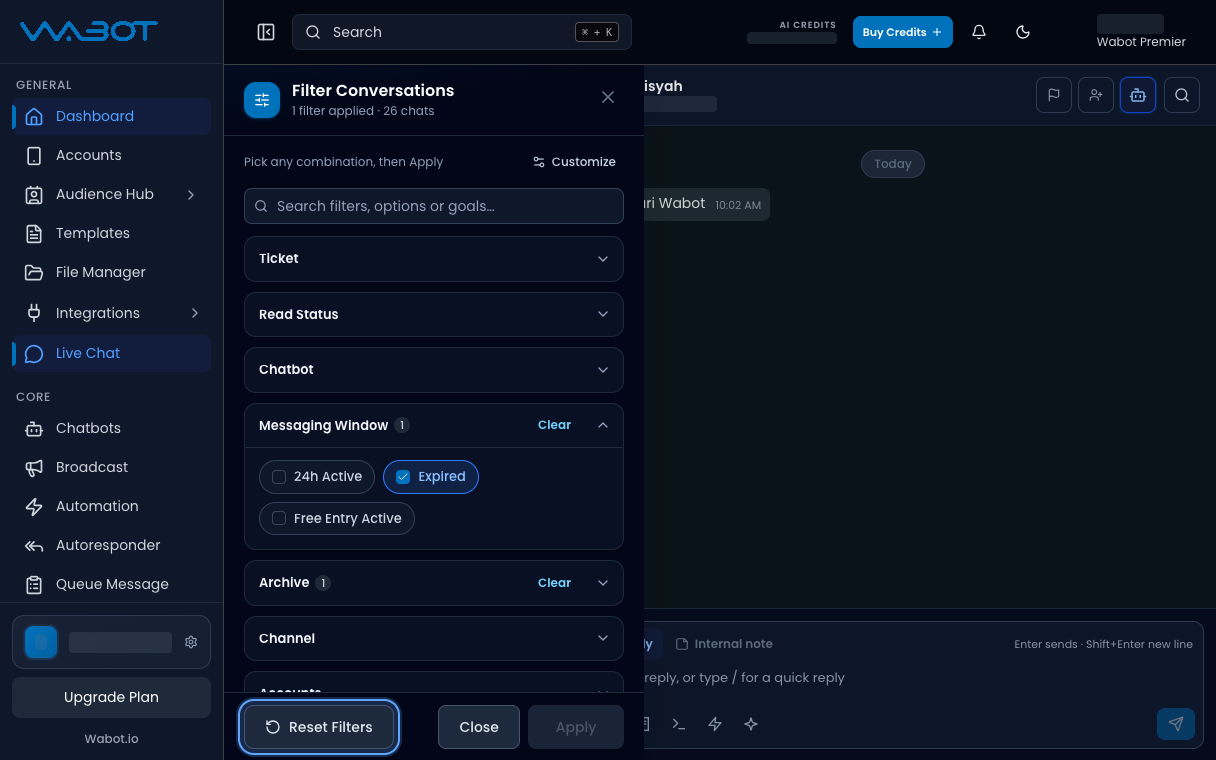
Click **Reset**.

<figure class="doc-shot">
  <img class="doc-shot__light" src="/images/features/live-chat/lc-filter-reset-light.png" alt="Reset Filters button highlighted" width="1216" height="760" loading="lazy" decoding="async" />
  <img class="doc-shot__dark" src="/images/features/live-chat/lc-filter-reset-dark.png" alt="Reset Filters button highlighted" width="1216" height="760" loading="lazy" decoding="async" />
  <figcaption>Click <strong>Reset Filters</strong> to show all chats again.</figcaption>
</figure>

## Make sure it worked

While **Expired** or **Bot Inactive** is on, other chats hide.

After **Reset**, **All** or **Unread** shows the full tab again.

## If it didn’t work

### The list is empty

No chat matches that status. Click **Reset**, then try **Bot Active** or another **Status**.

### I still see every chat

You clicked a list tab such as **All**, not a status inside **Filter chats**. Open **Filters** again.

## Next

Mark the urgent threads in [Set conversation priority](/features/live-chat/priority).