---
title: Add an internal note
description: >-
  Write a Notes entry that only your team can see. It is not sent to the
  customer.
sidebar:
  order: 4
---
In this tutorial, you will add one internal note on a conversation.

**Time needed:** 5 minutes

## Before you start

Make sure:

- You can open the conversation in **Live Chat**.
- The right contact panel is visible. On a small screen, open the contact info for this thread.

> A note is for your team only. The customer never sees it on WhatsApp.

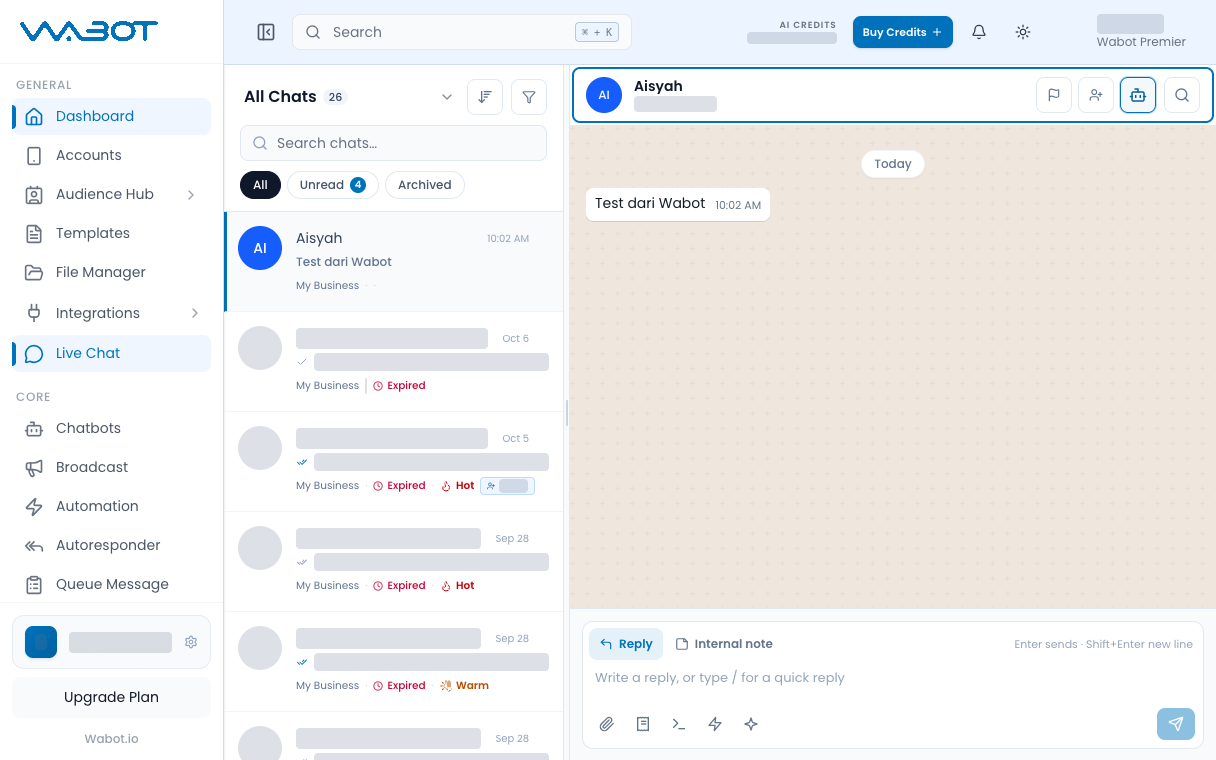
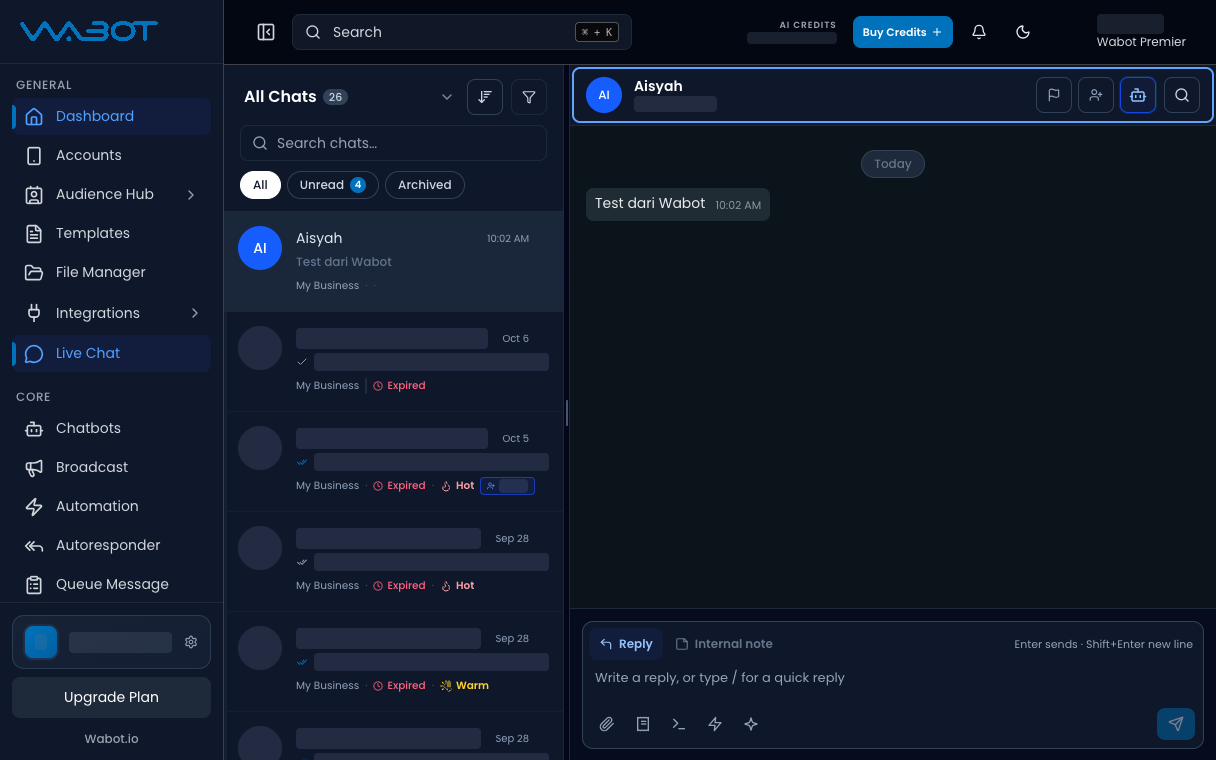
## 1. Open the conversation

On the left menu, click **Live Chat**.

Click the thread.

<figure class="doc-shot">
  <img class="doc-shot__light" src="/images/features/live-chat/lc-open-light.png" alt="Live Chat with the sample conversation open" width="1216" height="760" loading="lazy" decoding="async" />
  <img class="doc-shot__dark" src="/images/features/live-chat/lc-open-dark.png" alt="Live Chat with the sample conversation open" width="1216" height="760" loading="lazy" decoding="async" />
  <figcaption>Open the conversation. Other chats are hidden.</figcaption>
</figure>

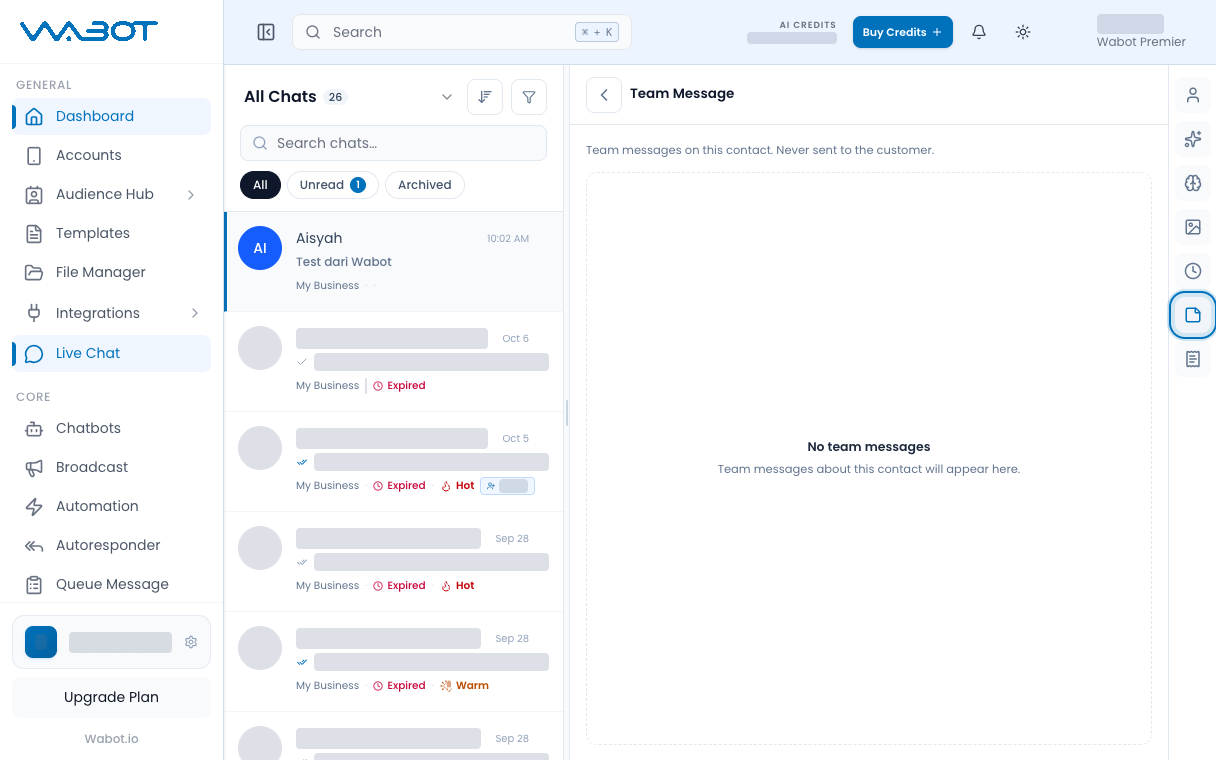
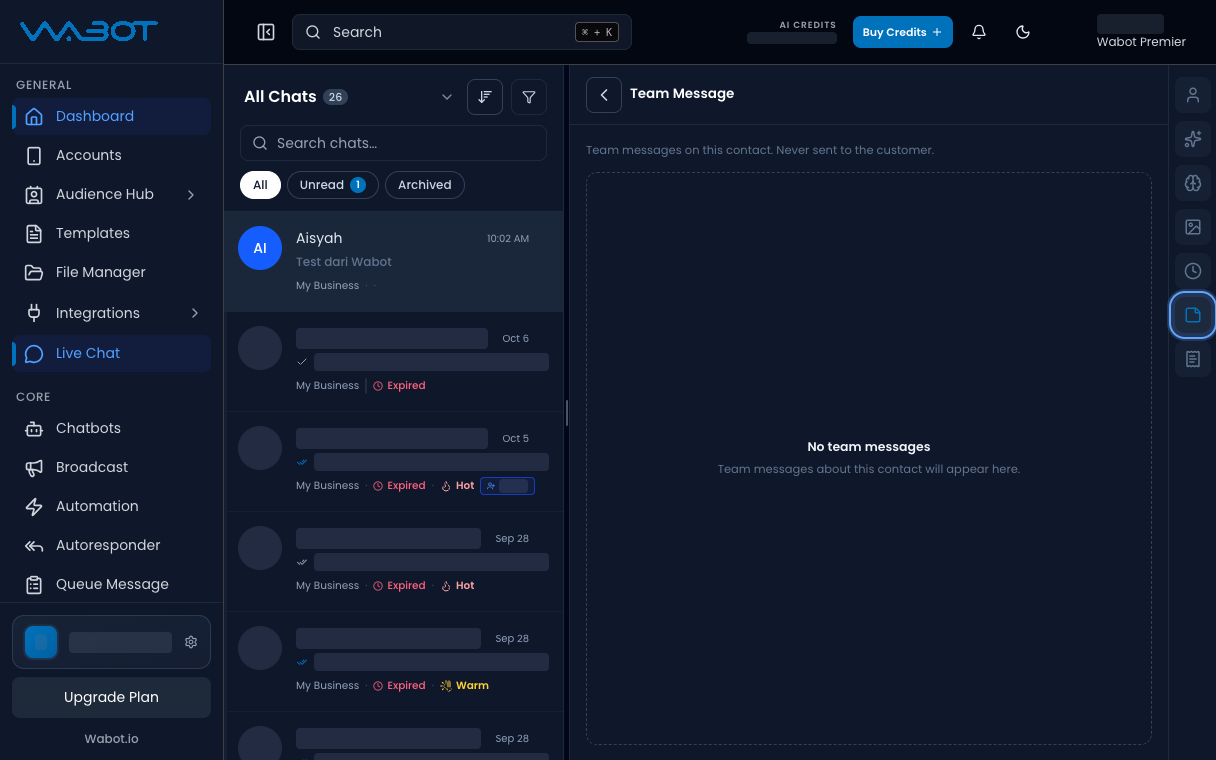
## 2. Find Notes

On the right panel, find **Notes**.

<figure class="doc-shot">
  <img class="doc-shot__light" src="/images/features/live-chat/lc-notes-tab-light.png" alt="Team Message icon highlighted on the contact panel" width="1216" height="760" loading="lazy" decoding="async" />
  <img class="doc-shot__dark" src="/images/features/live-chat/lc-notes-tab-dark.png" alt="Team Message icon highlighted on the contact panel" width="1216" height="760" loading="lazy" decoding="async" />
  <figcaption>Saved notes show under <strong>Team Message</strong>.</figcaption>
</figure>

## 3. Add the note

Click **Add note**.

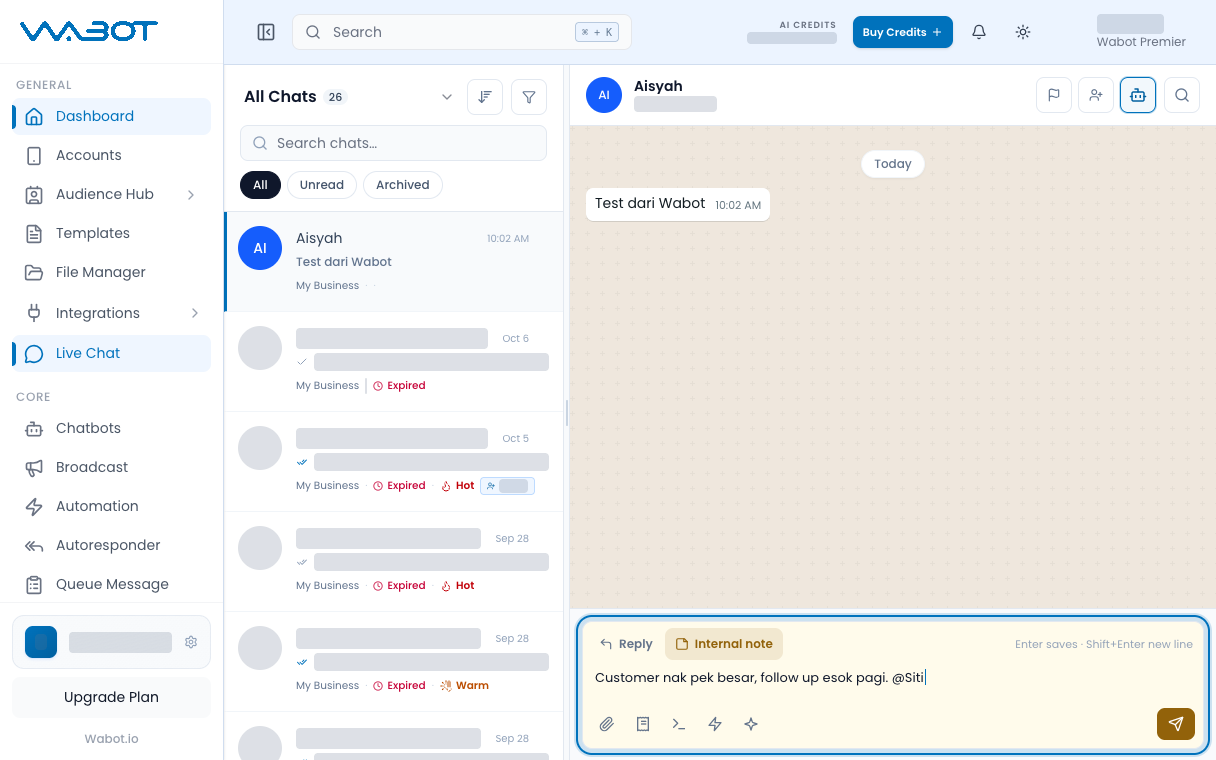
If this is the first note, type in the empty **Notes** box.

Write the context the next staff needs.

> Customer tanya stok saiz L. Tunggu restock Isnin.

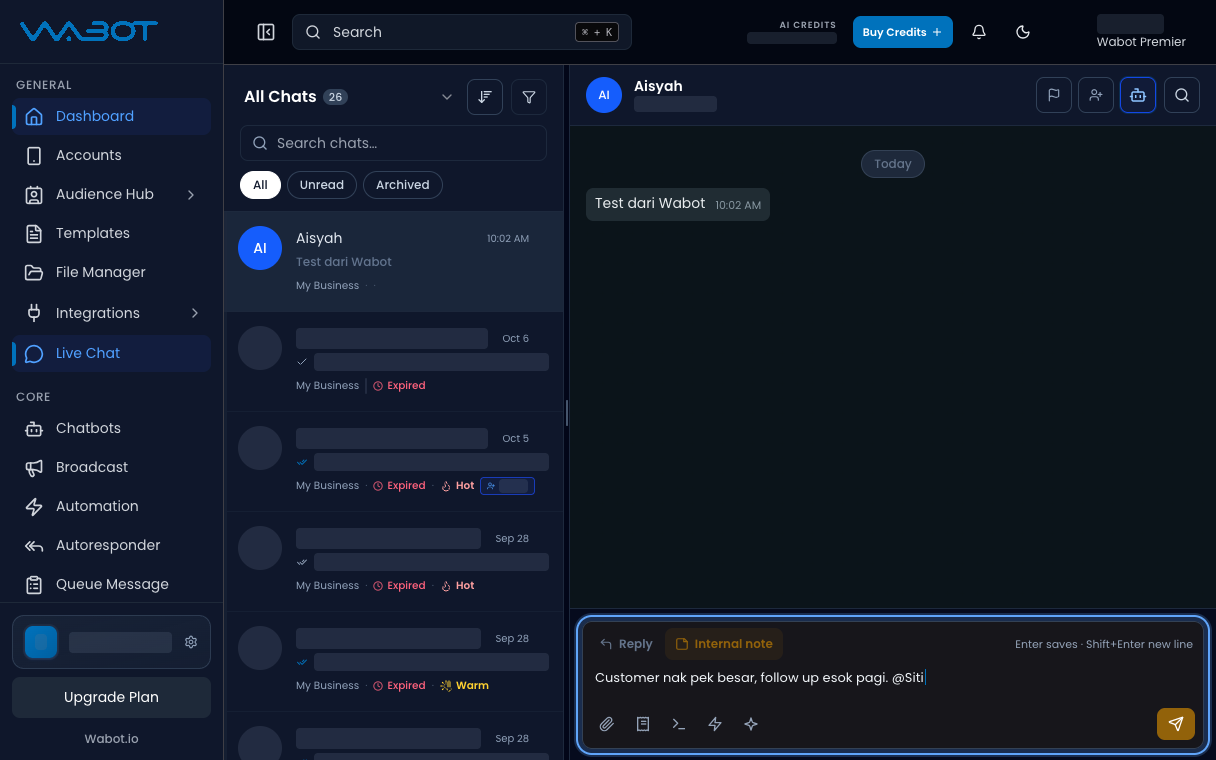
<figure class="doc-shot">
  <img class="doc-shot__light" src="/images/features/live-chat/lc-note-draft-light.png" alt="Internal note tab with a sample note typed" width="1216" height="760" loading="lazy" decoding="async" />
  <img class="doc-shot__dark" src="/images/features/live-chat/lc-note-draft-dark.png" alt="Internal note tab with a sample note typed" width="1216" height="760" loading="lazy" decoding="async" />
  <figcaption>Switch to <strong>Internal note</strong> and type. Customers never see it.</figcaption>
</figure>

## 4. Save the note

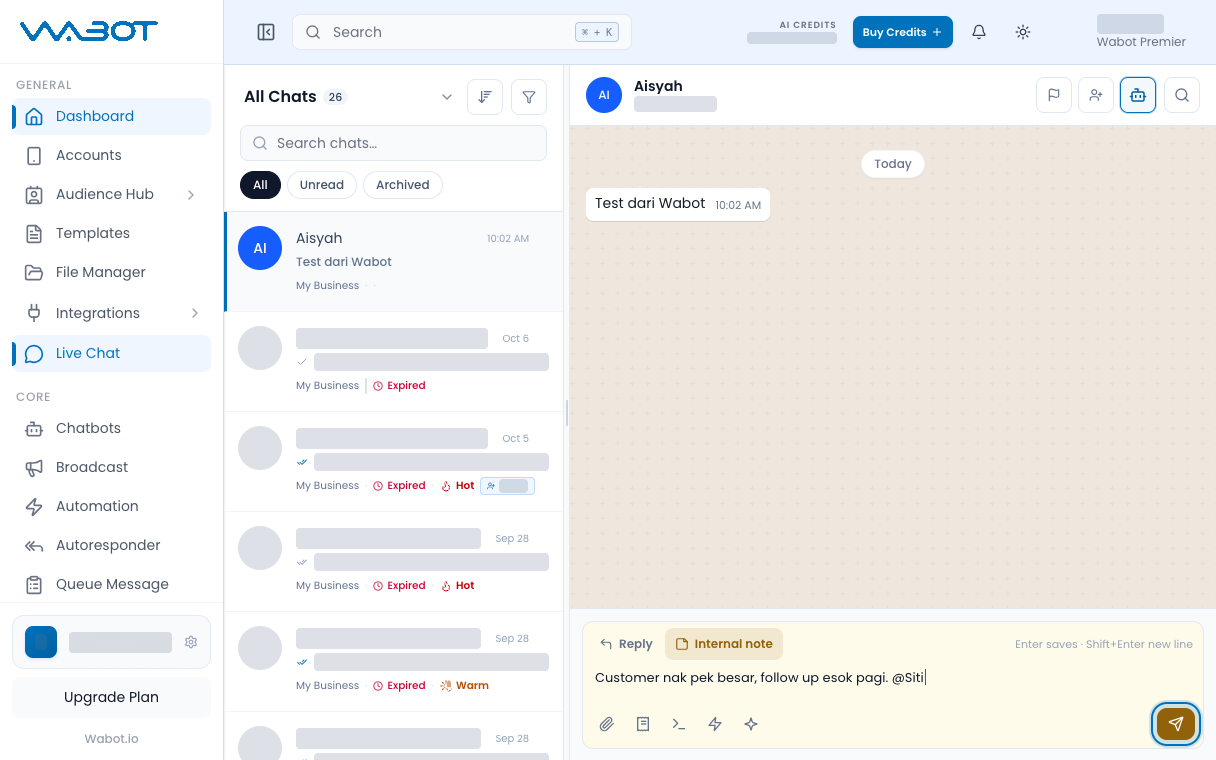
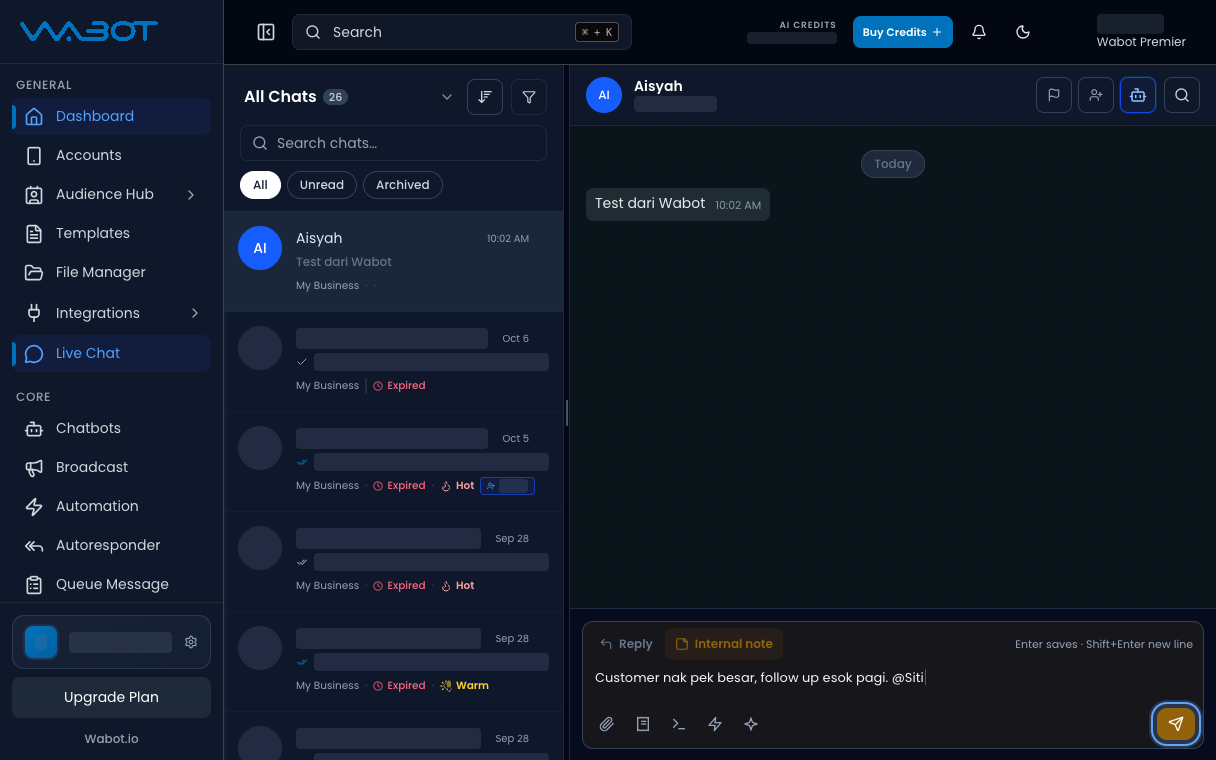
Click **Save**.

<figure class="doc-shot">
  <img class="doc-shot__light" src="/images/features/live-chat/lc-note-save-light.png" alt="Save internal note button highlighted" width="1216" height="760" loading="lazy" decoding="async" />
  <img class="doc-shot__dark" src="/images/features/live-chat/lc-note-save-dark.png" alt="Save internal note button highlighted" width="1216" height="760" loading="lazy" decoding="async" />
  <figcaption>Press <strong>Enter</strong> or click the save button.</figcaption>
</figure>

## Make sure it worked

The text appears under **Notes**.

It does not appear as a WhatsApp bubble in the middle panel.

## If it didn’t work

### I cannot see Notes

Open the contact panel on the right. Guest chats hide **Notes**.

### Save is blocked

The note box is empty. Type at least one sentence, then click **Save**.

> On **Unofficial API**, you can also add **Labels** under **Account Management**. Official API hides **Labels**.

## Next

Send a saved answer faster in [Send a Quick Reply](/features/live-chat/quick-reply).