---
title: Set conversation priority
description: >-
  Open Set Priority on a thread and mark it High or Urgent so the team sees it
  first.
sidebar:
  order: 10
---
In this tutorial, you will set priority on one conversation.

**Time needed:** 5 minutes

## Before you start

Make sure:

- You can open the conversation in **Live Chat**.
- Your login can edit the contact. If **Set Priority** will not open, ask the account owner.

## 1. Open the conversation

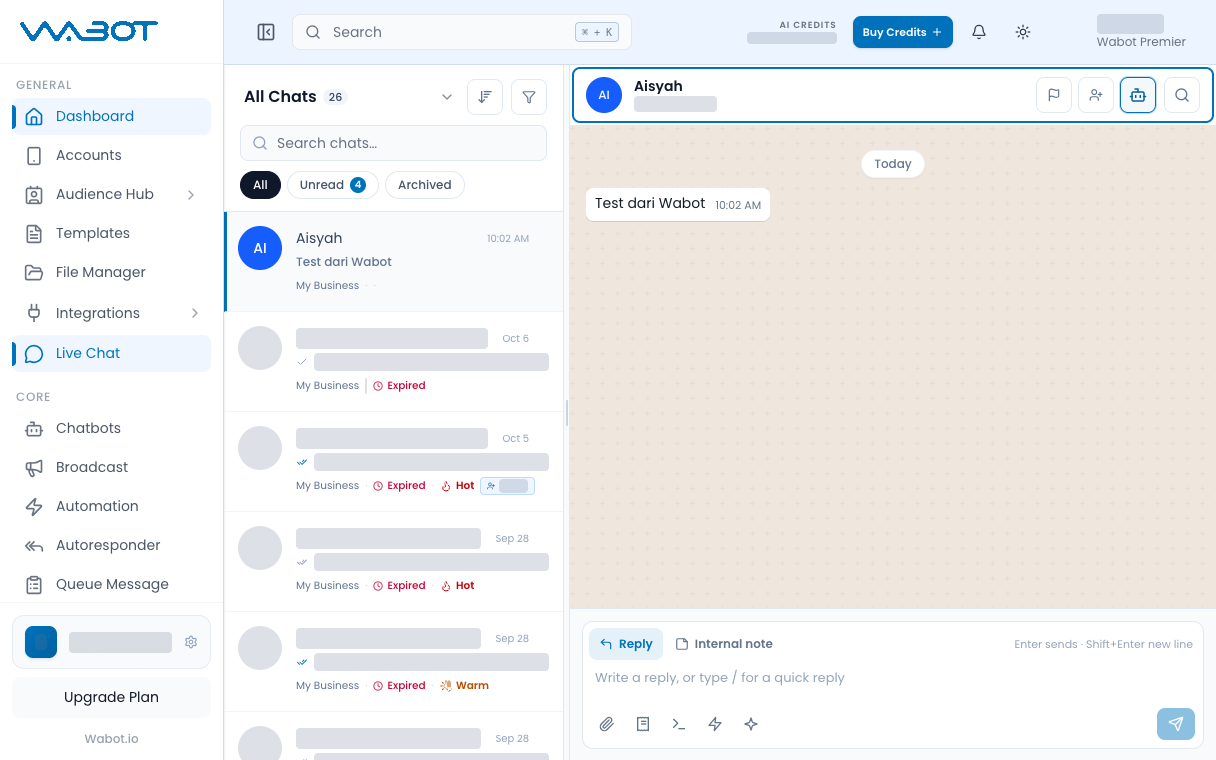
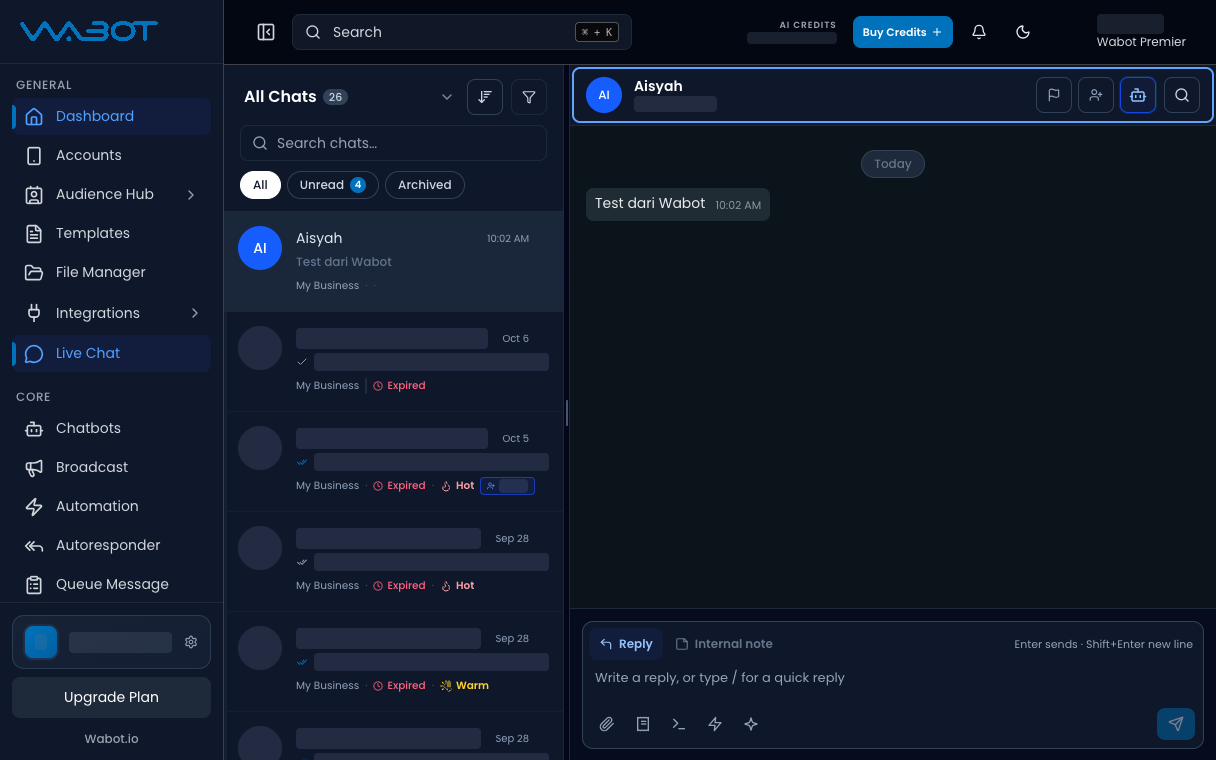
On the left menu, click **Live Chat**.

Click the thread.

<figure class="doc-shot">
  <img class="doc-shot__light" src="/images/features/live-chat/lc-open-light.png" alt="Live Chat with the sample conversation open" width="1216" height="760" loading="lazy" decoding="async" />
  <img class="doc-shot__dark" src="/images/features/live-chat/lc-open-dark.png" alt="Live Chat with the sample conversation open" width="1216" height="760" loading="lazy" decoding="async" />
  <figcaption>Open the conversation. Other chats are hidden.</figcaption>
</figure>

## 2. Open Set Priority

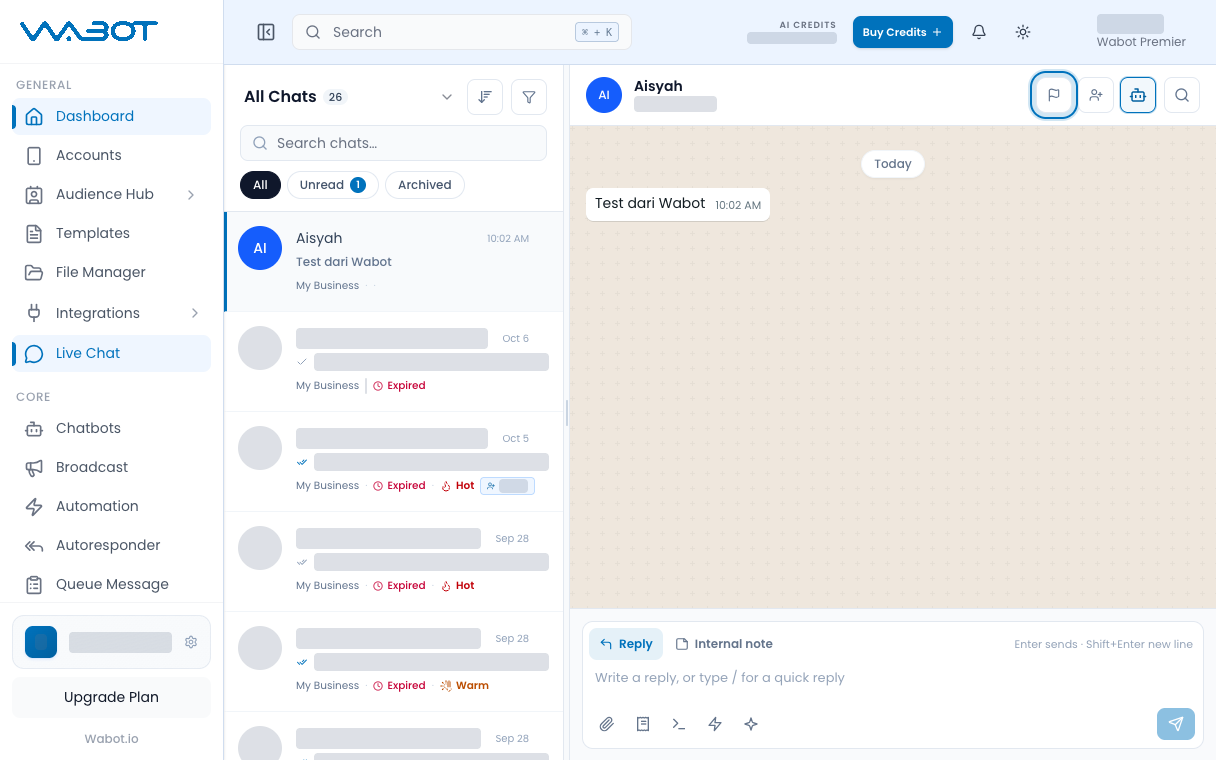
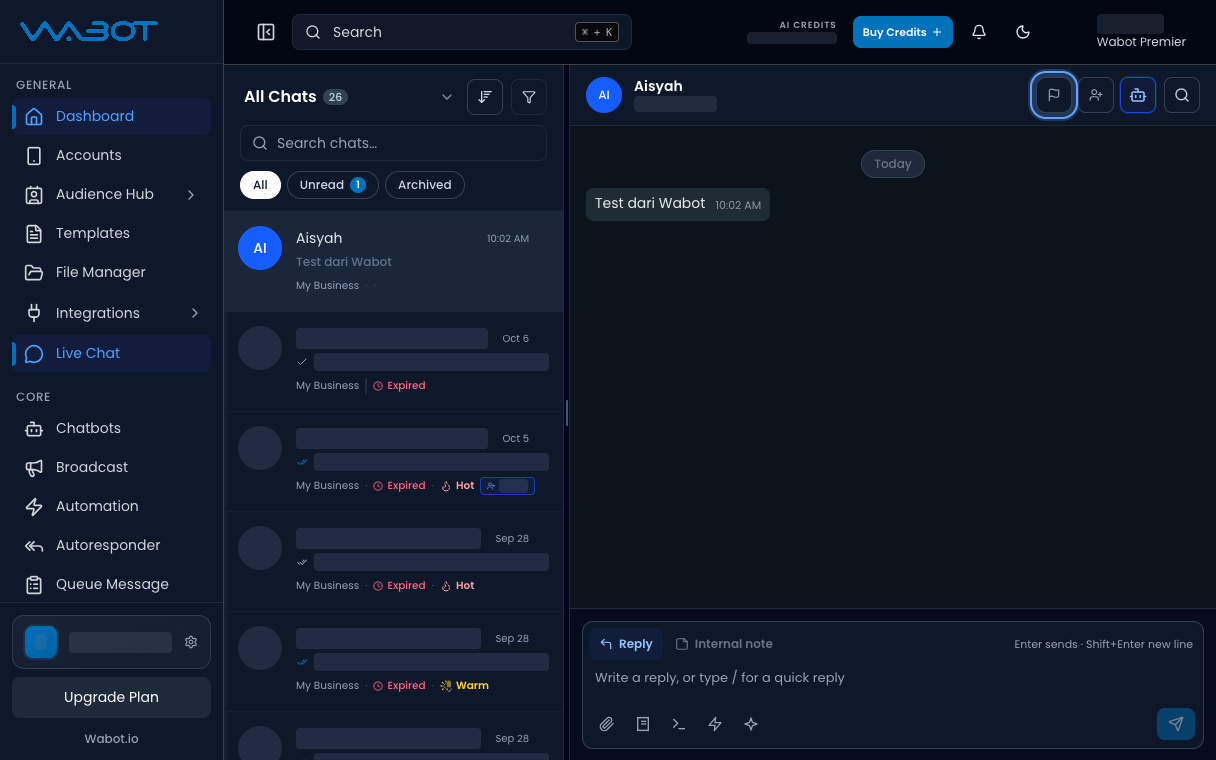
In the conversation header, click the priority control.

The **Set Priority** dialog opens.

<figure class="doc-shot">
  <img class="doc-shot__light" src="/images/features/live-chat/lc-prio-btn-light.png" alt="Set priority flag button highlighted" width="1216" height="760" loading="lazy" decoding="async" />
  <img class="doc-shot__dark" src="/images/features/live-chat/lc-prio-btn-dark.png" alt="Set priority flag button highlighted" width="1216" height="760" loading="lazy" decoding="async" />
  <figcaption>Click the flag icon at the top.</figcaption>
</figure>

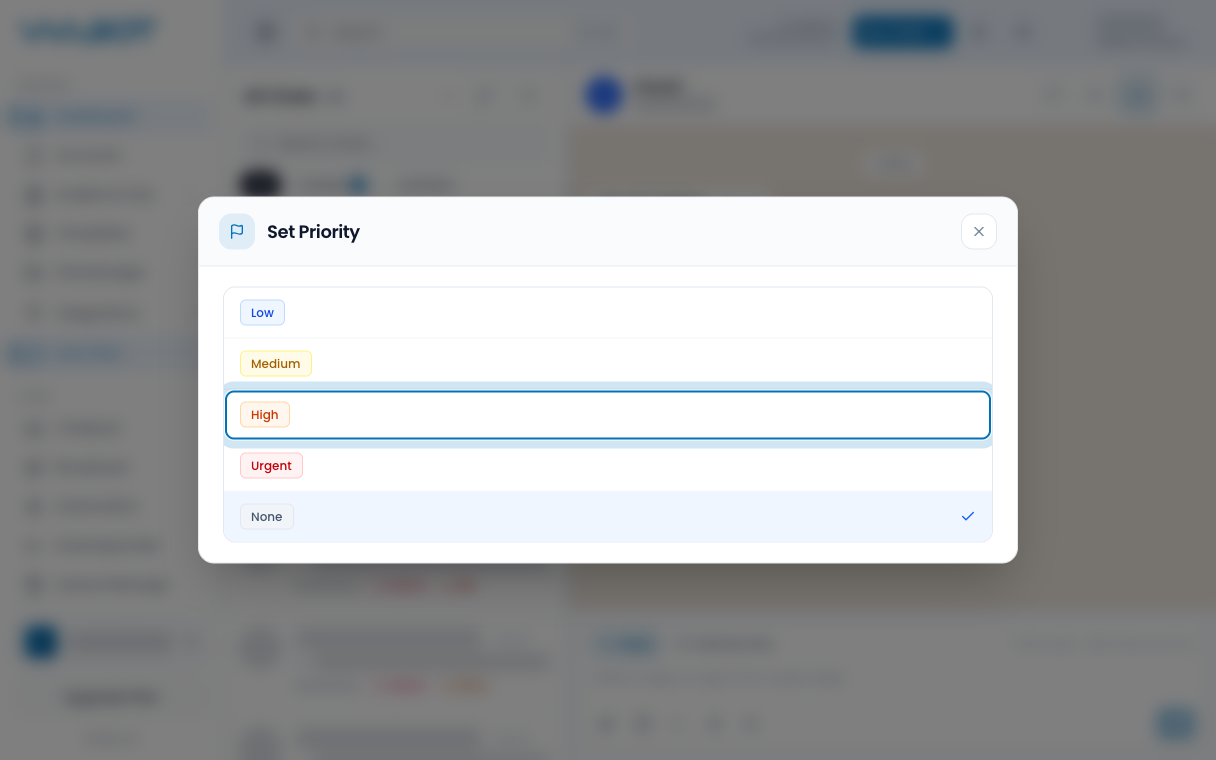
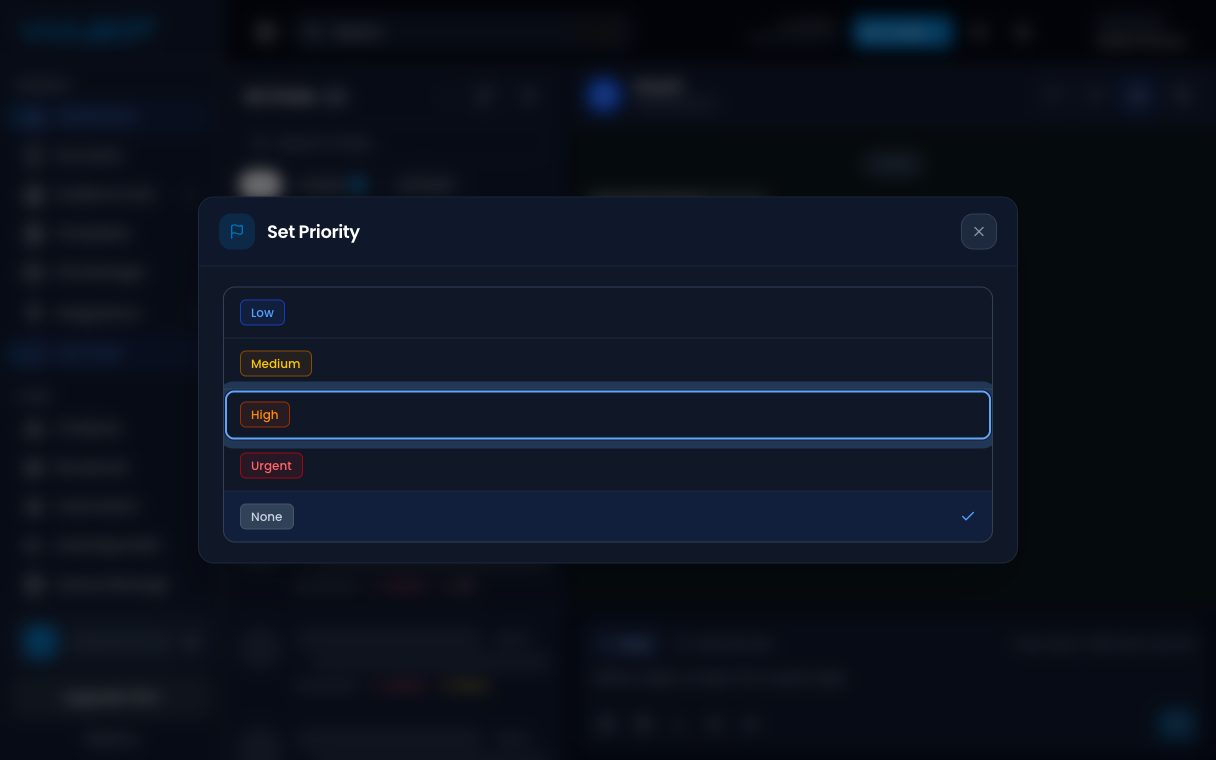
## 3. Choose High

Click **High**.

If the customer needs an answer now, click **Urgent** instead.

<figure class="doc-shot">
  <img class="doc-shot__light" src="/images/features/live-chat/lc-prio-high-light.png" alt="Set Priority list with High highlighted" width="1216" height="760" loading="lazy" decoding="async" />
  <img class="doc-shot__dark" src="/images/features/live-chat/lc-prio-high-dark.png" alt="Set Priority list with High highlighted" width="1216" height="760" loading="lazy" decoding="async" />
  <figcaption>Choose <strong>High</strong>.</figcaption>
</figure>

## Make sure it worked

The header shows **High** or **Urgent**.

You can also find it later under **Filters** → **Priority**.

## If it didn’t work

### I cannot open Set Priority

Your login may not include contact edit. Ask the account owner.

### I want to clear it

Open **Set Priority** again and click **None**.

## Next

Read the lead score in [Read Lead Insights](/features/live-chat/insights).