---
title: Send a Quick Reply
description: 'Type /quick, pick a saved reply from Quick Reply Library, and send it.'
sidebar:
  order: 5
---
In this tutorial, you will send one saved **Quick Reply** from Live Chat.

**Time needed:** 6 minutes

## Before you start

Make sure:

- You can open the conversation in **Live Chat**.
- You already have at least one Quick Reply in **Templates**.

> If the library is empty, create one Quick Reply first, then come back here.

## 1. Open the conversation

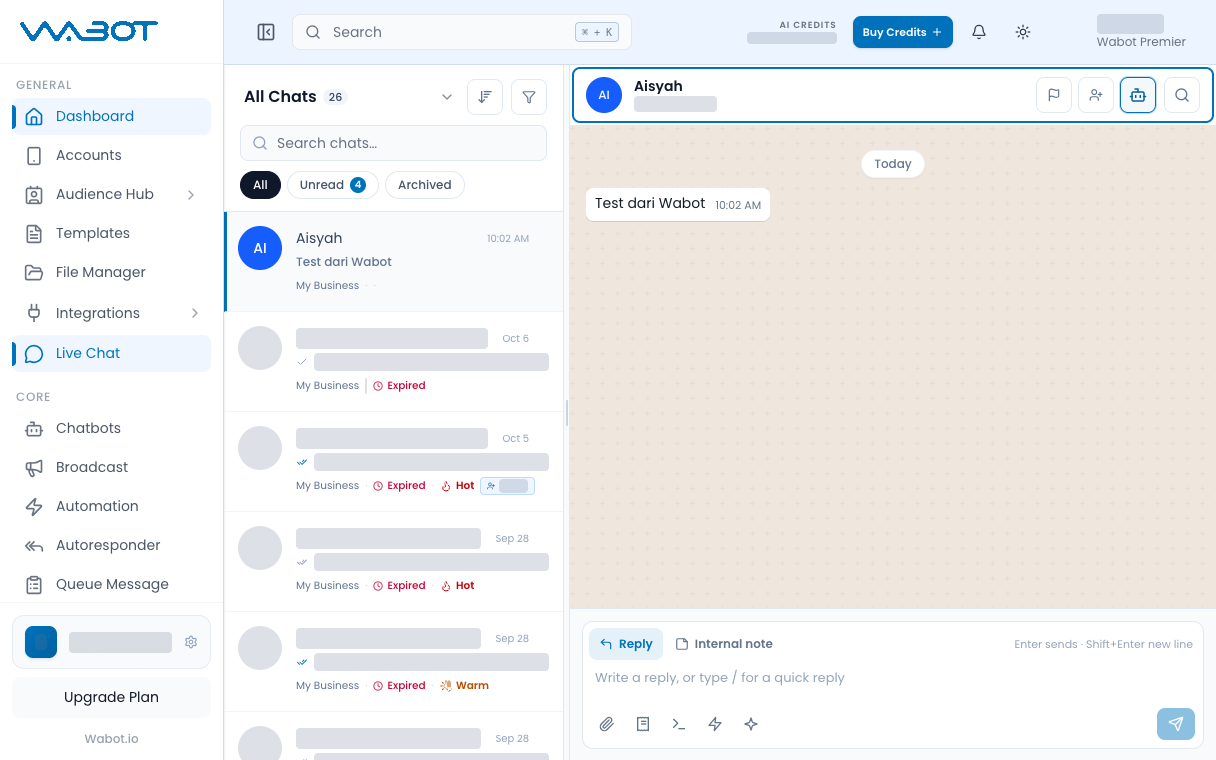
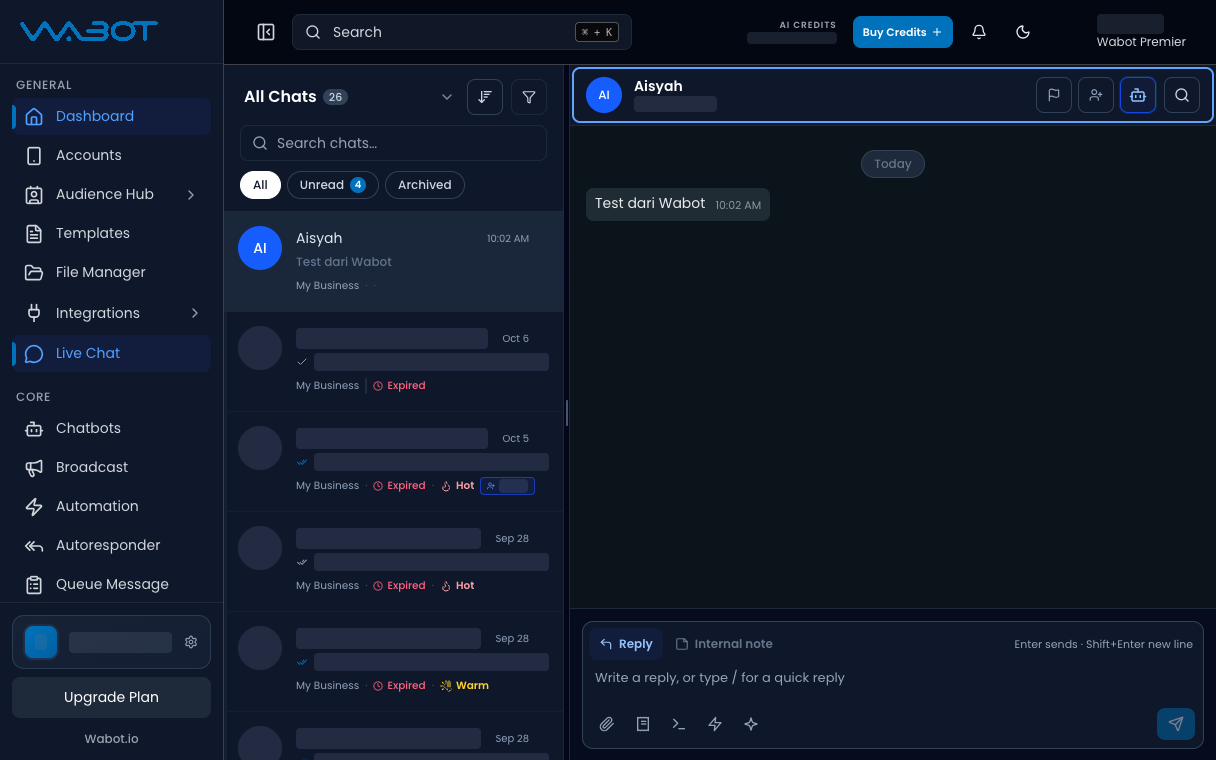
On the left menu, click **Live Chat**.

Click the thread.

<figure class="doc-shot">
  <img class="doc-shot__light" src="/images/features/live-chat/lc-open-light.png" alt="Live Chat with the sample conversation open" width="1216" height="760" loading="lazy" decoding="async" />
  <img class="doc-shot__dark" src="/images/features/live-chat/lc-open-dark.png" alt="Live Chat with the sample conversation open" width="1216" height="760" loading="lazy" decoding="async" />
  <figcaption>Open the conversation. Other chats are hidden.</figcaption>
</figure>

## 2. Type /quick

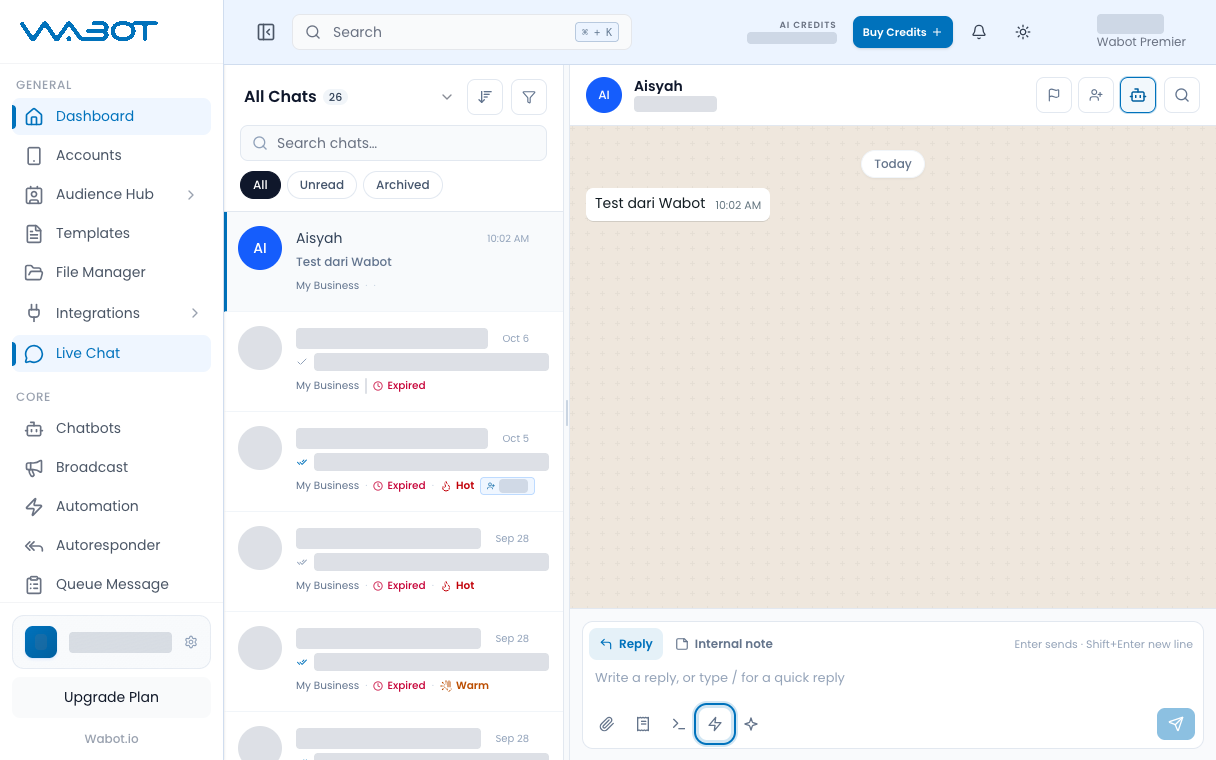
Click the message box.

Type `/quick`.

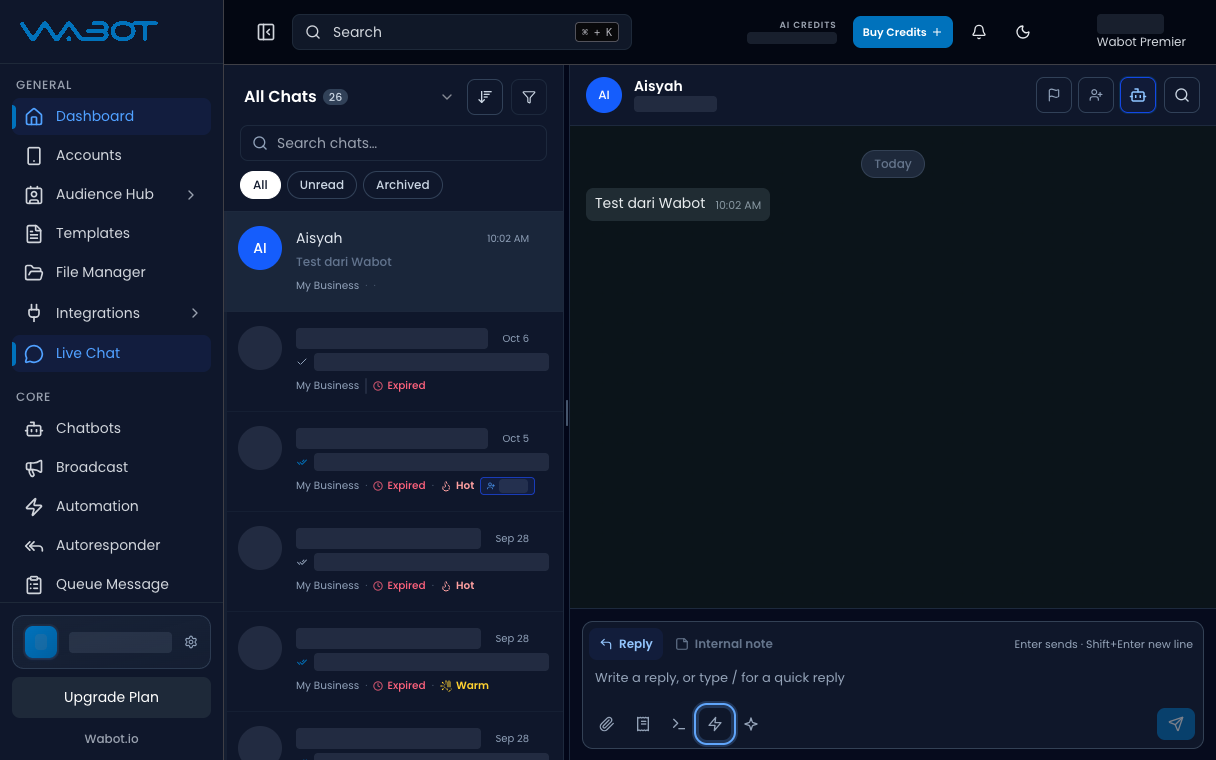
In the slash menu, click **Quick Replies**.

<figure class="doc-shot">
  <img class="doc-shot__light" src="/images/features/live-chat/lc-qr-btn-light.png" alt="Quick reply library button highlighted in the reply box" width="1216" height="760" loading="lazy" decoding="async" />
  <img class="doc-shot__dark" src="/images/features/live-chat/lc-qr-btn-dark.png" alt="Quick reply library button highlighted in the reply box" width="1216" height="760" loading="lazy" decoding="async" />
  <figcaption>Click the <strong>⚡</strong> quick reply button.</figcaption>
</figure>

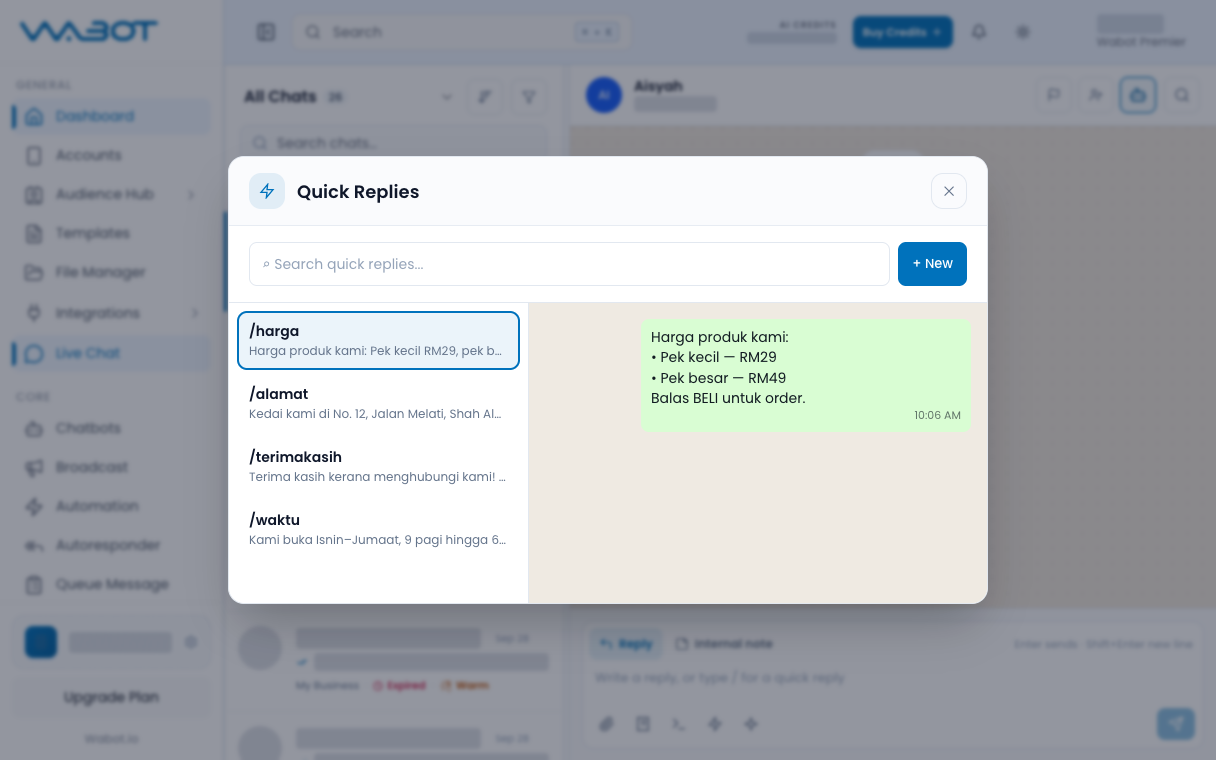
## 3. Pick a reply

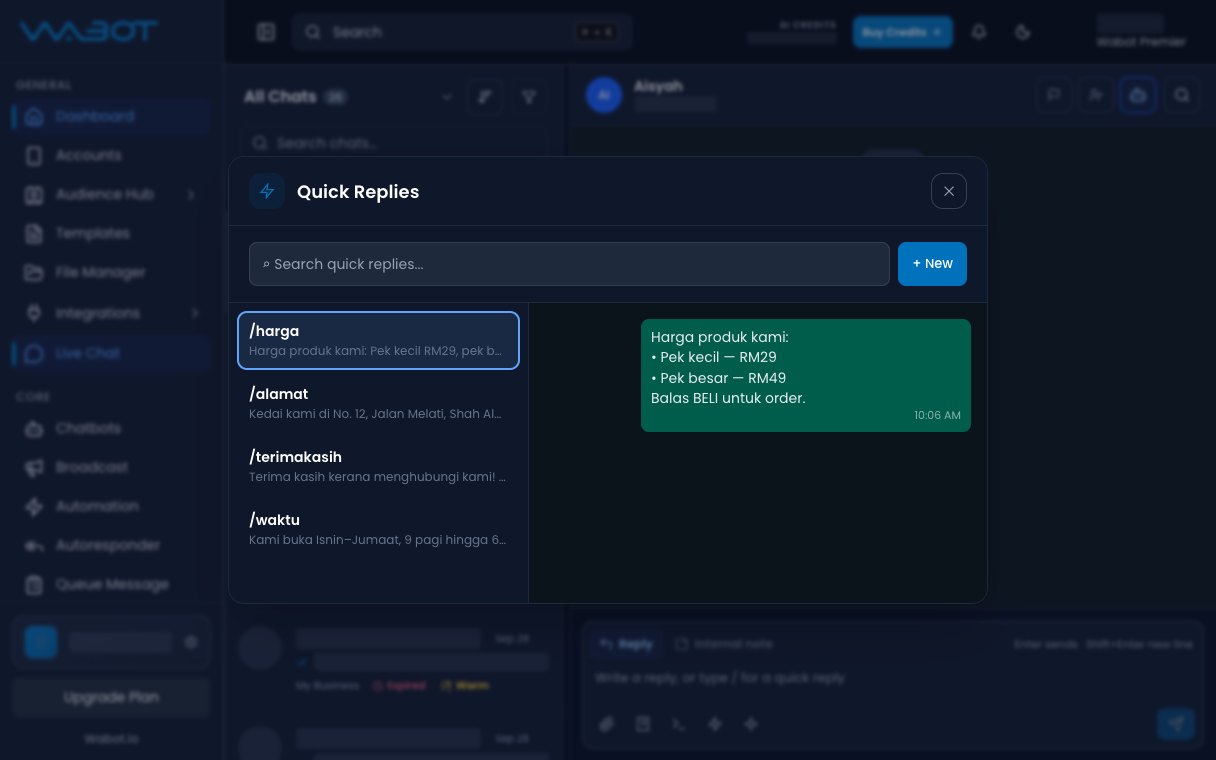
The **Quick Reply Library** opens.

Click the reply you want to send.

<figure class="doc-shot">
  <img class="doc-shot__light" src="/images/features/live-chat/lc-qr-modal-light.png" alt="Quick Replies library with one reply highlighted" width="1216" height="760" loading="lazy" decoding="async" />
  <img class="doc-shot__dark" src="/images/features/live-chat/lc-qr-modal-dark.png" alt="Quick Replies library with one reply highlighted" width="1216" height="760" loading="lazy" decoding="async" />
  <figcaption>Pick a reply. Sample replies shown.</figcaption>
</figure>

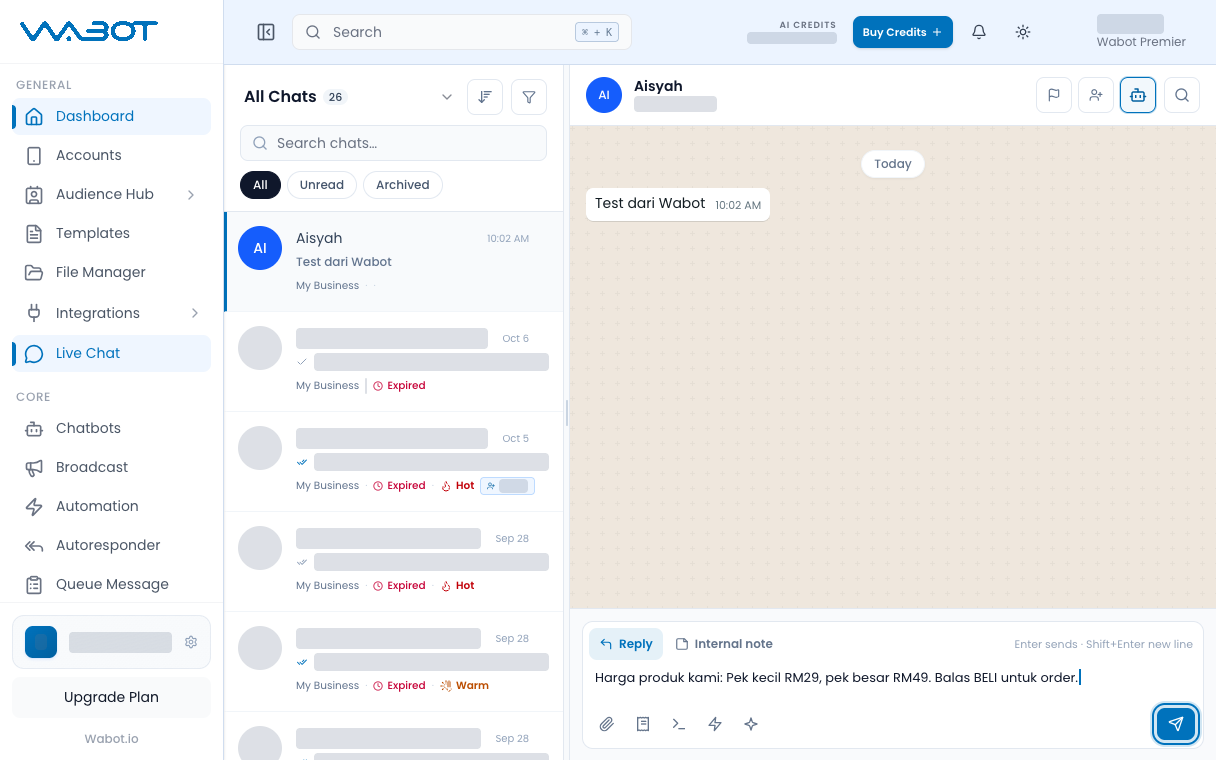
## 4. Send if needed

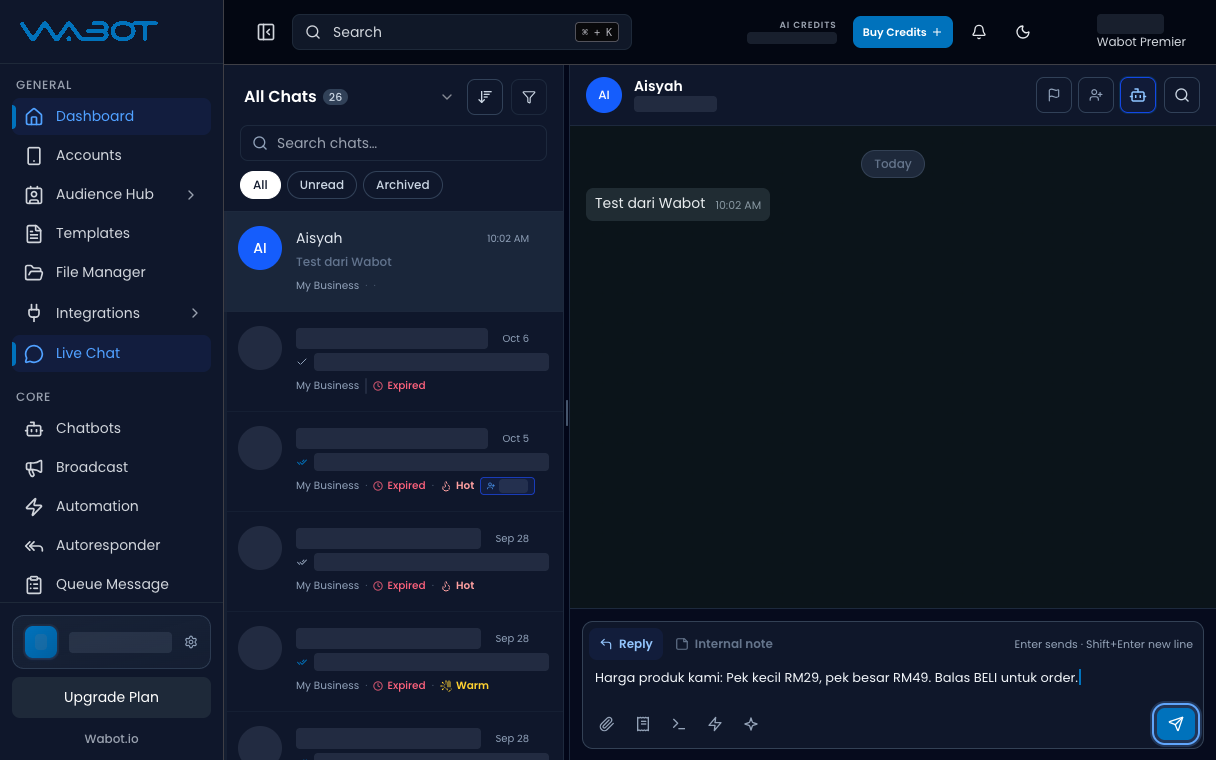
If the text lands in the box, press **Enter** or click **Send**.

A text-only Quick Reply may send at once.

<figure class="doc-shot">
  <img class="doc-shot__light" src="/images/features/live-chat/lc-qr-send-light.png" alt="Quick reply text in the box with Send highlighted" width="1216" height="760" loading="lazy" decoding="async" />
  <img class="doc-shot__dark" src="/images/features/live-chat/lc-qr-send-dark.png" alt="Quick reply text in the box with Send highlighted" width="1216" height="760" loading="lazy" decoding="async" />
  <figcaption>Check the text, then press <strong>Enter</strong> or click <strong>Send</strong>.</figcaption>
</figure>

## Make sure it worked

The Quick Reply text appears in the thread.

Your test phone receives the same message.

## If it didn’t work

### /quick shows nothing

Type `/` only, then choose **Quick Replies**. Or type `/quick` with no extra letters.

### The library is empty

Create a Quick Reply under **Templates**, then open **Quick Reply Library** again.

## Next

Clear a finished thread in [Archive a conversation](/features/live-chat/archive).