---
title: Reply to a conversation
description: 'Open Live Chat, pick an Unread thread, type a reply, and send it to WhatsApp.'
sidebar:
  order: 1
---
In this tutorial, you will reply to one WhatsApp conversation from **Live Chat**.

**Time needed:** 8 minutes

## Before you start

Make sure:

- You are logged in to Wabot.
- The WhatsApp account shows **Online**.
- You already sent a test message from your own phone, or a customer has written in.

> The customer sees the reply from your business WhatsApp number, not from Wabot.

## 1. Open Live Chat

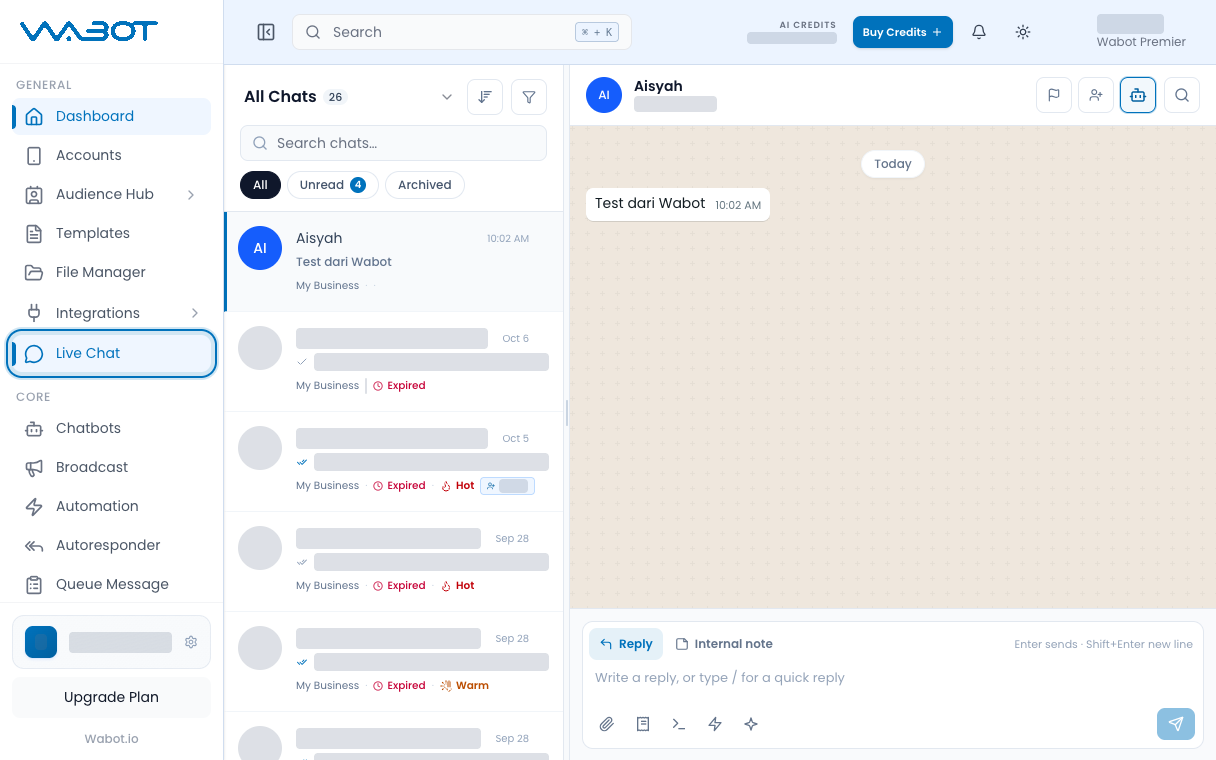
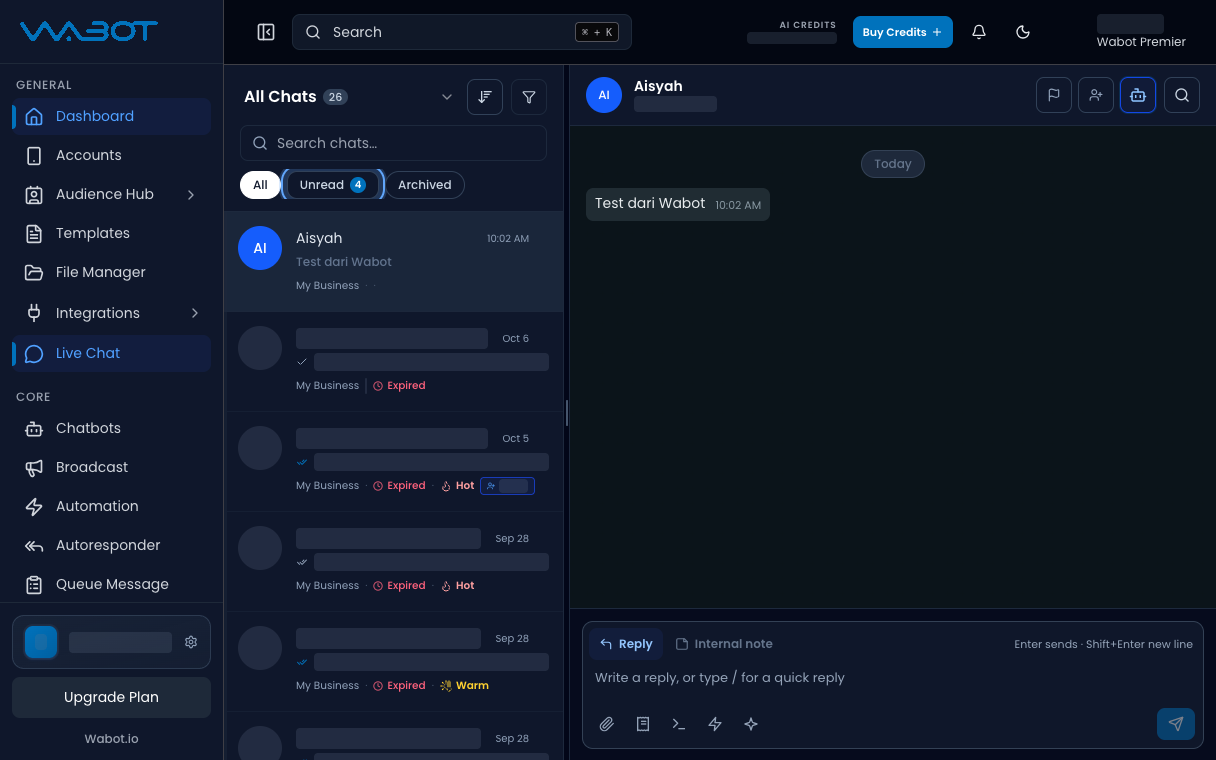
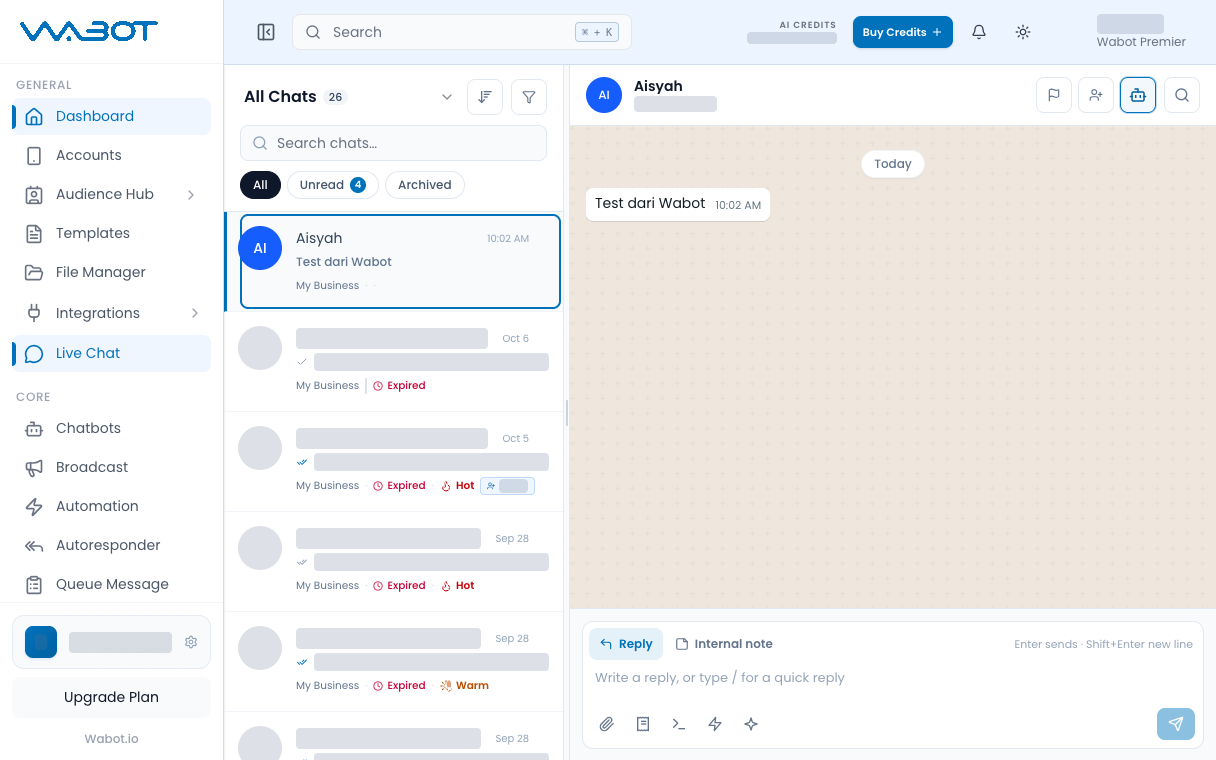
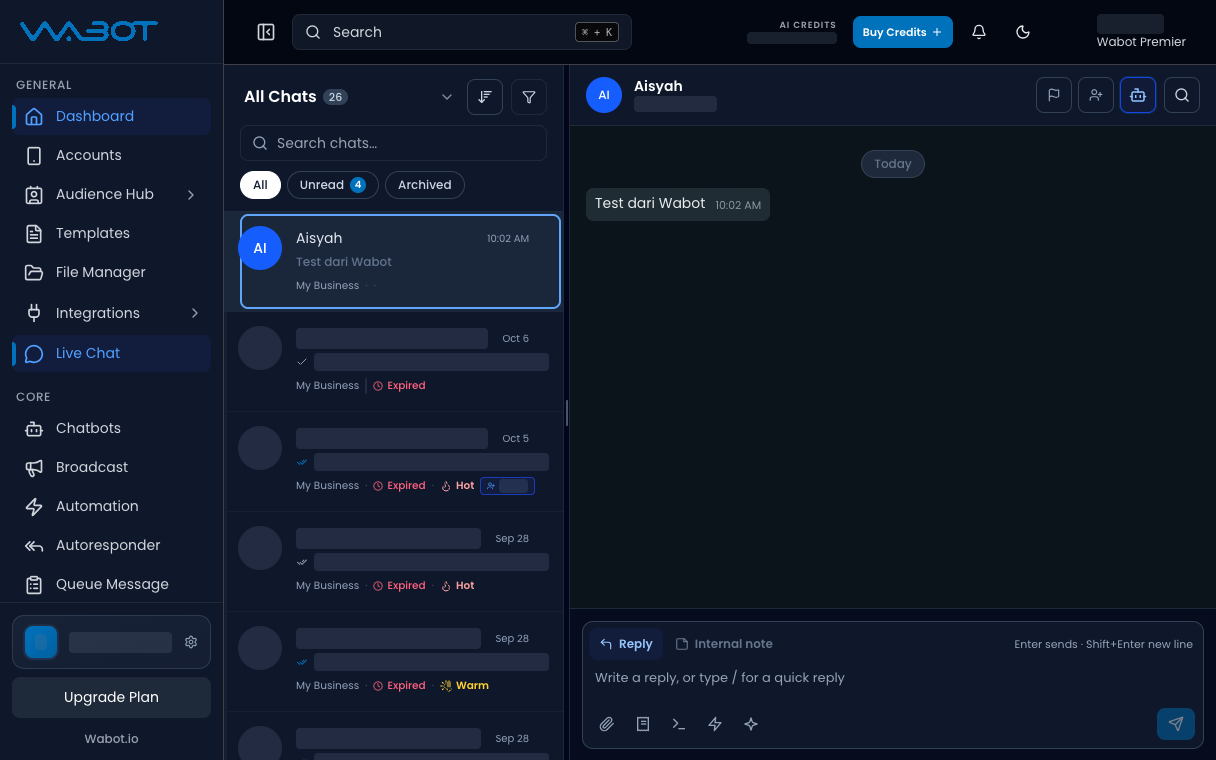
On the left menu, click **Live Chat**.

<figure class="doc-shot">
  <img class="doc-shot__light" src="/images/features/live-chat/lc-inbox-light.png" alt="Live Chat inbox with Live Chat highlighted in the menu" width="1216" height="760" loading="lazy" decoding="async" />
  <img class="doc-shot__dark" src="/images/features/live-chat/lc-inbox-dark.png" alt="Live Chat inbox with Live Chat highlighted in the menu" width="1216" height="760" loading="lazy" decoding="async" />
  <figcaption>Click <strong>Live Chat</strong> in the left menu.</figcaption>
</figure>

## 2. Open Unread

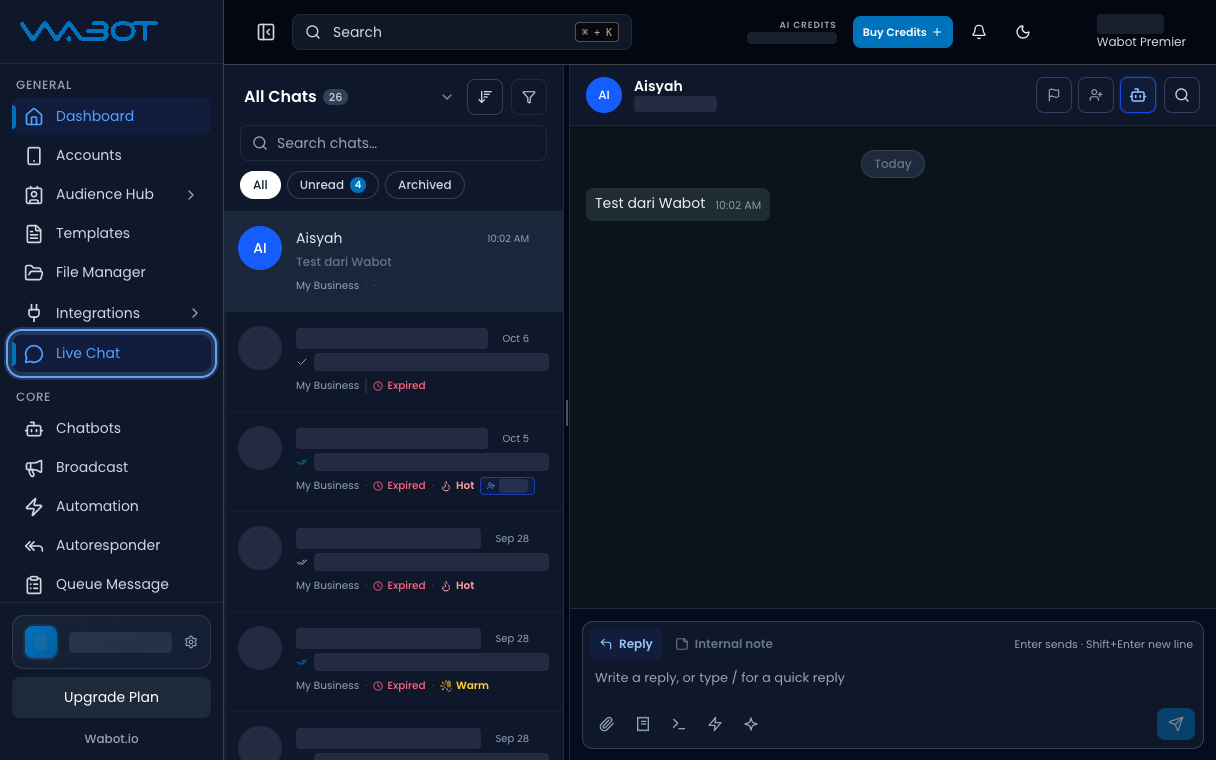
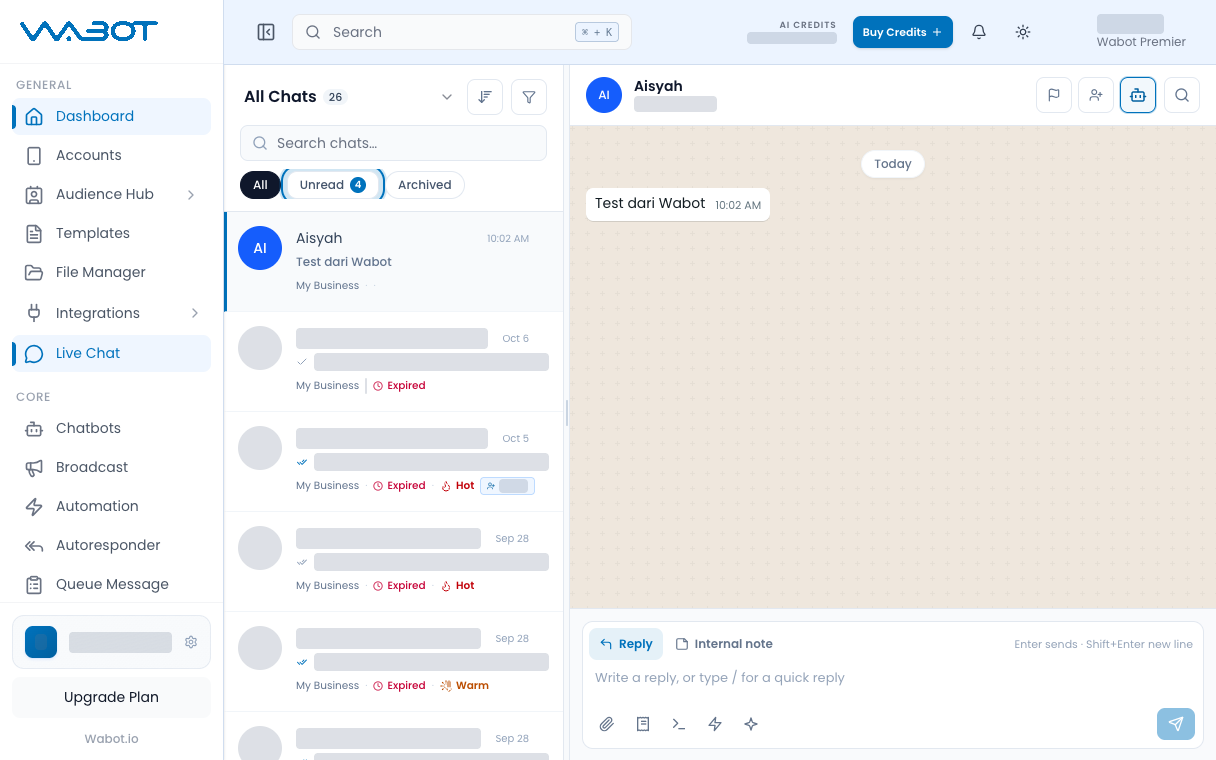
At the top of the conversation list, click **Unread**.

If the list is empty, click **All**.

<figure class="doc-shot">
  <img class="doc-shot__light" src="/images/features/live-chat/lc-unread-light.png" alt="Unread chip highlighted" width="1216" height="760" loading="lazy" decoding="async" />
  <img class="doc-shot__dark" src="/images/features/live-chat/lc-unread-dark.png" alt="Unread chip highlighted" width="1216" height="760" loading="lazy" decoding="async" />
  <figcaption>Click <strong>Unread</strong>.</figcaption>
</figure>

## 3. Open the conversation

Click the thread you want to answer.

The chat history opens in the middle panel.

<figure class="doc-shot">
  <img class="doc-shot__light" src="/images/features/live-chat/lc-selected-light.png" alt="Sample conversation selected in the list" width="1216" height="760" loading="lazy" decoding="async" />
  <img class="doc-shot__dark" src="/images/features/live-chat/lc-selected-dark.png" alt="Sample conversation selected in the list" width="1216" height="760" loading="lazy" decoding="async" />
  <figcaption>Click the conversation.</figcaption>
</figure>

## 4. Type the reply

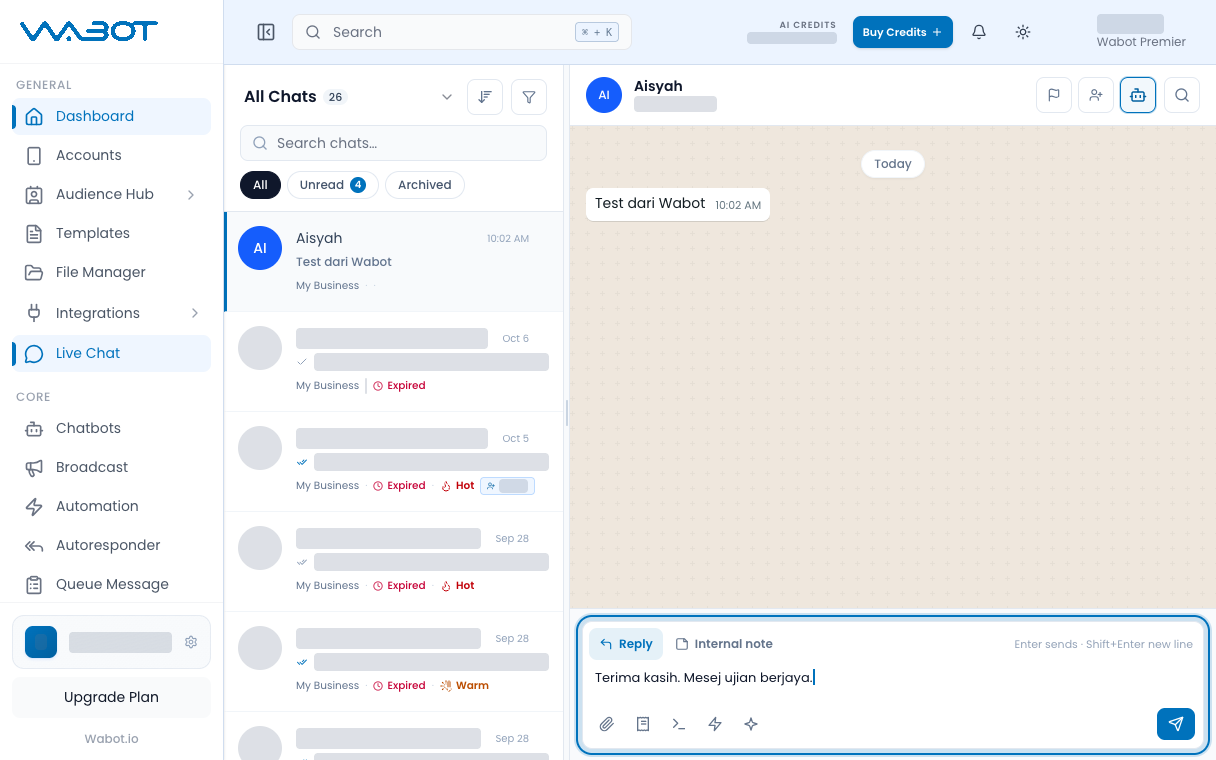
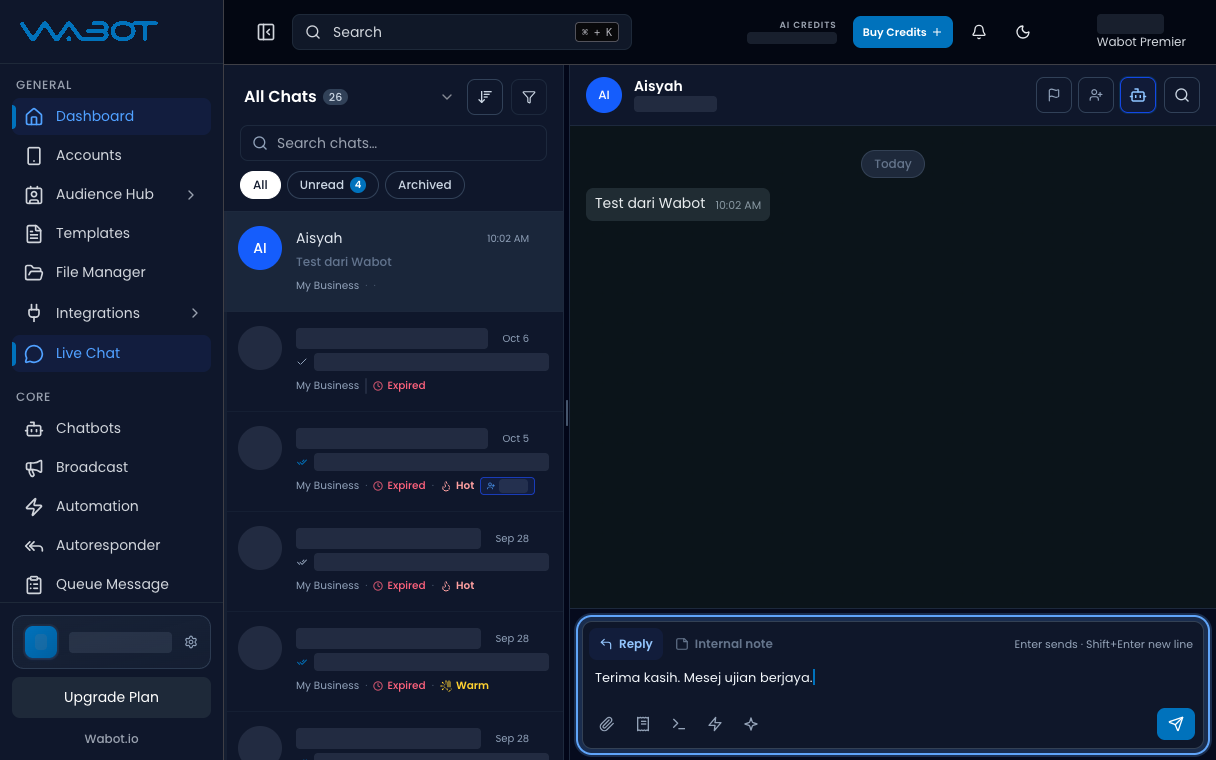
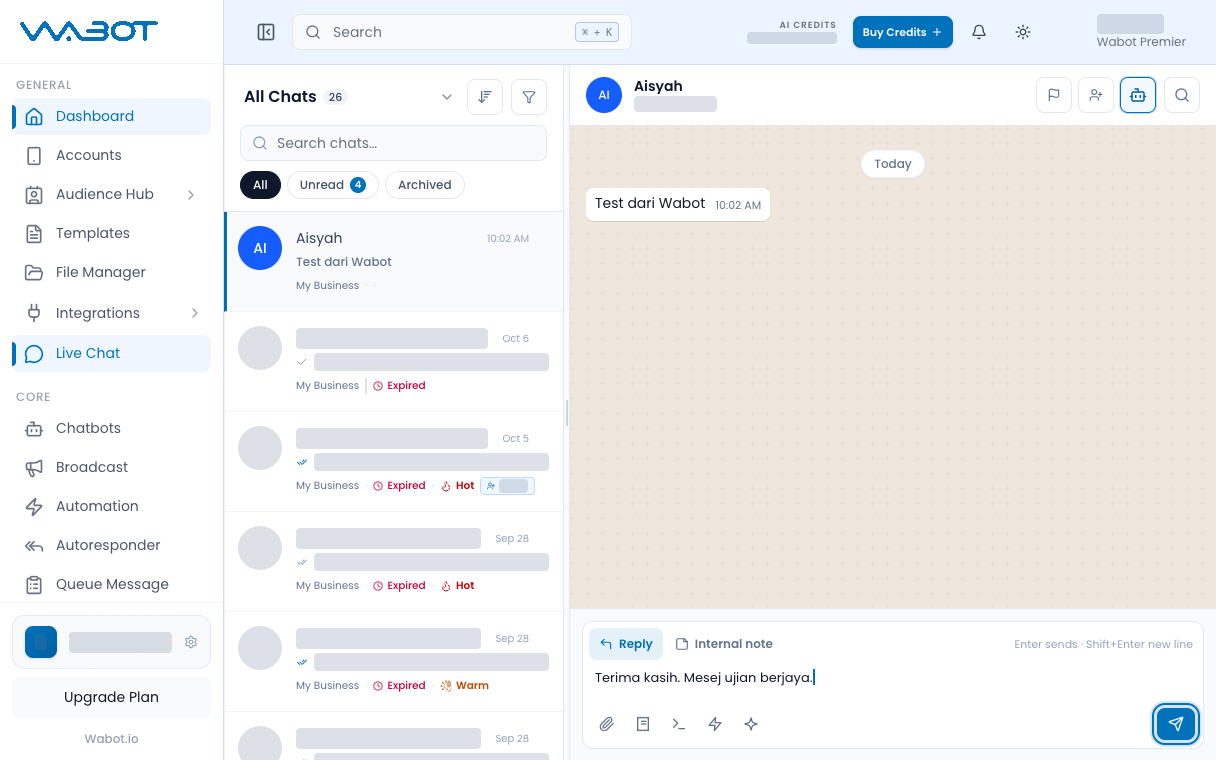
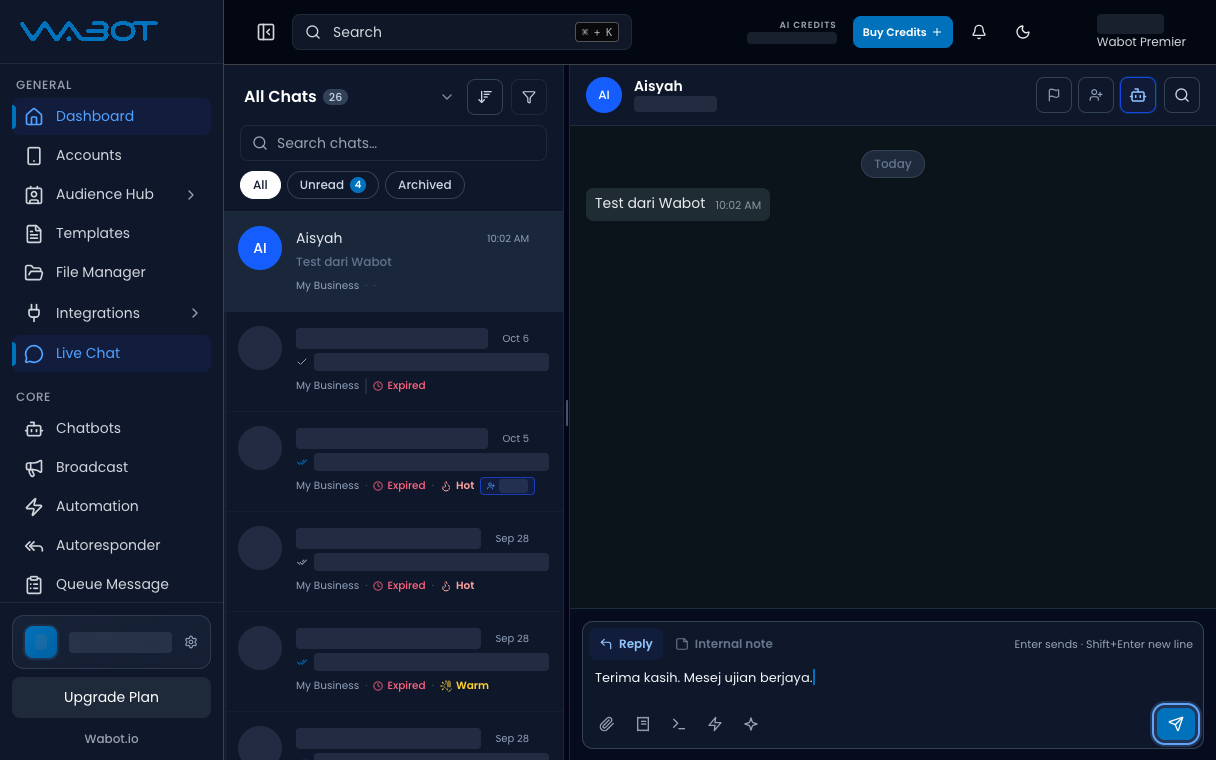
Type in the box at the bottom.

> Terima kasih. Staf kami dah baca mesej anda.

<figure class="doc-shot">
  <img class="doc-shot__light" src="/images/features/live-chat/lc-typed-light.png" alt="Reply box with a typed reply" width="1216" height="760" loading="lazy" decoding="async" />
  <img class="doc-shot__dark" src="/images/features/live-chat/lc-typed-dark.png" alt="Reply box with a typed reply" width="1216" height="760" loading="lazy" decoding="async" />
  <figcaption>Type your reply.</figcaption>
</figure>

## 5. Send the reply

Press **Enter**, or click the **Send** button.

<figure class="doc-shot">
  <img class="doc-shot__light" src="/images/features/live-chat/lc-send-light.png" alt="Send button highlighted" width="1216" height="760" loading="lazy" decoding="async" />
  <img class="doc-shot__dark" src="/images/features/live-chat/lc-send-dark.png" alt="Send button highlighted" width="1216" height="760" loading="lazy" decoding="async" />
  <figcaption>Press <strong>Enter</strong> or click <strong>Send</strong>.</figcaption>
</figure>

## Make sure it worked

Your message appears in the thread.

Your test phone receives the same text on WhatsApp.

## If it didn’t work

### The list is empty

Nobody has written to this number yet. Send a test from your phone, then refresh **Live Chat**.

### Send stays disabled

The box is empty. Type a message first.

### The customer did not get it

Check the account is **Online**. Then open **Account Error Logs** if the bubble shows failed.

## Next

Stop the bot from answering while you talk in [Take over from the bot](/features/live-chat/take-over).