---
title: Schedule a message
description: >-
  Open Schedule Message, write a follow-up, pick a time such as +1h, and save
  it.
sidebar:
  order: 8
---
In this tutorial, you will schedule one follow-up message for later.

**Time needed:** 8 minutes

## Before you start

Make sure:

- You can open the conversation in **Live Chat**.
- Your login can use **Schedule Message**. If the calendar icon is missing, ask the account owner.

> The customer does not see the message until the scheduled time.

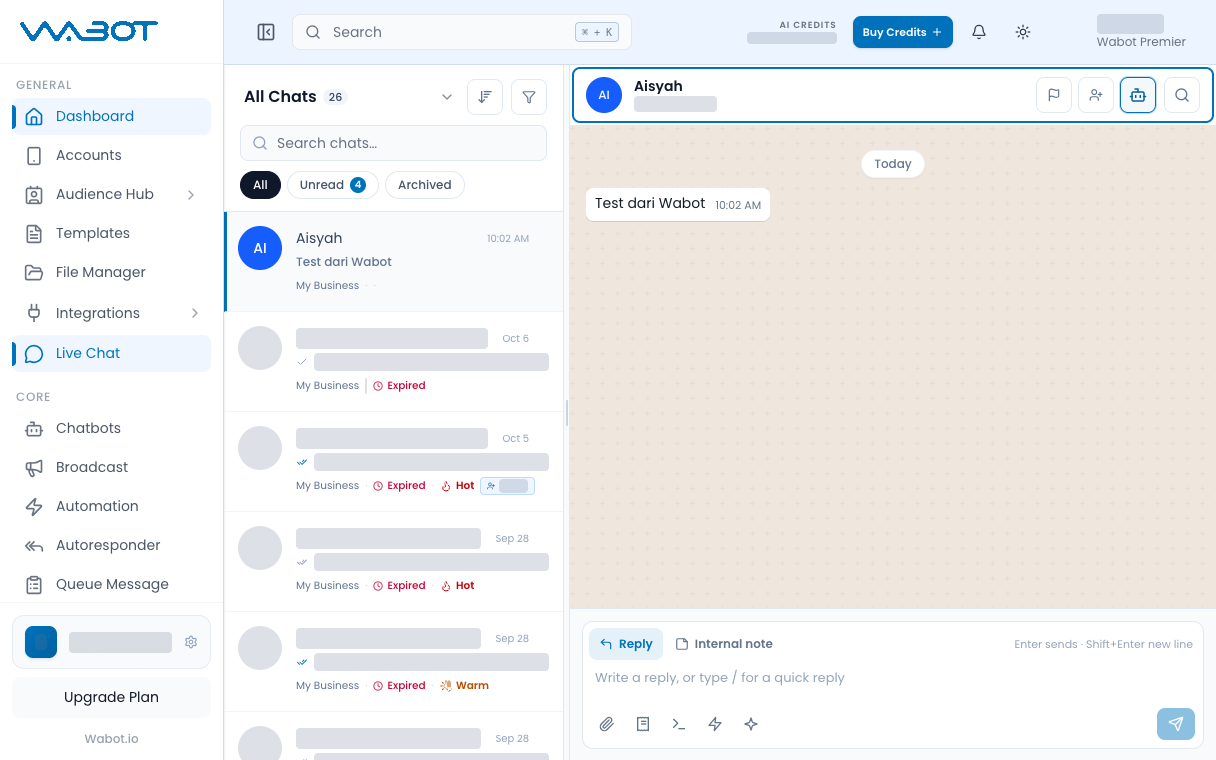
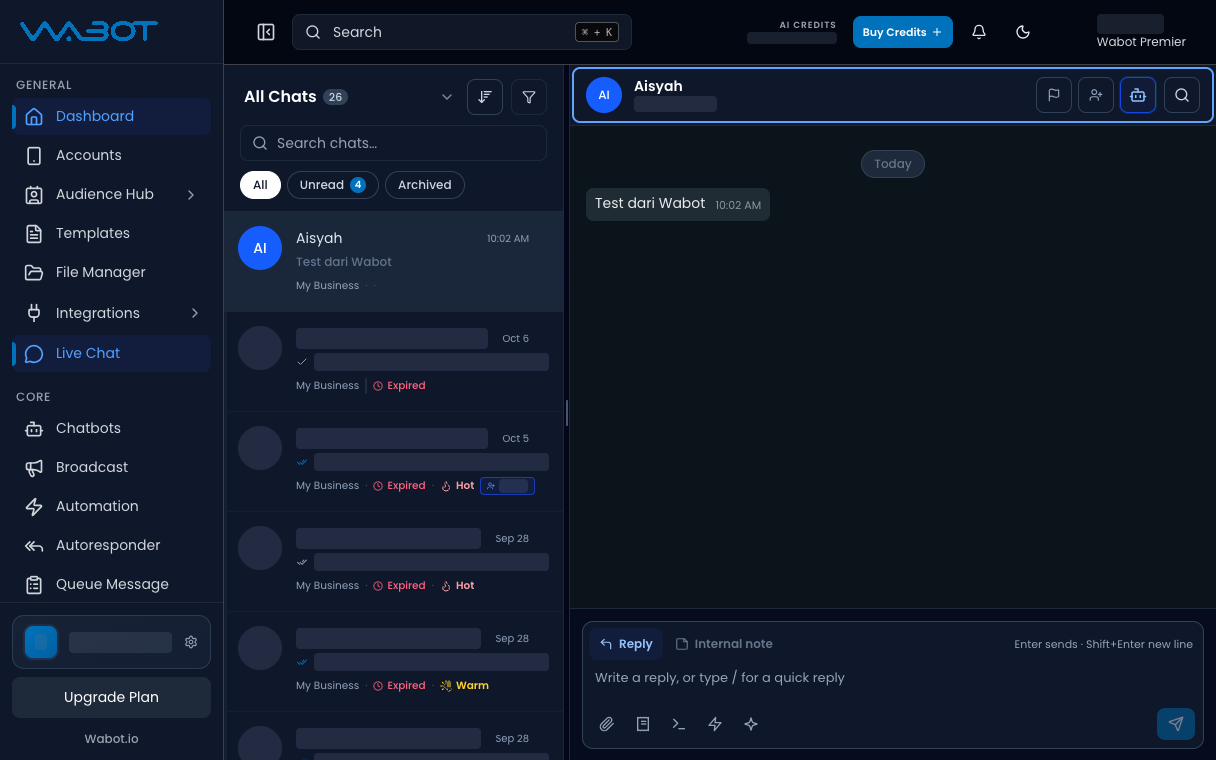
## 1. Open the conversation

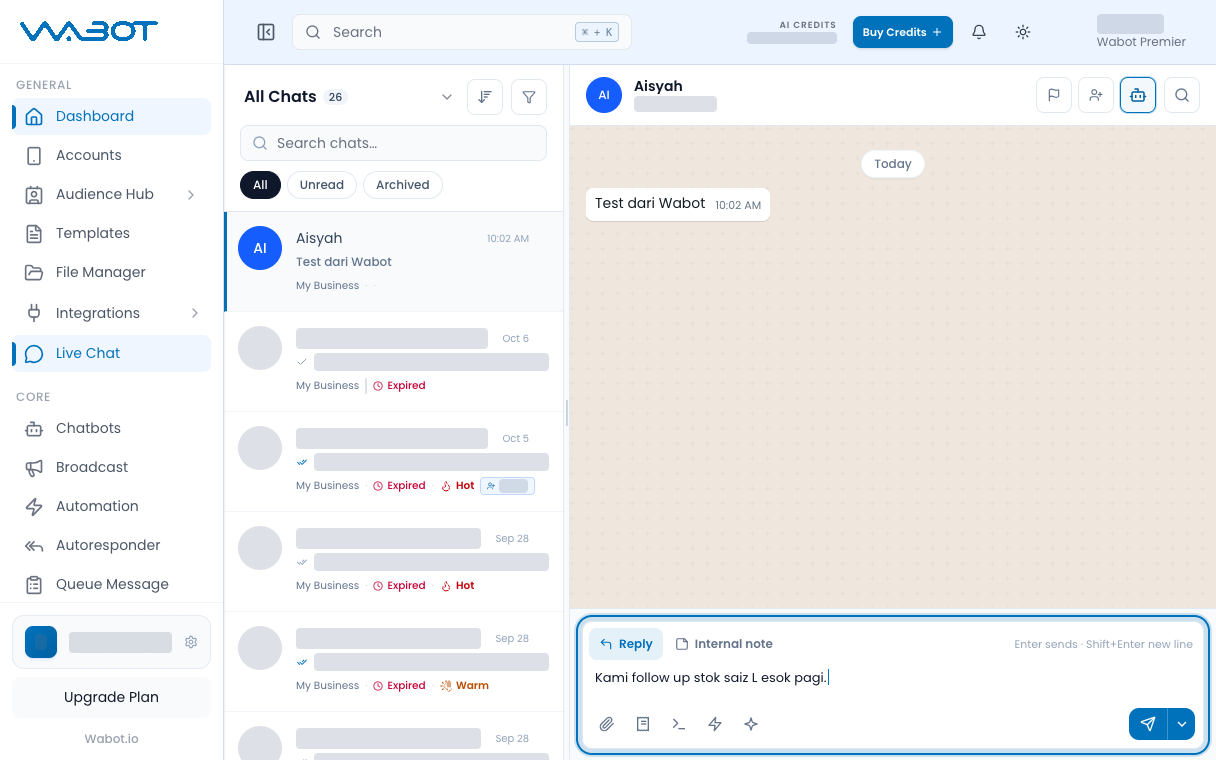
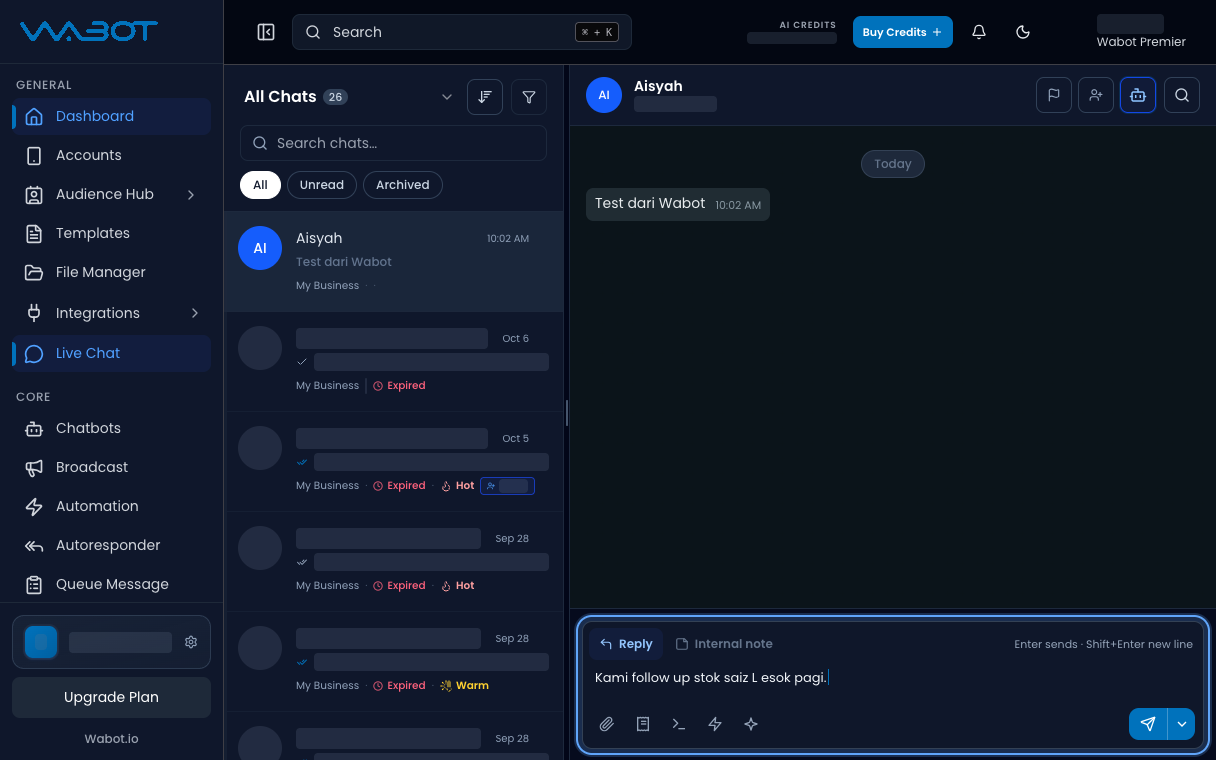
On the left menu, click **Live Chat**.

Click the thread.

<figure class="doc-shot">
  <img class="doc-shot__light" src="/images/features/live-chat/lc-open-light.png" alt="Live Chat with the sample conversation open" width="1216" height="760" loading="lazy" decoding="async" />
  <img class="doc-shot__dark" src="/images/features/live-chat/lc-open-dark.png" alt="Live Chat with the sample conversation open" width="1216" height="760" loading="lazy" decoding="async" />
  <figcaption>Open the conversation. Other chats are hidden.</figcaption>
</figure>

## 2. Open Schedule Message

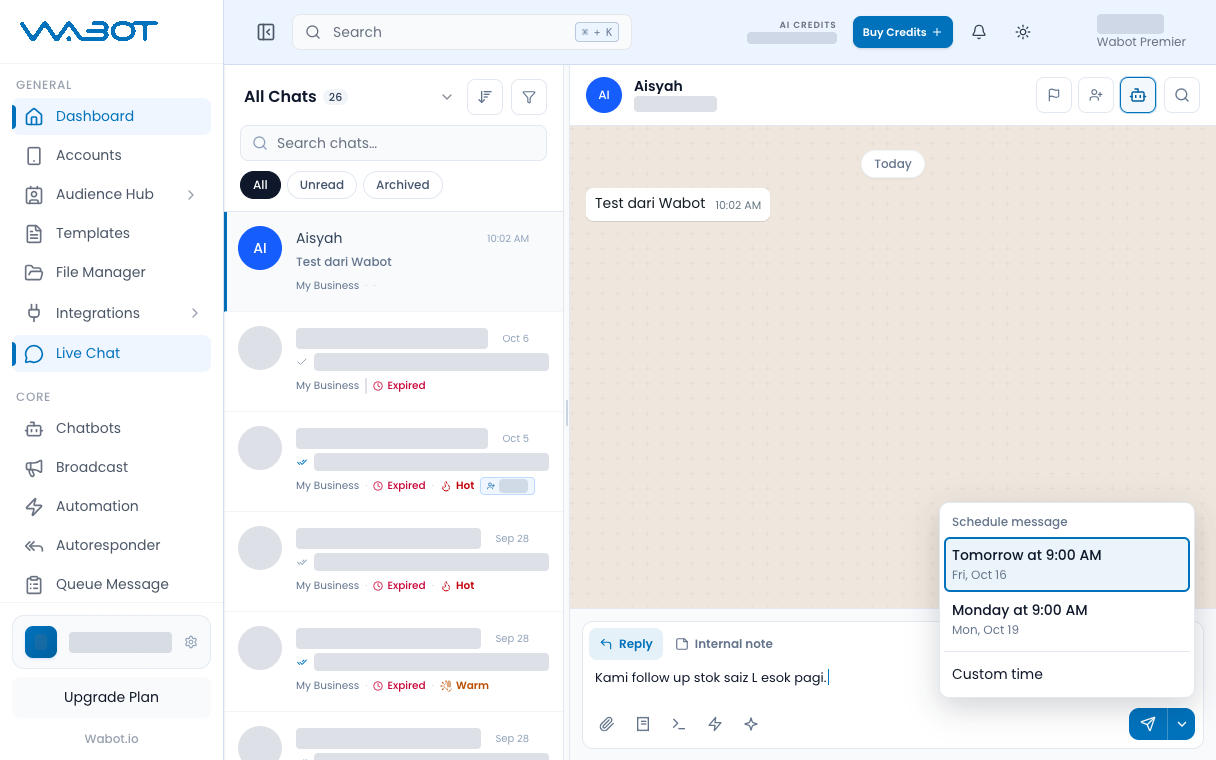
On the right icon strip, click **Schedule Message**.

The **Schedule Message** panel opens.

<figure class="doc-shot">
  <img class="doc-shot__light" src="/images/features/live-chat/lc-sch-open-light.png" alt="Schedule message menu opened from the arrow next to Send" width="1216" height="760" loading="lazy" decoding="async" />
  <img class="doc-shot__dark" src="/images/features/live-chat/lc-sch-open-dark.png" alt="Schedule message menu opened from the arrow next to Send" width="1216" height="760" loading="lazy" decoding="async" />
  <figcaption>Click the <strong>⌄</strong> arrow next to <strong>Send</strong>.</figcaption>
</figure>

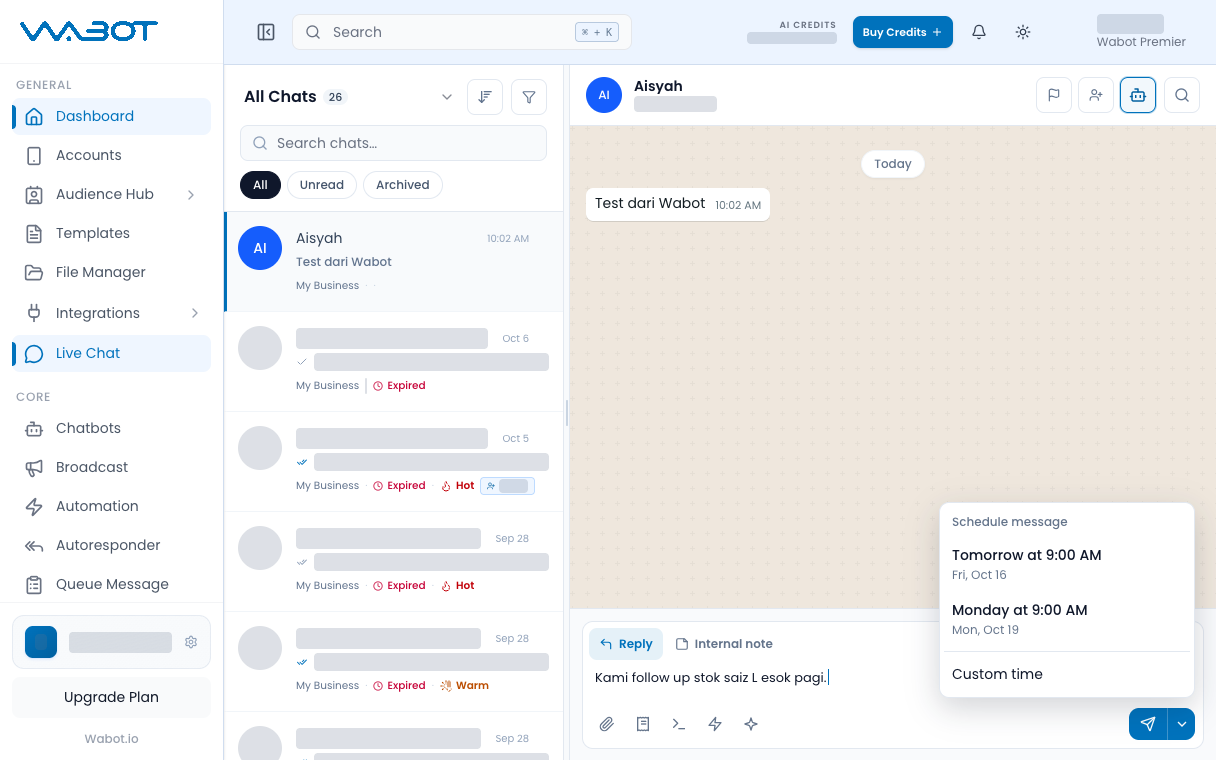
## 3. Write the follow-up

Type the message.

> Kami follow up stok saiz L esok pagi.

<figure class="doc-shot">
  <img class="doc-shot__light" src="/images/features/live-chat/lc-sch-write-light.png" alt="Reply box with the follow-up message typed" width="1216" height="760" loading="lazy" decoding="async" />
  <img class="doc-shot__dark" src="/images/features/live-chat/lc-sch-write-dark.png" alt="Reply box with the follow-up message typed" width="1216" height="760" loading="lazy" decoding="async" />
  <figcaption>Type the follow-up message.</figcaption>
</figure>

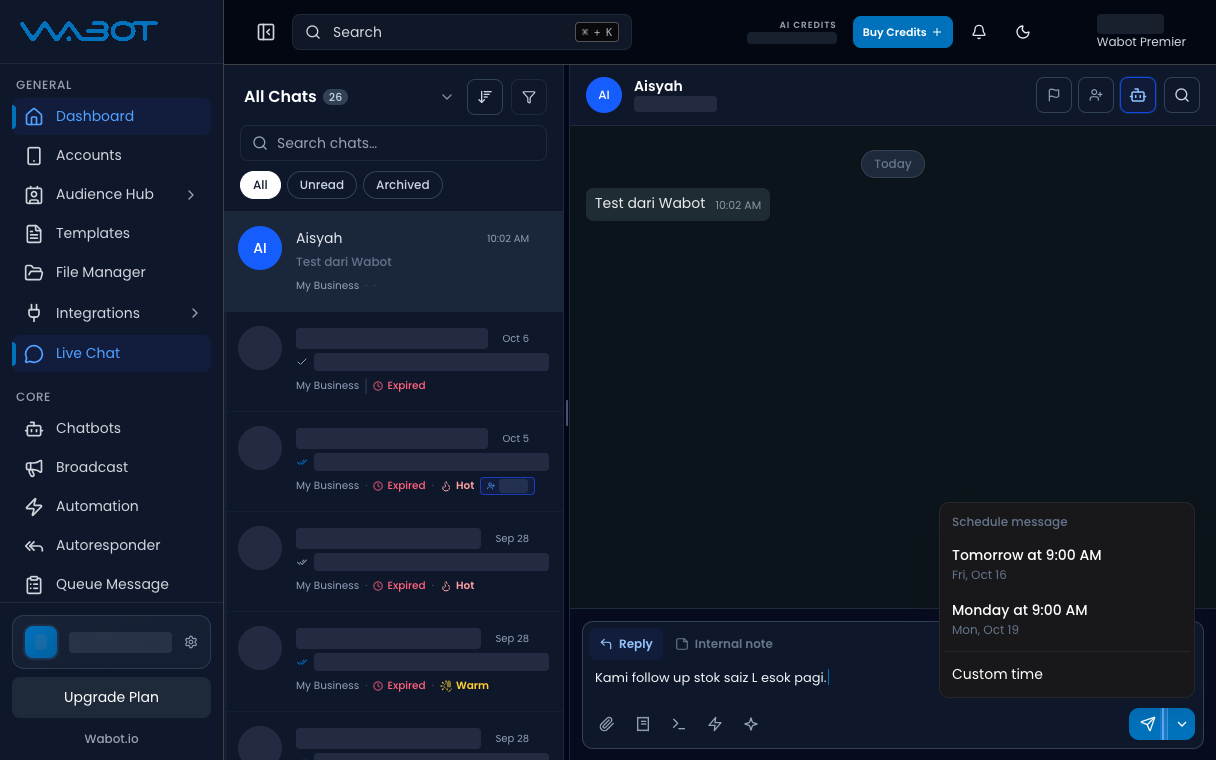
## 4. Pick a time

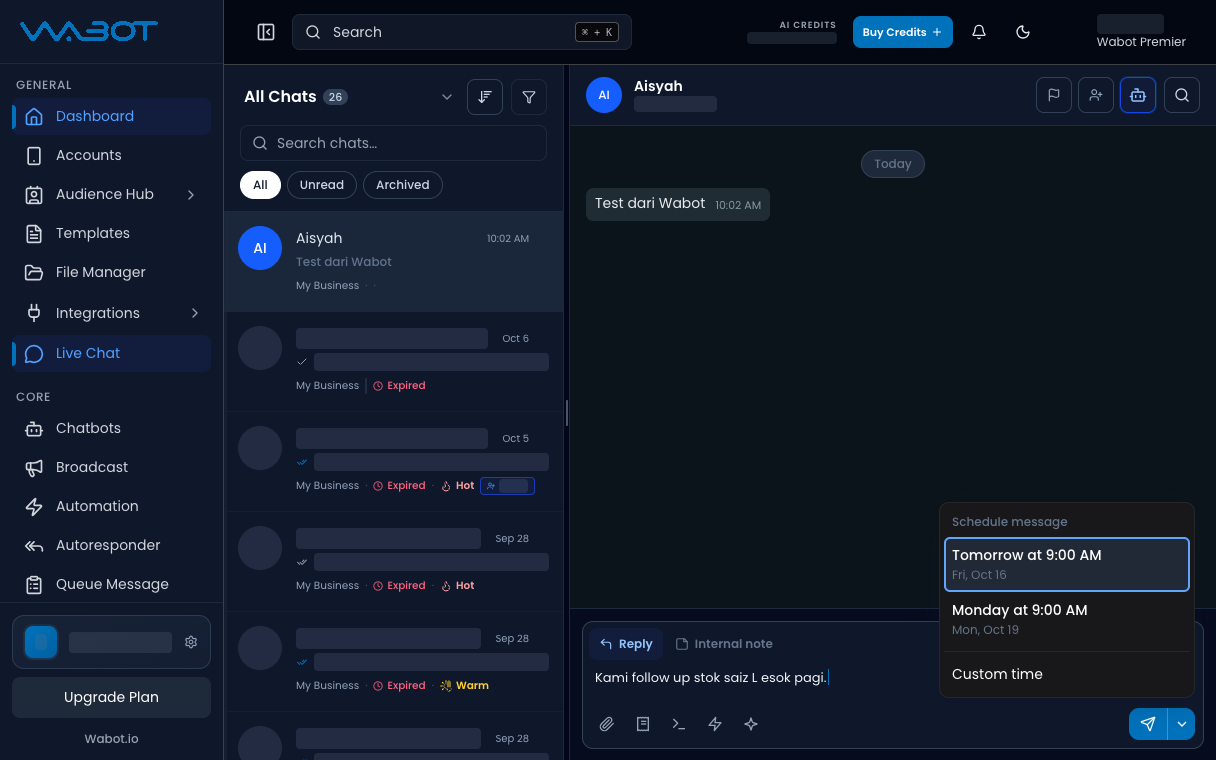
Click **+1h**, or set **Schedule date & time** yourself.

<figure class="doc-shot">
  <img class="doc-shot__light" src="/images/features/live-chat/lc-sch-pick-light.png" alt="Schedule menu with Tomorrow at 9:00 AM highlighted" width="1216" height="760" loading="lazy" decoding="async" />
  <img class="doc-shot__dark" src="/images/features/live-chat/lc-sch-pick-dark.png" alt="Schedule menu with Tomorrow at 9:00 AM highlighted" width="1216" height="760" loading="lazy" decoding="async" />
  <figcaption>Pick a preset, or <strong>Custom time</strong>.</figcaption>
</figure>

## 5. Save the schedule

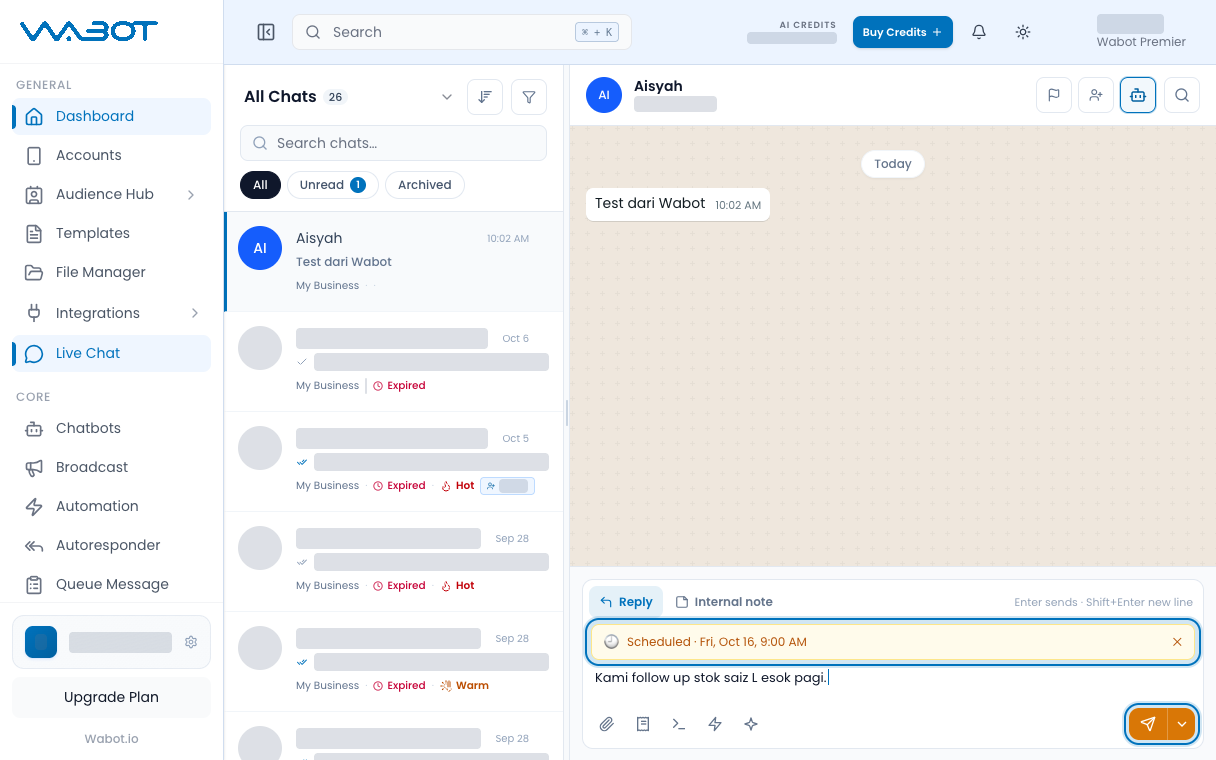
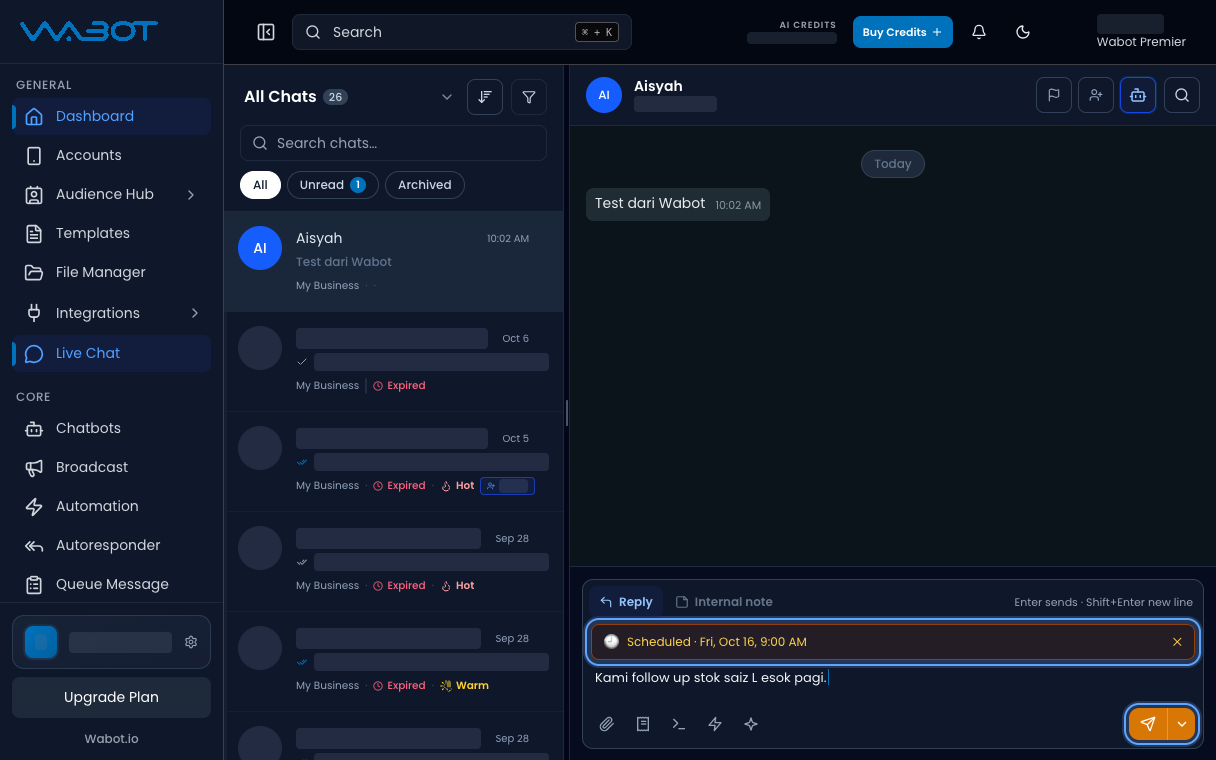
Click the **Send** button in the **Schedule Message** panel.

<figure class="doc-shot">
  <img class="doc-shot__light" src="/images/features/live-chat/lc-sch-saved-light.png" alt="Scheduled chip and orange Send button" width="1216" height="760" loading="lazy" decoding="async" />
  <img class="doc-shot__dark" src="/images/features/live-chat/lc-sch-saved-dark.png" alt="Scheduled chip and orange Send button" width="1216" height="760" loading="lazy" decoding="async" />
  <figcaption>The box shows <strong>Scheduled</strong>. Click <strong>Send</strong> to save it.</figcaption>
</figure>

## Make sure it worked

The message appears in the list with **Scheduled**.

It is not in the WhatsApp thread yet.

## If it didn’t work

### I cannot see Schedule Message

Open the right icon strip and look for the calendar icon. On a small screen, open **Contact Info**, then **Follow-up**, then **Scheduled Message**.

### Send stays disabled

The text is empty, or the date and time are empty. Fill both, then click **Send**.

## Next

Find the right threads faster in [Filter the inbox](/features/live-chat/filters).