---
title: Take over from the bot
description: Turn the chatbot off for one contact so only your team replies.
sidebar:
  order: 2
---
In this tutorial, you will turn the chatbot off for one conversation.

**Time needed:** 5 minutes

## Before you start

Make sure:

- You can open the conversation in **Live Chat**.
- This WhatsApp account has a chatbot. If not, finish [Turn on AI mode](/features/chatbots/ai-mode) or [Choose Keyword mode](/features/chatbots/keyword-mode) first.

> Turn the bot off before you type a long reply. That stops the bot from answering at the same time.

## 1. Open the conversation

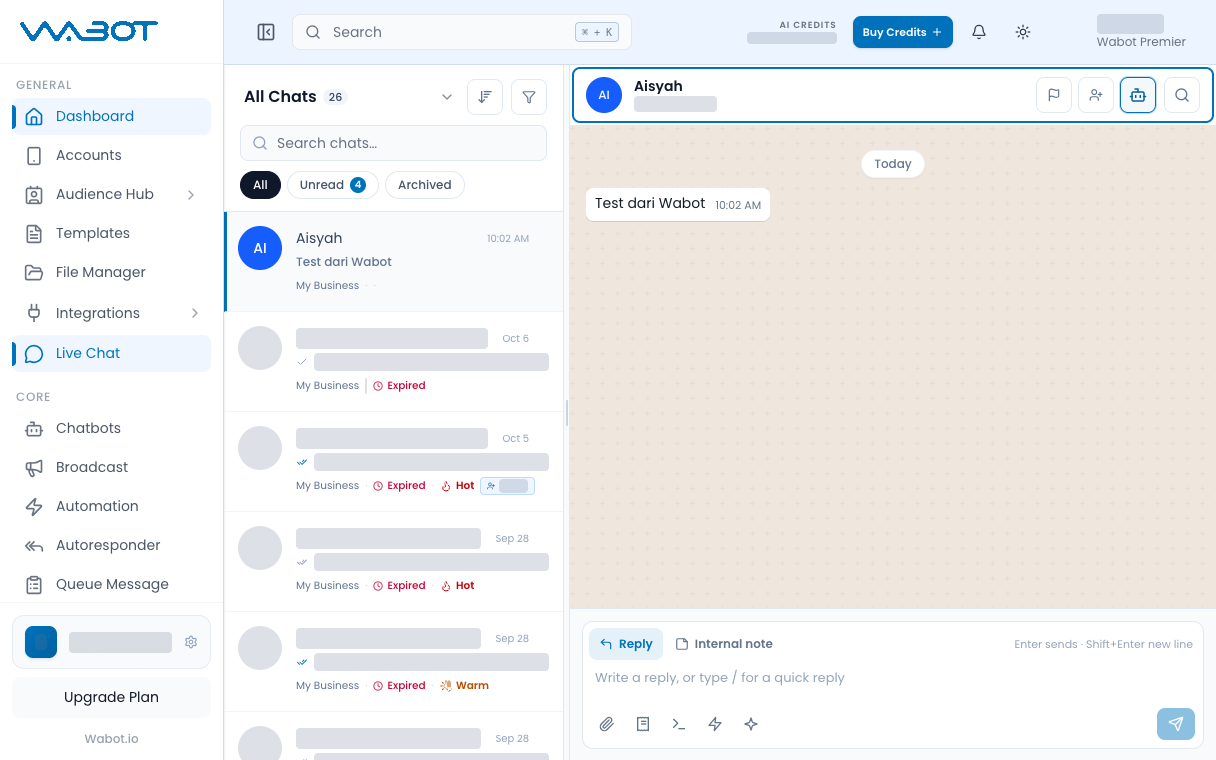
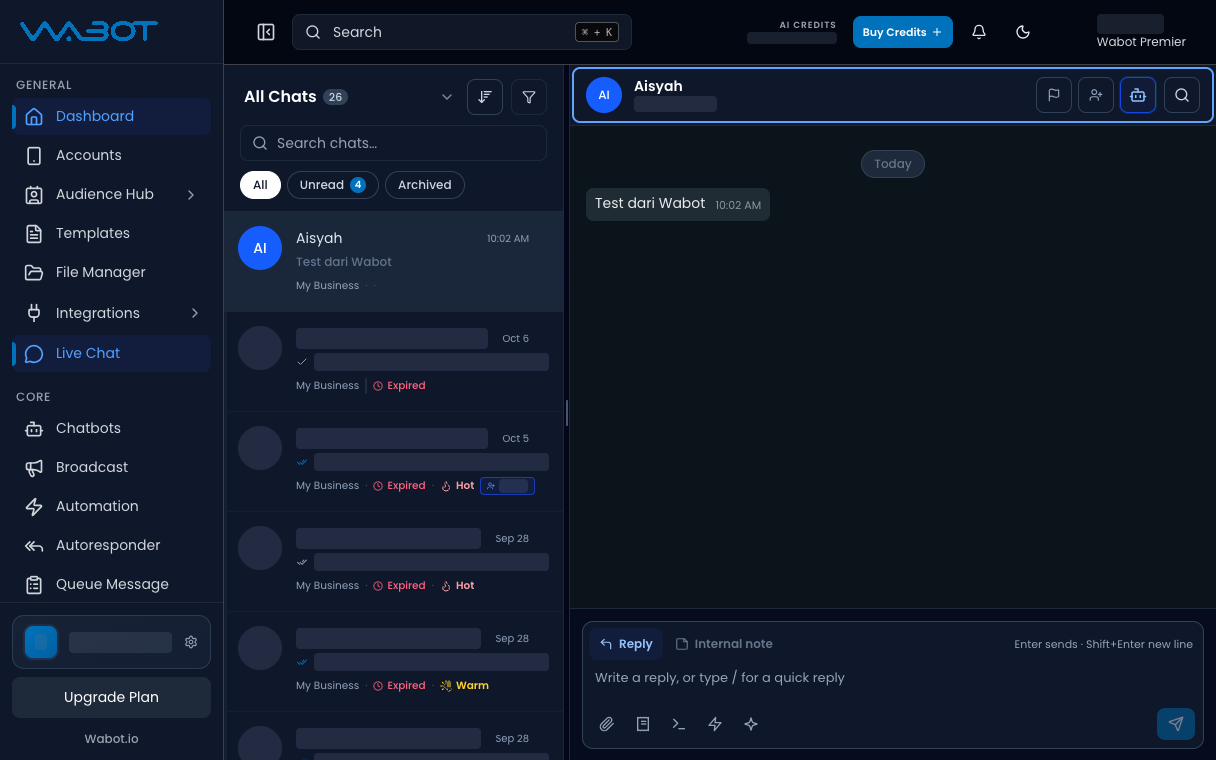
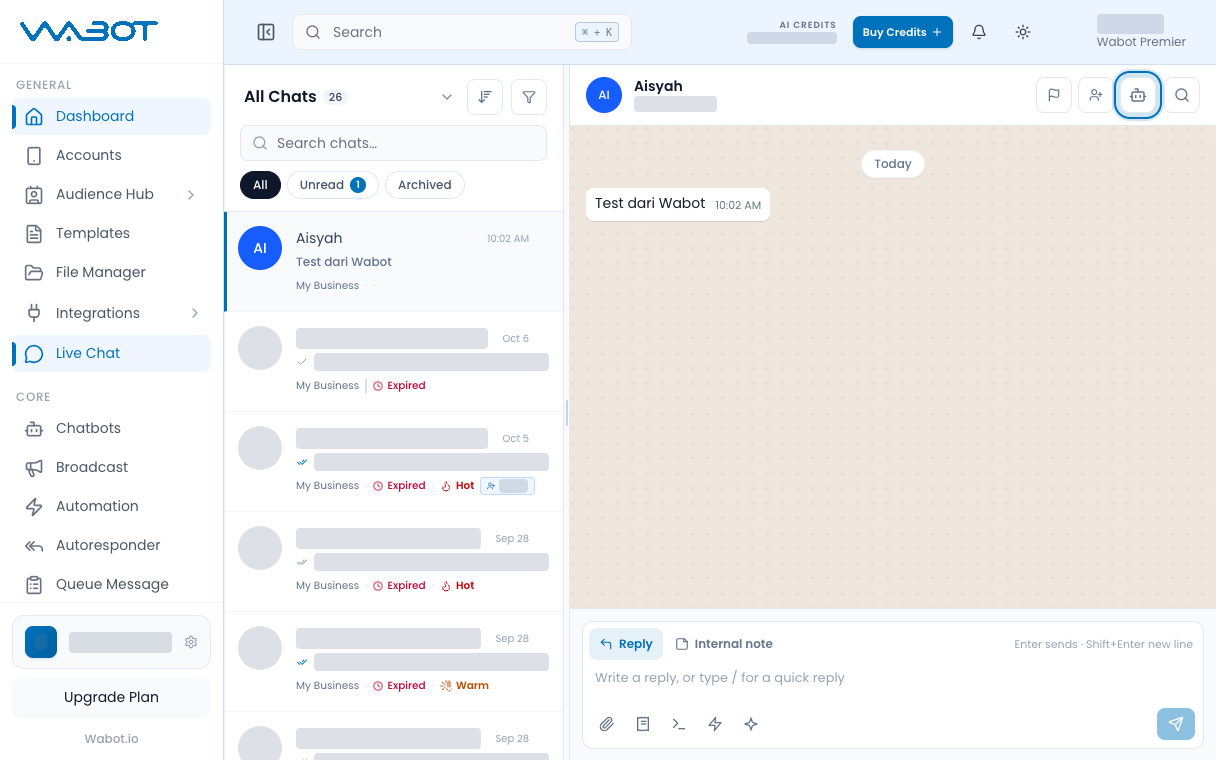
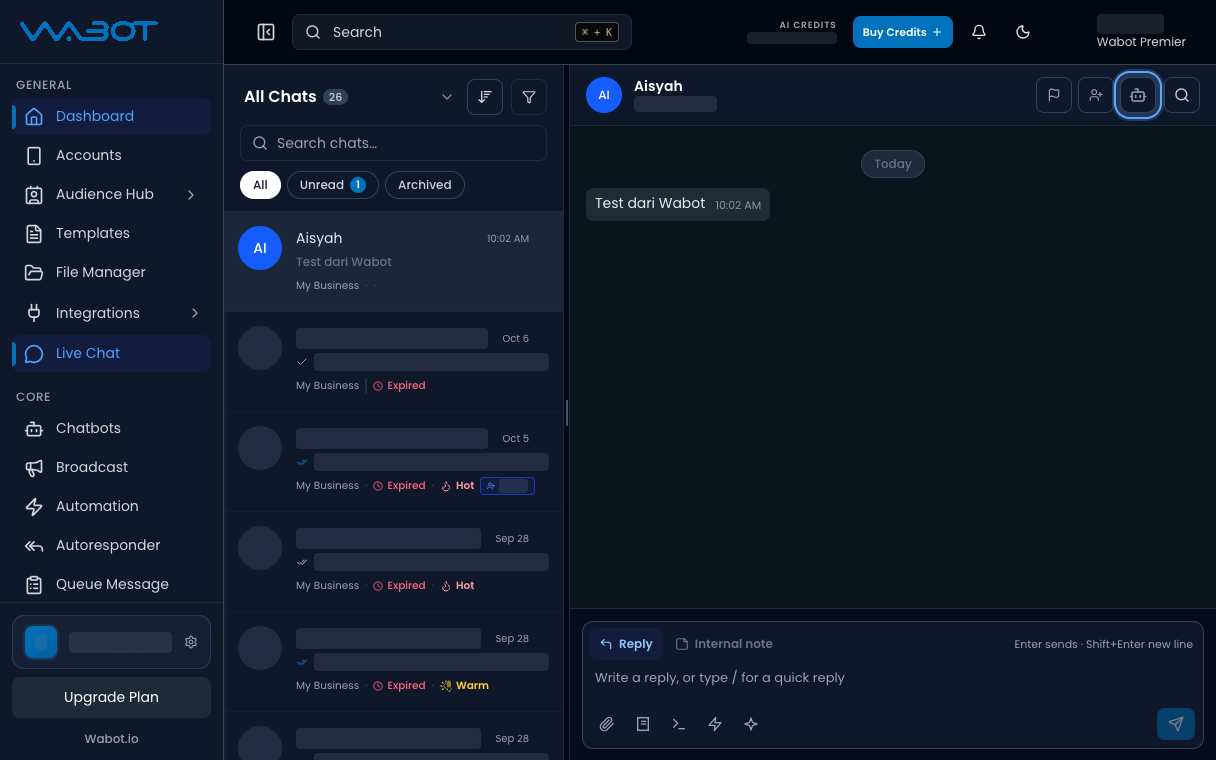
On the left menu, click **Live Chat**.

Click the thread you want to take over.

<figure class="doc-shot">
  <img class="doc-shot__light" src="/images/features/live-chat/lc-open-light.png" alt="Live Chat with the sample conversation open" width="1216" height="760" loading="lazy" decoding="async" />
  <img class="doc-shot__dark" src="/images/features/live-chat/lc-open-dark.png" alt="Live Chat with the sample conversation open" width="1216" height="760" loading="lazy" decoding="async" />
  <figcaption>Open the conversation. Other chats are hidden.</figcaption>
</figure>

## 2. Check Bot Active

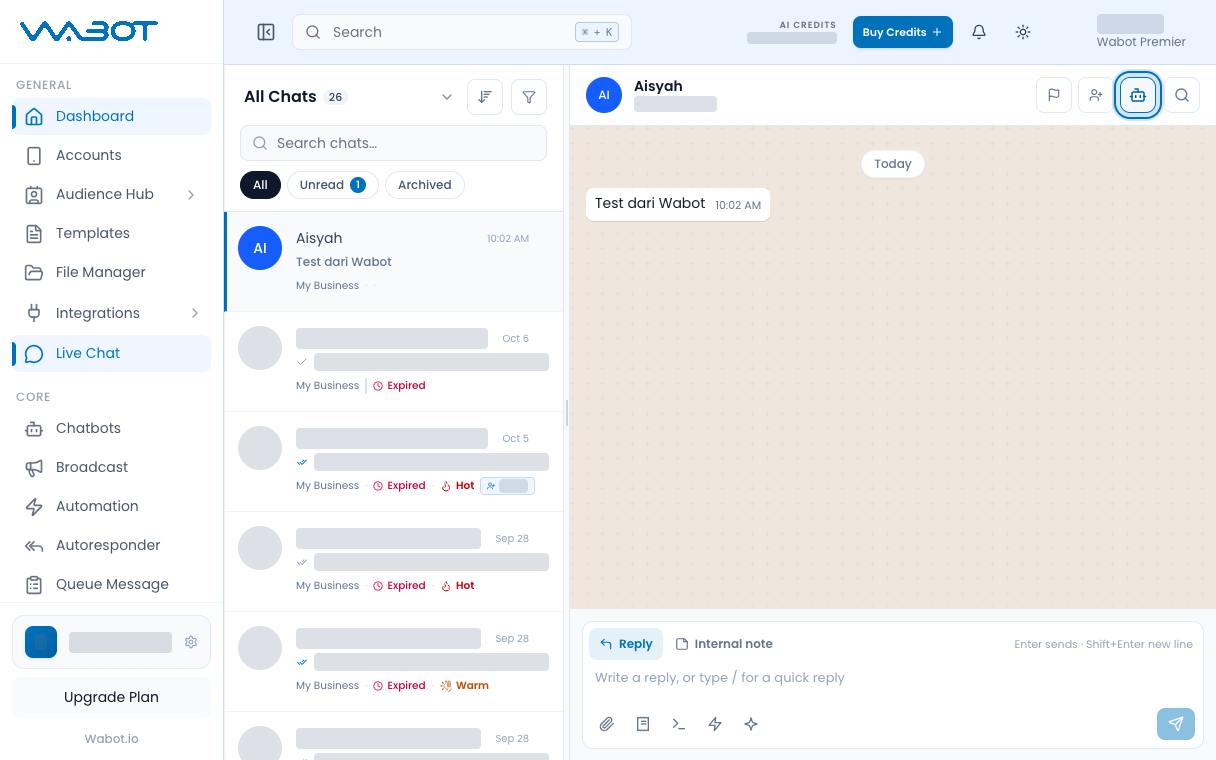
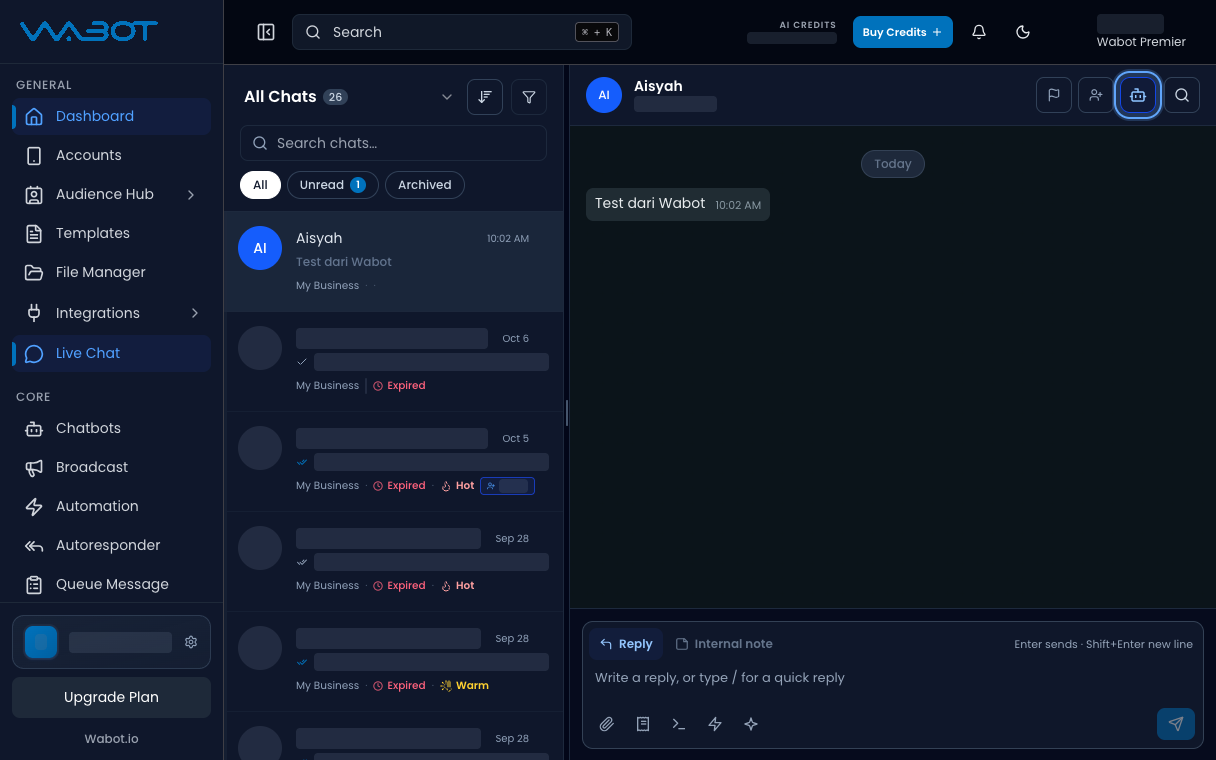
In the conversation header, find **Bot Active**.

If you see **Bot Inactive**, the bot is already off for this contact.

<figure class="doc-shot">
  <img class="doc-shot__light" src="/images/features/live-chat/lc-bot-active-light.png" alt="Bot active button highlighted in the chat header" width="1216" height="760" loading="lazy" decoding="async" />
  <img class="doc-shot__dark" src="/images/features/live-chat/lc-bot-active-dark.png" alt="Bot active button highlighted in the chat header" width="1216" height="760" loading="lazy" decoding="async" />
  <figcaption>The bot icon is highlighted while the bot is active.</figcaption>
</figure>

## 3. Turn the bot off

Click **Bot Active**.

Wait until the label changes to **Bot Inactive**.

<figure class="doc-shot">
  <img class="doc-shot__light" src="/images/features/live-chat/lc-bot-inactive-light.png" alt="Bot button turned off" width="1216" height="760" loading="lazy" decoding="async" />
  <img class="doc-shot__dark" src="/images/features/live-chat/lc-bot-inactive-dark.png" alt="Bot button turned off" width="1216" height="760" loading="lazy" decoding="async" />
  <figcaption>Click it to turn the bot off for this contact.</figcaption>
</figure>

## 4. Reply as a human

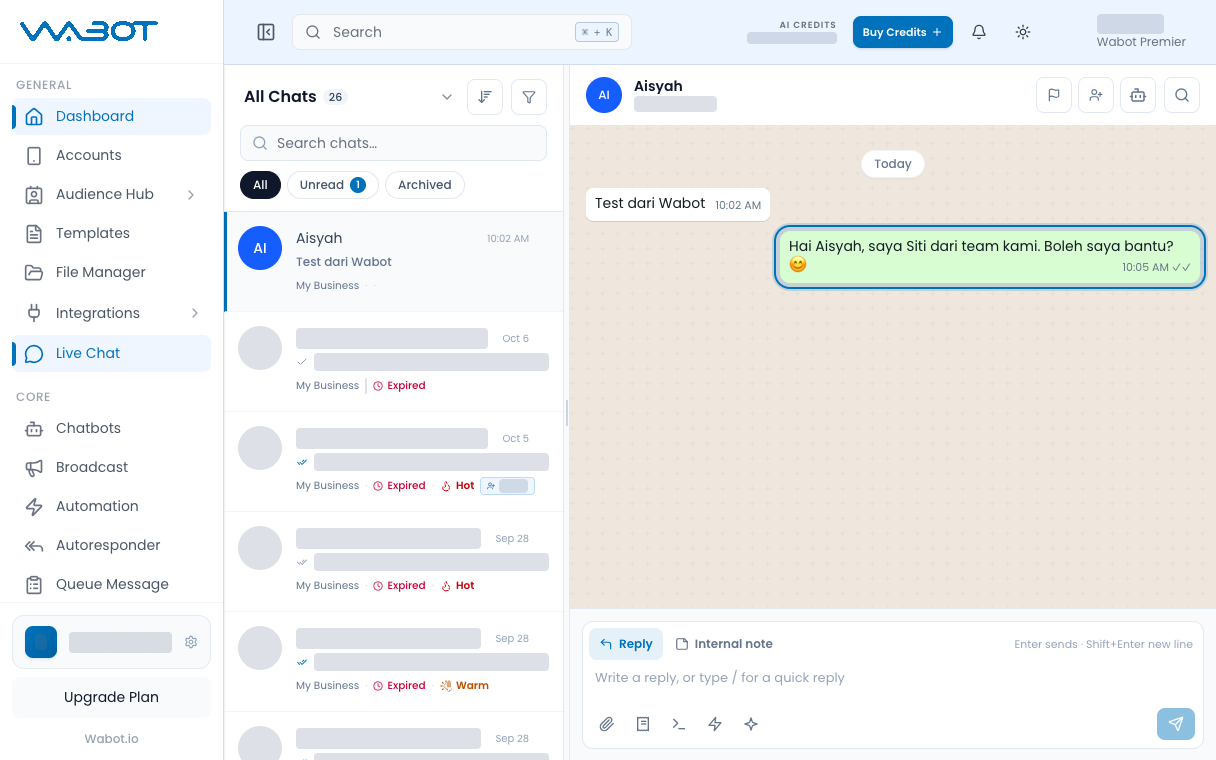
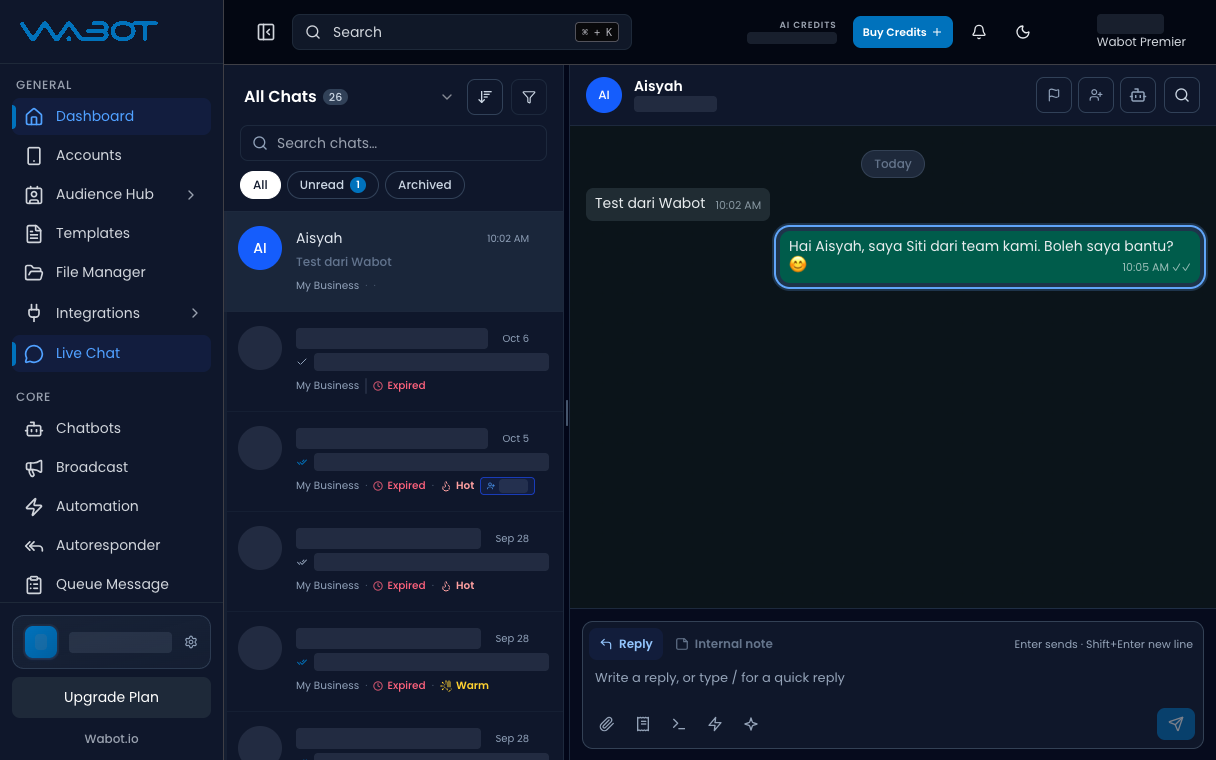
Type your message and send it.

> Staf manusia di sini. Saya bantu terus.

<figure class="doc-shot">
  <img class="doc-shot__light" src="/images/features/live-chat/lc-human-reply-light.png" alt="Human reply sent in the conversation" width="1216" height="760" loading="lazy" decoding="async" />
  <img class="doc-shot__dark" src="/images/features/live-chat/lc-human-reply-dark.png" alt="Human reply sent in the conversation" width="1216" height="760" loading="lazy" decoding="async" />
  <figcaption>Now reply yourself. Example reply shown.</figcaption>
</figure>

## Make sure it worked

The header shows **Bot Inactive**.

A new customer message does not get an automatic bot reply.

## If it didn’t work

### I cannot see the bot button

This account has no chatbot, or your login cannot change chatbot status.

### The bot still replies

Open the header again. If it shows **Bot Active**, click it once more.

You can also type `/stop` in the box and choose **Disable Chatbot**.

## Next

Give the thread to a teammate in [Assign a conversation](/features/live-chat/assign).