---
title: Connect Official API
description: >-
  Add an Official API account with Wabot Pro credentials, then wait until
  Online.
sidebar:
  order: 4
---
In this tutorial, you will connect WhatsApp with **Official API** by pasting credentials from **Wabot Pro**.

**Time needed:** 12 minutes

## Before you start

Make sure:

- You are logged in to Wabot.
- You can sign in to **Wabot Pro**.
- That WhatsApp channel in Wabot Pro already shows **CONNECTED**.

> This page is **Official API** only. To scan a QR code, use [Connect Unofficial API](/getting-started/connect-account).

## 1. Open Accounts

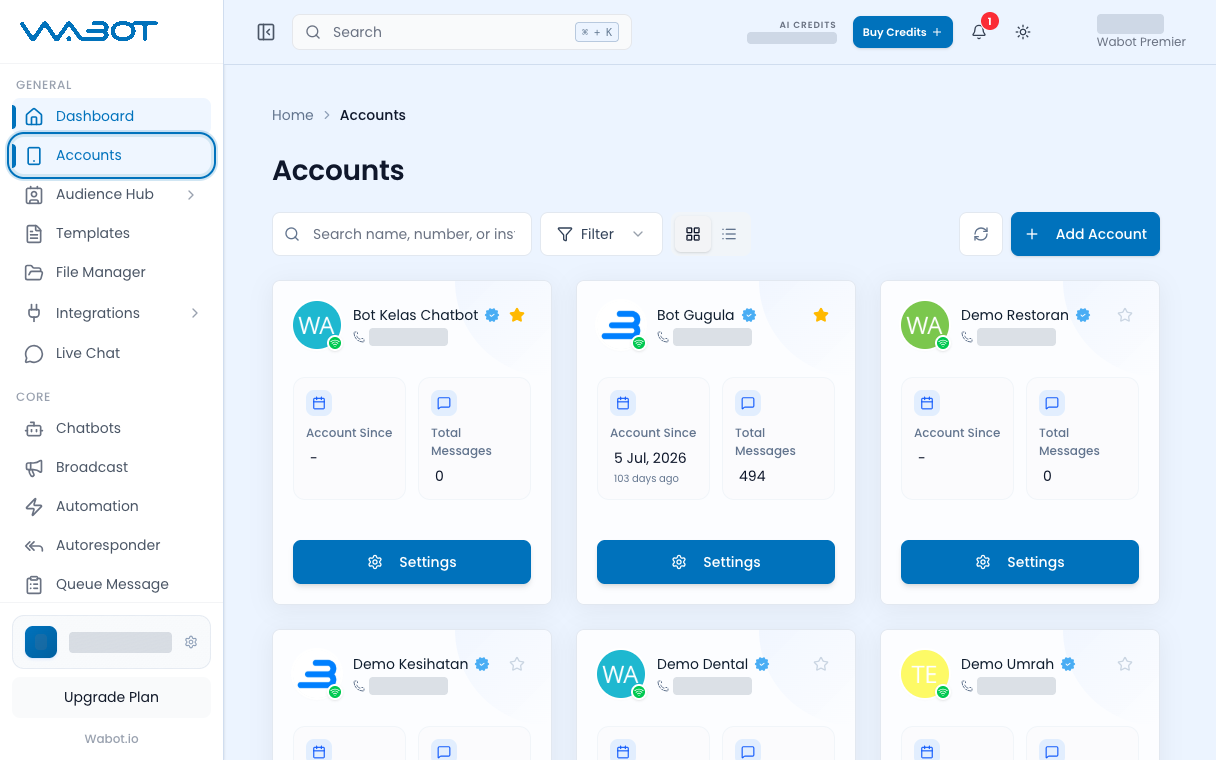
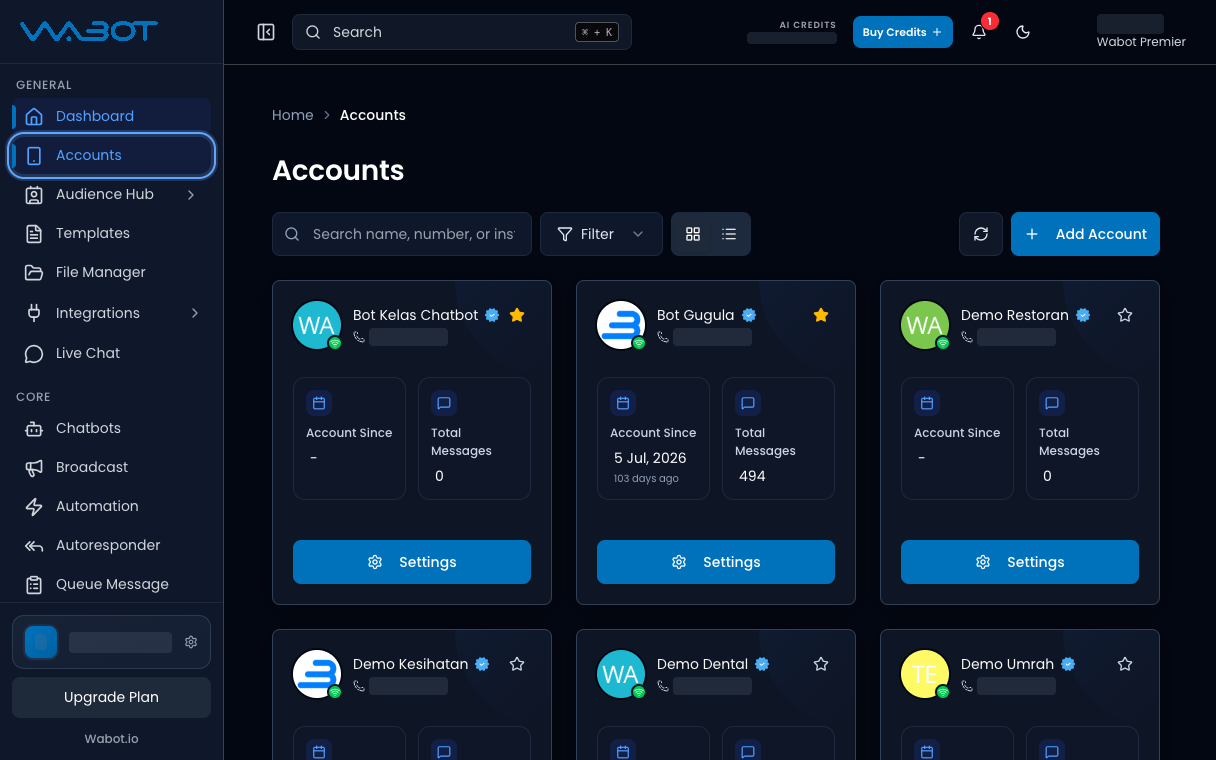
On the left menu, click **Accounts**.

<figure class="doc-shot">
  <img class="doc-shot__light" src="/images/getting-started/connect-official/01-accounts-light.png" alt="Accounts highlighted in the left menu, with the Accounts page open" width="1216" height="760" loading="lazy" decoding="async" />
  <img class="doc-shot__dark" src="/images/getting-started/connect-official/01-accounts-dark.png" alt="Accounts highlighted in the left menu, with the Accounts page open" width="1216" height="760" loading="lazy" decoding="async" />
  <figcaption>Click <strong>Accounts</strong> in the left menu.</figcaption>
</figure>

## 2. Start Add Account

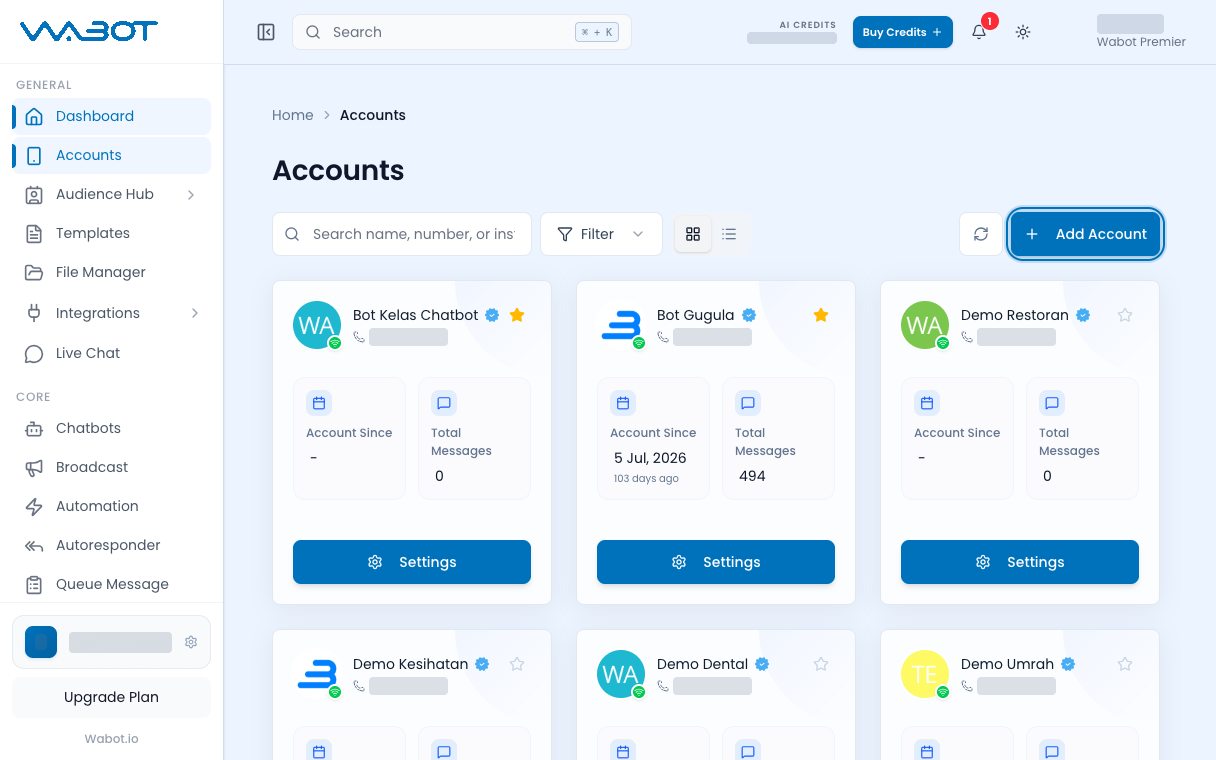
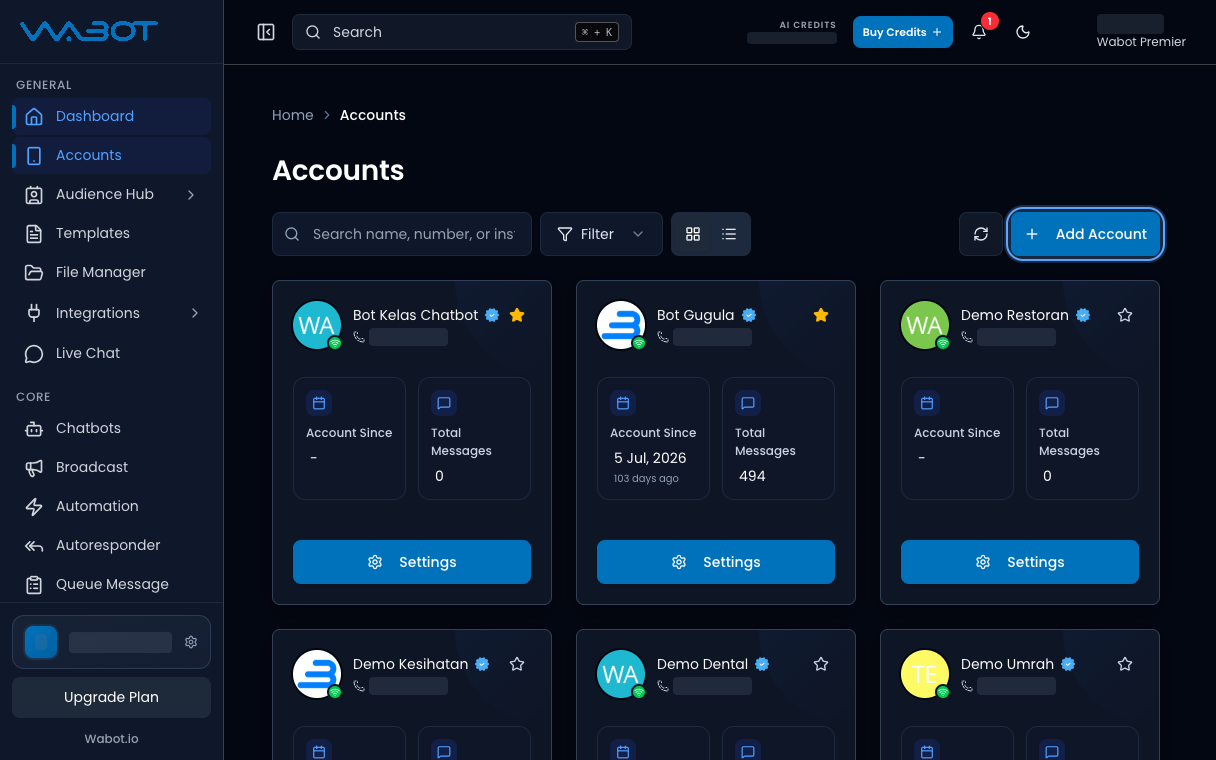
Click **Add Account**.

<figure class="doc-shot">
  <img class="doc-shot__light" src="/images/getting-started/connect-official/02-add-account-light.png" alt="Add Account button highlighted at the top right of the Accounts page" width="1216" height="760" loading="lazy" decoding="async" />
  <img class="doc-shot__dark" src="/images/getting-started/connect-official/02-add-account-dark.png" alt="Add Account button highlighted at the top right of the Accounts page" width="1216" height="760" loading="lazy" decoding="async" />
  <figcaption><strong>Add Account</strong> is at the top right of <strong>Accounts</strong>.</figcaption>
</figure>

## 3. Choose Official API

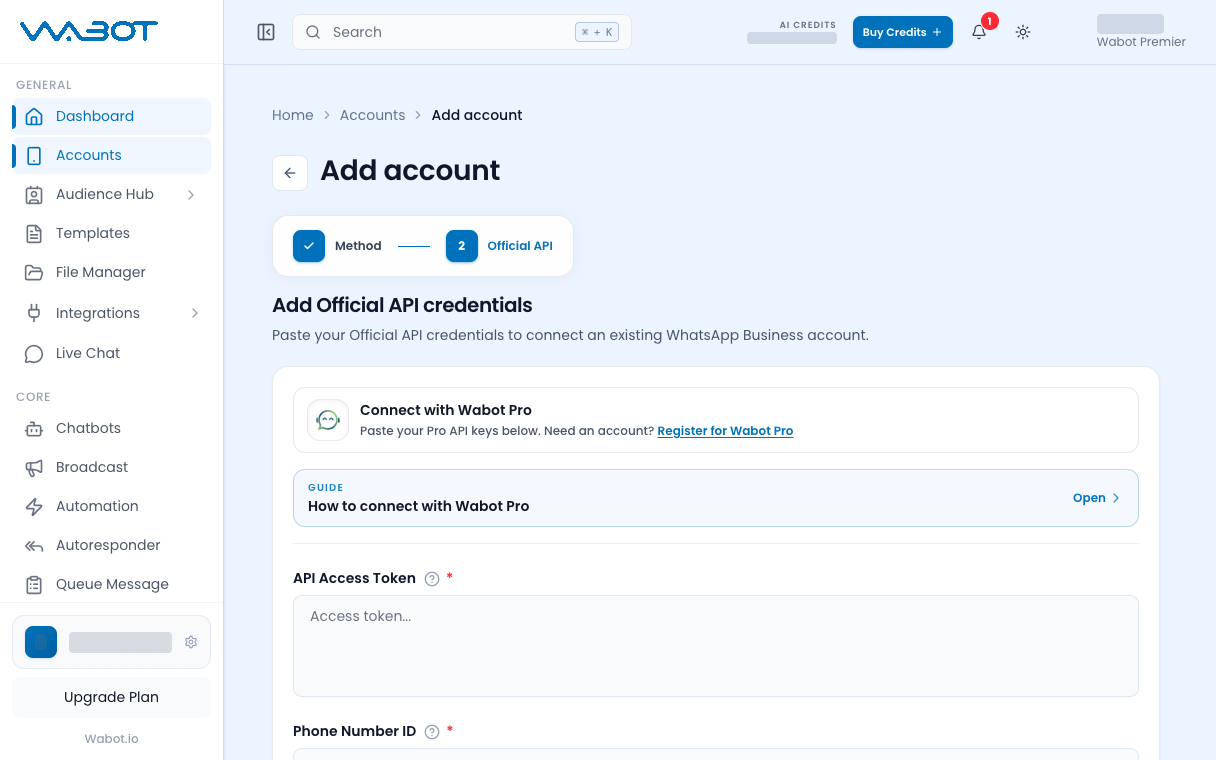
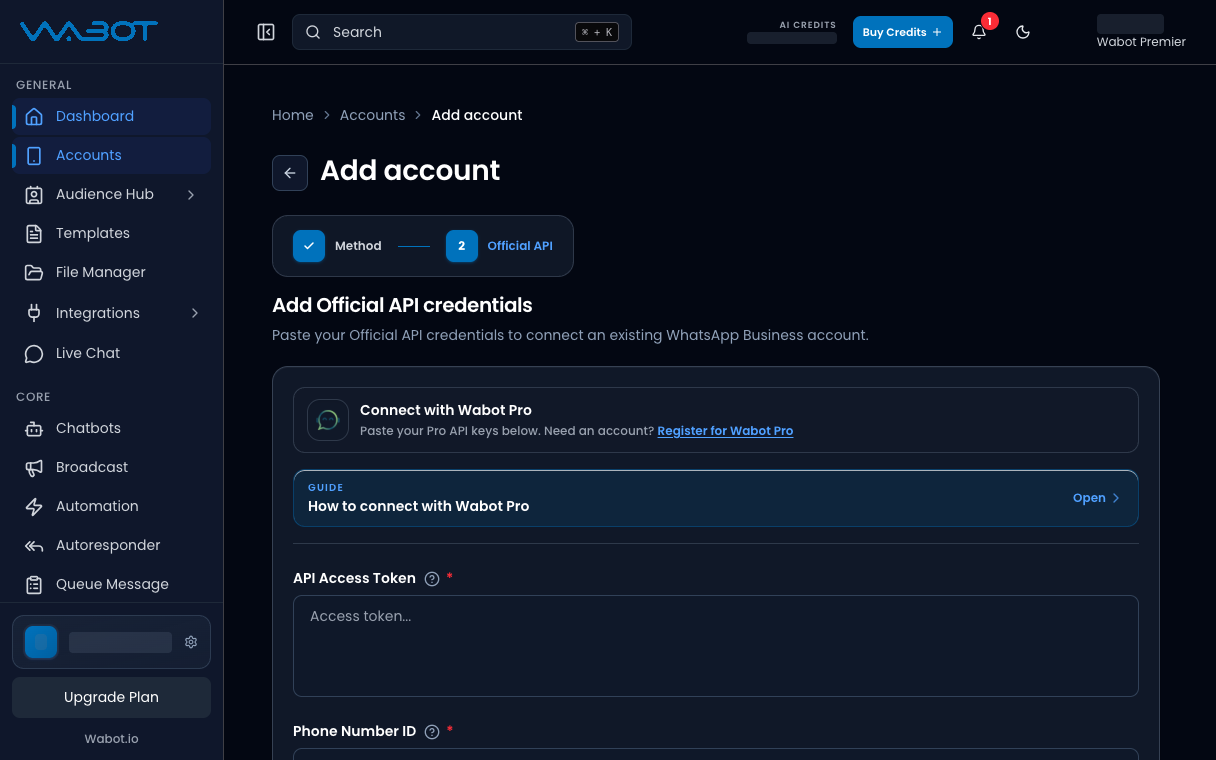
On **How do you want to connect?**, click **Official API**.

The screen says **Add Official API credentials**.

<figure class="doc-shot">
  <img class="doc-shot__light" src="/images/getting-started/connect-official/03-official-api-light.png" alt="Add Official API credentials form with Connect with Wabot Pro" width="1216" height="760" loading="lazy" decoding="async" />
  <img class="doc-shot__dark" src="/images/getting-started/connect-official/03-official-api-dark.png" alt="Add Official API credentials form with Connect with Wabot Pro" width="1216" height="760" loading="lazy" decoding="async" />
  <figcaption>After you pick <strong>Official API</strong>, you see <strong>Add Official API credentials</strong>.</figcaption>
</figure>

## 4. Copy credentials from Wabot Pro

Keep the Wabot tab open.

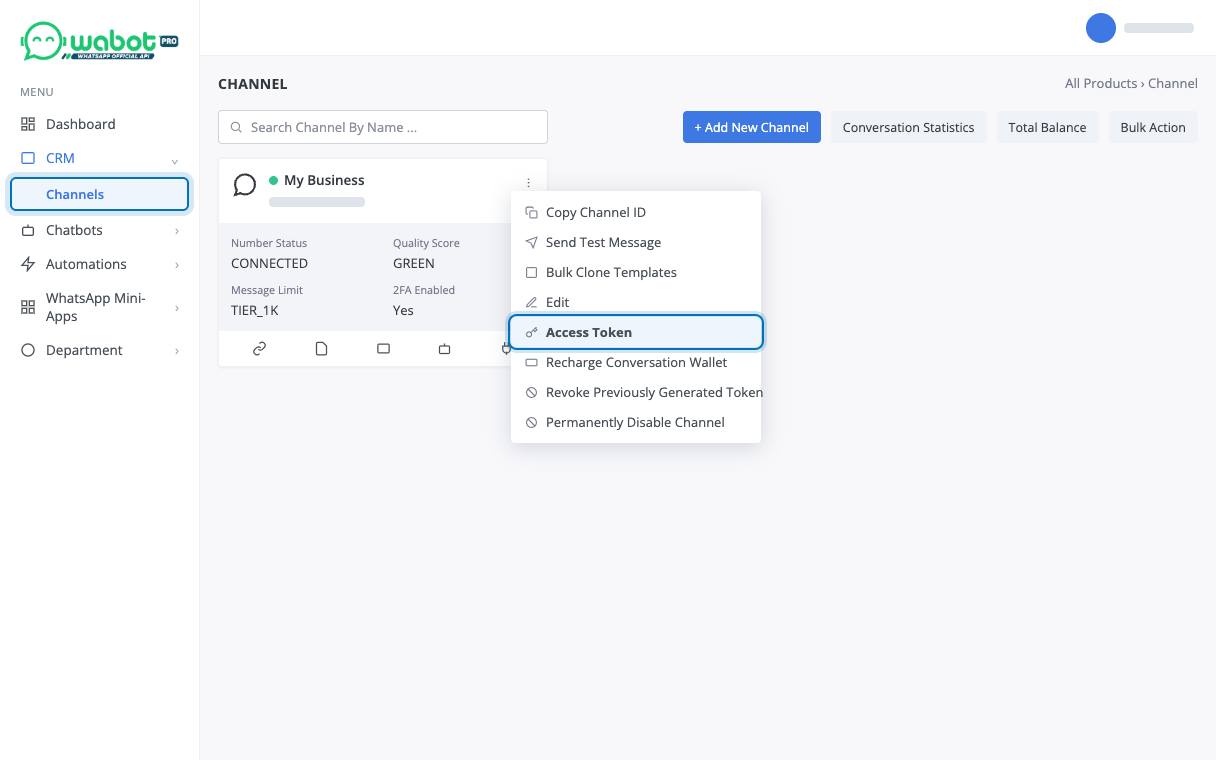
In **Wabot Pro**, open **CRM**, then click **Channels**.

On the WhatsApp channel, click the three-dot menu, then **Access Token**.

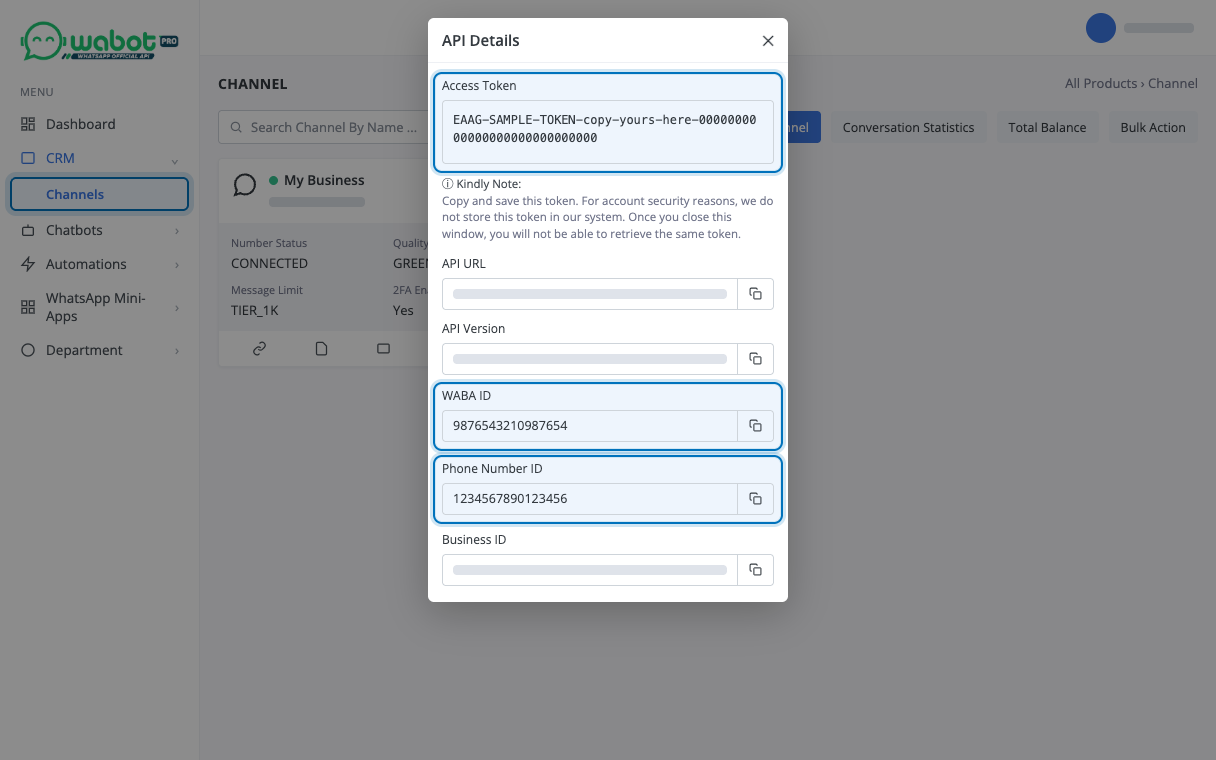
Copy these three values:

1. **Access Token**
2. **Phone Number ID**
3. **WABA ID**

> Copy the token now. Wabot Pro will not show the same token again after you close the window.

<figure class="doc-shot">
  <img src="/images/getting-started/connect-official/04-access-token.png" alt="Wabot Pro Channels page with the channel three-dot menu open and Access Token highlighted" width="1216" height="760" loading="lazy" decoding="async" />
  <figcaption>In <strong>Wabot Pro → CRM → Channels</strong>, open the <strong>⋮</strong> menu on your WhatsApp channel, then click <strong>Access Token</strong>.</figcaption>
</figure>

<figure class="doc-shot">
  <img src="/images/getting-started/connect-official/05-api-details.png" alt="Wabot Pro API Details window with Access Token, WABA ID and Phone Number ID highlighted" width="1216" height="760" loading="lazy" decoding="async" />
  <figcaption><strong>API Details</strong> shows the three values. Copy <strong>Access Token</strong>, <strong>WABA ID</strong> and <strong>Phone Number ID</strong>. Values shown are samples.</figcaption>
</figure>

## 5. Paste and Connect

Back in Wabot, paste:

- **API Access Token**
- **Phone Number ID**
- **WABA ID**

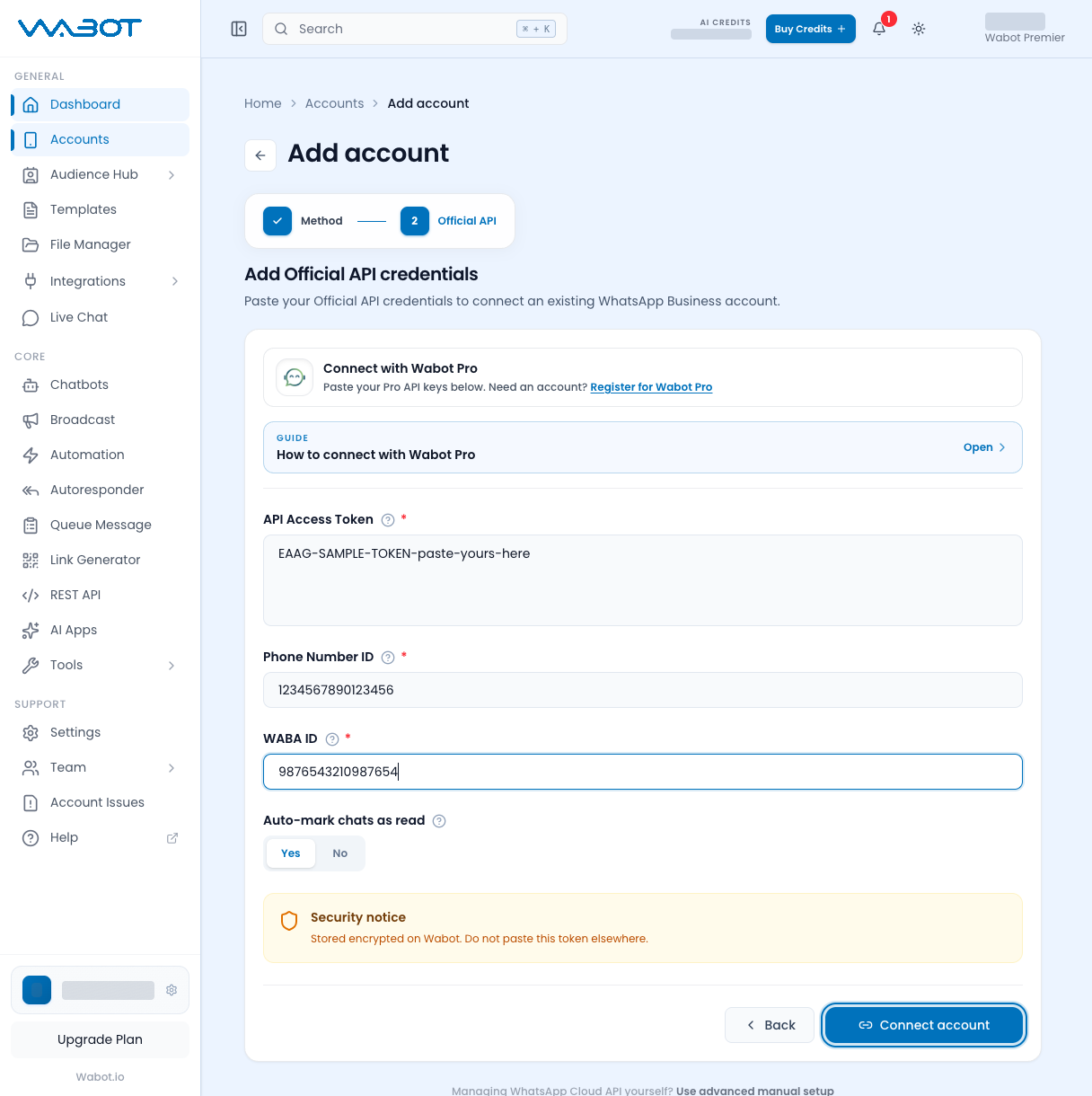
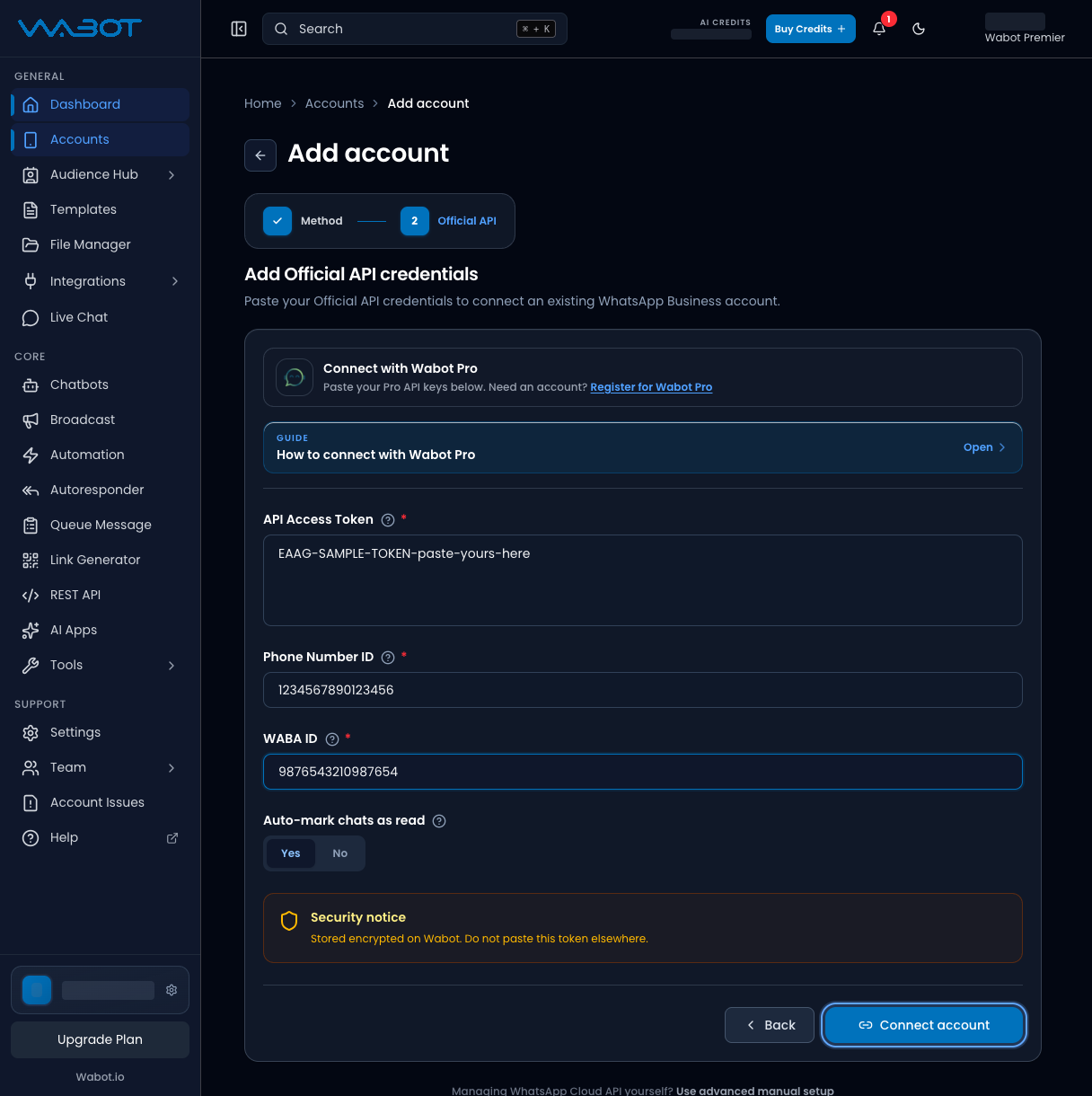
Click **Connect account**.

<figure class="doc-shot">
  <img class="doc-shot__light" src="/images/getting-started/connect-official/06-paste-connect-light.png" alt="Official API form filled with sample values and the Connect account button highlighted" width="1216" height="1220" loading="lazy" decoding="async" />
  <img class="doc-shot__dark" src="/images/getting-started/connect-official/06-paste-connect-dark.png" alt="Official API form filled with sample values and the Connect account button highlighted" width="1216" height="1220" loading="lazy" decoding="async" />
  <figcaption>Paste your three values, then click <strong>Connect account</strong>. The values shown are samples.</figcaption>
</figure>

## 6. Wait until Online

Open **Accounts**.

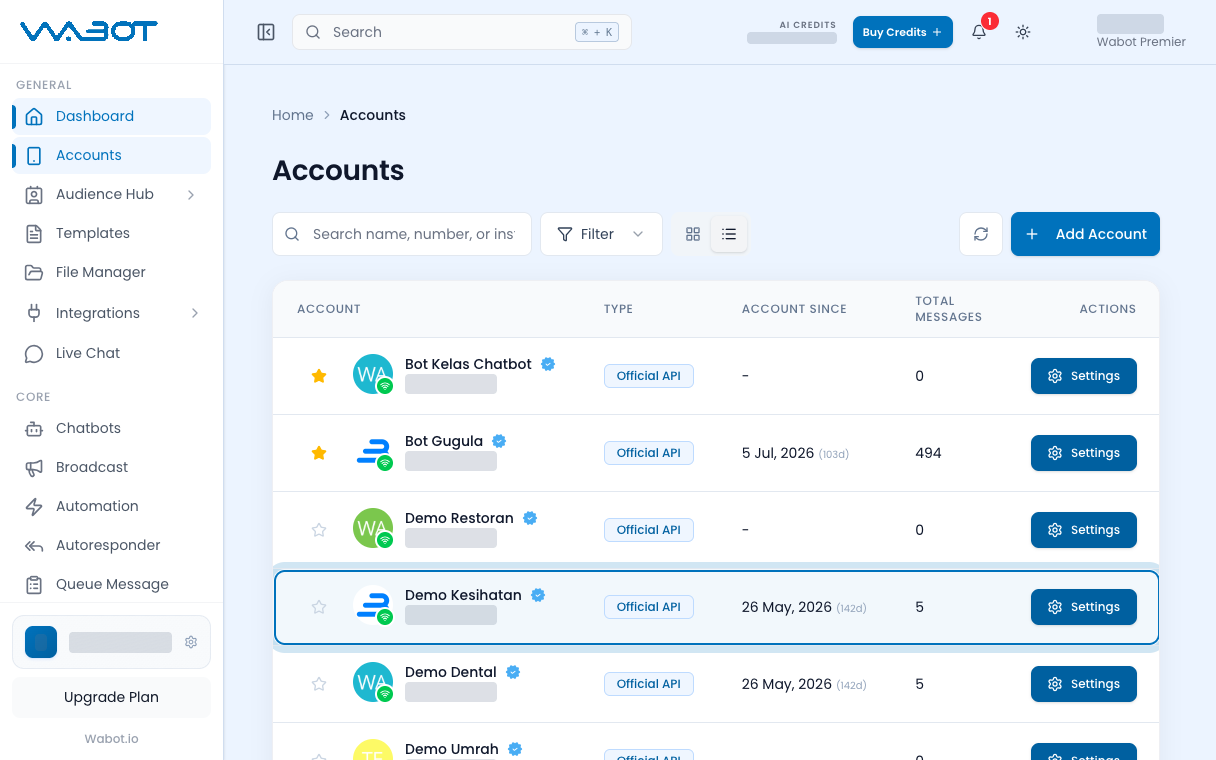
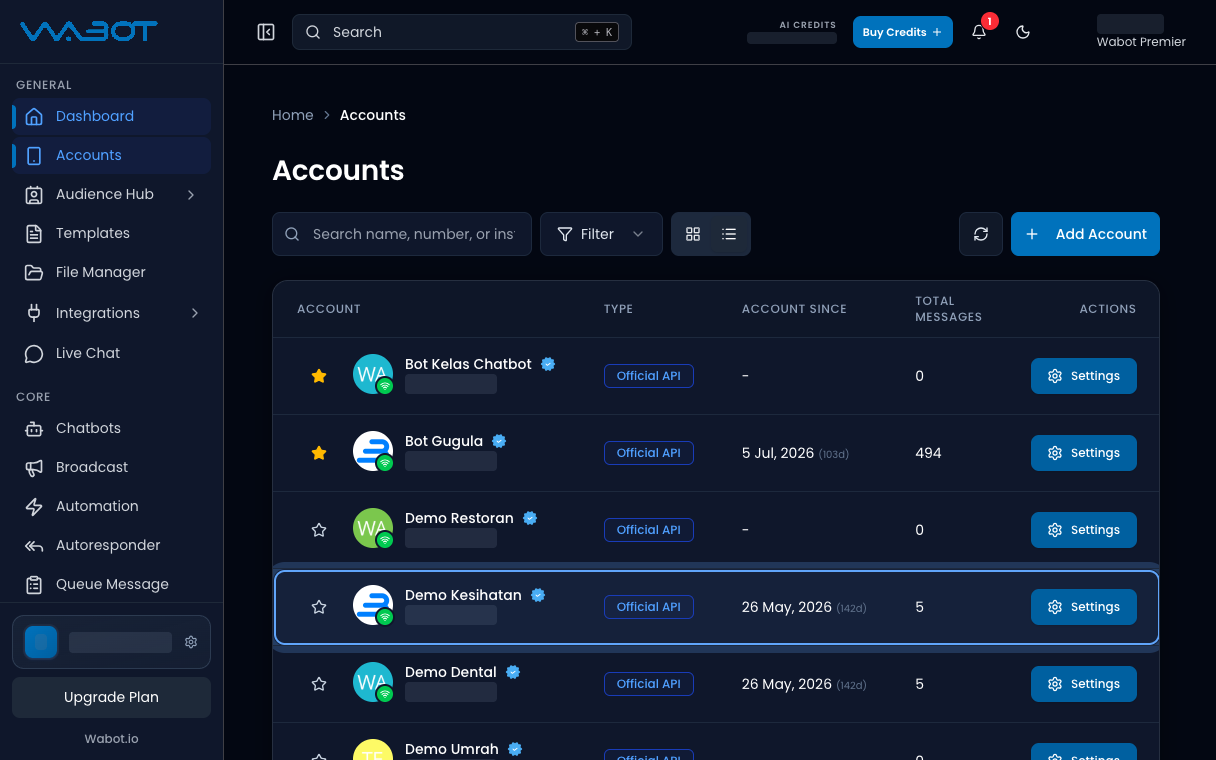
The new account should show **Official API** and **Online**.

<figure class="doc-shot">
  <img class="doc-shot__light" src="/images/getting-started/connect-official/07-online-light.png" alt="Accounts table with an Official API account and a green connected badge" width="1216" height="760" loading="lazy" decoding="async" />
  <img class="doc-shot__dark" src="/images/getting-started/connect-official/07-online-dark.png" alt="Accounts table with an Official API account and a green connected badge" width="1216" height="760" loading="lazy" decoding="async" />
  <figcaption>A connected account shows <strong>Official API</strong> and a green Wi-Fi badge.</figcaption>
</figure>

## Make sure it worked

The account is in **Accounts**.

The type is **Official API**. The status is **Online**.

## If it didn’t work

### I do not have Wabot Pro yet

On **Add Official API credentials**, click **Register for Wabot Pro**. Finish that setup first, then copy the three values.

### I see Continue with WhatsApp Business Signup

That is the Meta path. Click **Continue with WhatsApp Business Signup**, allow the pop-up, then finish the Meta screens. Or stay on the Wabot Pro credentials form.

### Continue with WhatsApp Business Signup does nothing

Allow pop-ups for app.wabot.io, then click the button again.

### The number is already in use

That WhatsApp number is already linked to another Official API. Pick a free number in Wabot Pro, or disconnect it there first.

## Next

Send a test from your phone.

[Send your first message →](/getting-started/first-message)