---
title: Send your first message
description: 'WhatsApp your connected number from your own phone, then reply in Live Chat.'
sidebar:
  order: 5
---
In this tutorial, you will send one test chat to your connected number and reply in **Live Chat**.

**Time needed:** 8 minutes

## Before you start

Make sure:

- The WhatsApp account in **Accounts** shows **Online**.
- You have another WhatsApp to send the test — a second phone, a staff phone, or WhatsApp Web as the customer.

> If WhatsApp is not connected yet, finish [Connect Unofficial API](/getting-started/connect-account) or [Connect Official API](/getting-started/connect-official) first.

## 1. Send from your phone

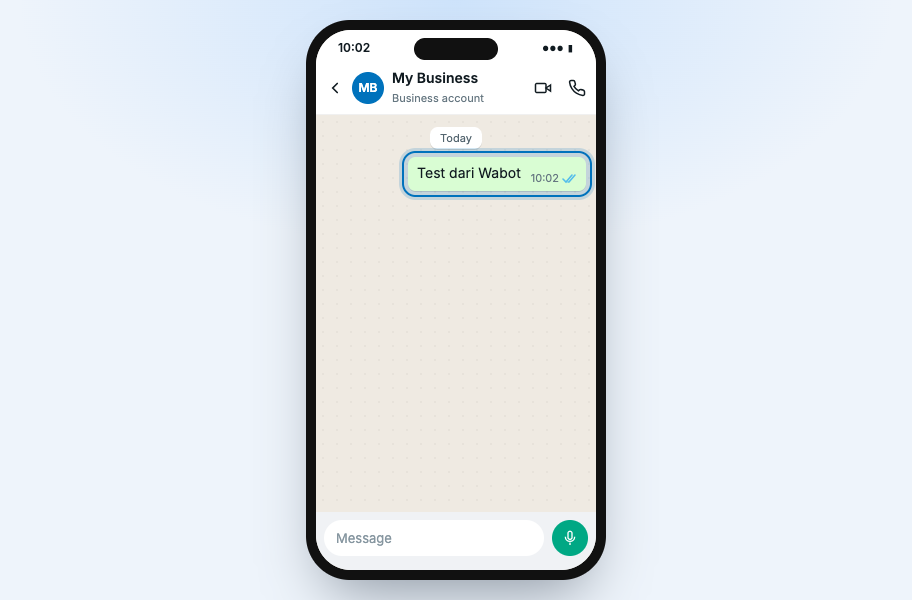
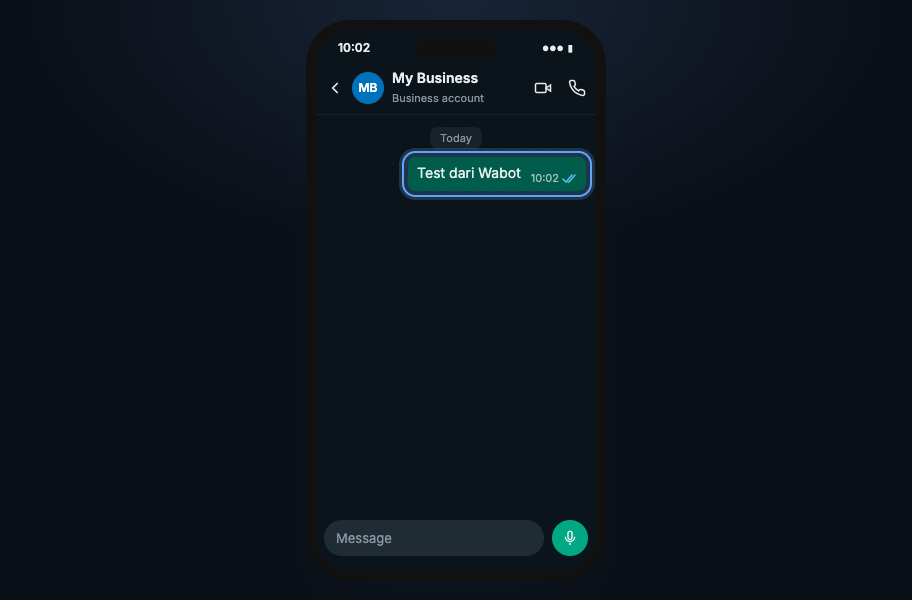
On another WhatsApp, send a short text to the connected business number.

> Test dari Wabot

<figure class="doc-shot">
  <img class="doc-shot__light" src="/images/getting-started/first-message/01-send-from-phone-light.png" alt="WhatsApp chat on a phone with Test dari Wabot sent to My Business" width="912" height="600" loading="lazy" decoding="async" />
  <img class="doc-shot__dark" src="/images/getting-started/first-message/01-send-from-phone-dark.png" alt="WhatsApp chat on a phone with Test dari Wabot sent to My Business" width="912" height="600" loading="lazy" decoding="async" />
  <figcaption>From another phone, send <strong>Test dari Wabot</strong> to your business number.</figcaption>
</figure>

## 2. Open Live Chat

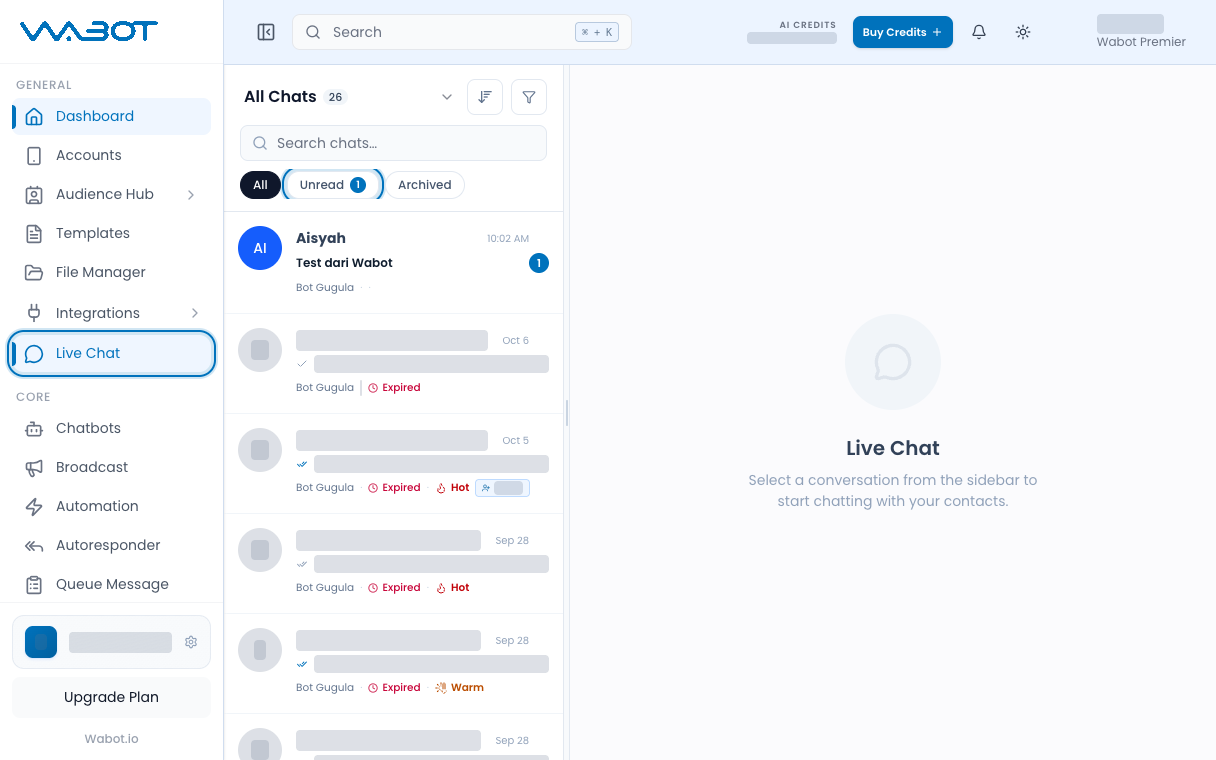
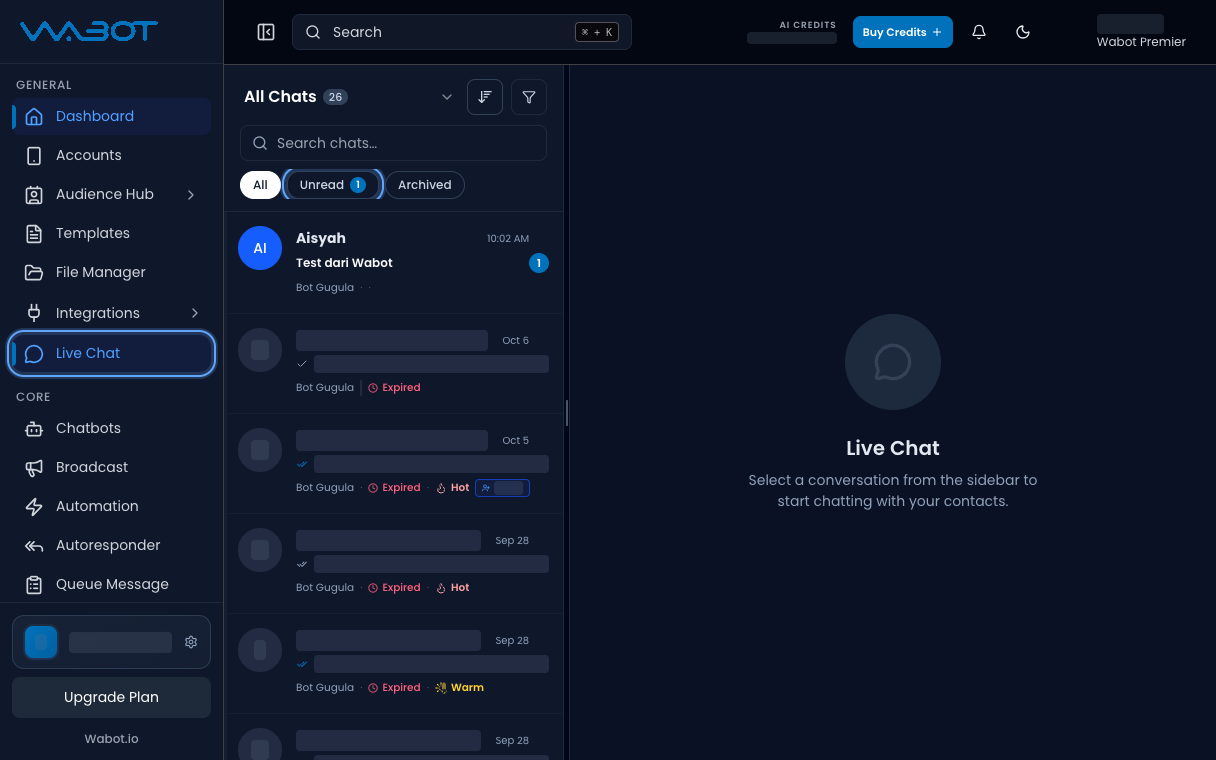
In Wabot, click **Live Chat** on the left menu.

Click **Unread**.

<figure class="doc-shot">
  <img class="doc-shot__light" src="/images/getting-started/first-message/02-live-chat-unread-light.png" alt="Live Chat with Unread highlighted and the new test chat at the top" width="1216" height="760" loading="lazy" decoding="async" />
  <img class="doc-shot__dark" src="/images/getting-started/first-message/02-live-chat-unread-dark.png" alt="Live Chat with Unread highlighted and the new test chat at the top" width="1216" height="760" loading="lazy" decoding="async" />
  <figcaption>Open <strong>Live Chat</strong>, then <strong>Unread</strong>. The new chat is at the top. Other chats are hidden.</figcaption>
</figure>

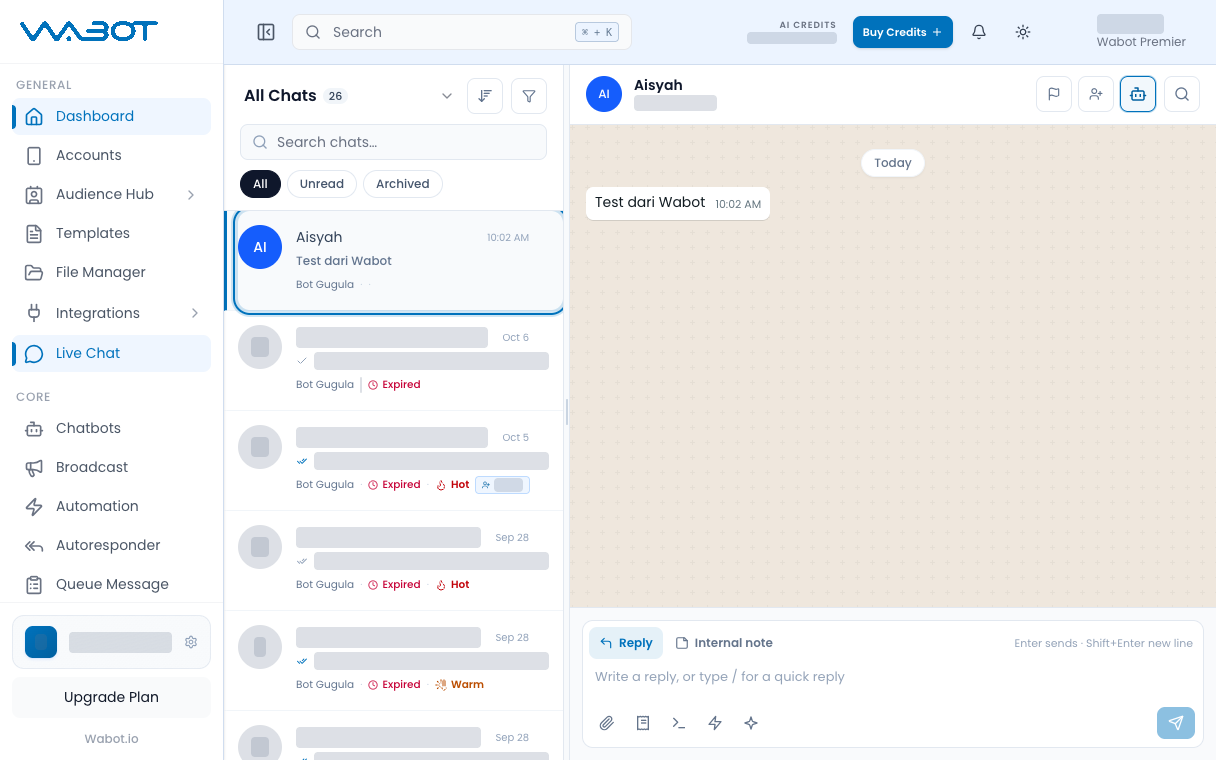
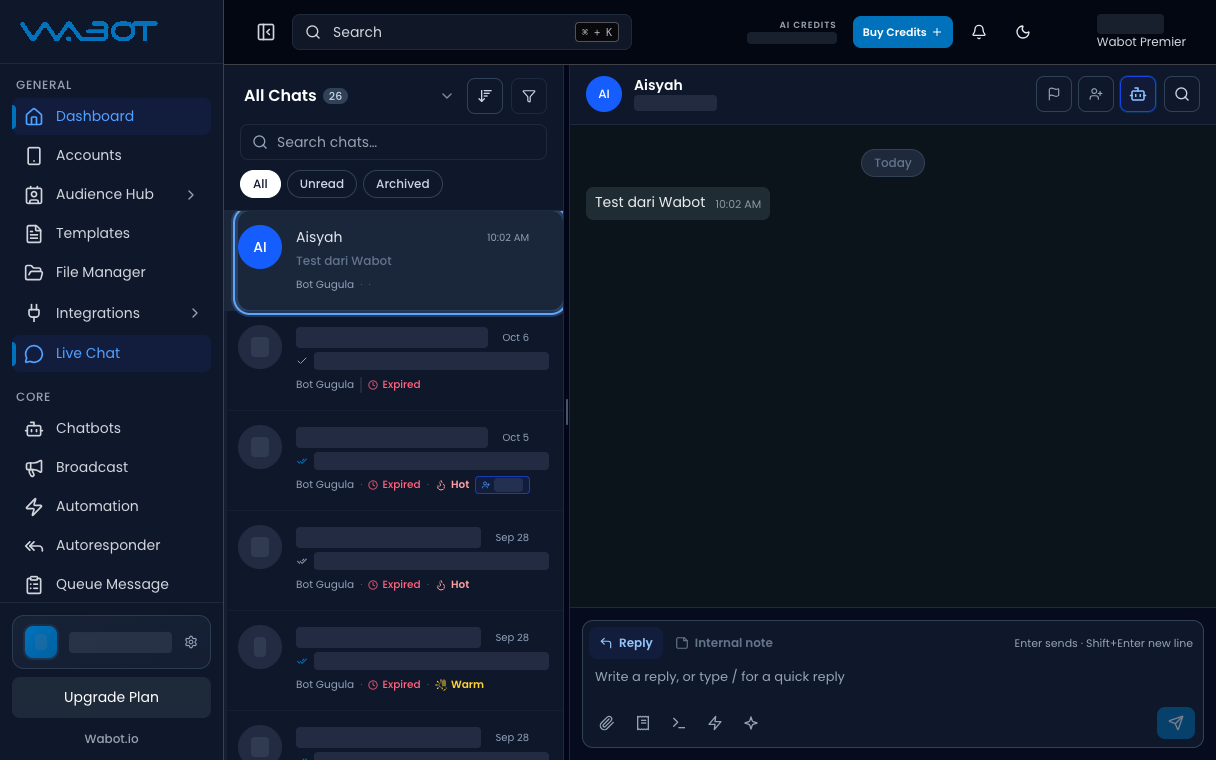
## 3. Open the thread

Click the new conversation.

<figure class="doc-shot">
  <img class="doc-shot__light" src="/images/getting-started/first-message/03-open-thread-light.png" alt="Live Chat thread open with the incoming Test dari Wabot message" width="1216" height="760" loading="lazy" decoding="async" />
  <img class="doc-shot__dark" src="/images/getting-started/first-message/03-open-thread-dark.png" alt="Live Chat thread open with the incoming Test dari Wabot message" width="1216" height="760" loading="lazy" decoding="async" />
  <figcaption>Click the chat. The message appears on the right.</figcaption>
</figure>

## 4. Reply

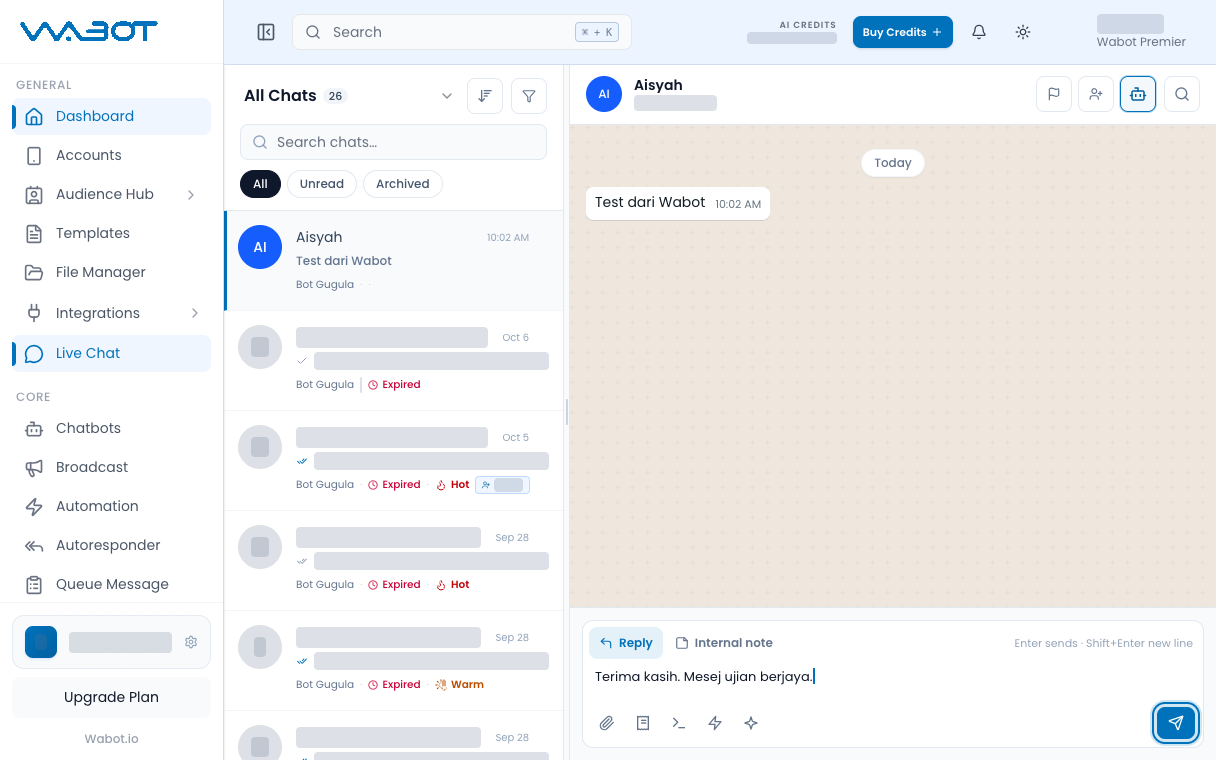
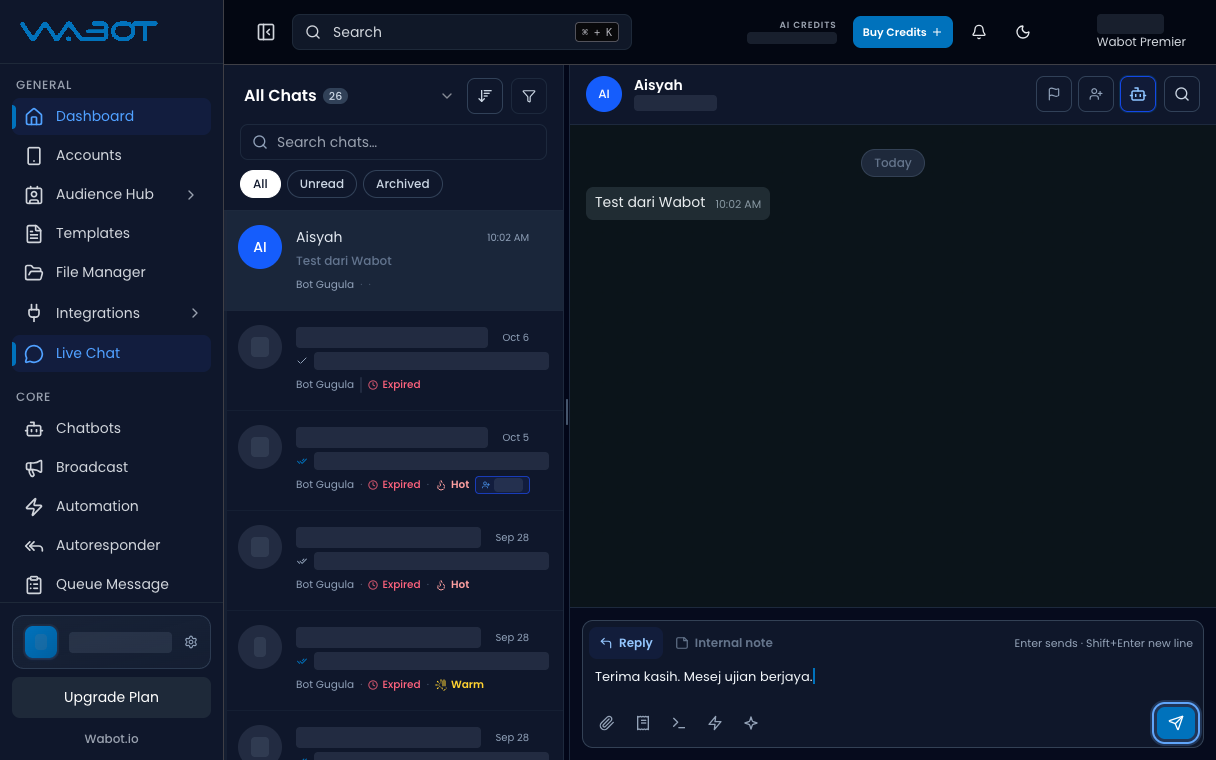
Type a short reply.

> Terima kasih. Mesej ujian berjaya.

Press **Enter**, or click **Send**.

<figure class="doc-shot">
  <img class="doc-shot__light" src="/images/getting-started/first-message/04-reply-light.png" alt="Reply box with a typed reply and the Send button highlighted" width="1216" height="760" loading="lazy" decoding="async" />
  <img class="doc-shot__dark" src="/images/getting-started/first-message/04-reply-dark.png" alt="Reply box with a typed reply and the Send button highlighted" width="1216" height="760" loading="lazy" decoding="async" />
  <figcaption>Type your reply, then press <strong>Enter</strong> or click <strong>Send</strong>.</figcaption>
</figure>

## Make sure it worked

Your reply appears in the thread.

The other WhatsApp receives the same text.

## If it didn’t work

### Live Chat is empty

Wait a few seconds and click **All**. Check the account is still **Online**.

### Official API will not send a free reply

If the header shows **Expired**, finish [Reply after the 24h window expires](/features/live-chat/official-template). For a first test, send from the customer phone first so the 24-hour window opens.

### The account is Offline

Reconnect with [Connect Unofficial API](/getting-started/connect-account) or [Connect Official API](/getting-started/connect-official).

## Next

Setup is done. Pick one job.

[Reply in Live Chat →](/features/live-chat/reply)

[Choose Keyword mode →](/features/chatbots/keyword-mode)

[Send a test Broadcast →](/features/broadcast/send-test)