---
title: Sign up
description: 'Create a Wabot account, agree to Terms, and open the Dashboard.'
sidebar:
  order: 1
---
In this tutorial, you will create a Wabot account and reach the **Dashboard**.

**Time needed:** 8 minutes

## Before you start

Make sure:

- You can open your email.
- You have a phone number for the account.

> Use a work email you check often. Wabot may send a verify link there.

## 1. Open Sign Up

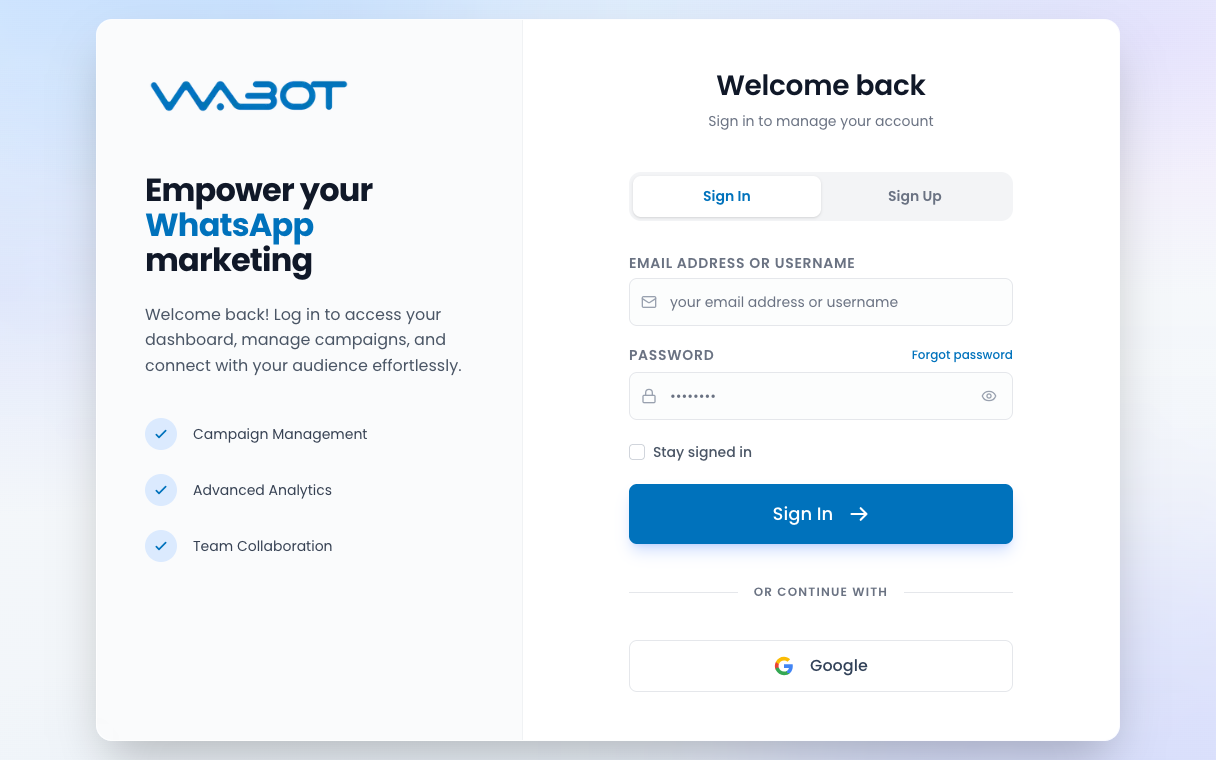
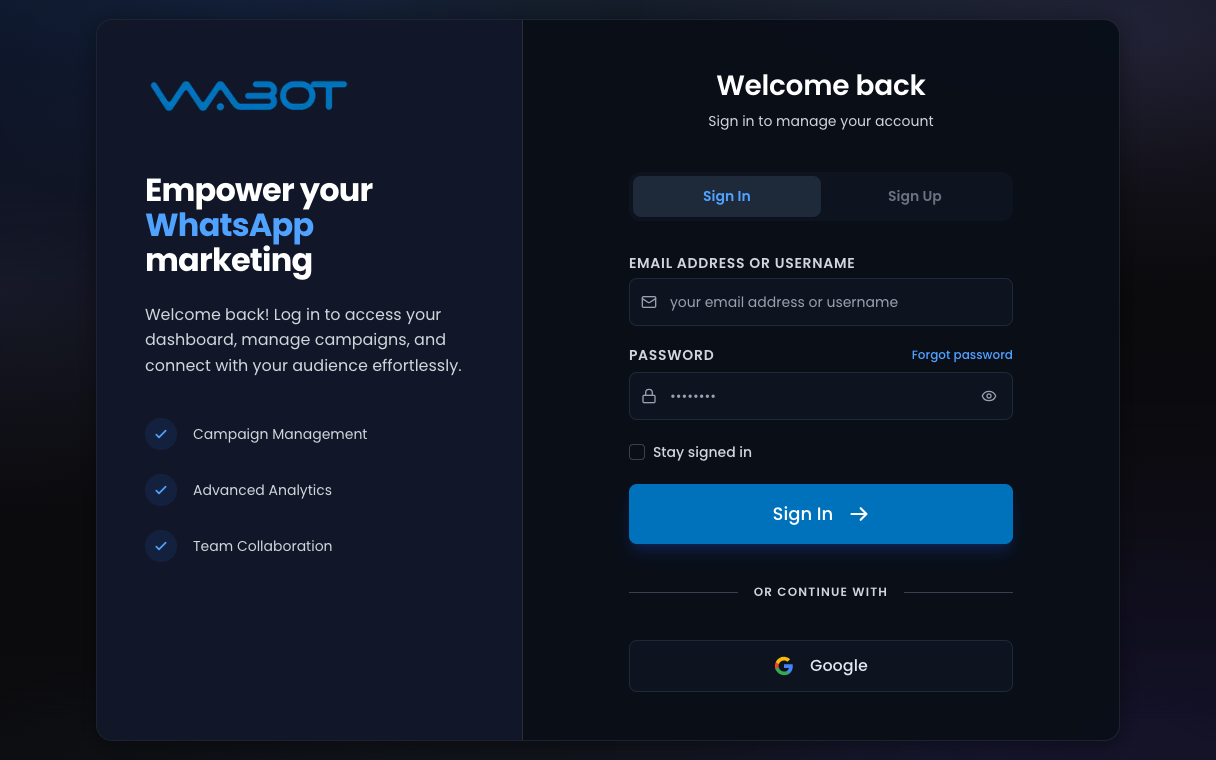
Go to [app.wabot.io/login](https://app.wabot.io/login).

Click **Sign Up**.

<figure class="doc-shot">
  <img class="doc-shot__light" src="/images/getting-started/signup/01-sign-up-light.png" alt="Wabot sign-in page with the Sign In and Sign Up tabs" width="1216" height="760" loading="lazy" decoding="async" />
  <img class="doc-shot__dark" src="/images/getting-started/signup/01-sign-up-dark.png" alt="Wabot sign-in page with the Sign In and Sign Up tabs" width="1216" height="760" loading="lazy" decoding="async" />
  <figcaption>The sign-in page at app.wabot.io. Click the <strong>Sign Up</strong> tab.</figcaption>
</figure>

## 2. Fill your details

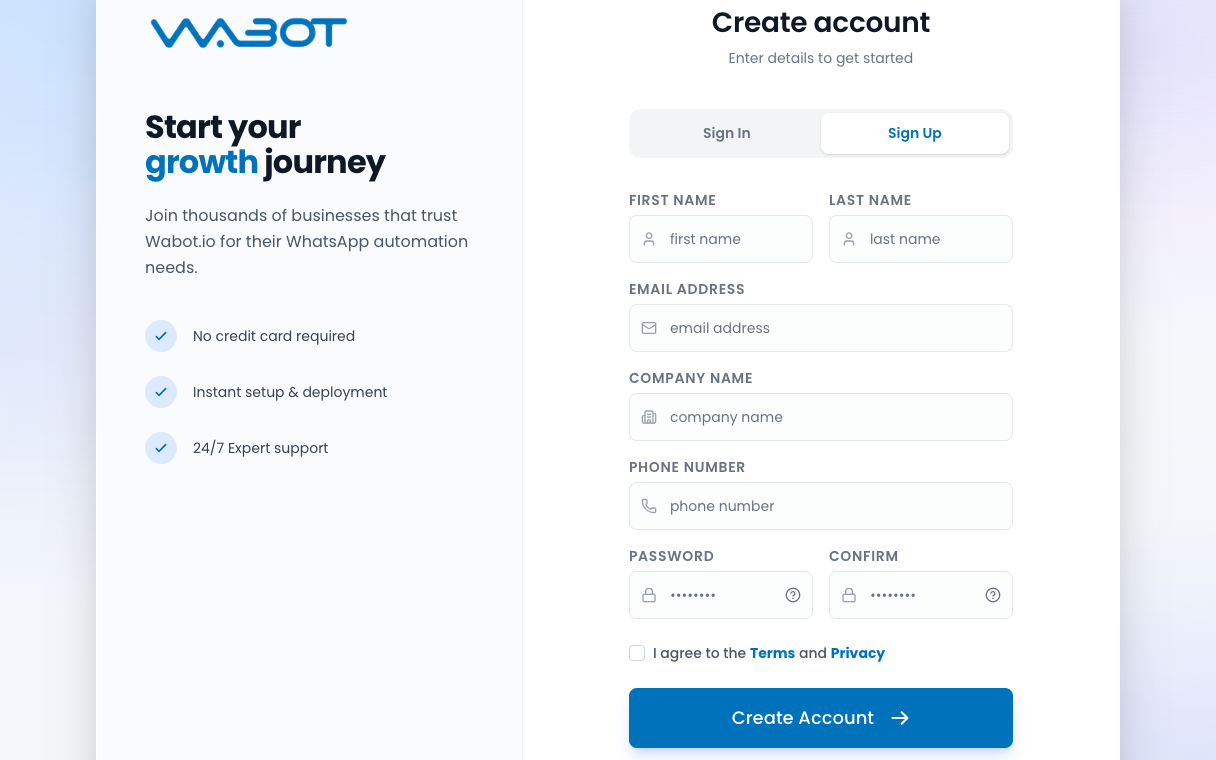
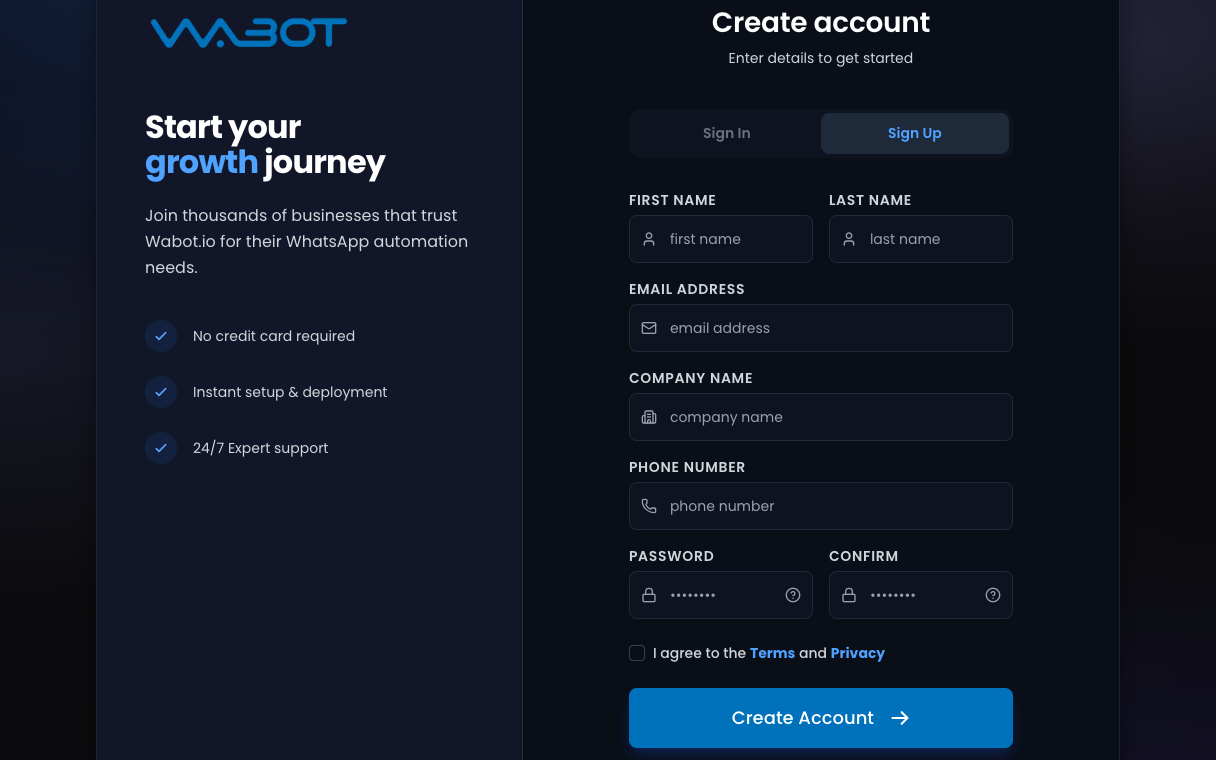
Enter:

- **First Name**
- **Last Name**
- **Email Address**
- **Company Name**
- **Phone Number**
- **Password**
- **Confirm**

Use a country code for **Phone Number**. Do not use `+` or spaces.

**Correct:** `60123456789`  
**Wrong:** `+60 12-345 6789`

<figure class="doc-shot">
  <img class="doc-shot__light" src="/images/getting-started/signup/02-signup-form-light.png" alt="Wabot Sign Up form with name, email, company, phone and password fields" width="1216" height="760" loading="lazy" decoding="async" />
  <img class="doc-shot__dark" src="/images/getting-started/signup/02-signup-form-dark.png" alt="Wabot Sign Up form with name, email, company, phone and password fields" width="1216" height="760" loading="lazy" decoding="async" />
  <figcaption>The <strong>Create account</strong> form. Fill every field, then tick the Terms box.</figcaption>
</figure>


## 3. Agree and create

Tick **I agree to the Terms and Privacy**.

Click **Create Account**.

<figure class="doc-shot">
  <img class="doc-shot__light" src="/images/getting-started/signup/03-activated-light.png" alt="Wabot Account Activated screen with a Continue to login button" width="912" height="570" loading="lazy" decoding="async" />
  <img class="doc-shot__dark" src="/images/getting-started/signup/03-activated-dark.png" alt="Wabot Account Activated screen with a Continue to login button" width="912" height="570" loading="lazy" decoding="async" />
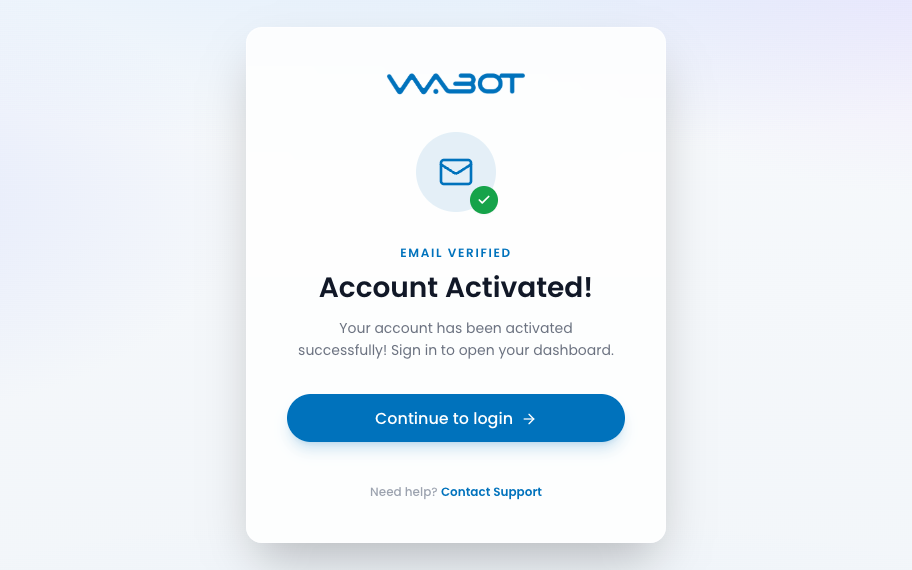
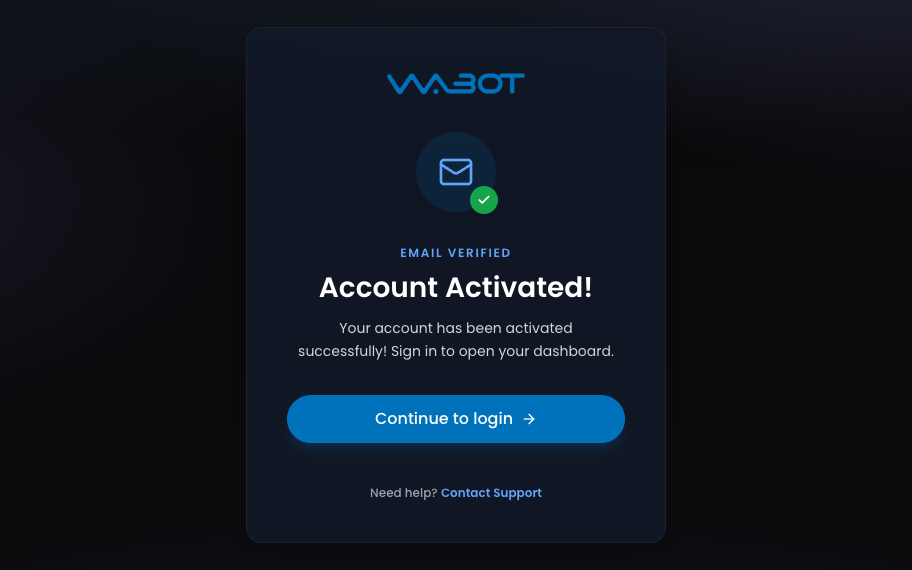
  <figcaption>After you open the verify link, Wabot shows <strong>Account Activated!</strong> Click <strong>Continue to login</strong>.</figcaption>
</figure>

## 4. Open the Dashboard

If Wabot asks you to verify email, open the link, then sign in.

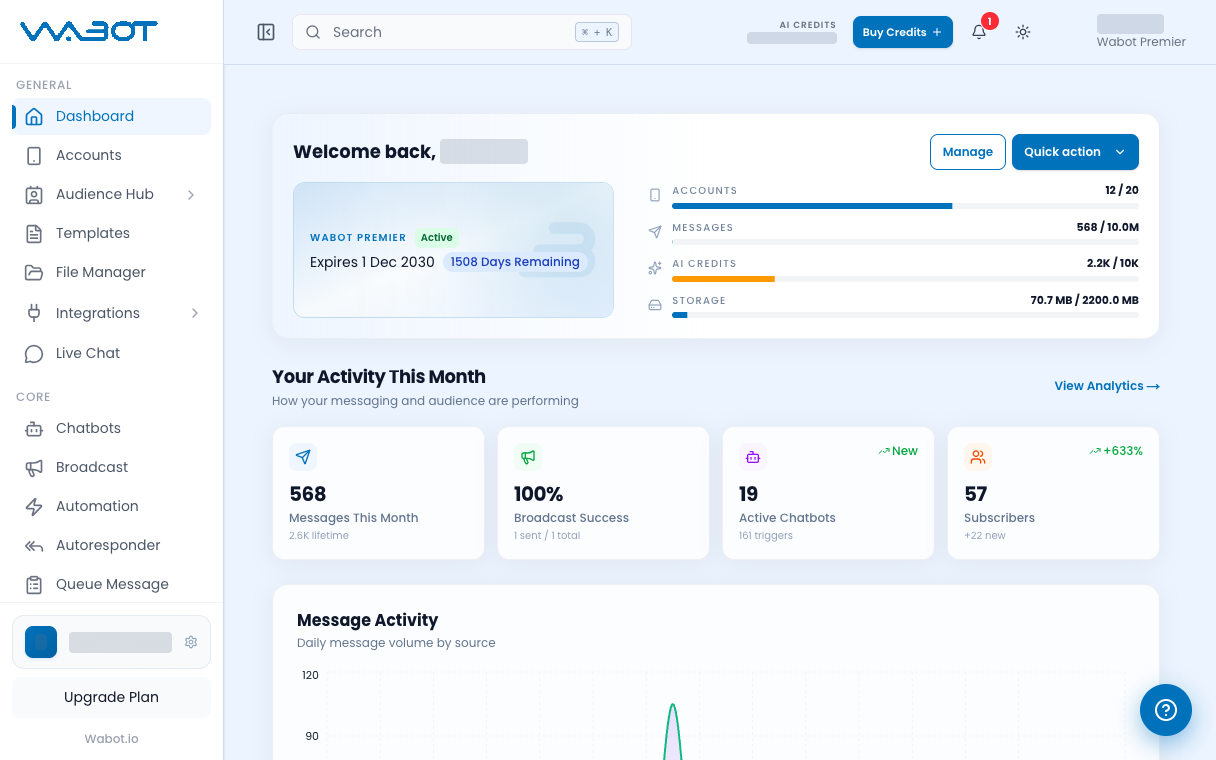
You should land on the **Dashboard**.

<figure class="doc-shot">
  <img class="doc-shot__light" src="/images/getting-started/signup/04-dashboard-light.png" alt="Wabot Dashboard with the left menu showing Dashboard, Accounts and Live Chat" width="1216" height="760" loading="lazy" decoding="async" />
  <img class="doc-shot__dark" src="/images/getting-started/signup/04-dashboard-dark.png" alt="Wabot Dashboard with the left menu showing Dashboard, Accounts and Live Chat" width="1216" height="760" loading="lazy" decoding="async" />
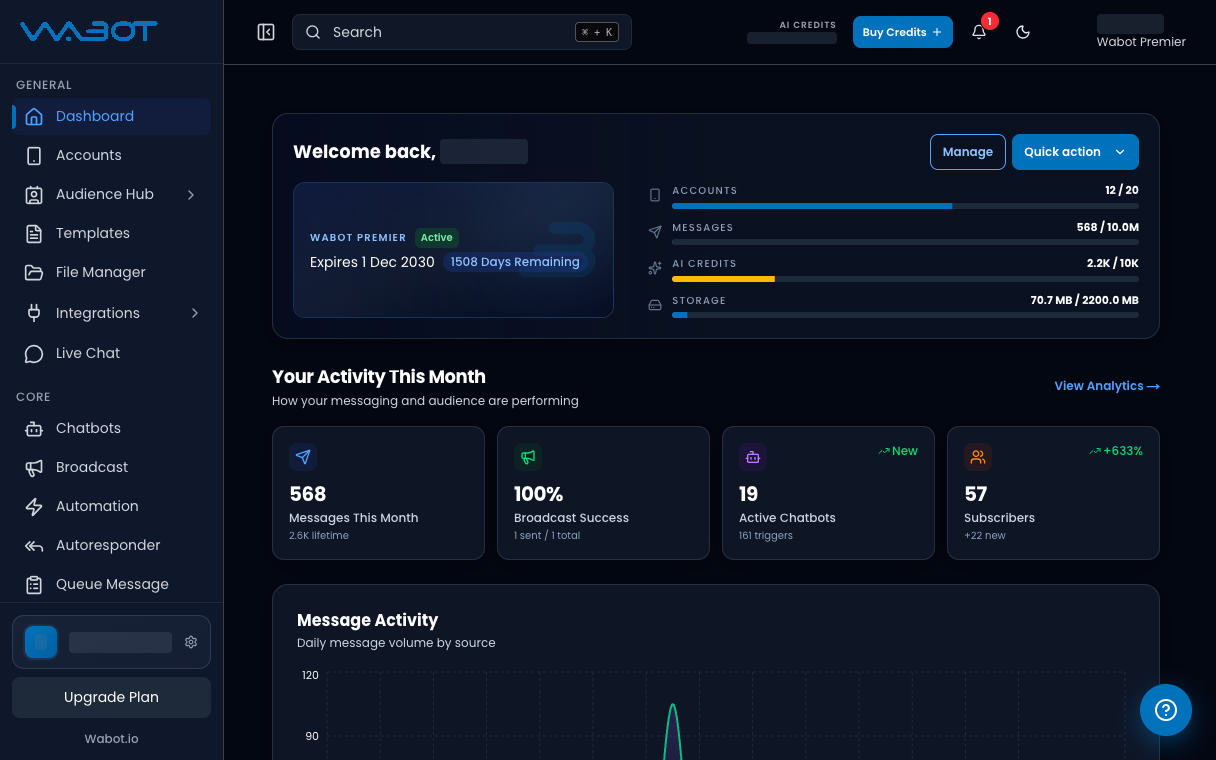
  <figcaption>The Dashboard. Your name appears after <strong>Welcome back</strong>.</figcaption>
</figure>

## Make sure it worked

The left menu shows **Dashboard**, **Accounts**, and **Live Chat**.

You are not on the **Sign In** screen.

## If it didn’t work

### I already have an account

Click **Sign In**. Enter **Email Address or Username** and **Password**.

If you forgot the password, click **Forgot password**.

### The verify email did not arrive

Check spam. If it is still missing, click **Sign In**, then try **Forgot password**, or send your email to the team.

### I want to use Google

On the same page, click **Google** under **OR CONTINUE WITH**.

## Next

Connect this WhatsApp number. Pick one.

[Connect Unofficial API →](/getting-started/connect-account)

[Connect Official API →](/getting-started/connect-official)

Want the screen labels first? [Tour the Dashboard](/getting-started/dashboard)