---
title: Tambah item chatbot STOP
description: Cipta item keyword kedua yang balas bila pelanggan hantar STOP.
sidebar:
  order: 3
---
Dalam tutorial ini, anda akan tambah item **New Chatbot** kedua untuk perkataan `STOP`.

**Masa diperlukan:** 8 minit

## Sebelum mula

Pastikan:

- Instance ini masih pada **Keyword**.
- Anda sudah ada satu item keyword. Jika tidak, habiskan [Cipta item chatbot keyword](/ms/features/chatbots/keyword-item) dahulu.

> **Default Reply** hanya untuk mod **AI**. Dalam mod Keyword, setiap balasan perlukan kata kunci sendiri. `STOP` ialah item kedua itu.

## 1. Buka Chatbots & Tools

Pada halaman instance, buka **Chatbots & Tools**.

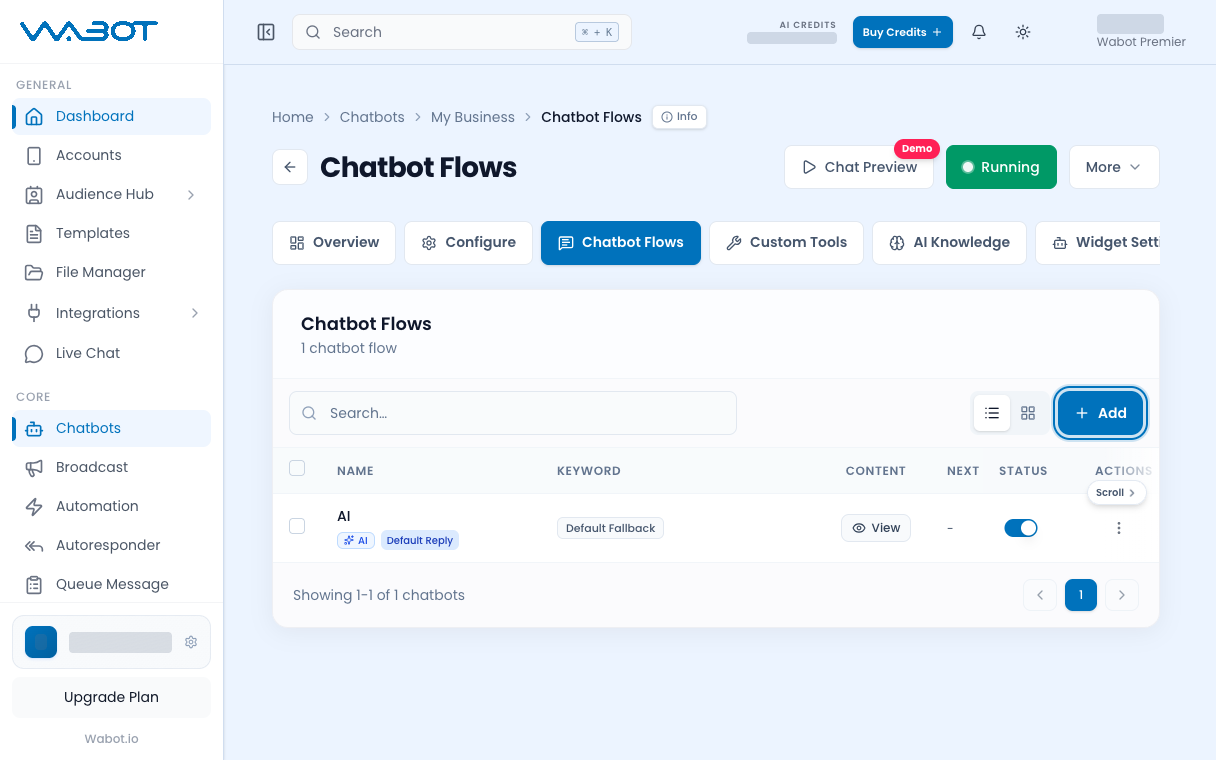
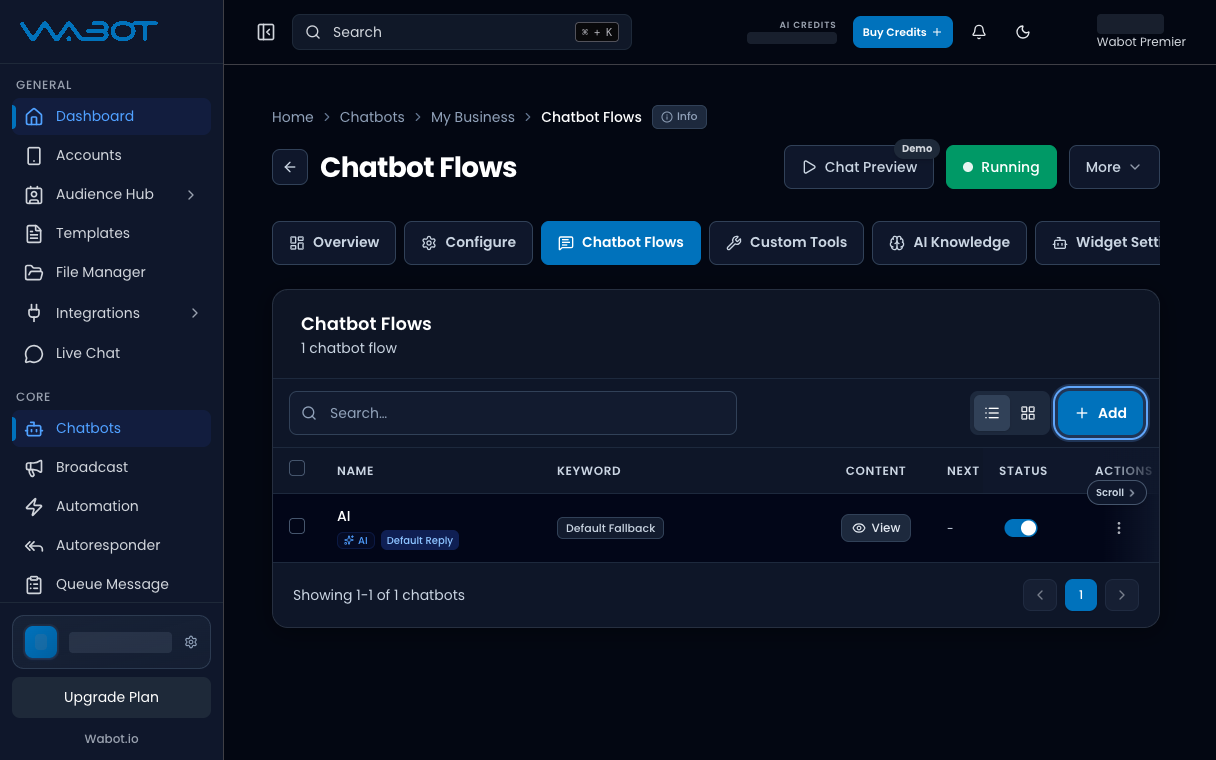
Klik **New Chatbot**.

<figure class="doc-shot">
  <img class="doc-shot__light" src="/images/features/chatbots/cb-add-light.png" alt="Tab Chatbot Flows dengan butang Add ditanda" width="1216" height="760" loading="lazy" decoding="async" />
  <img class="doc-shot__dark" src="/images/features/chatbots/cb-add-dark.png" alt="Tab Chatbot Flows dengan butang Add ditanda" width="1216" height="760" loading="lazy" decoding="async" />
  <figcaption>Di <strong>Chatbot Flows</strong>, klik <strong>Add</strong>.</figcaption>
</figure>

## 2. Namakan item

Dalam **Basic Settings**:

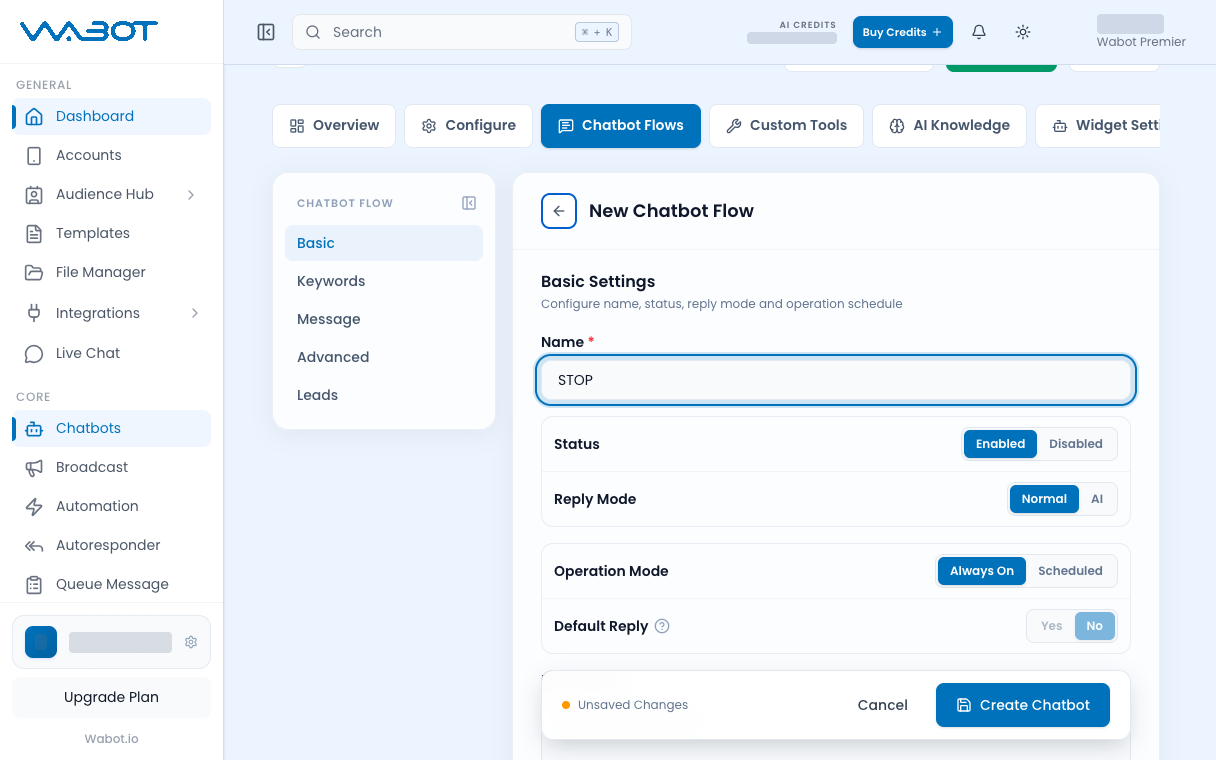
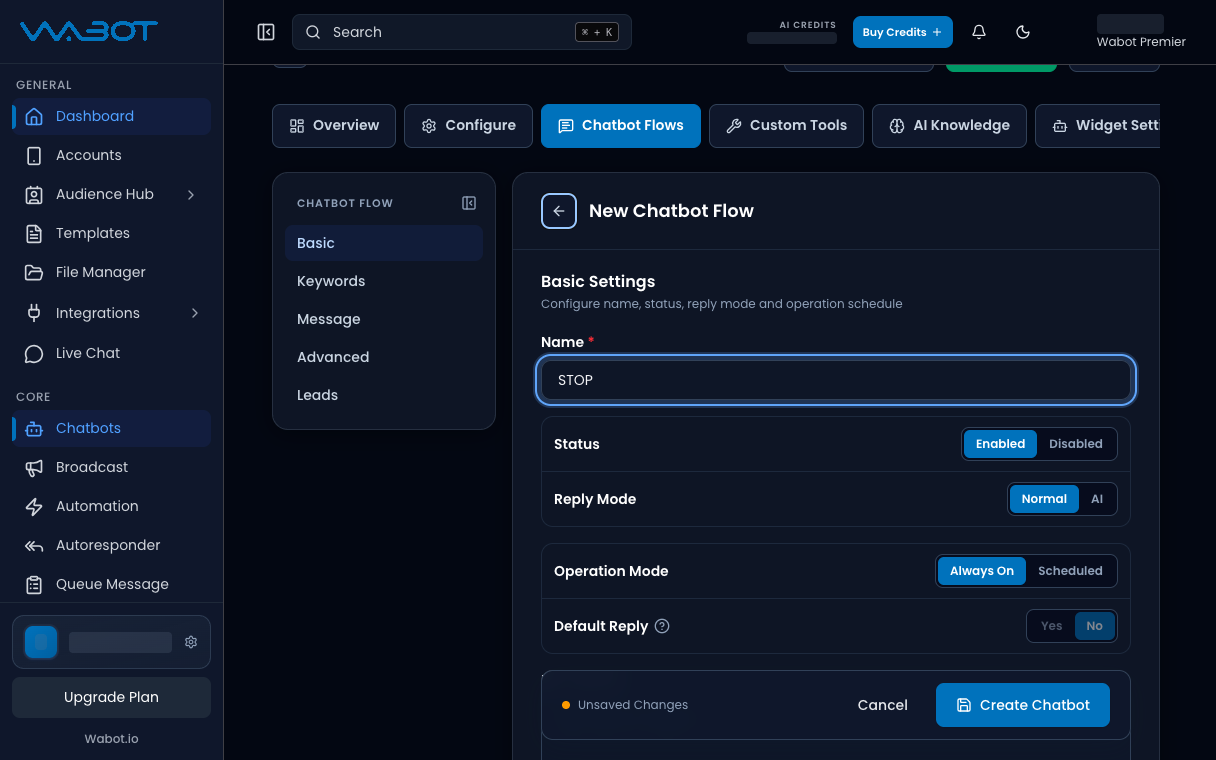
1. Masukkan **Name** sebagai `STOP`.
2. Biarkan **Status** pada **Enable**.
3. Biarkan **Reply Mode** pada **Normal**.

<figure class="doc-shot">
  <img class="doc-shot__light" src="/images/features/chatbots/cb-stop-name-light.png" alt="Medan Name dengan STOP" width="1216" height="760" loading="lazy" decoding="async" />
  <img class="doc-shot__dark" src="/images/features/chatbots/cb-stop-name-dark.png" alt="Medan Name dengan STOP" width="1216" height="760" loading="lazy" decoding="async" />
  <figcaption>Namakan item <strong>STOP</strong>.</figcaption>
</figure>

## 3. Guna Exact Match

Buka **Keyword Settings**.

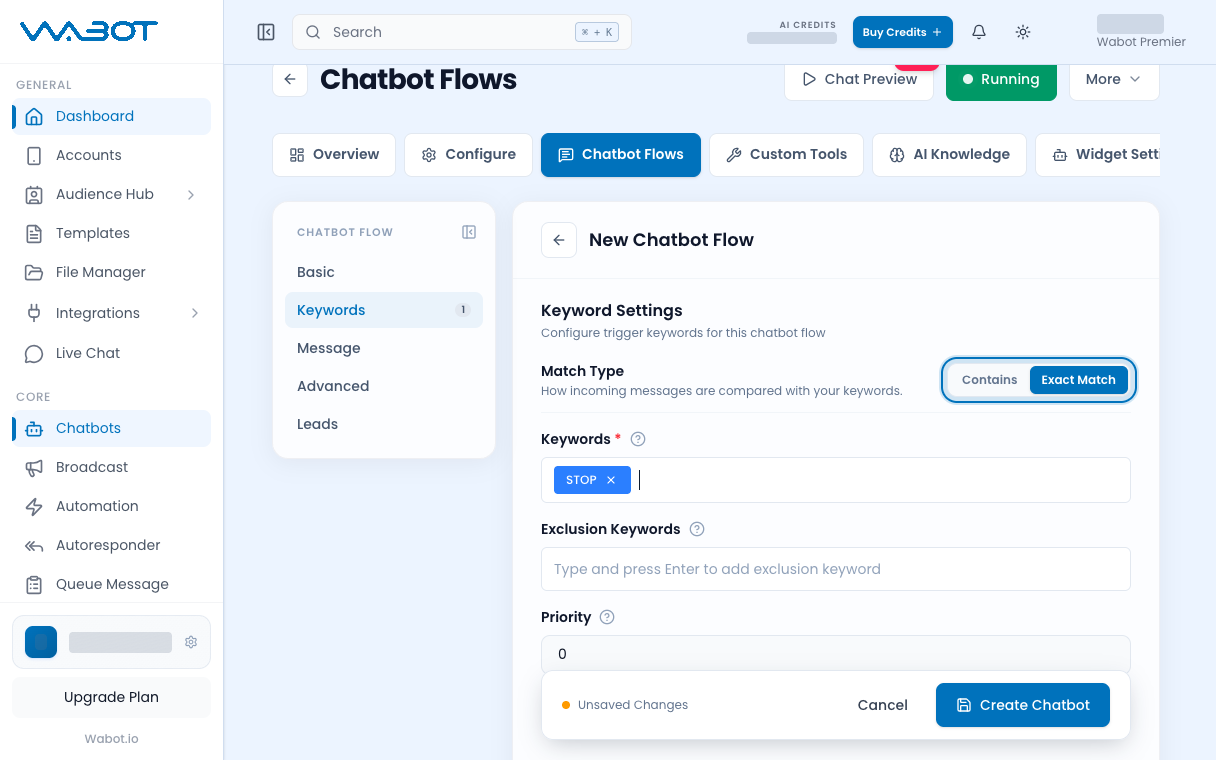
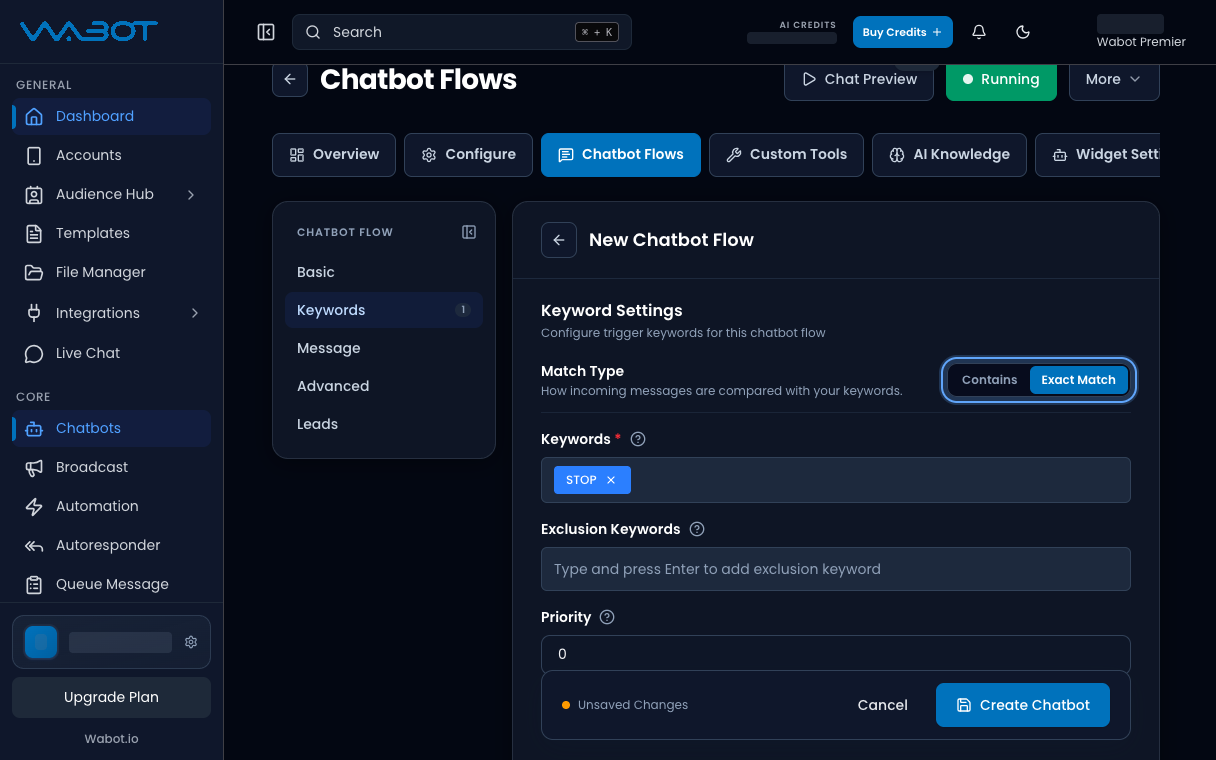
1. Tetapkan **Match Type** kepada **Exact Match**.
2. Dalam **Keywords**, tambah `STOP`.

<figure class="doc-shot">
  <img class="doc-shot__light" src="/images/features/chatbots/cb-stop-exact-light.png" alt="Match Type Exact Match dengan kata kunci STOP" width="1216" height="760" loading="lazy" decoding="async" />
  <img class="doc-shot__dark" src="/images/features/chatbots/cb-stop-exact-dark.png" alt="Match Type Exact Match dengan kata kunci STOP" width="1216" height="760" loading="lazy" decoding="async" />
  <figcaption>Pilih <strong>Exact Match</strong> dan tambah <strong>STOP</strong>.</figcaption>
</figure>

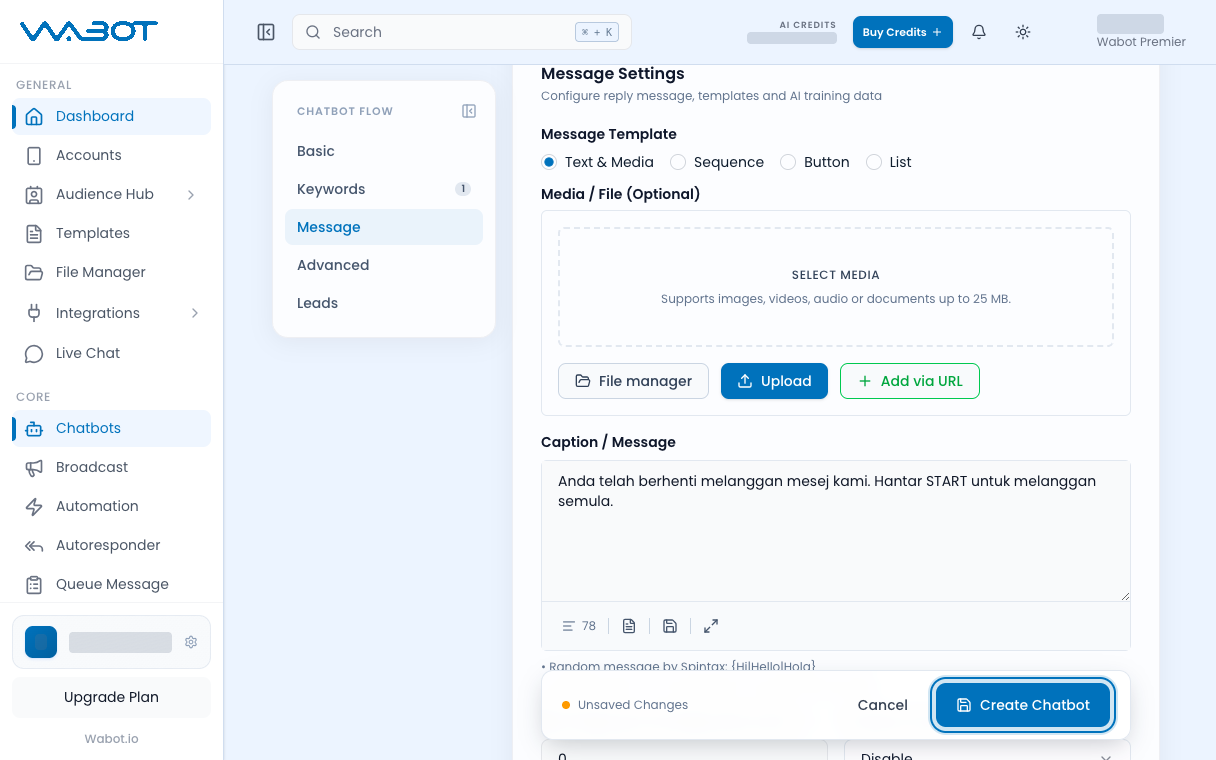
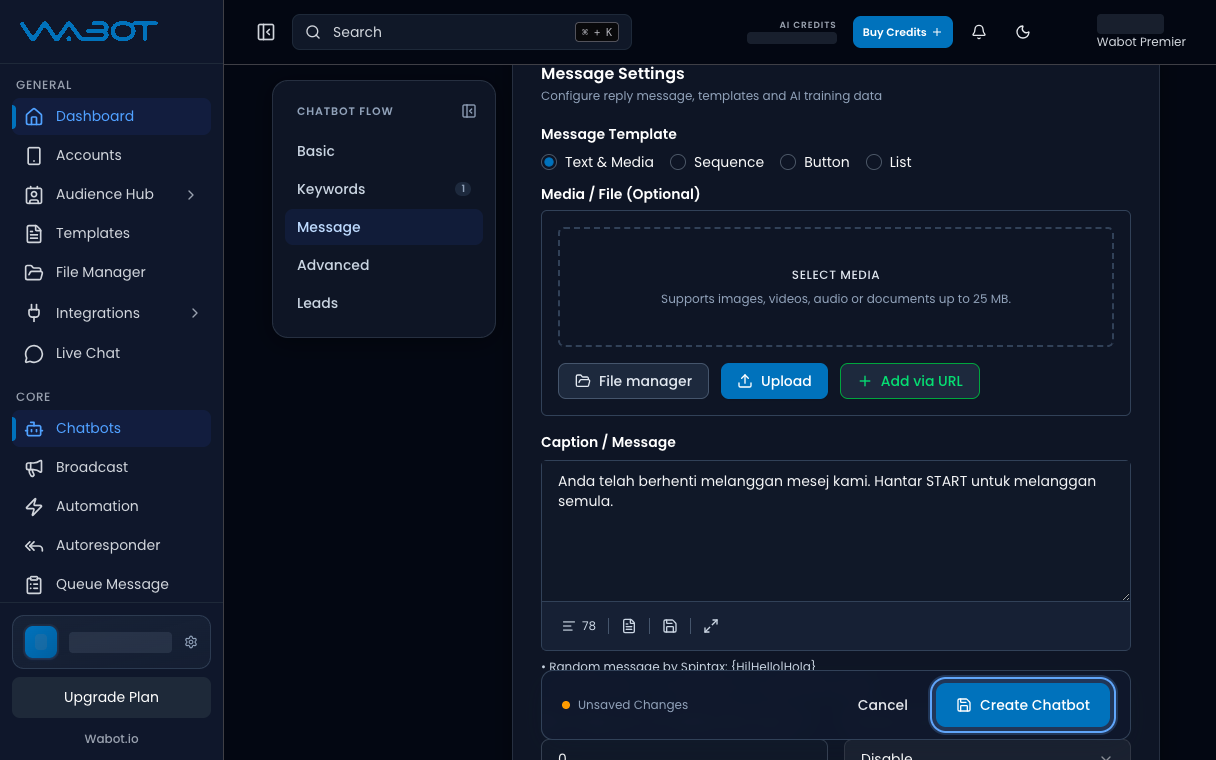
## 4. Tulis balasan STOP

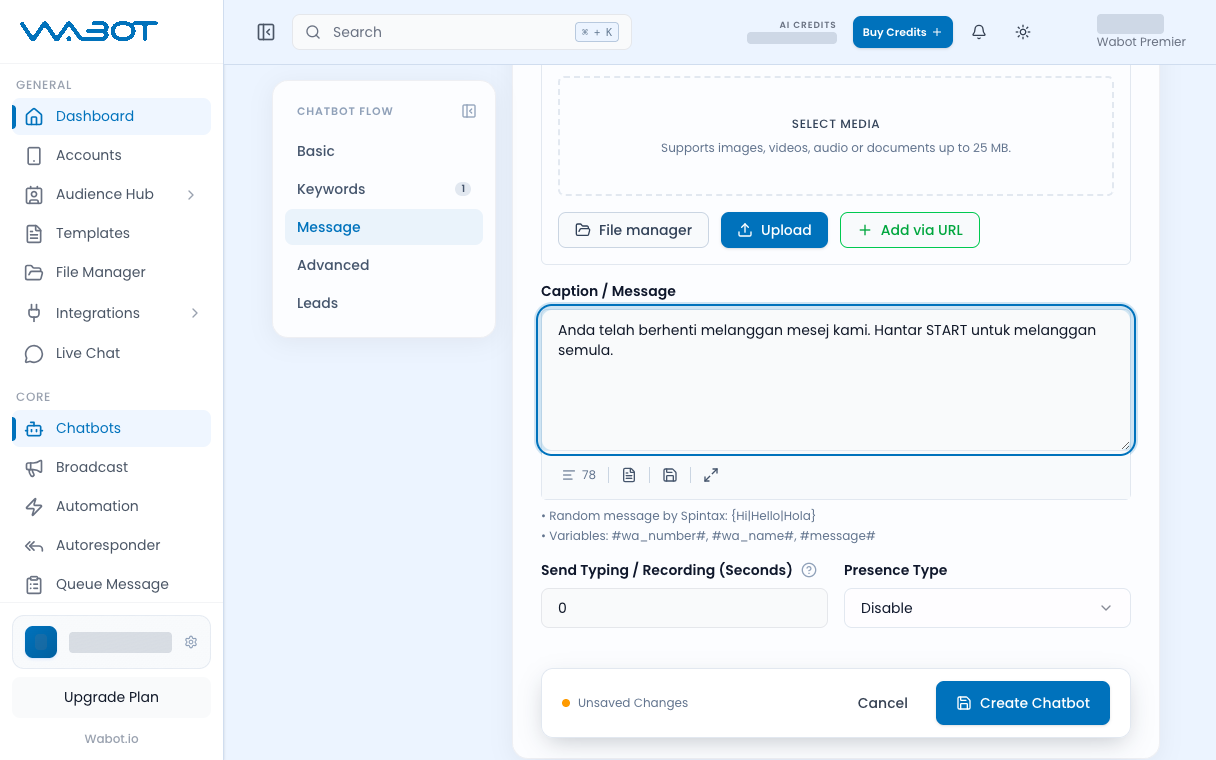
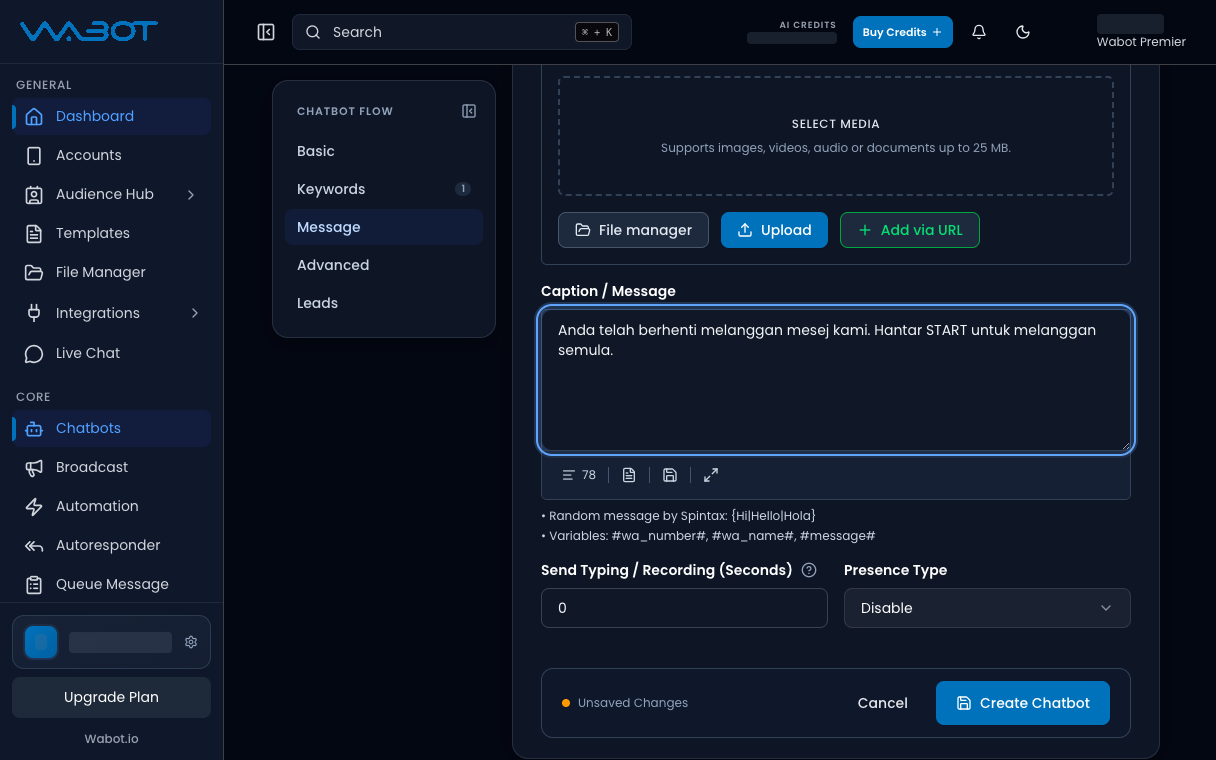
Tulis balasan teks yang pendek.

> Anda telah berhenti dari mesej automatik kami. Terima kasih.

<figure class="doc-shot">
  <img class="doc-shot__light" src="/images/features/chatbots/cb-stop-reply-light.png" alt="Caption / Message dengan balasan STOP contoh" width="1216" height="760" loading="lazy" decoding="async" />
  <img class="doc-shot__dark" src="/images/features/chatbots/cb-stop-reply-dark.png" alt="Caption / Message dengan balasan STOP contoh" width="1216" height="760" loading="lazy" decoding="async" />
  <figcaption>Tulis balasan STOP. Teks contoh ditunjukkan.</figcaption>
</figure>

## 5. Simpan item

Klik **Create Chatbot**.

<figure class="doc-shot">
  <img class="doc-shot__light" src="/images/features/chatbots/cb-stop-create-light.png" alt="Borang New Chatbot Flow dengan butang Create Chatbot ditanda" width="1216" height="760" loading="lazy" decoding="async" />
  <img class="doc-shot__dark" src="/images/features/chatbots/cb-stop-create-dark.png" alt="Borang New Chatbot Flow dengan butang Create Chatbot ditanda" width="1216" height="760" loading="lazy" decoding="async" />
  <figcaption>Klik <strong>Create Chatbot</strong> untuk simpan.</figcaption>
</figure>

## Pastikan ia berjaya

Dua item kini nampak dalam **Chatbots & Tools**: keyword pertama anda dan `STOP`.

Dari telefon anda, hantar `STOP`. Anda patut terima mesej berhenti, bukan balasan `harga`.

## Kalau tak jadi

### Saya dapat balasan harga

**Match Type** masih **Contains**, atau perkataan bukan tepat `STOP`. Tukar kepada **Exact Match** dan simpan semula.

### Default Reply tak boleh dihidupkan

Itu betul. **Default Reply** kekal mati dalam mod Keyword. Guna item keyword lain pula.

## Seterusnya

Setup Keyword sudah siap. Jika anda mahu bot jawab dengan ayat sendiri, mula laluan lain: [Hidupkan mod AI](/ms/features/chatbots/ai-mode).