---
title: Balas selepas tetingkap 24 jam tamat
description: >-
Pada Official API, hantar Pre-Approved Template bila WhatsApp 24h window
tunjuk Expired.
sidebar:
order: 7
---
Dalam tutorial ini, anda akan hantar **Pre-Approved Template** bila tetingkap 24 jam Official tertutup.
**Masa diperlukan:** 10 minit
## Sebelum mula
Pastikan:
- Perbualan ini guna akaun **Official API**.
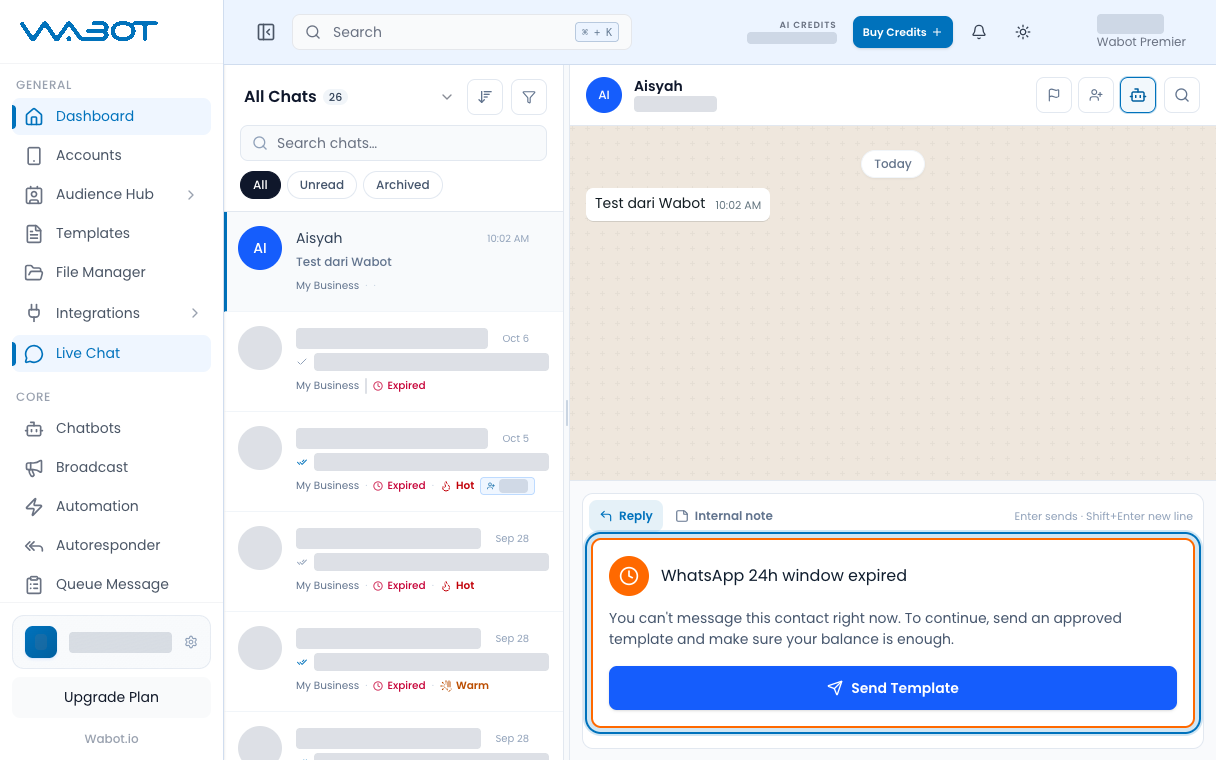
- Header tunjuk **Expired**, atau composer tunjuk **WhatsApp 24h window expired**.
- Anda sudah ada sekurang-kurangnya satu template diluluskan untuk akaun WhatsApp Business ini.
> Langkah ini hanya untuk Official API. Unofficial API tidak kunci composer di belakang tetingkap 24 jam.
> Anda tidak boleh taip balasan bebas semasa tetingkap tamat. Template ialah cara masuk semula.
## 1. Buka perbualan yang tamat
Pada menu kiri, klik **Live Chat**.
Buka thread yang header tunjuk **Expired**.
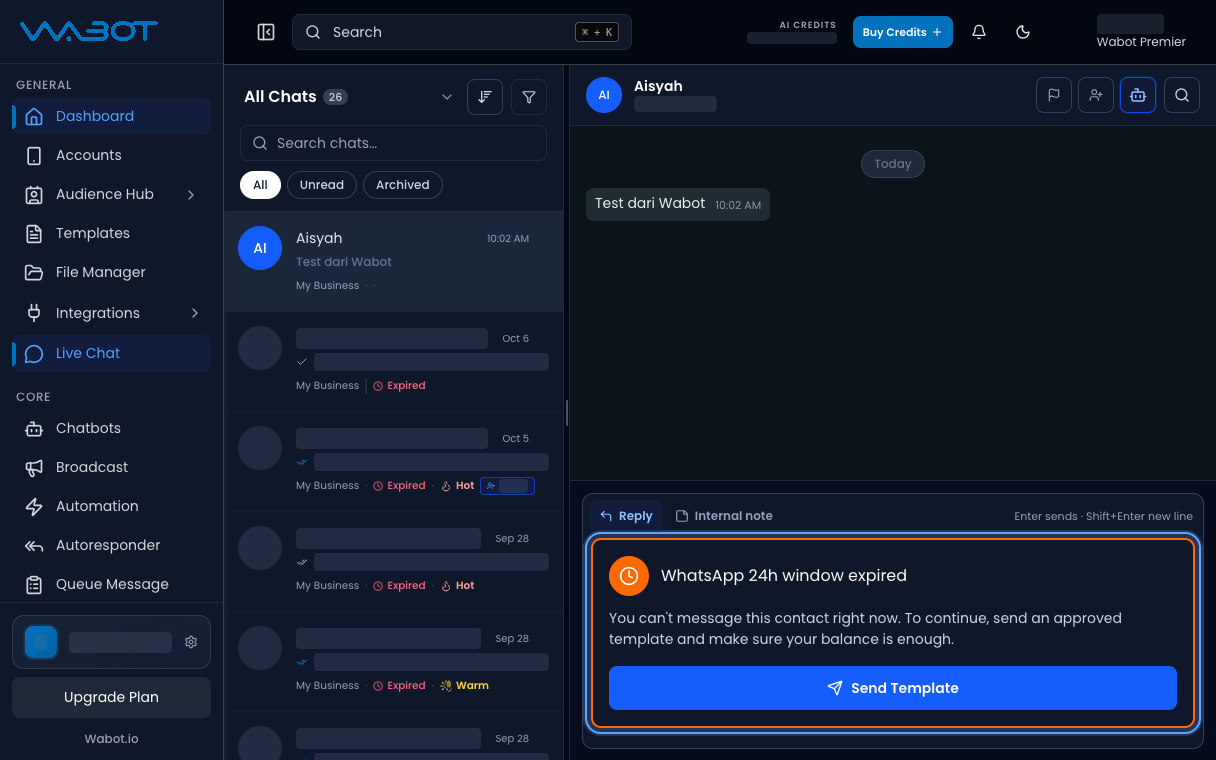
Chat yang tamat tempoh tunjuk WhatsApp 24h window expired.
## 2. Buka Send Template
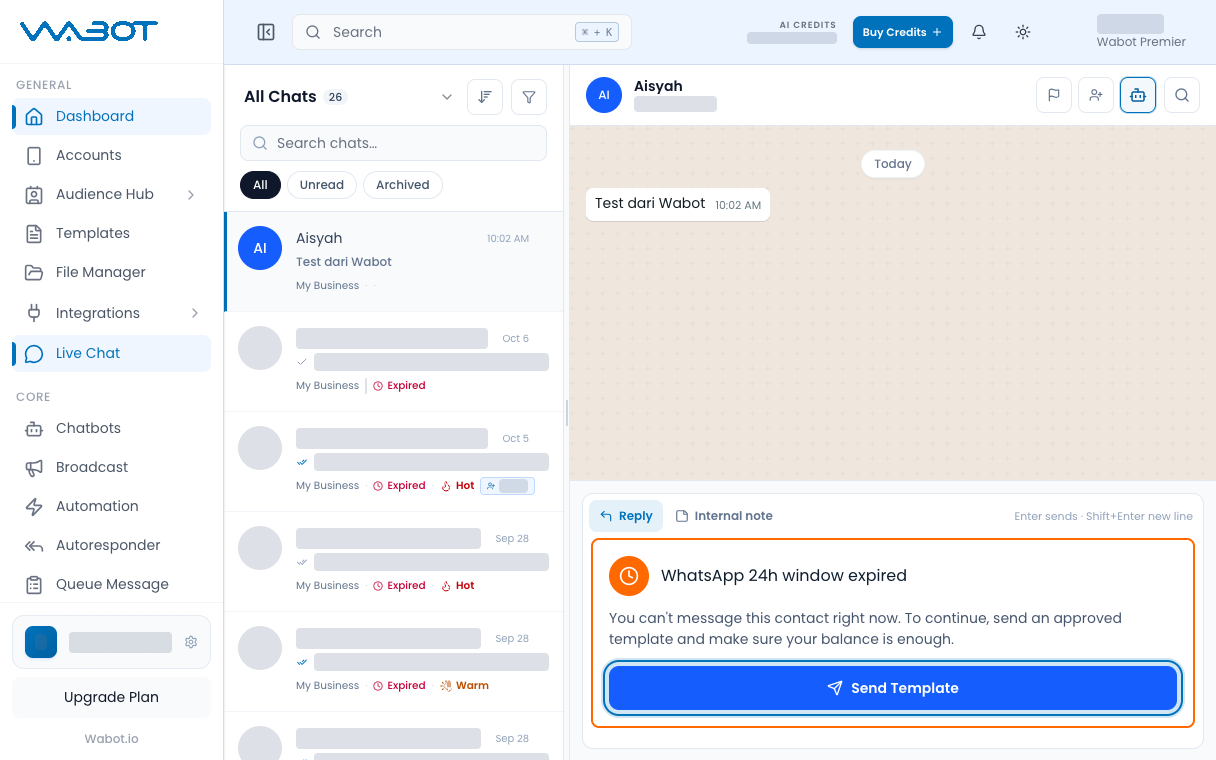
Dalam composer, baca **WhatsApp 24h window expired**.
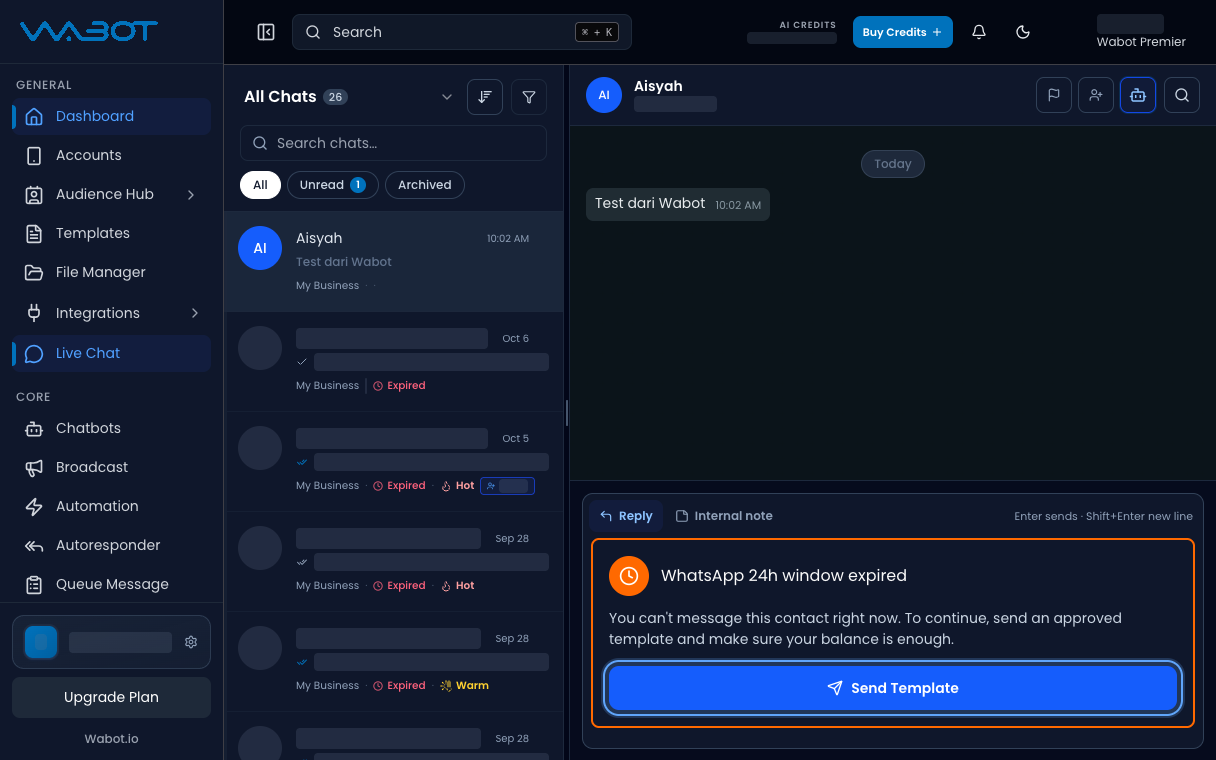
Klik **Send Template**.
Klik Send Template.
## 3. Pilih Pre-Approved Template
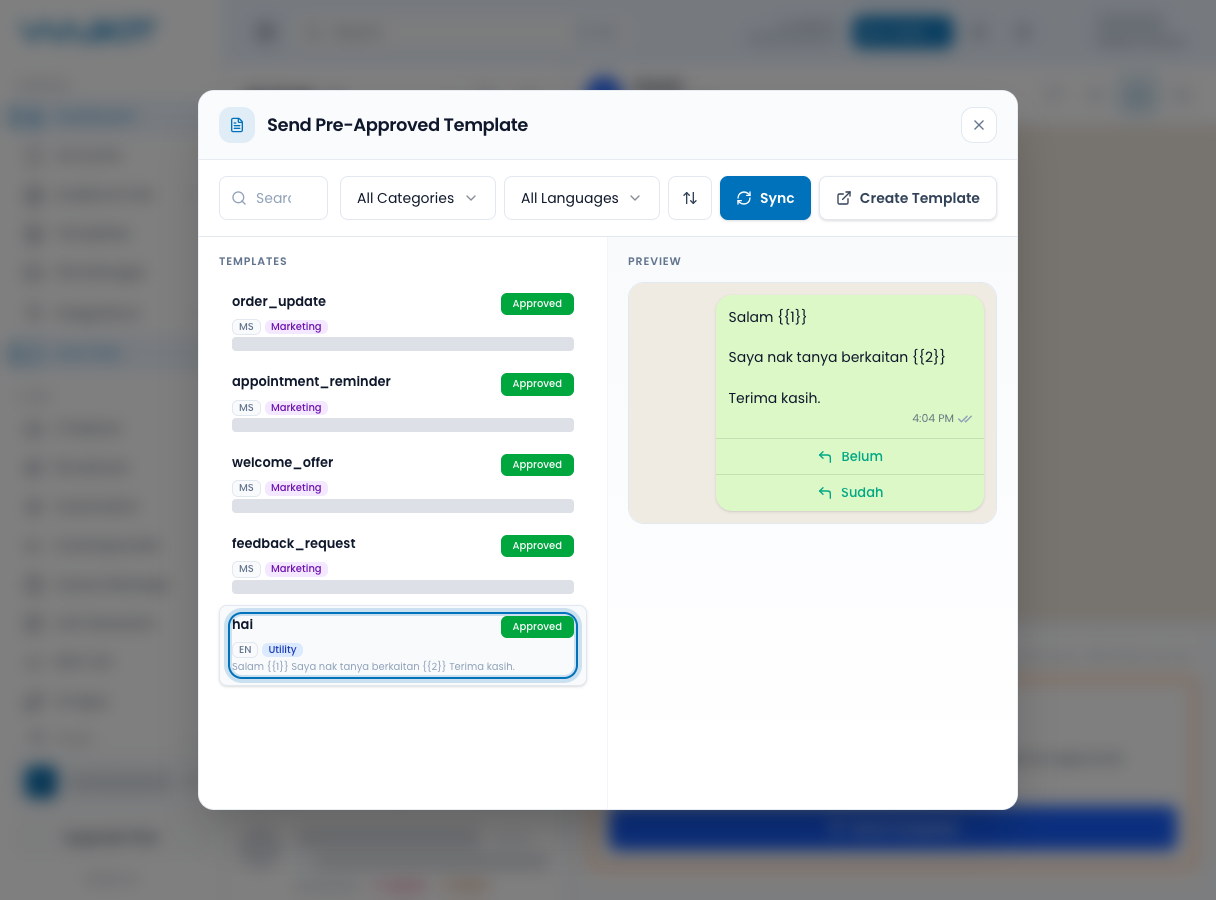
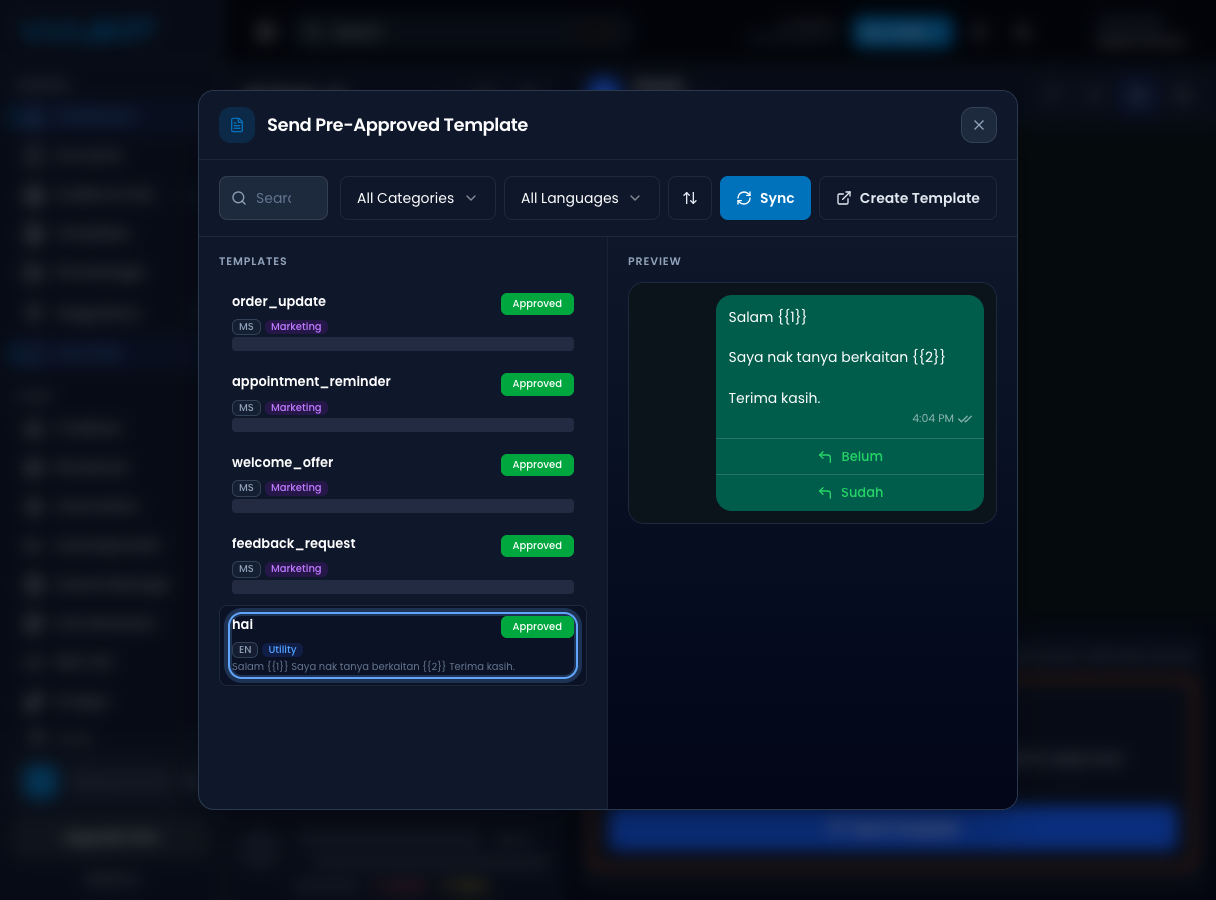
Dialog **Send Pre-Approved Template** terbuka.
Klik template yang mahu dihantar.
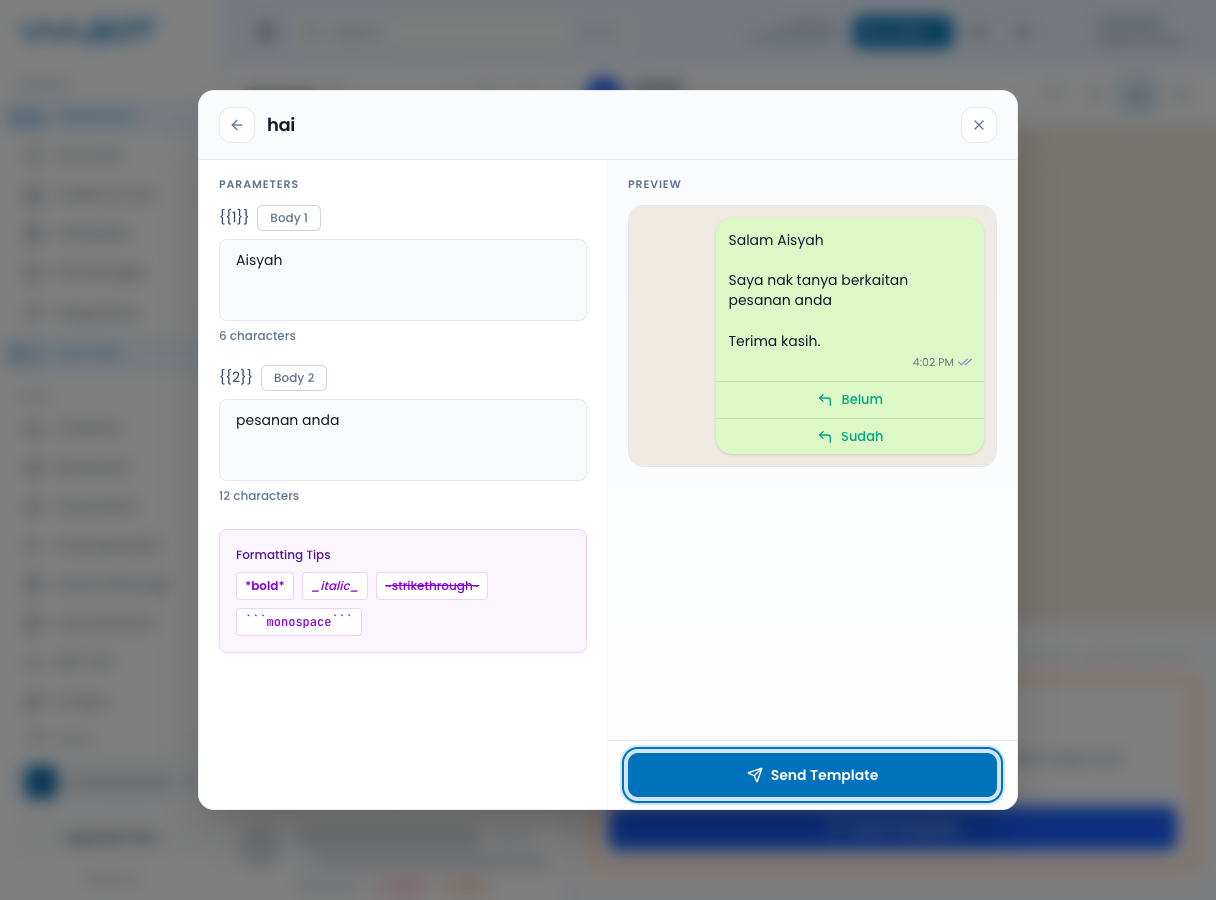
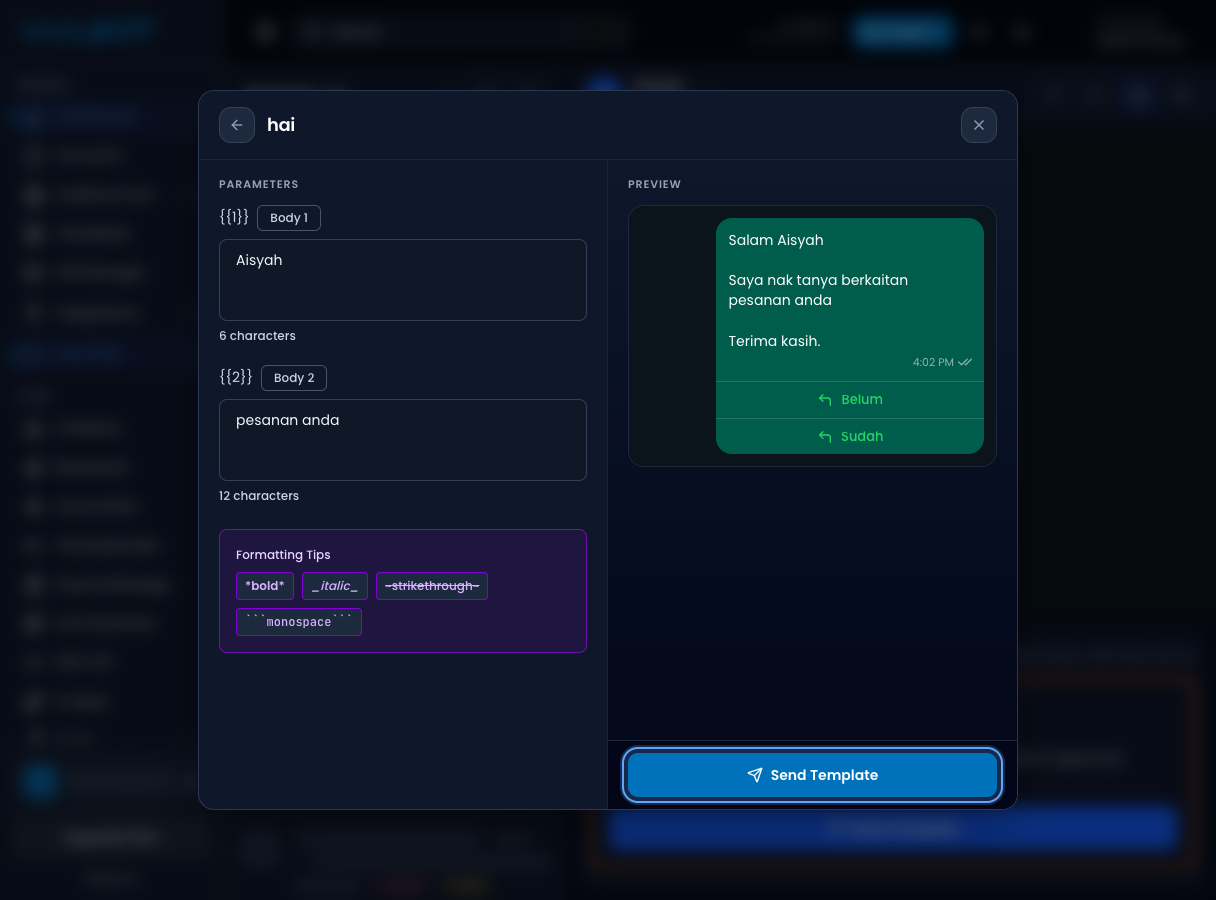
Jika template ada variable, isi setiap medan.
Pilih template yang diluluskan. Nama contoh ditunjukkan.
## 4. Hantar template
Klik **Send Template**.
Isi nilai, kemudian klik Send Template.
## Pastikan ia berjaya
Mesej template muncul dalam thread.
Telefon ujian terima template diluluskan di WhatsApp.
Jika pelanggan balas, header tidak lagi tunjuk **Expired**.
## Kalau tak jadi
### Saya masih boleh taip balasan biasa
Akaun ini bukan Official, atau pelanggan tulis dalam 24 jam lepas. Guna [Balas perbualan](/ms/features/live-chat/reply) pula.
### Senarai template kosong
Luluskan template dalam Meta dahulu, kemudian buka **Send Pre-Approved Template** semula.
### Send Template disekat
Variable kosong, atau baki akaun tidak cukup. Isi setiap medan, kemudian cuba semula.
## Seterusnya
Hantar susulan kemudian dalam [Jadualkan mesej](/ms/features/live-chat/schedule).