
Connect Unofficial API
Add an Unofficial API account, scan the QR code in WhatsApp Linked devices, and wait until Online.
In this tutorial, you will connect WhatsApp with Unofficial API by scanning a QR code.
Time needed: 10 minutes
Before you start
Make sure:
- You are logged in to Wabot.
- WhatsApp is installed on the phone for this business number.
- You can open Settings on that phone.
Use a dedicated business number if you can. Do not mix a busy personal chat with broadcasts.
This page is Unofficial API only. For Meta Business API, use Connect Official API.
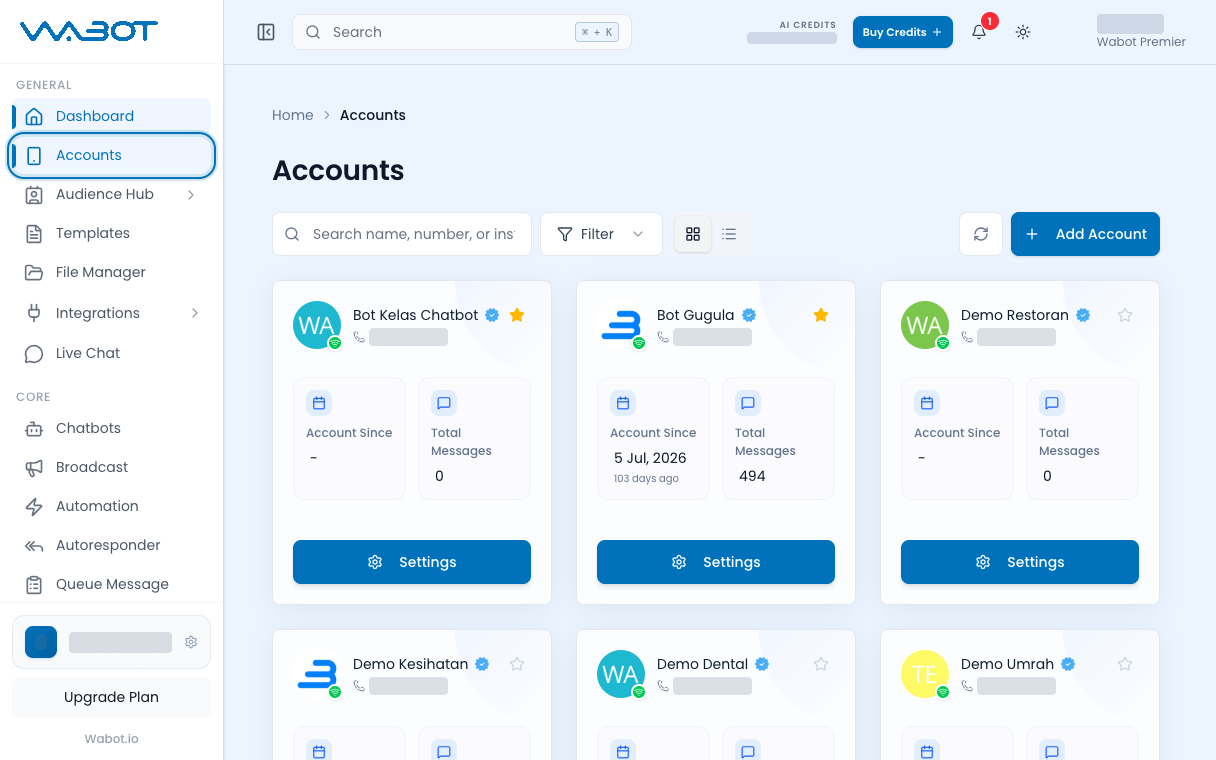
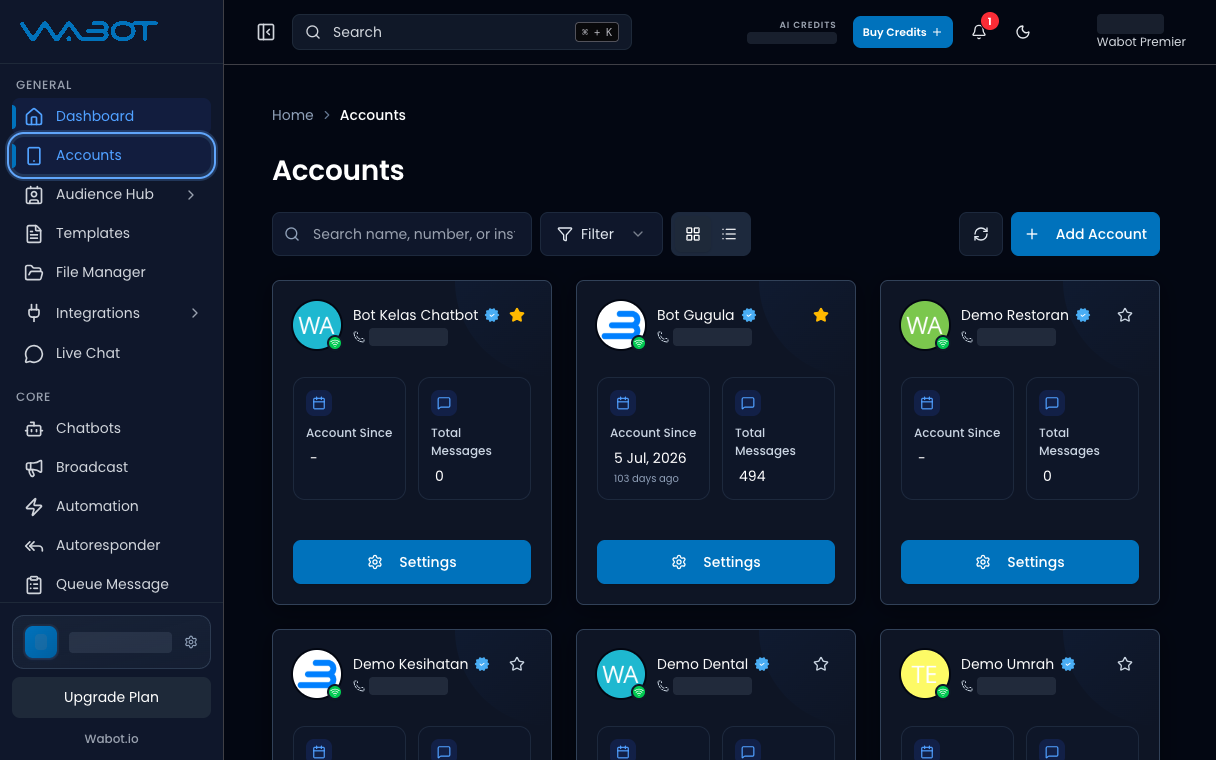
1. Open Accounts
On the left menu, click Accounts.
2. Start Add Account
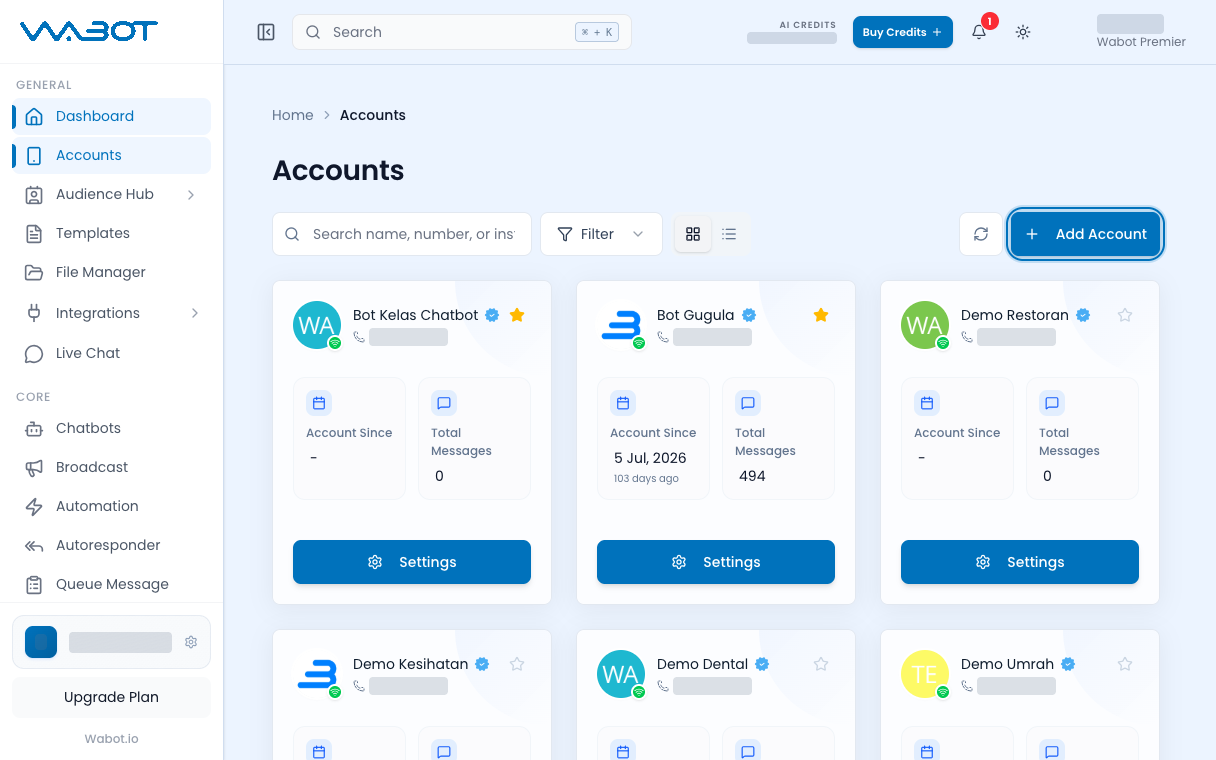
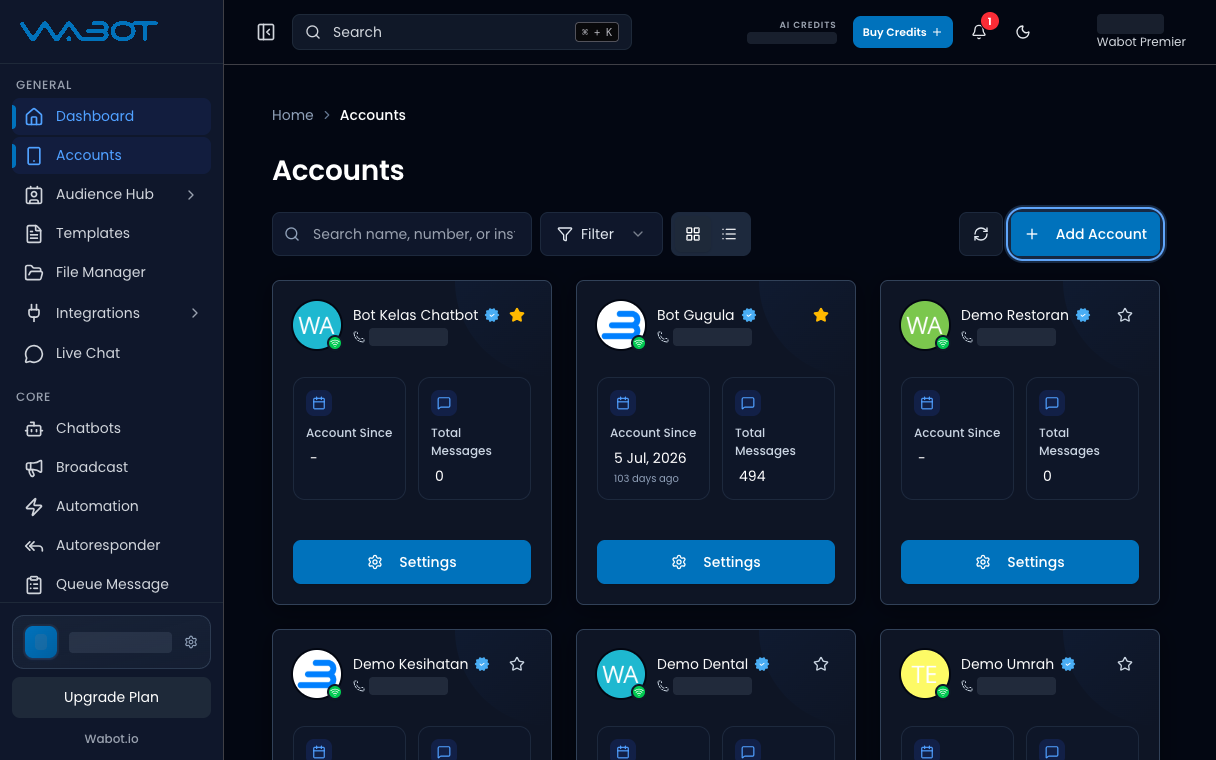
Click Add Account.
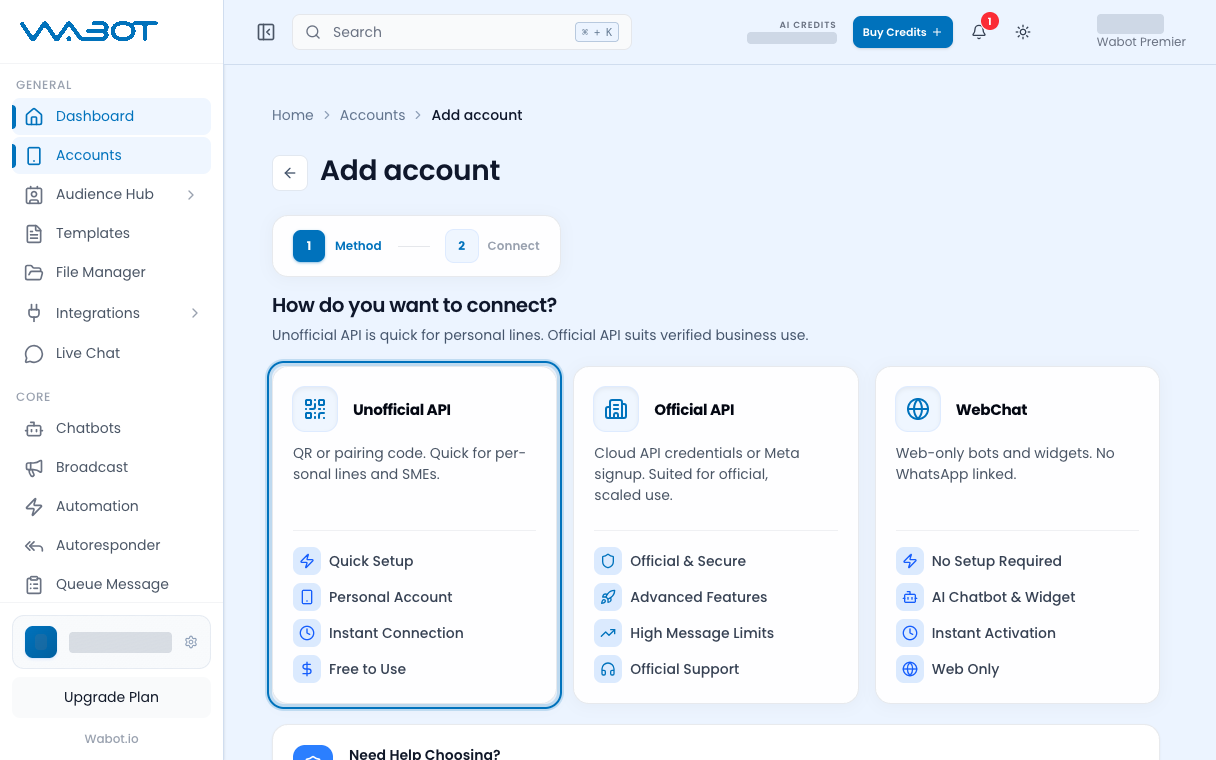
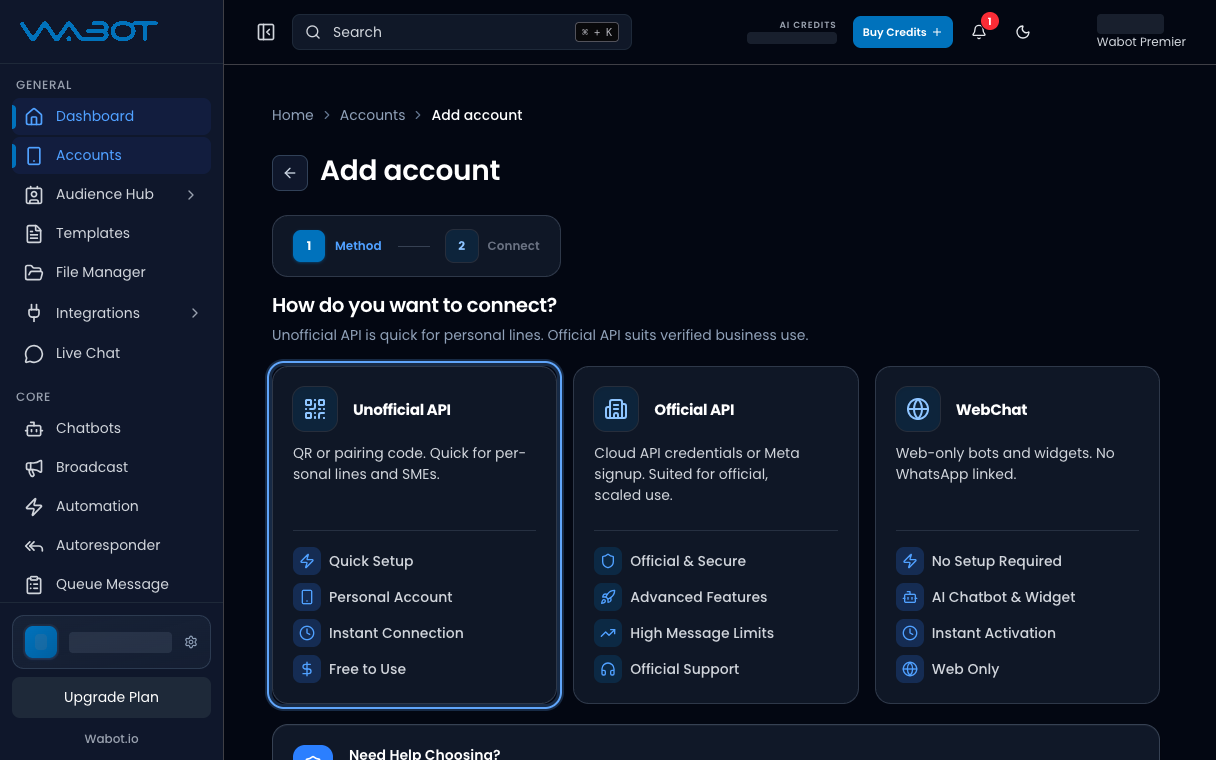
3. Choose Unofficial API
On How do you want to connect?, click Unofficial API.
4. Scan the QR code
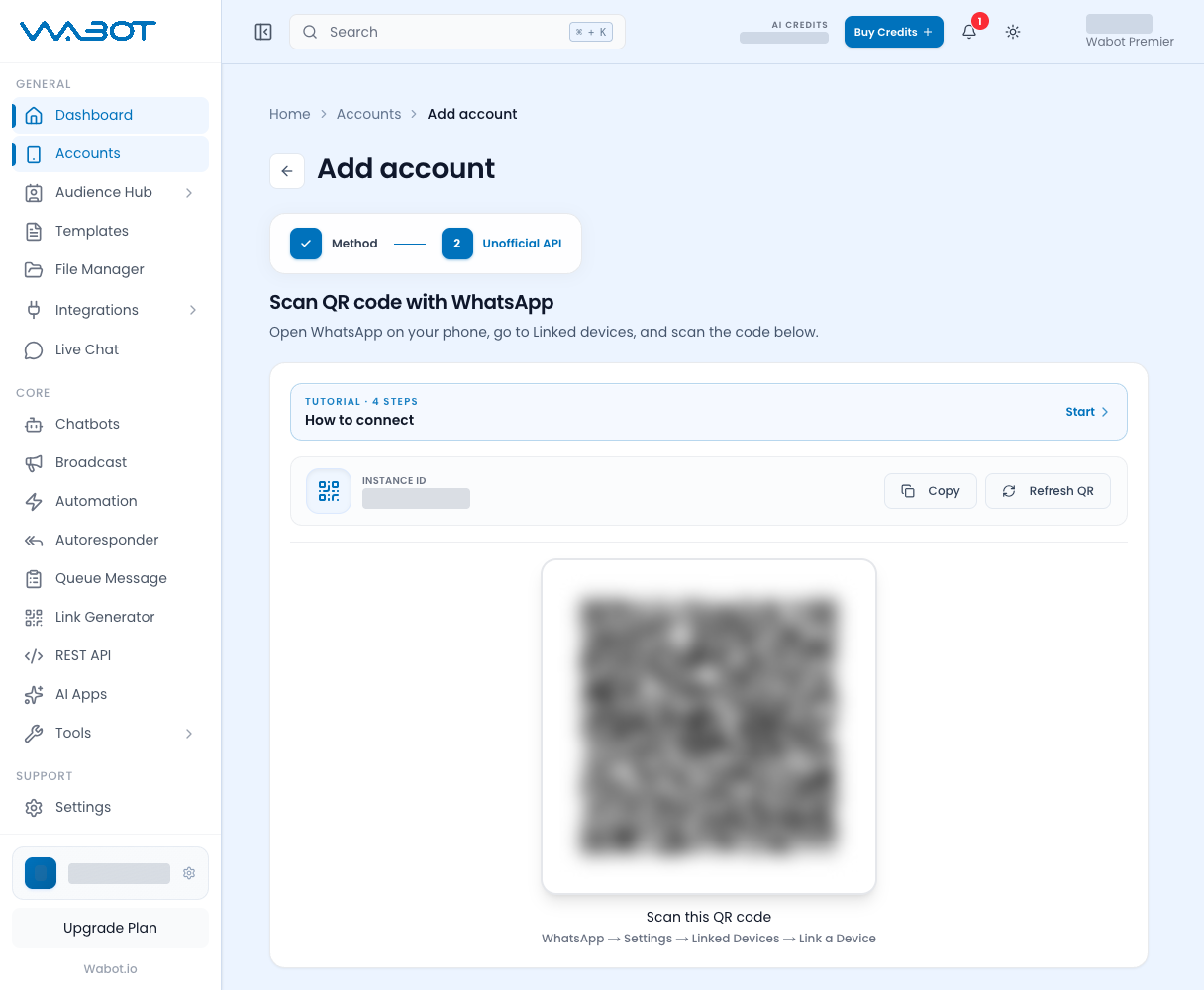
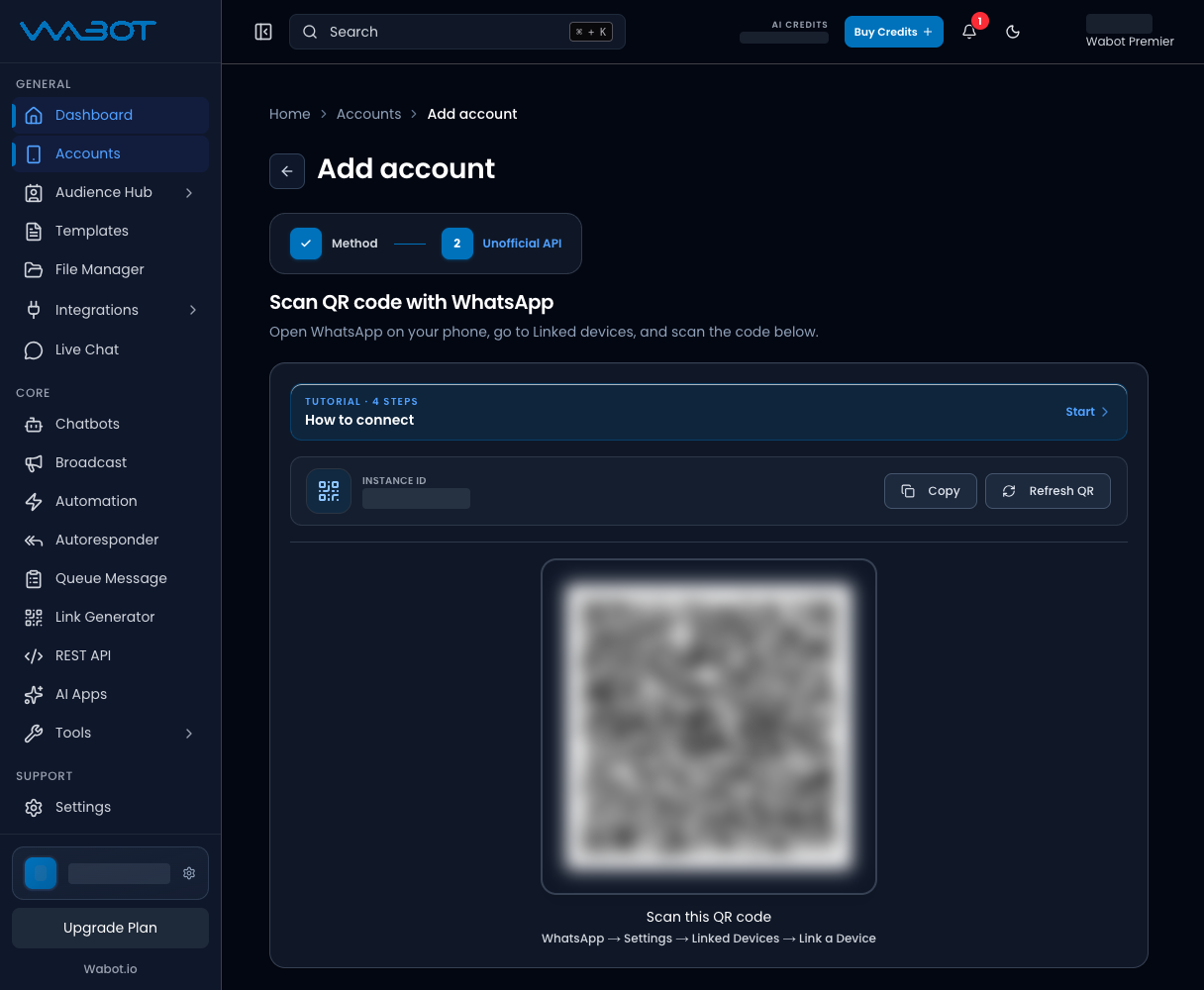
The screen says Scan QR code with WhatsApp.
On your phone:
- Open WhatsApp.
- Open Settings.
- Tap Linked devices.
- Tap Link a device.
- Scan the QR code on Wabot.
If the code expires, click Refresh QR.
5. Wait until Online
Stay on the page until Wabot shows the account is connected.
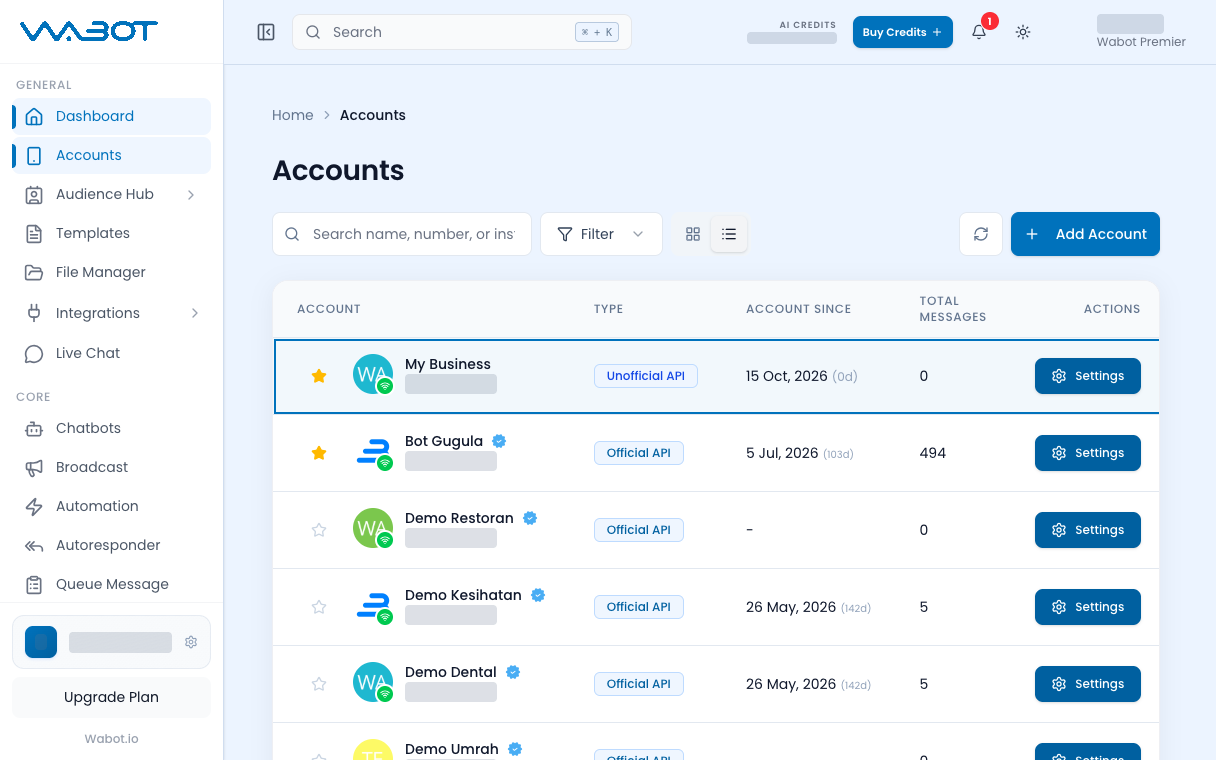
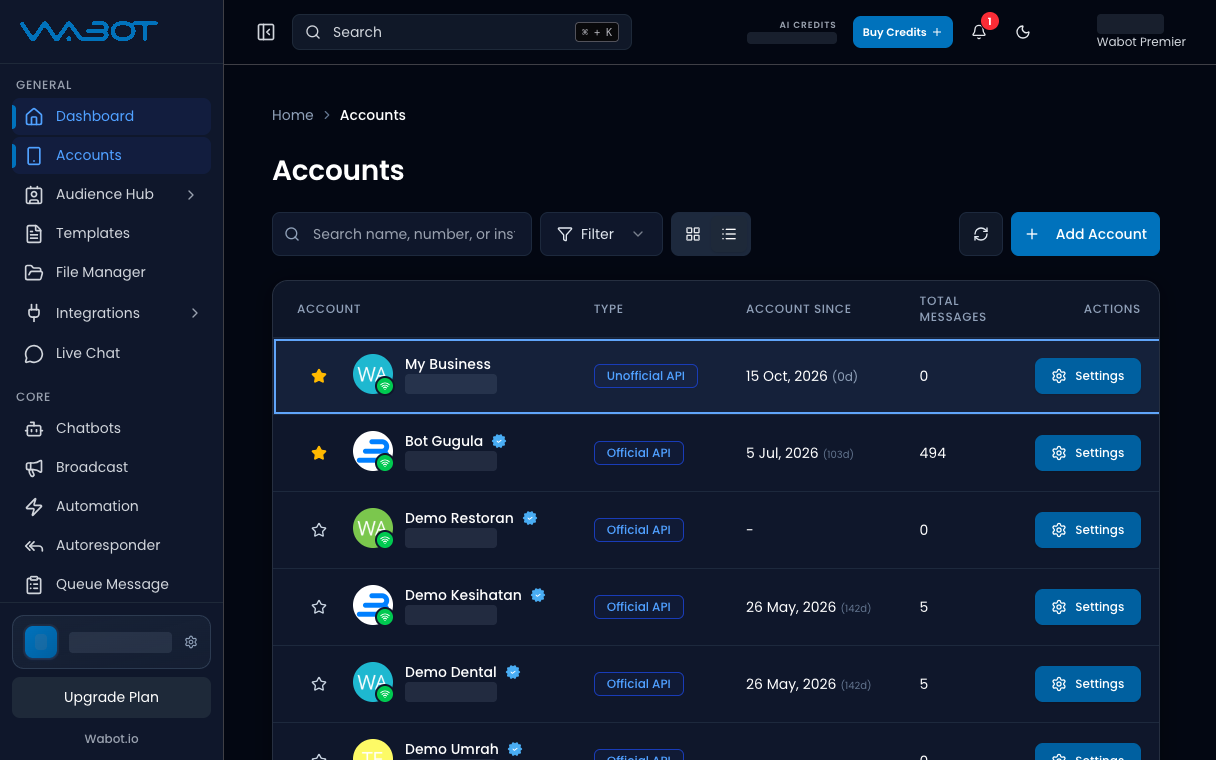
Open Accounts again. The account should show Online.
Make sure it worked
The account is in the Accounts list.
The status is Online.
If it didn’t work
I cannot see Unofficial API
Your plan may not include it. Use Connect Official API, or ask the account owner.
The QR code expired
Click Refresh QR, then scan again.
The status is not Online
On the phone, check Linked devices. Scan again. Then click Refresh data on Accounts.
Next
Send a test from your phone.