
Connect Official API
Add an Official API account with Wabot Pro credentials, then wait until Online.
In this tutorial, you will connect WhatsApp with Official API by pasting credentials from Wabot Pro.
Time needed: 12 minutes
Before you start
Make sure:
- You are logged in to Wabot.
- You can sign in to Wabot Pro.
- That WhatsApp channel in Wabot Pro already shows CONNECTED.
This page is Official API only. To scan a QR code, use Connect Unofficial API.
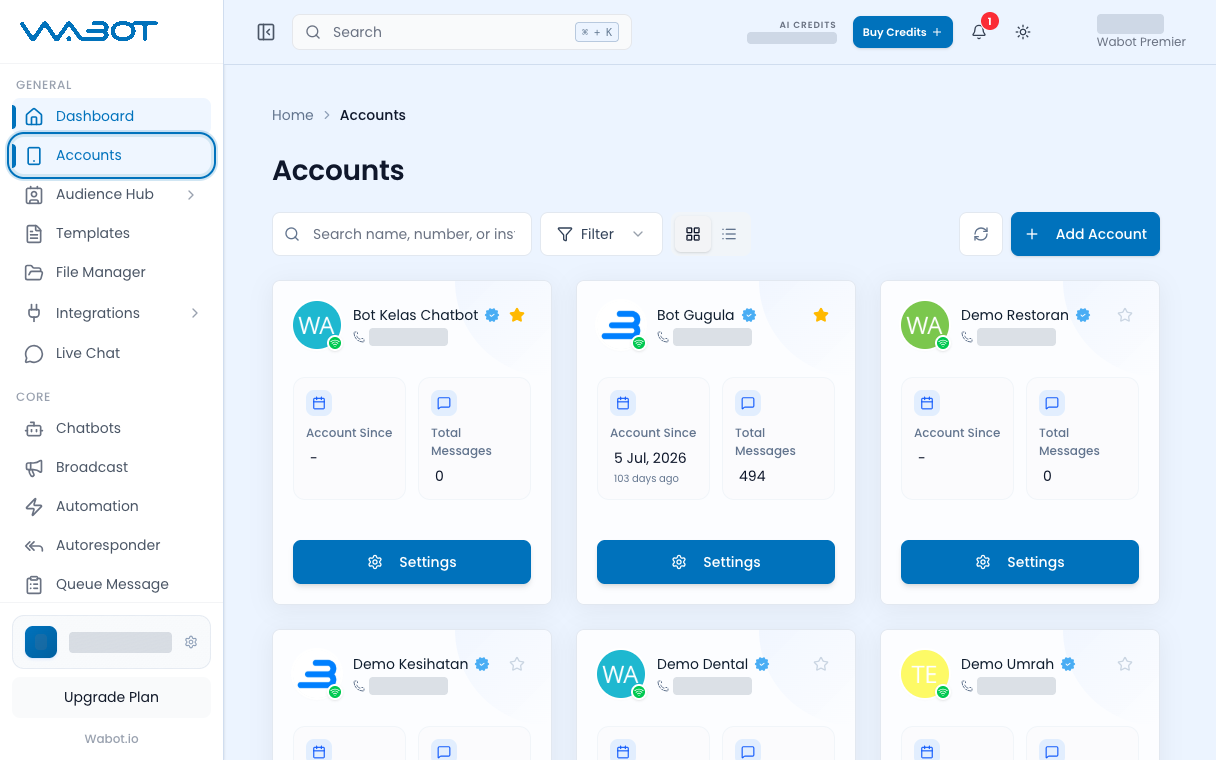
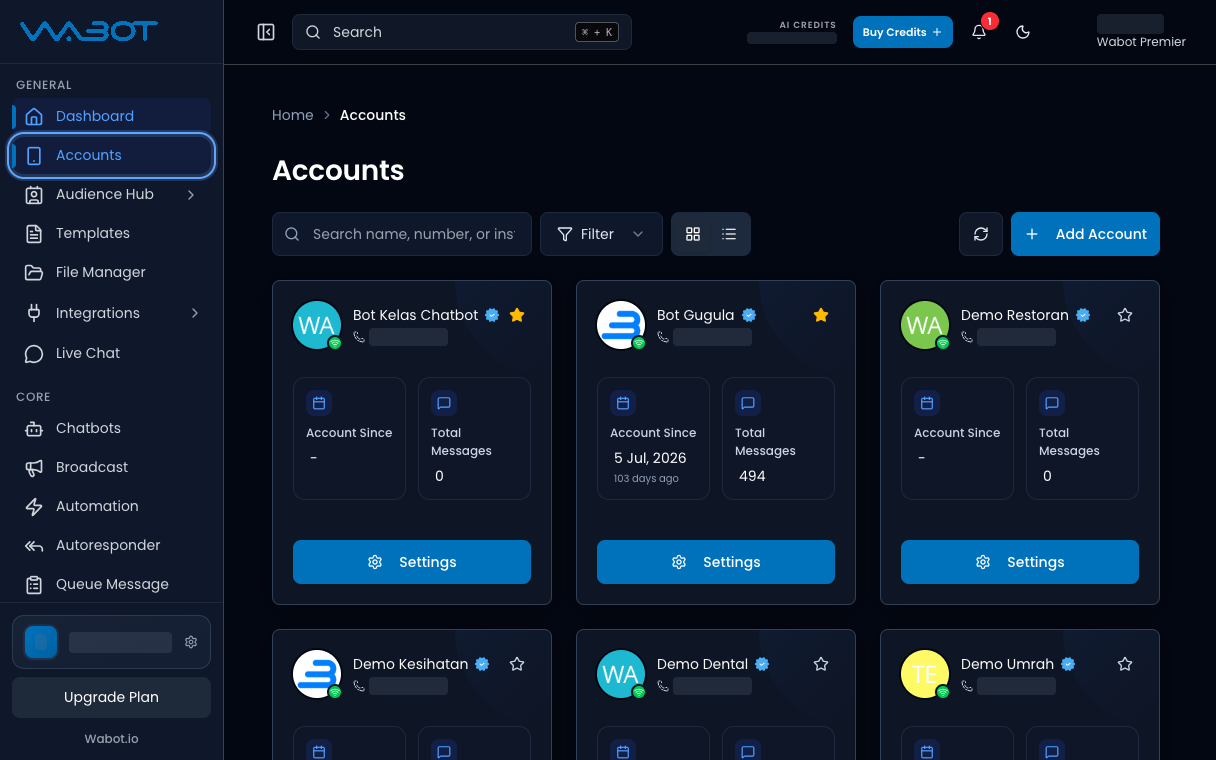
1. Open Accounts
On the left menu, click Accounts.
2. Start Add Account
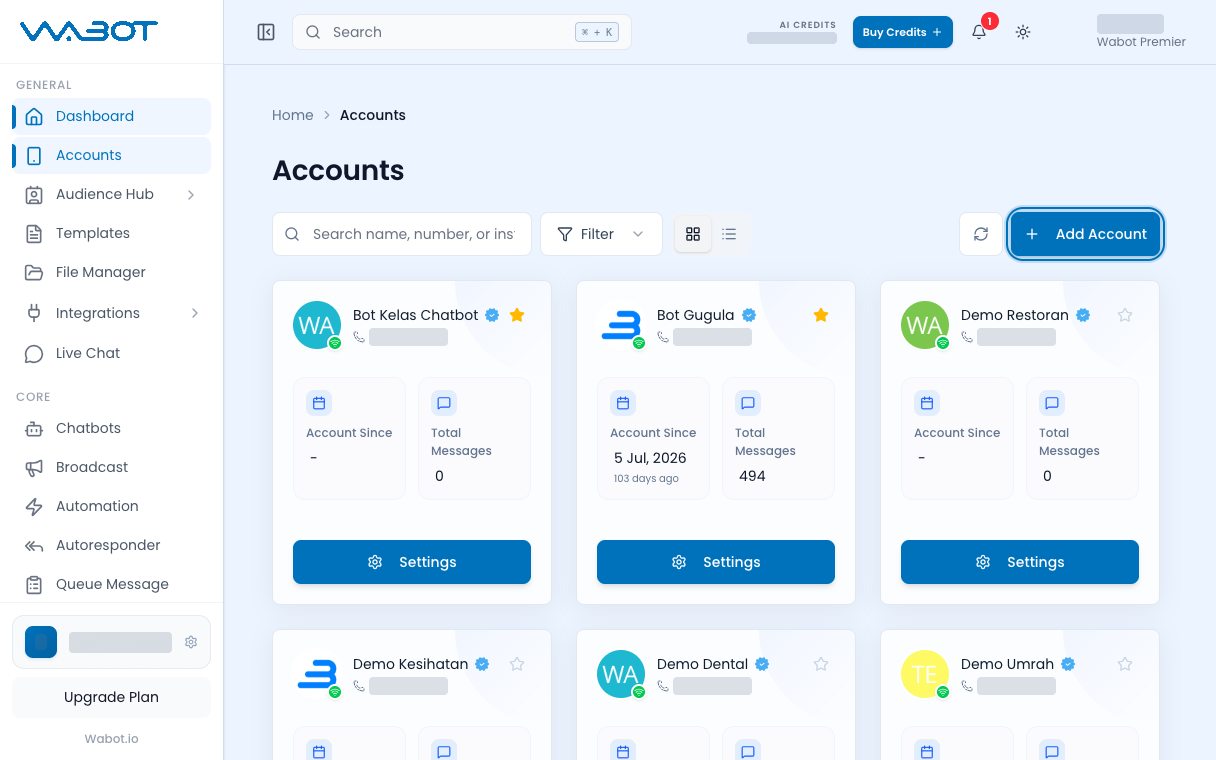
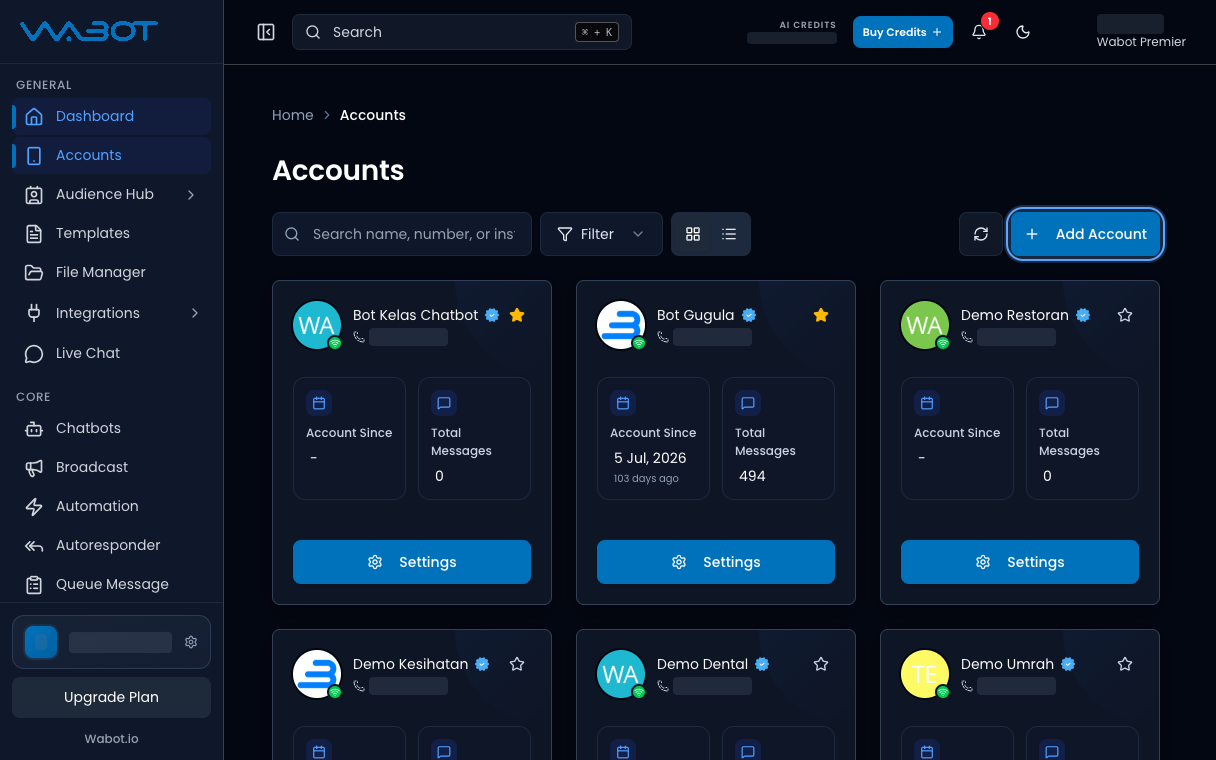
Click Add Account.
3. Choose Official API
On How do you want to connect?, click Official API.
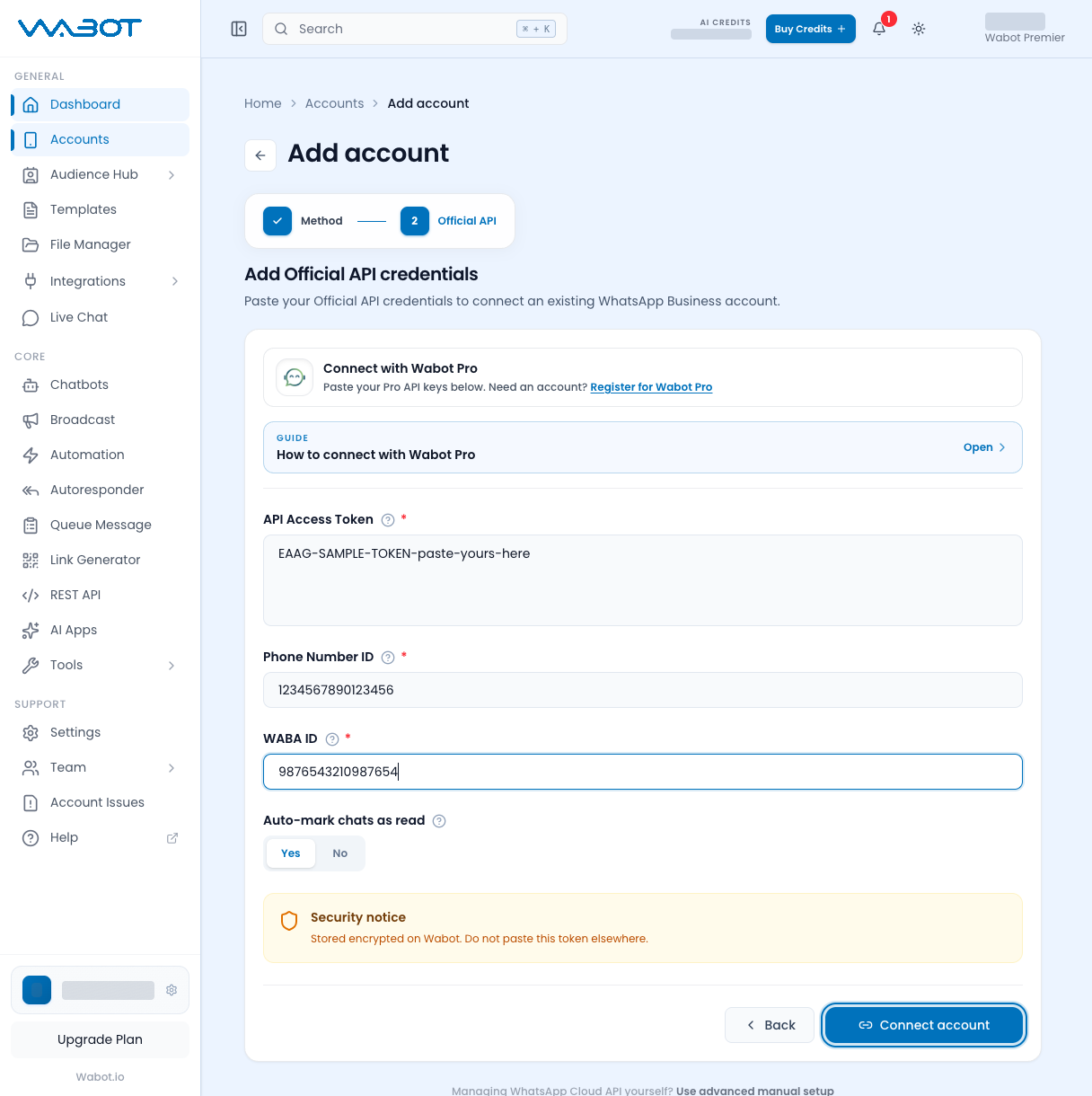
The screen says Add Official API credentials.
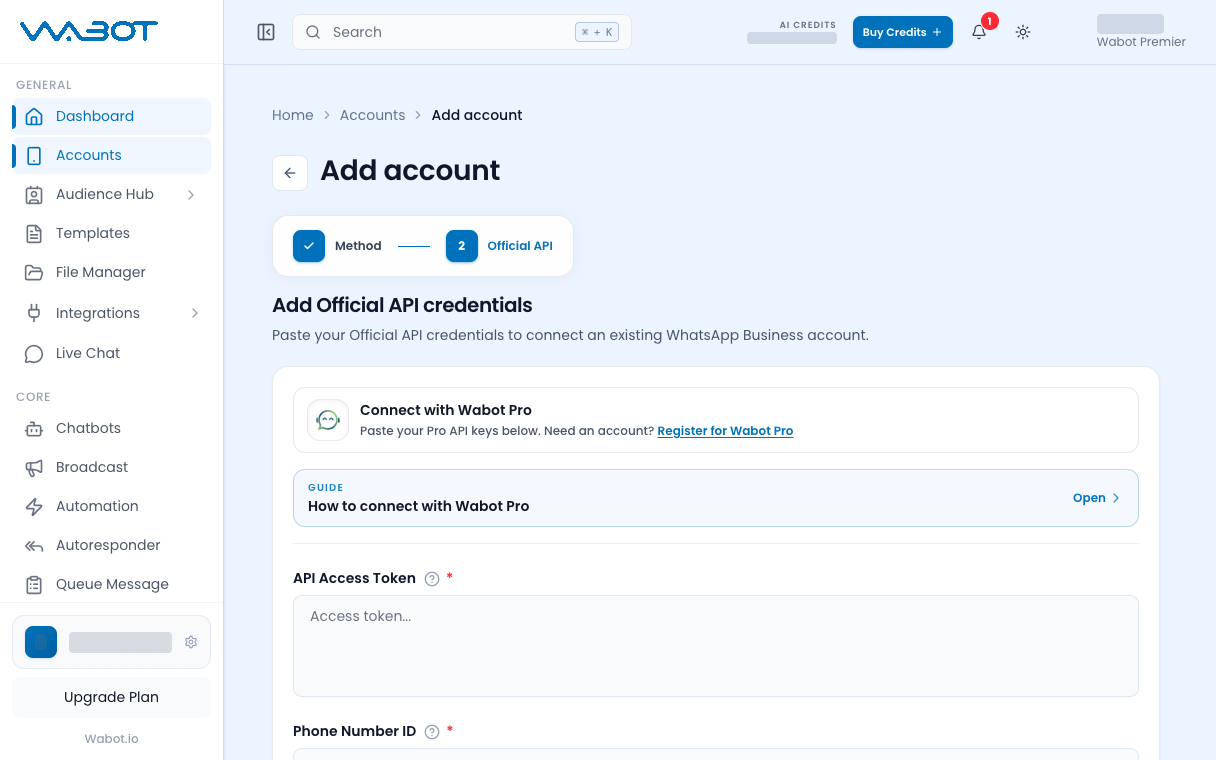
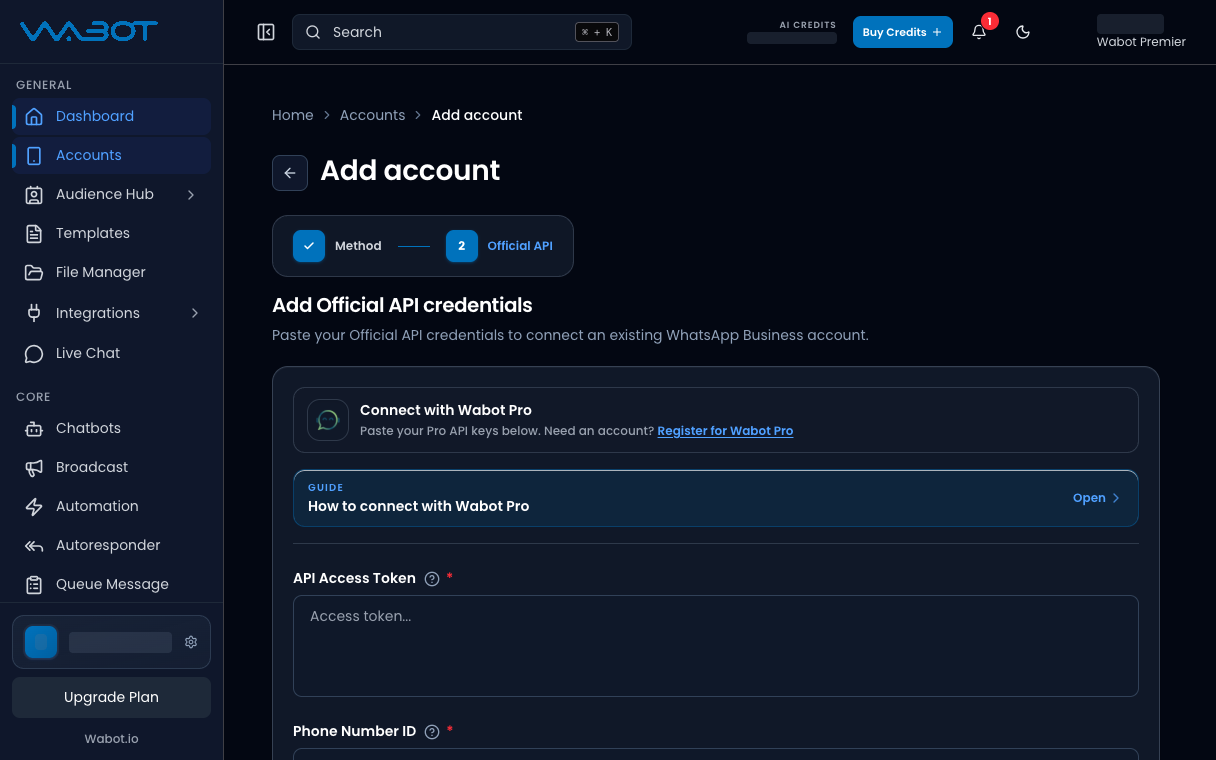
4. Copy credentials from Wabot Pro
Keep the Wabot tab open.
In Wabot Pro, open CRM, then click Channels.
On the WhatsApp channel, click the three-dot menu, then Access Token.
Copy these three values:
- Access Token
- Phone Number ID
- WABA ID
Copy the token now. Wabot Pro will not show the same token again after you close the window.
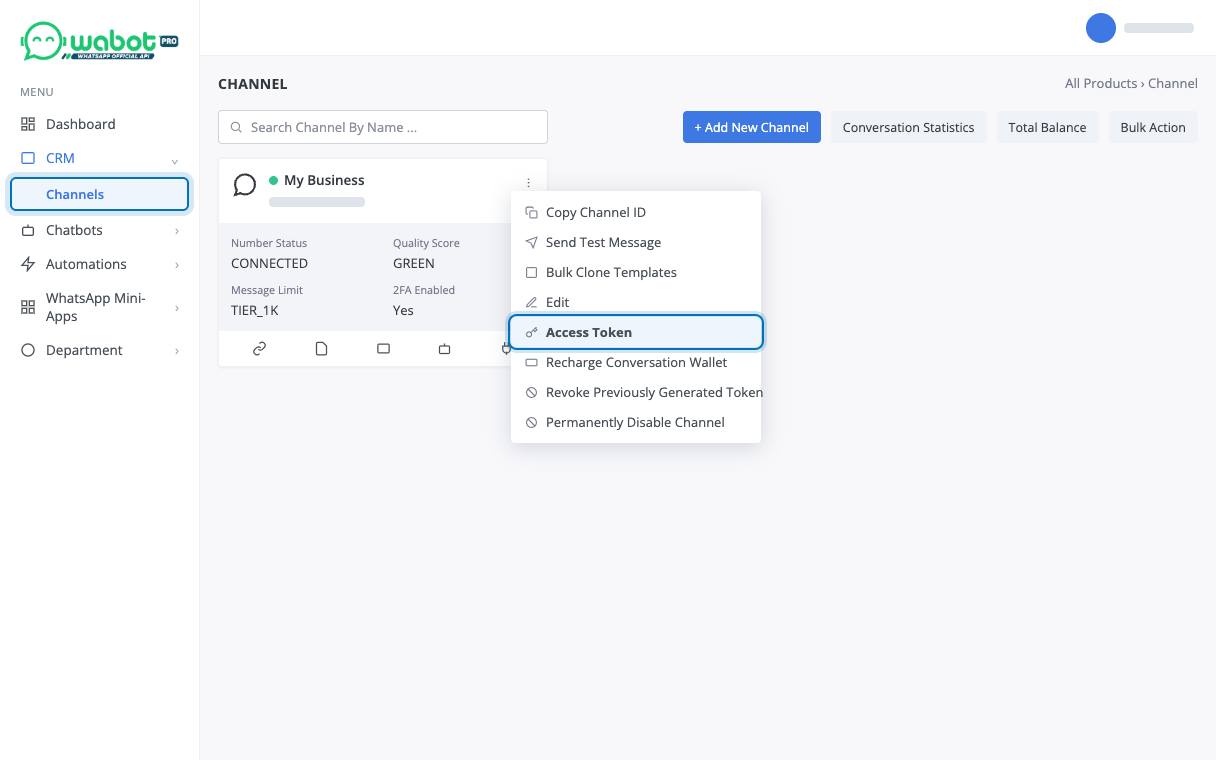
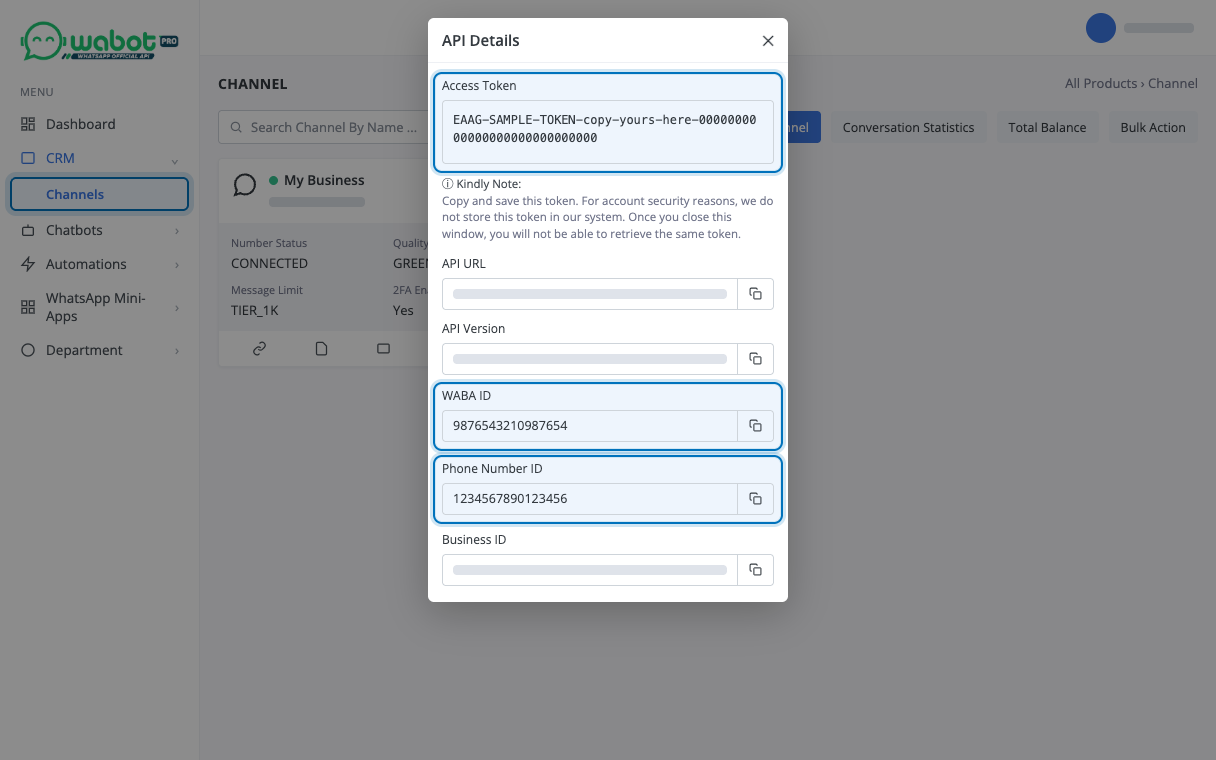
5. Paste and Connect
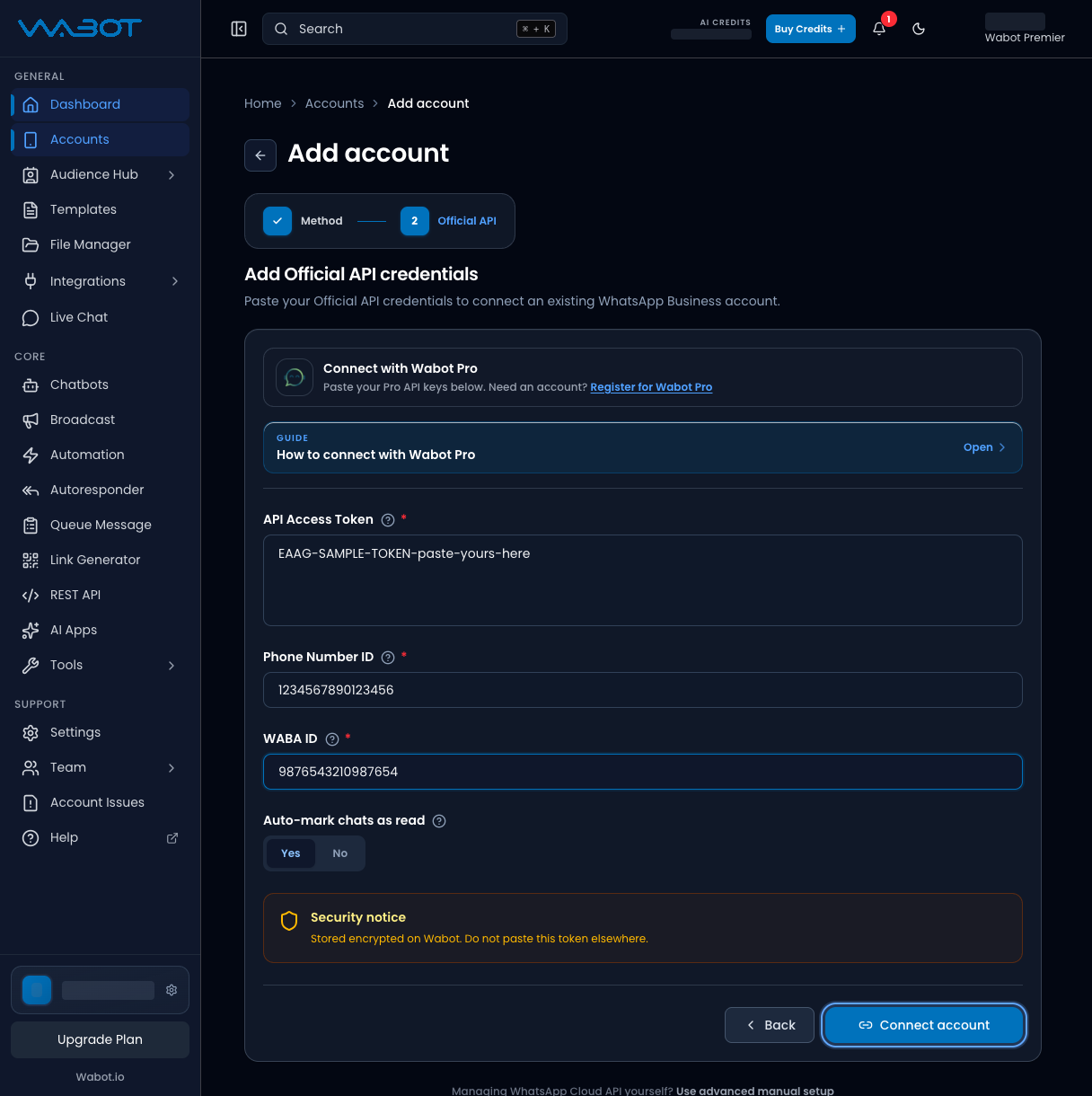
Back in Wabot, paste:
- API Access Token
- Phone Number ID
- WABA ID
Click Connect account.
6. Wait until Online
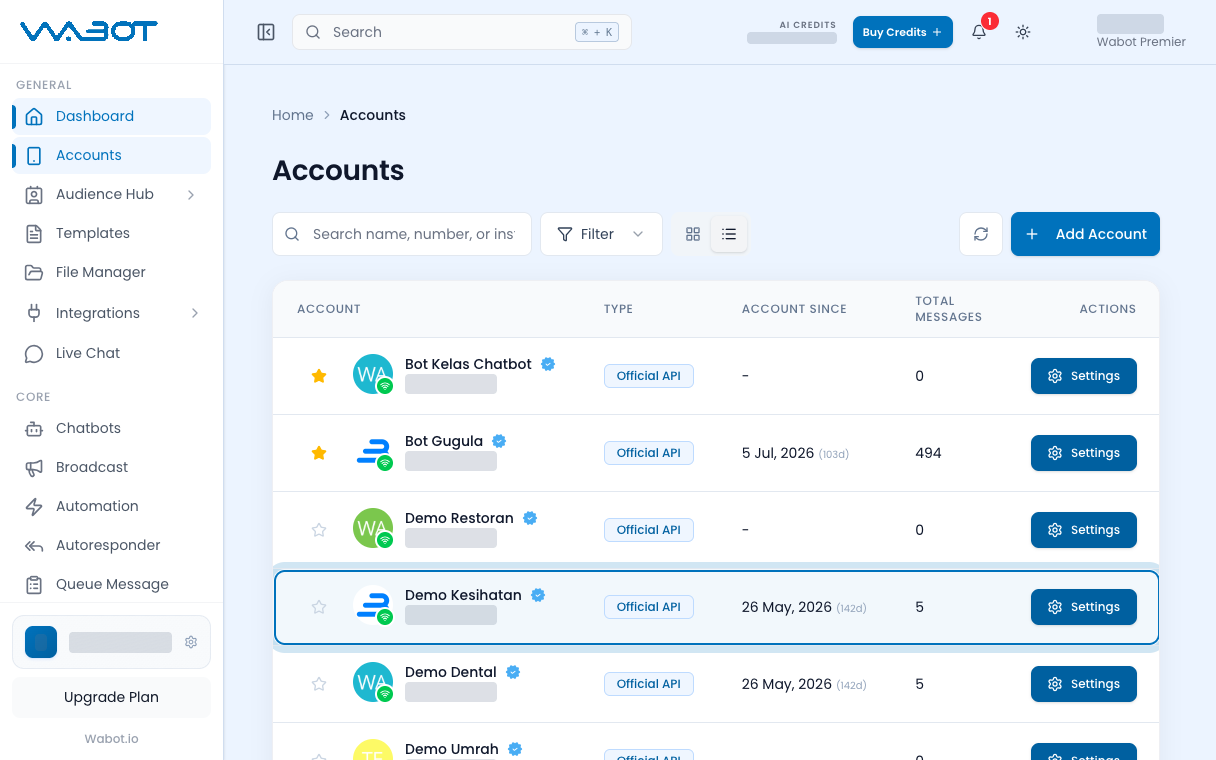
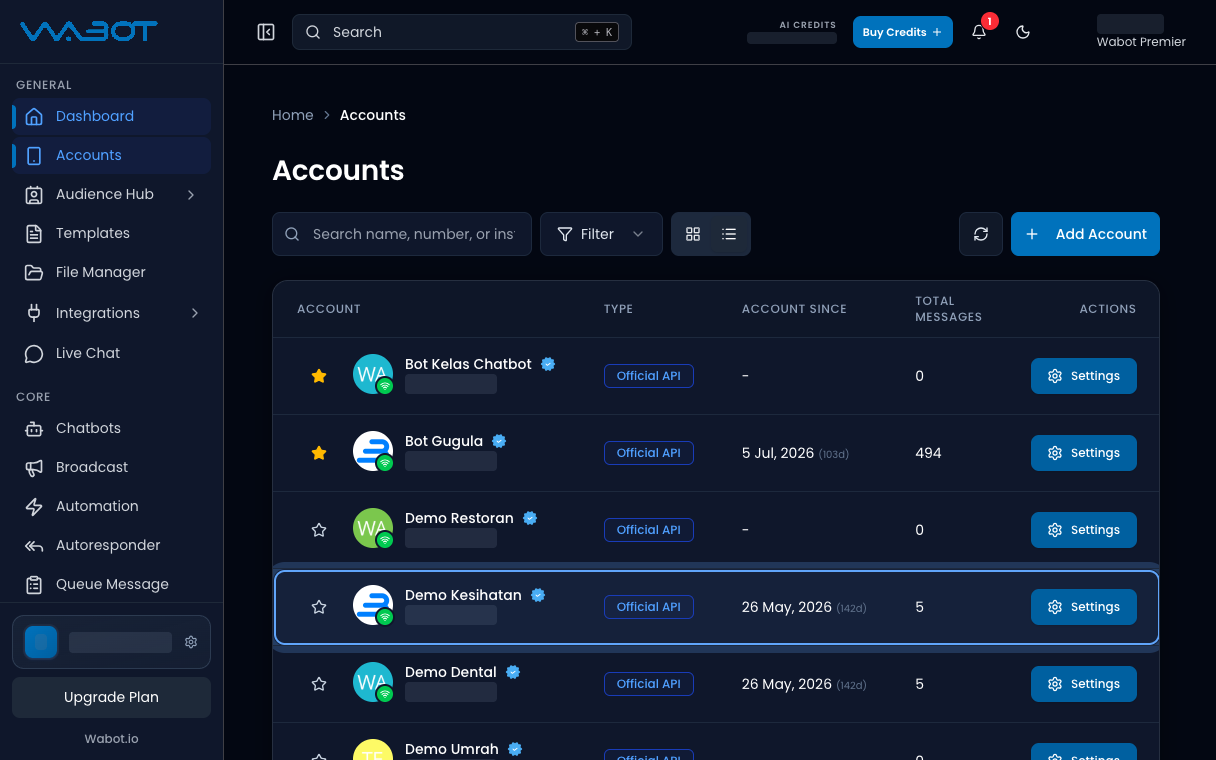
Open Accounts.
The new account should show Official API and Online.
Make sure it worked
The account is in Accounts.
The type is Official API. The status is Online.
If it didn’t work
I do not have Wabot Pro yet
On Add Official API credentials, click Register for Wabot Pro. Finish that setup first, then copy the three values.
I see Continue with WhatsApp Business Signup
That is the Meta path. Click Continue with WhatsApp Business Signup, allow the pop-up, then finish the Meta screens. Or stay on the Wabot Pro credentials form.
Continue with WhatsApp Business Signup does nothing
Allow pop-ups for app.wabot.io, then click the button again.
The number is already in use
That WhatsApp number is already linked to another Official API. Pick a free number in Wabot Pro, or disconnect it there first.
Next
Send a test from your phone.