
Reply after the 24h window expires
On Official API, send a Pre-Approved Template when WhatsApp 24h window shows Expired.
In this tutorial, you will send a Pre-Approved Template when the Official 24-hour window is closed.
Time needed: 10 minutes
Before you start
Make sure:
- This conversation uses an Official API account.
- The header shows Expired, or the composer shows WhatsApp 24h window expired.
- You already have at least one approved template for this WhatsApp Business account.
This step is for Official API only. Unofficial API does not lock the composer behind a 24-hour window.
You cannot type a free reply while the window is expired. A template is the way back in.
1. Open the expired conversation
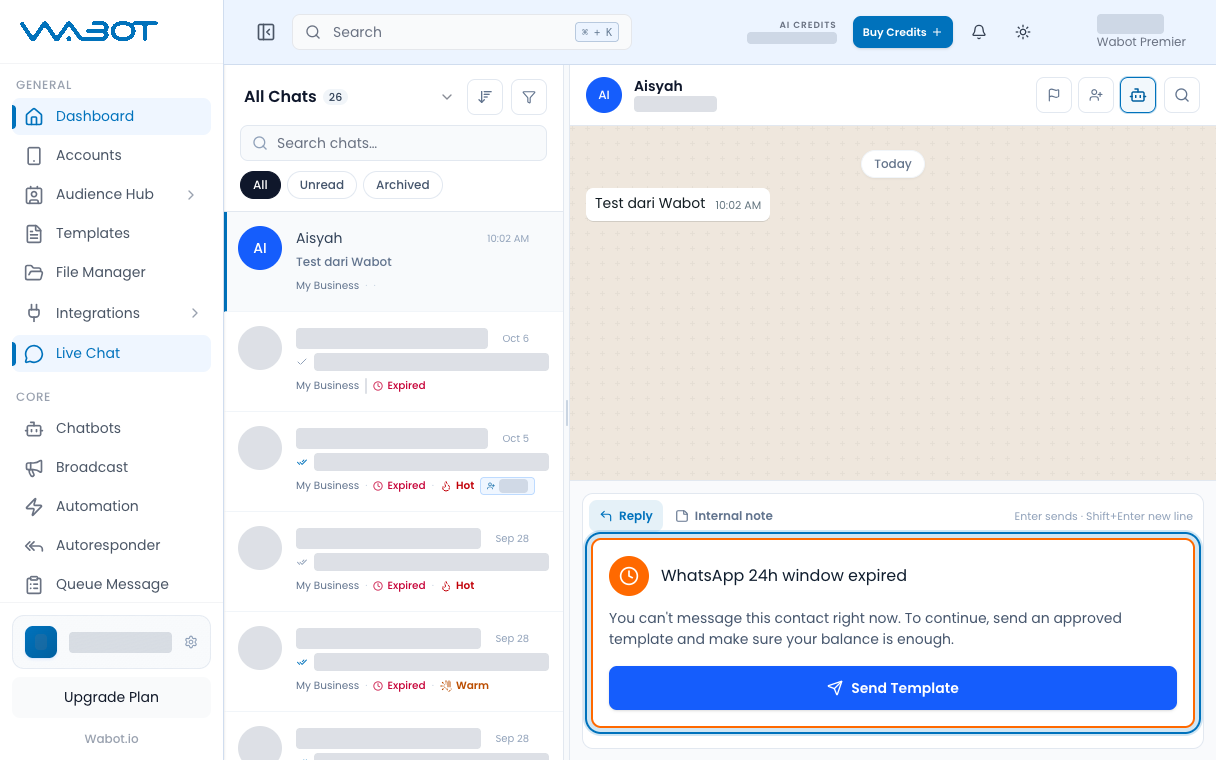
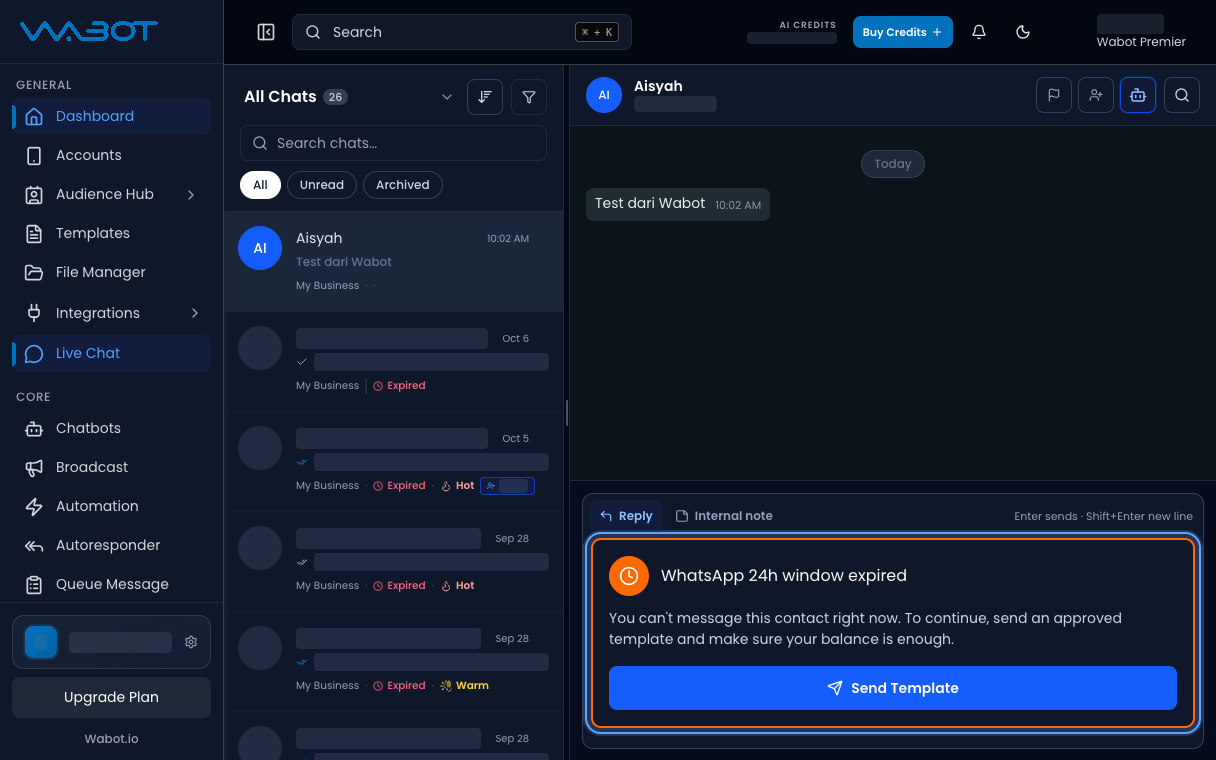
On the left menu, click Live Chat.
Open a thread whose header shows Expired.
2. Open Send Template
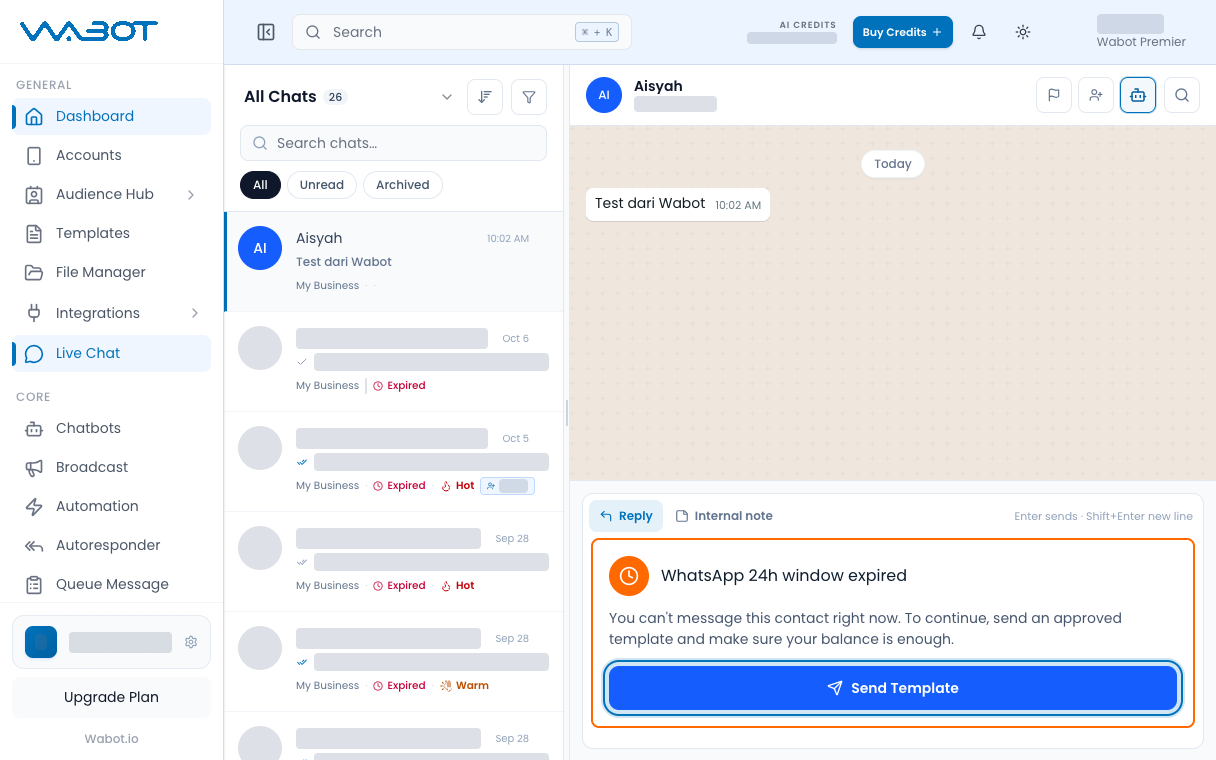
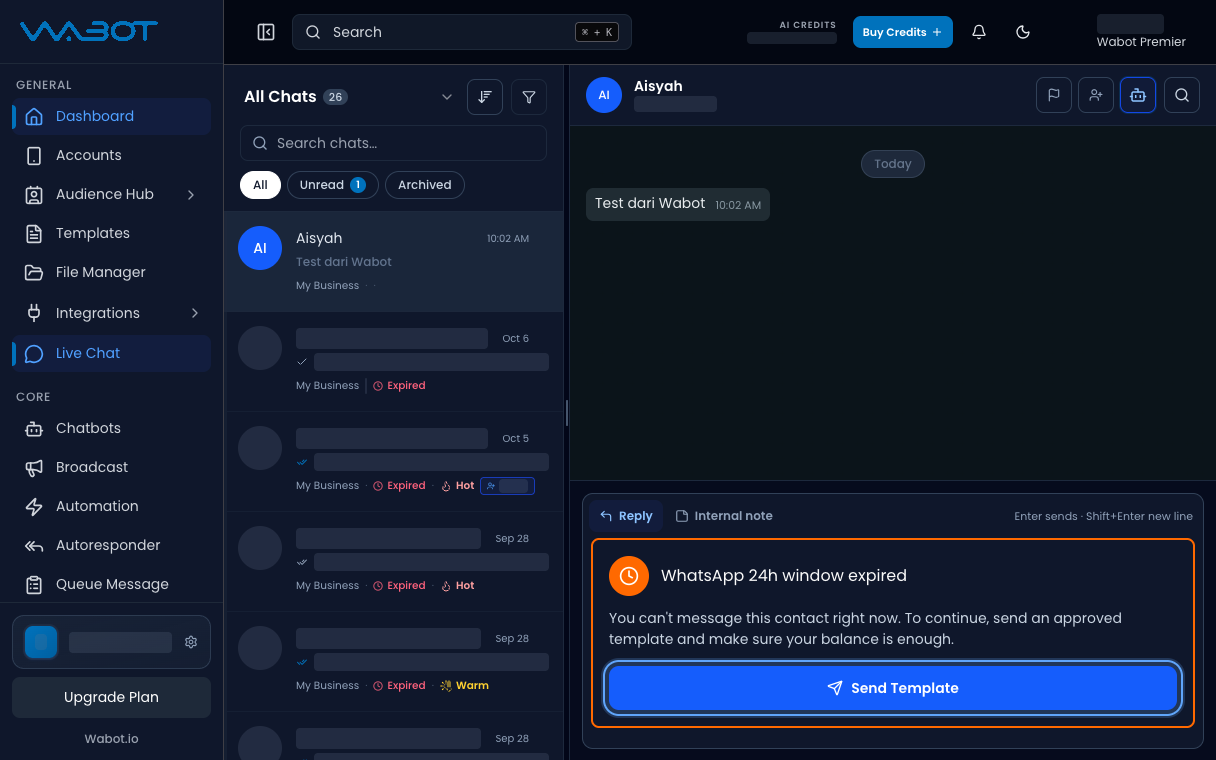
In the composer, read WhatsApp 24h window expired.
Click Send Template.
3. Pick a Pre-Approved Template
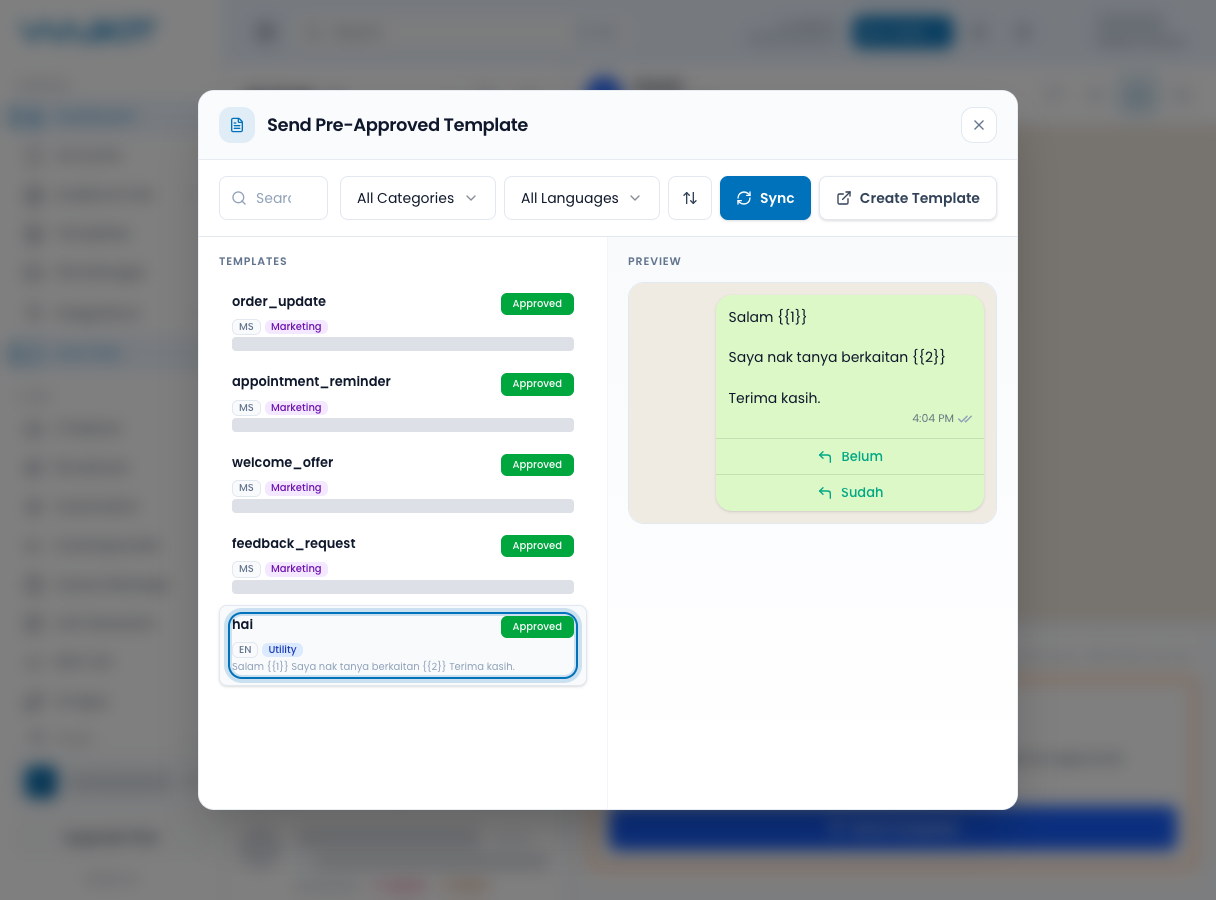
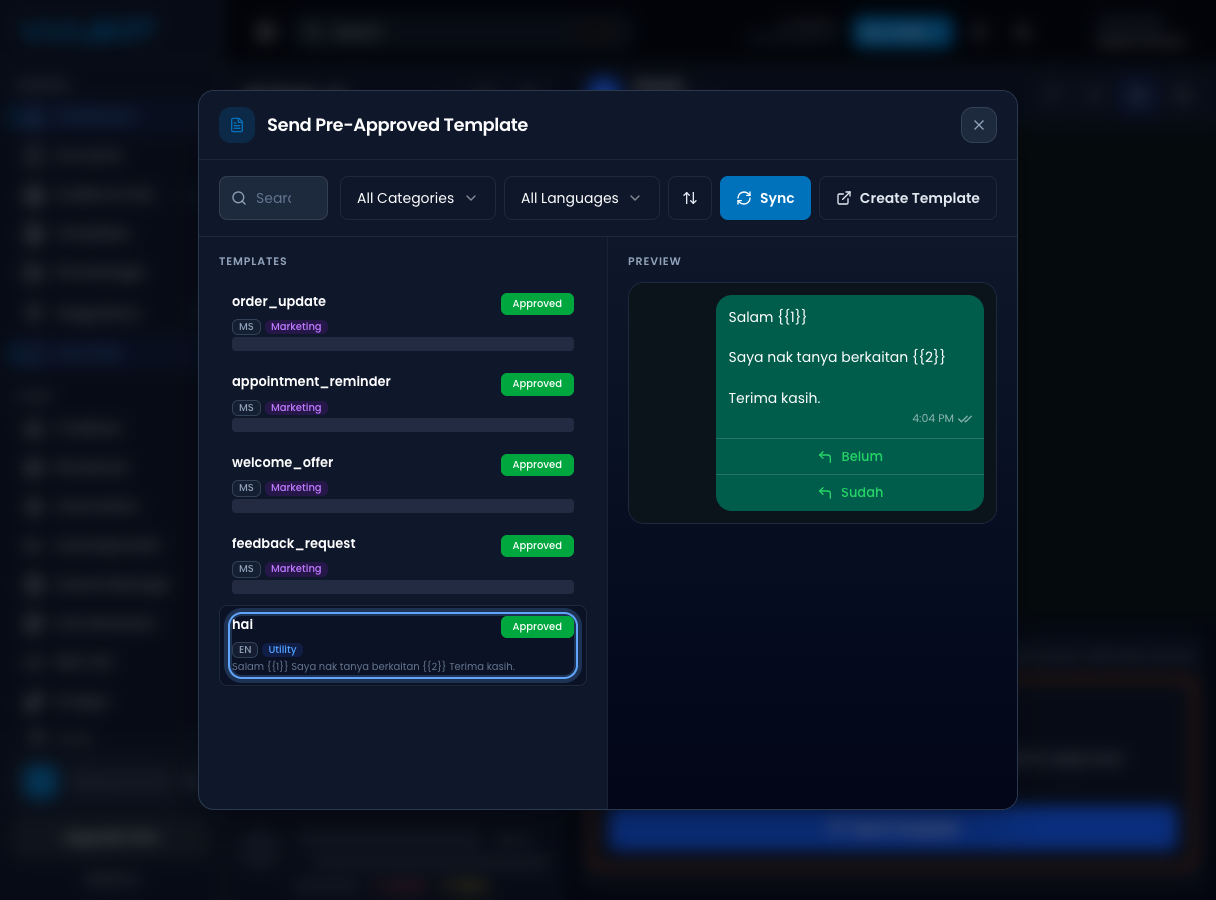
The Send Pre-Approved Template dialog opens.
Click the template you want to send.
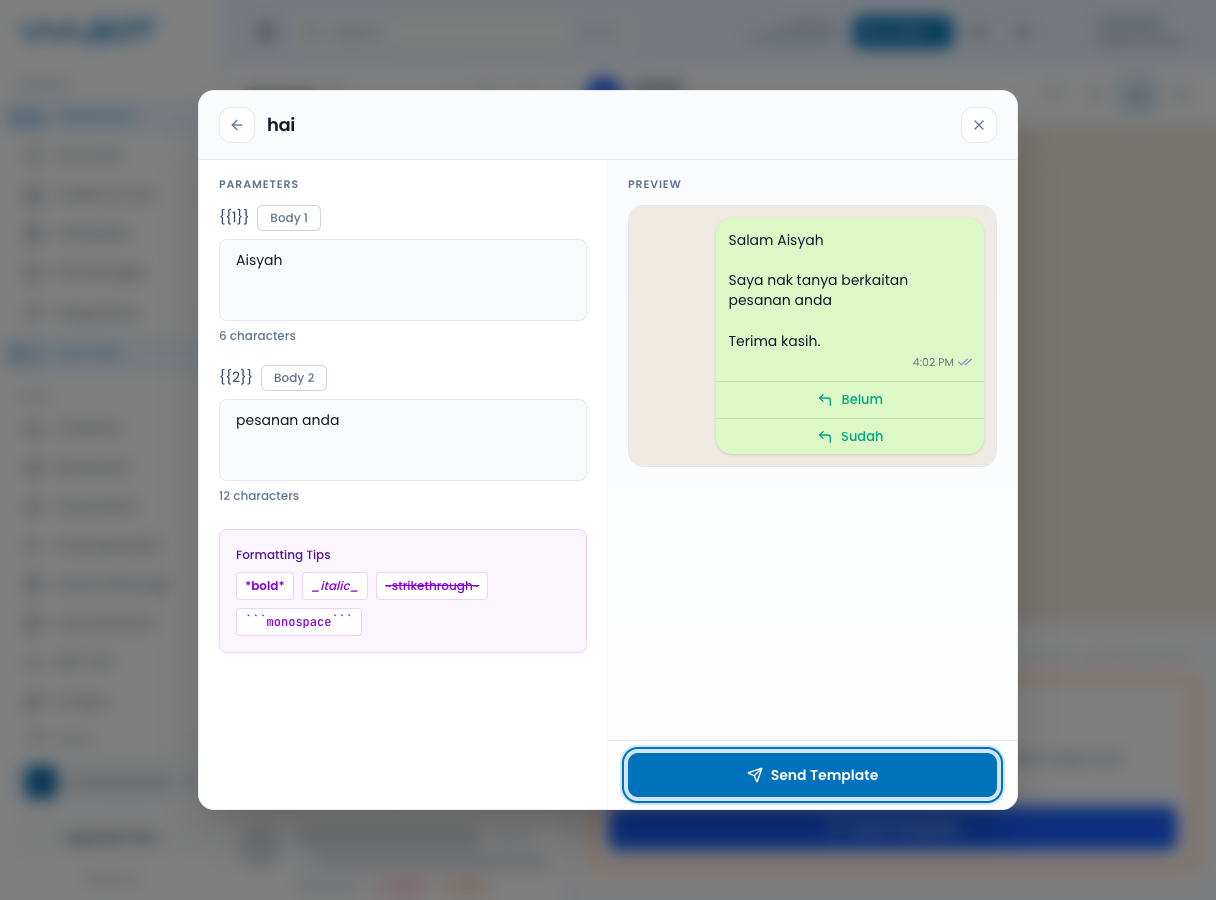
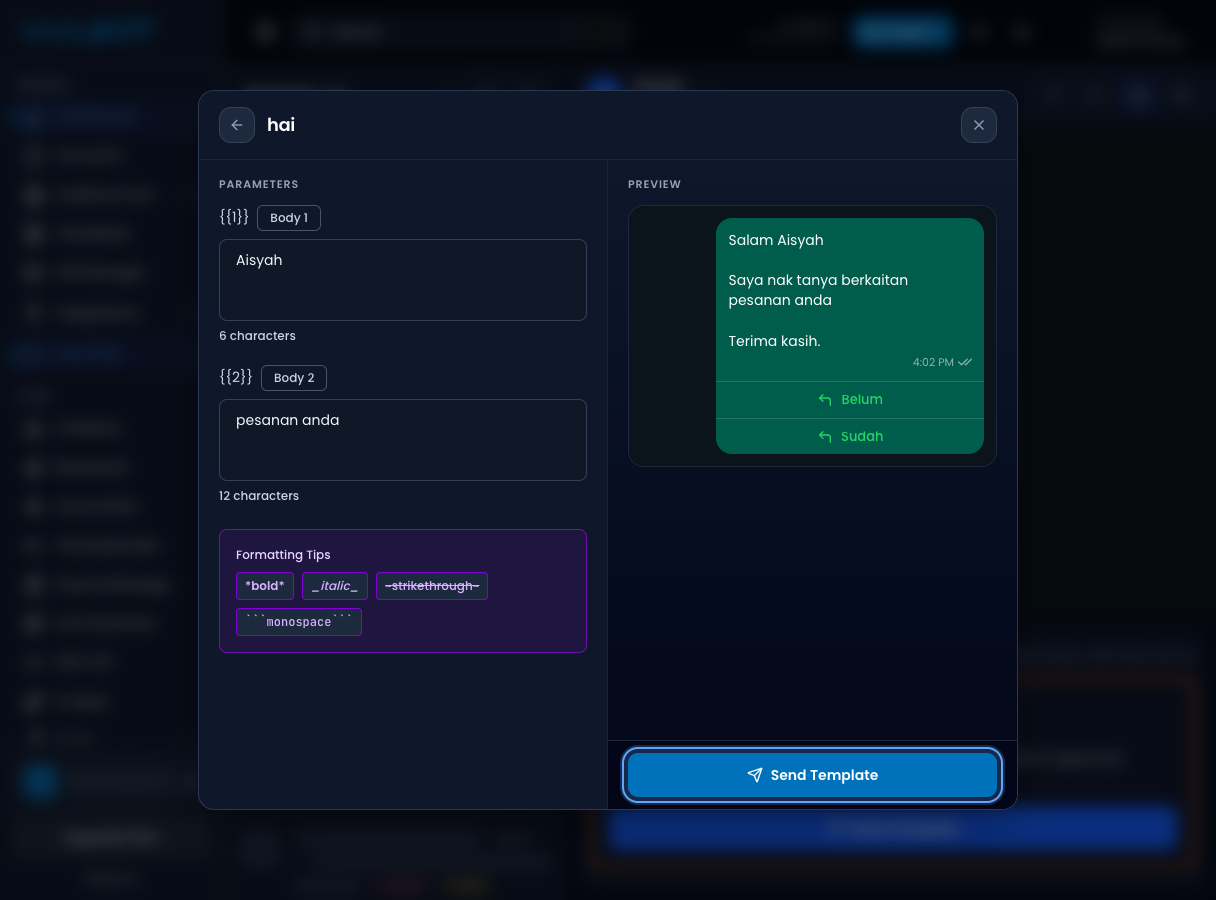
If the template has variables, fill every field.
4. Send the template
Click Send Template.
Make sure it worked
The template message appears in the thread.
Your test phone receives the approved template on WhatsApp.
If the customer replies, the header no longer shows Expired.
If it didn’t work
I can still type a normal reply
This account is not Official, or the customer wrote in the last 24 hours. Use Reply to a conversation instead.
The template list is empty
Approve a template in Meta first, then open Send Pre-Approved Template again.
Send Template is blocked
A variable is empty, or the account balance is not enough. Fill every field, then try again.
Next
Send a later follow-up in Schedule a message.