
Reply to a conversation
Open Live Chat, pick an Unread thread, type a reply, and send it to WhatsApp.
In this tutorial, you will reply to one WhatsApp conversation from Live Chat.
Time needed: 8 minutes
Before you start
Make sure:
- You are logged in to Wabot.
- The WhatsApp account shows Online.
- You already sent a test message from your own phone, or a customer has written in.
The customer sees the reply from your business WhatsApp number, not from Wabot.
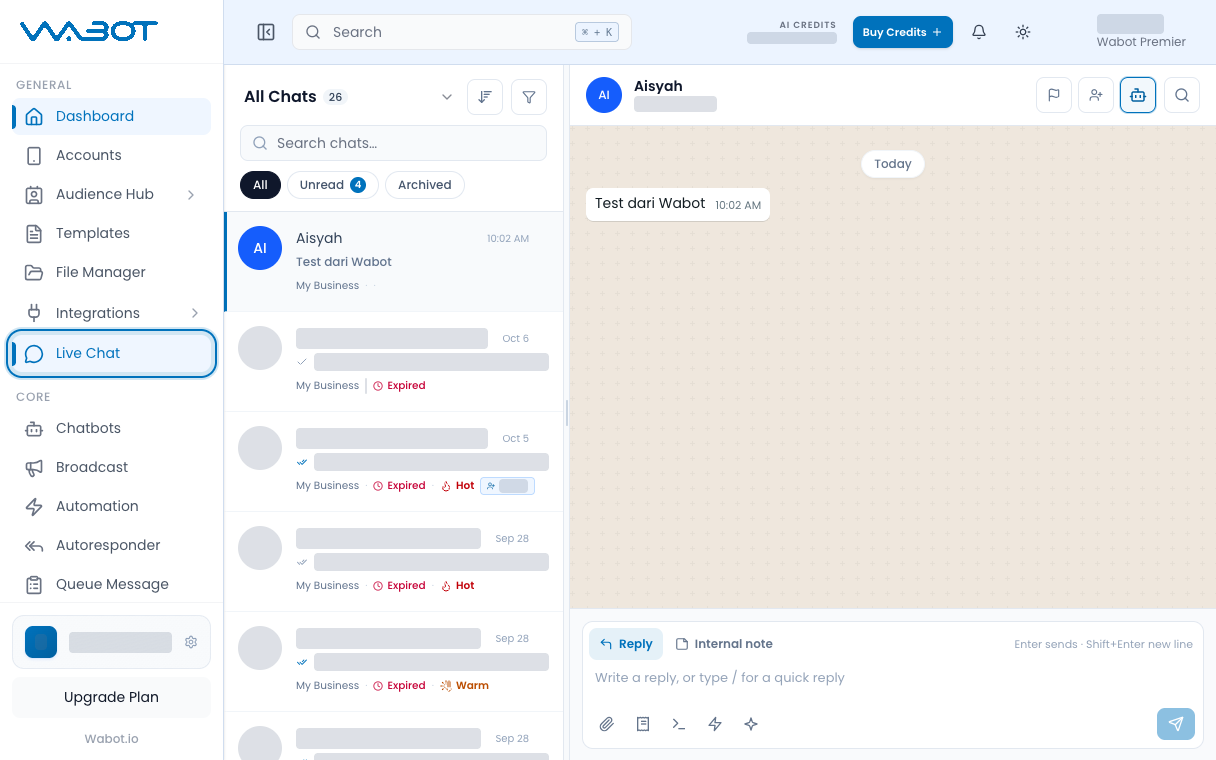
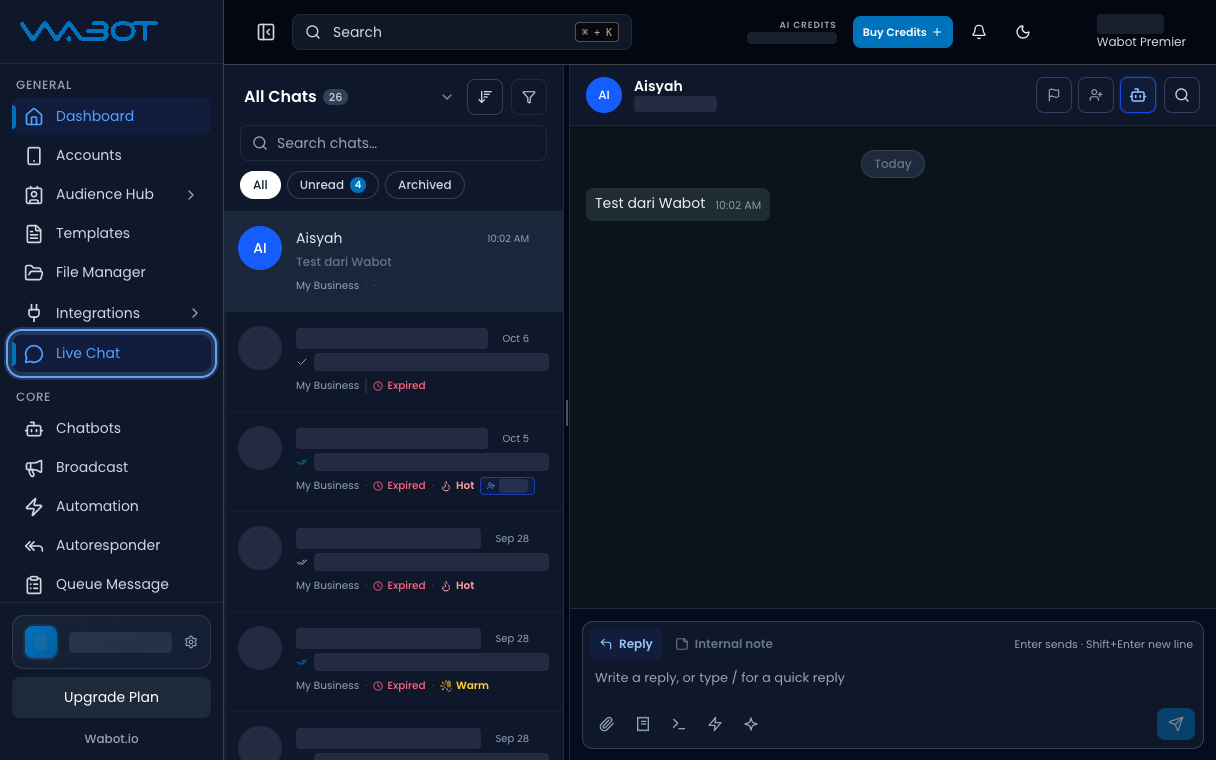
1. Open Live Chat
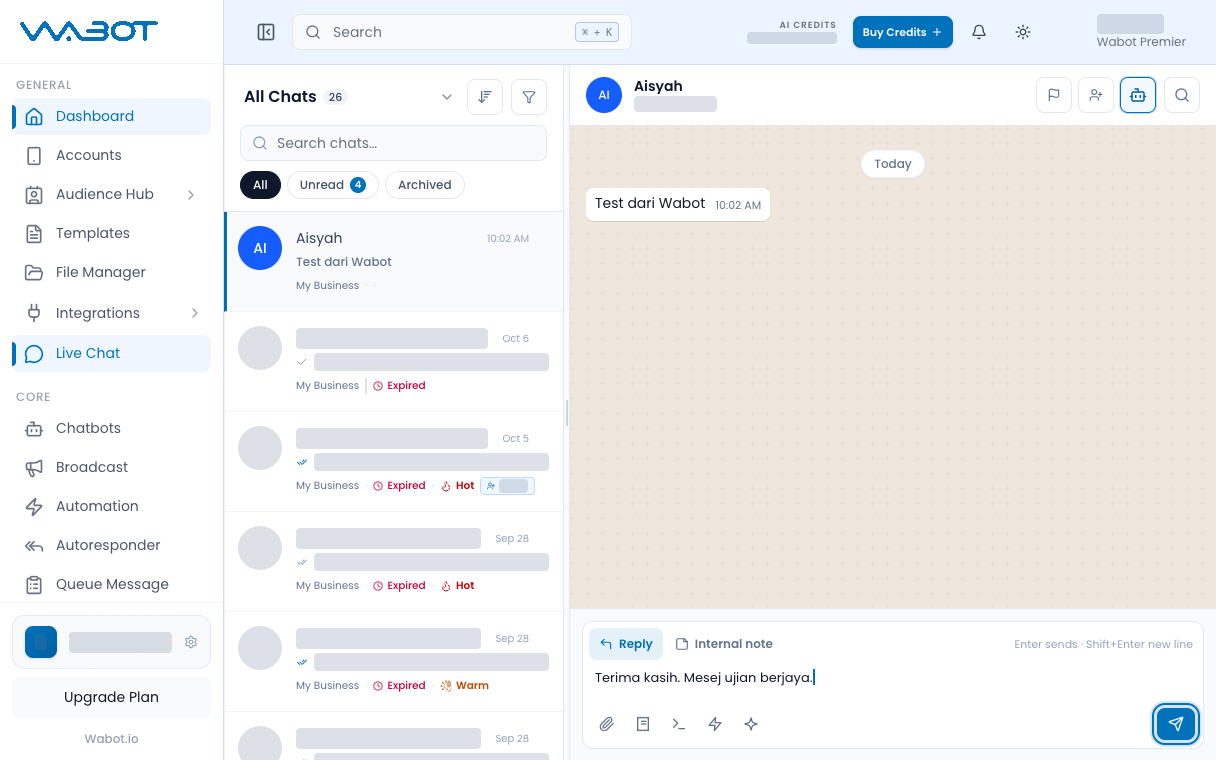
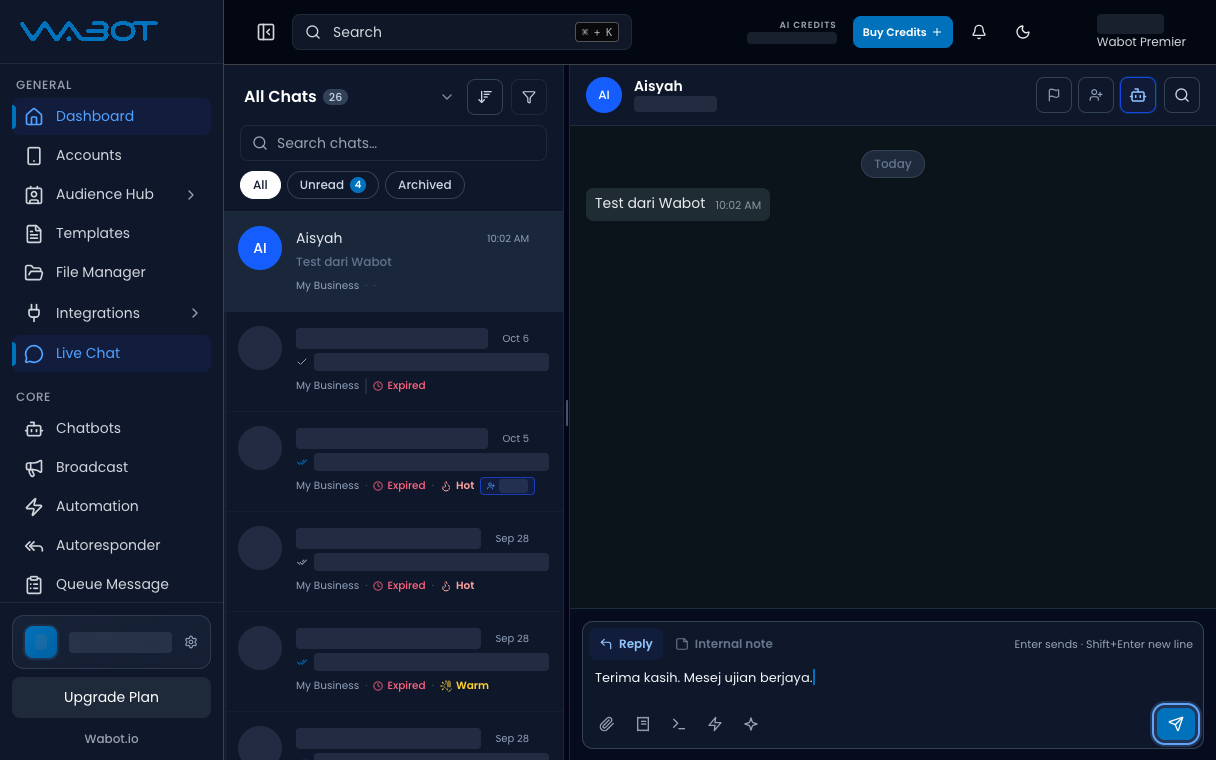
On the left menu, click Live Chat.
2. Open Unread
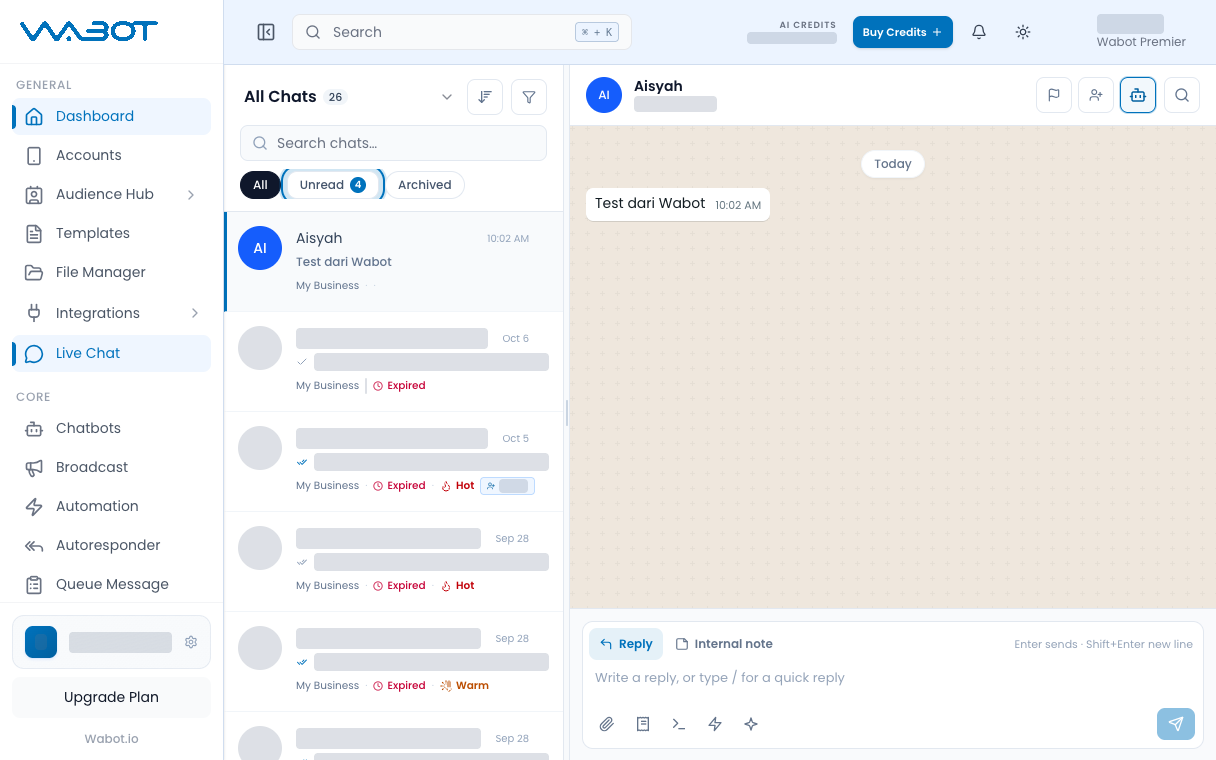
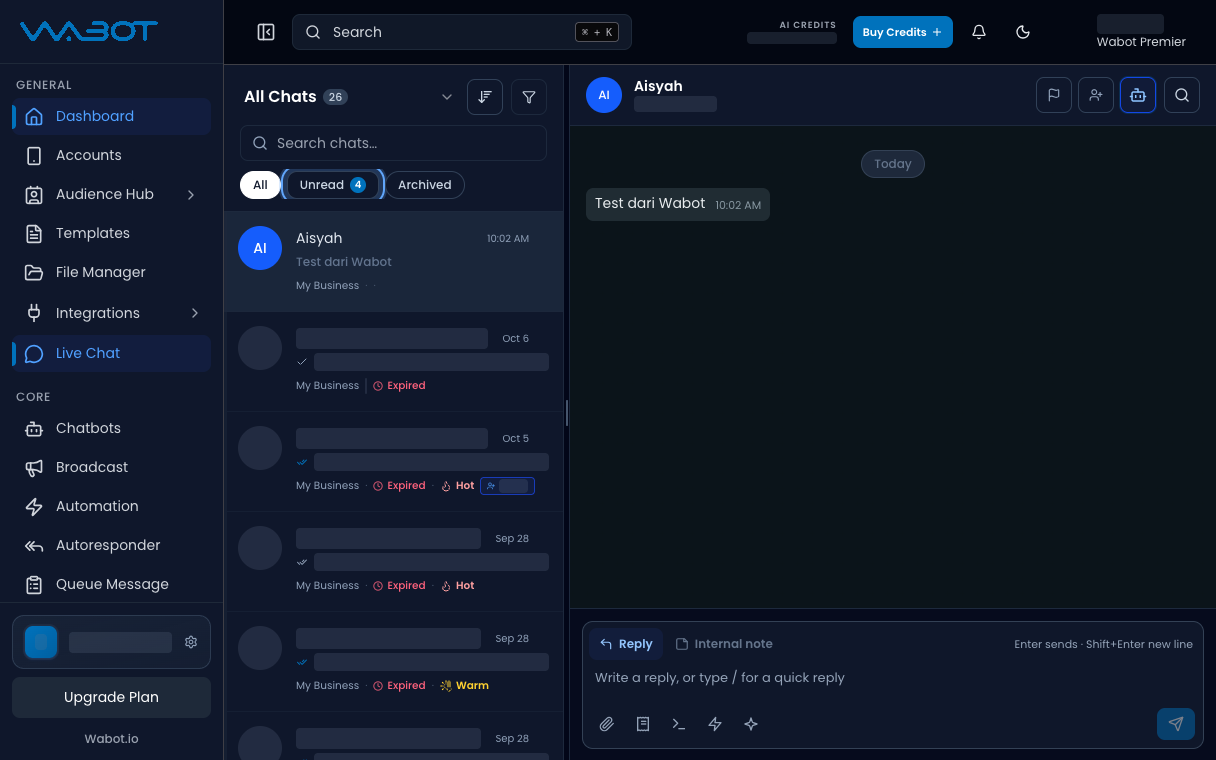
At the top of the conversation list, click Unread.
If the list is empty, click All.
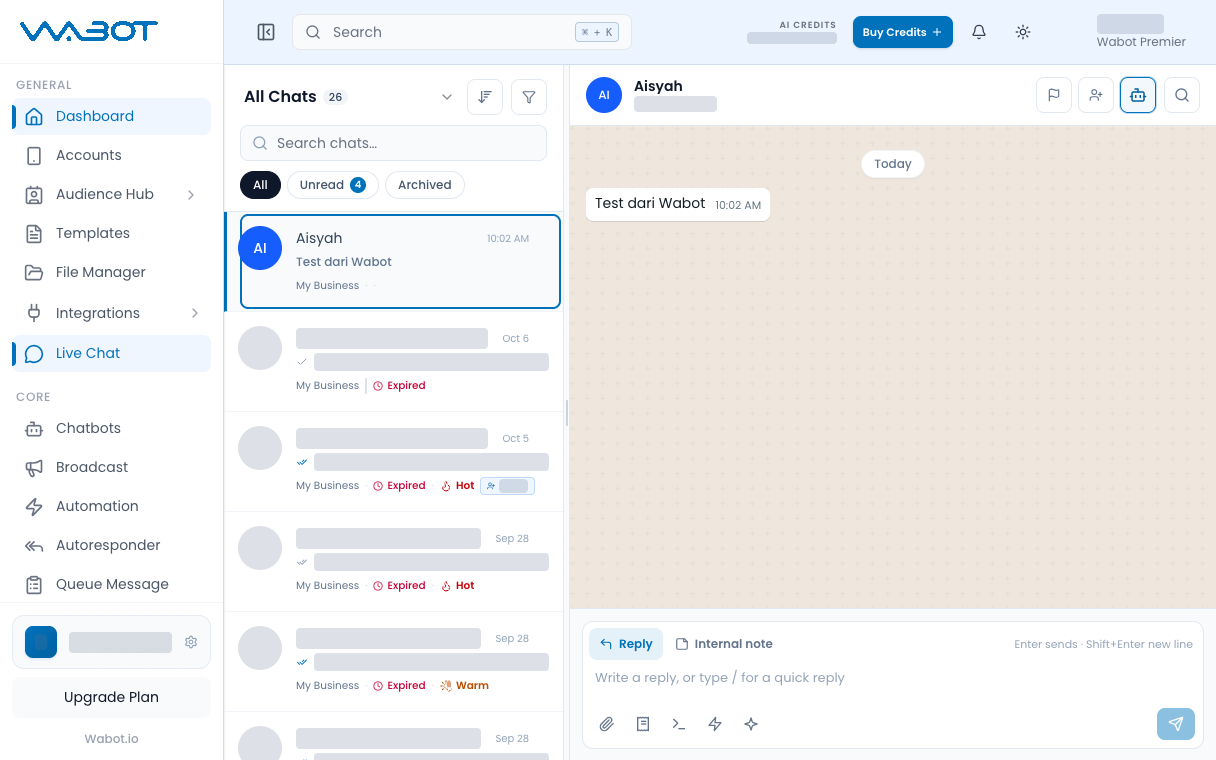
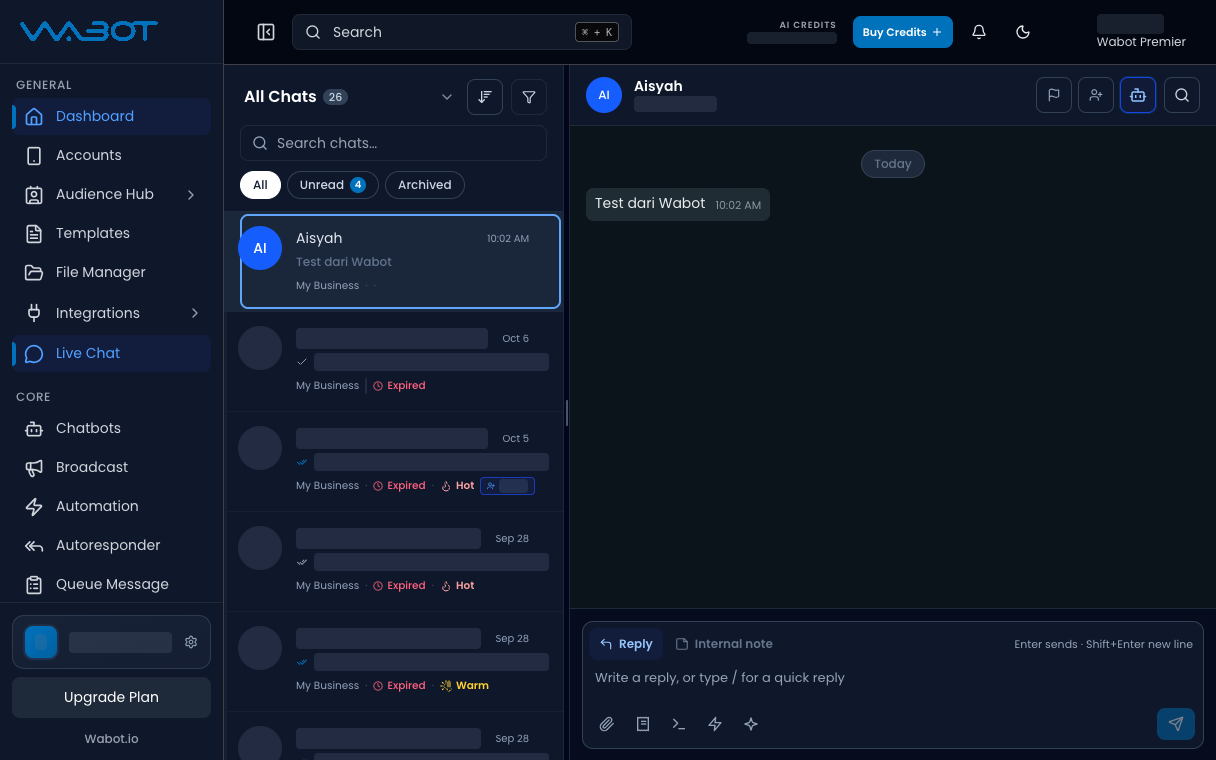
3. Open the conversation
Click the thread you want to answer.
The chat history opens in the middle panel.
4. Type the reply
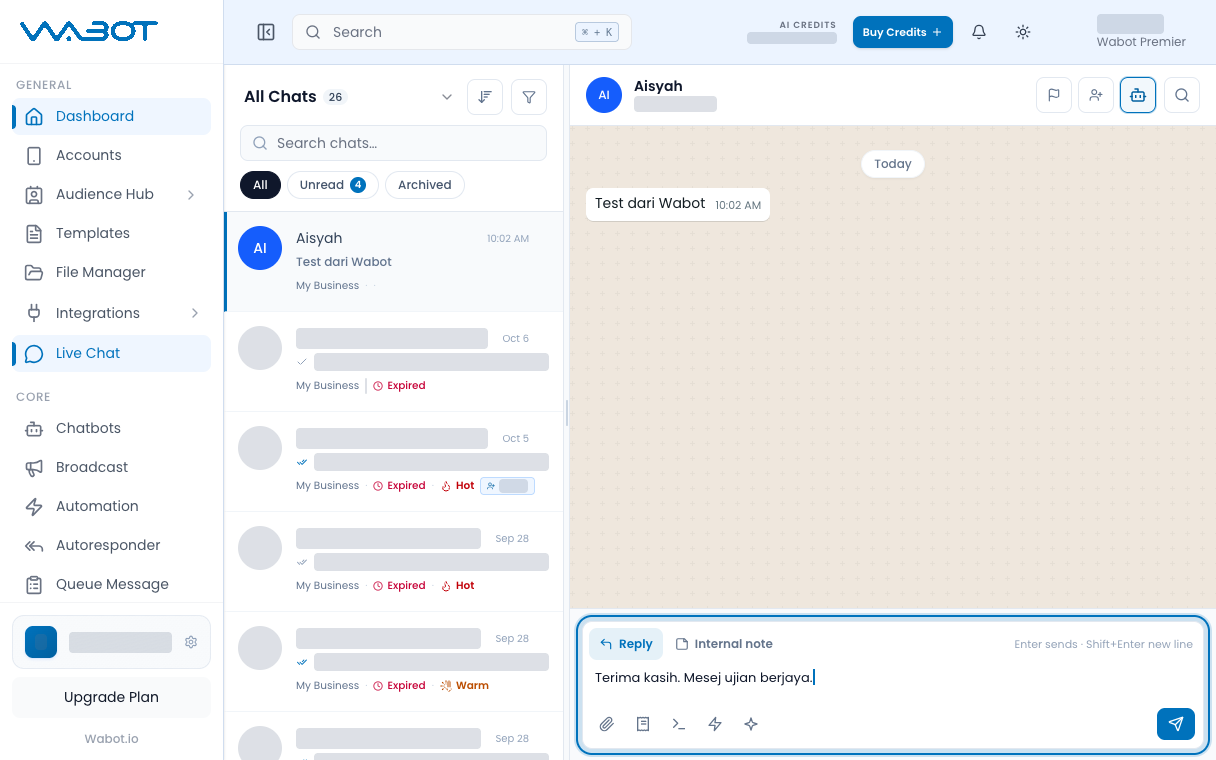
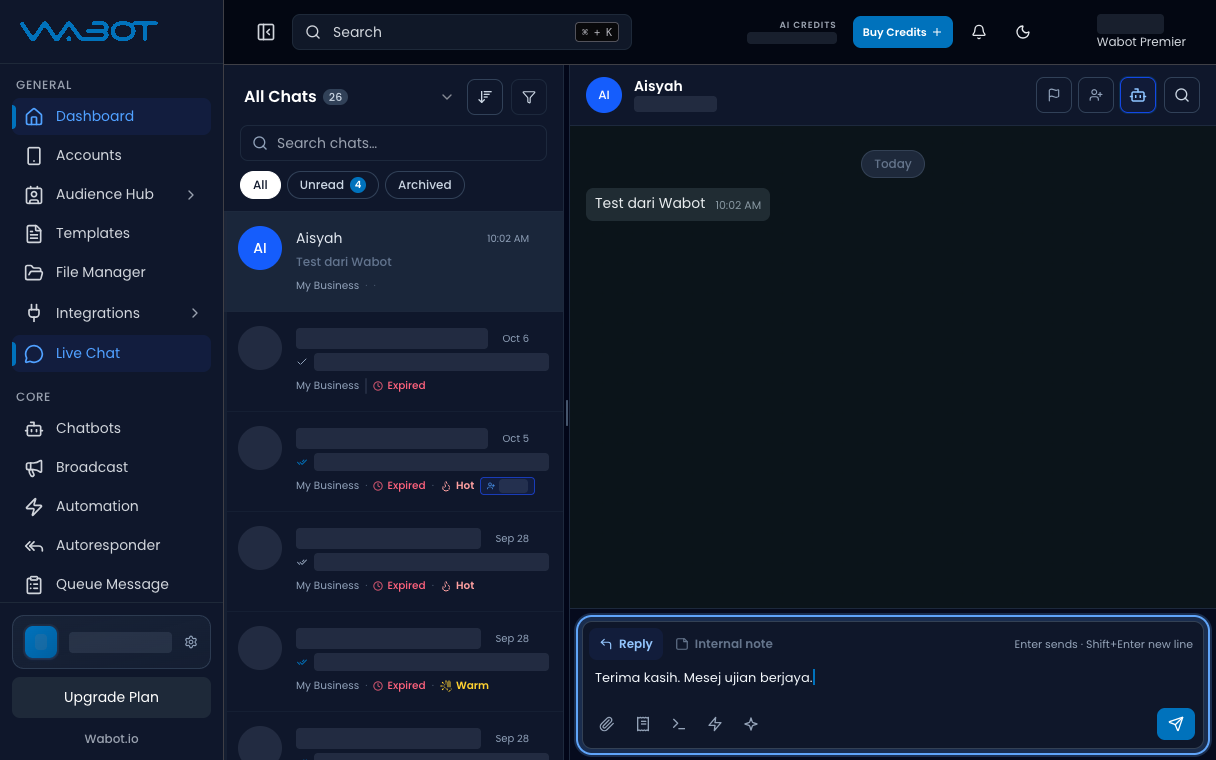
Type in the box at the bottom.
Terima kasih. Staf kami dah baca mesej anda.
5. Send the reply
Press Enter, or click the Send button.
Make sure it worked
Your message appears in the thread.
Your test phone receives the same text on WhatsApp.
If it didn’t work
The list is empty
Nobody has written to this number yet. Send a test from your phone, then refresh Live Chat.
Send stays disabled
The box is empty. Type a message first.
The customer did not get it
Check the account is Online. Then open Account Error Logs if the bubble shows failed.
Next
Stop the bot from answering while you talk in Take over from the bot.