
Take over from the bot
Turn the chatbot off for one contact so only your team replies.
In this tutorial, you will turn the chatbot off for one conversation.
Time needed: 5 minutes
Before you start
Make sure:
- You can open the conversation in Live Chat.
- This WhatsApp account has a chatbot. If not, finish Turn on AI mode or Choose Keyword mode first.
Turn the bot off before you type a long reply. That stops the bot from answering at the same time.
1. Open the conversation
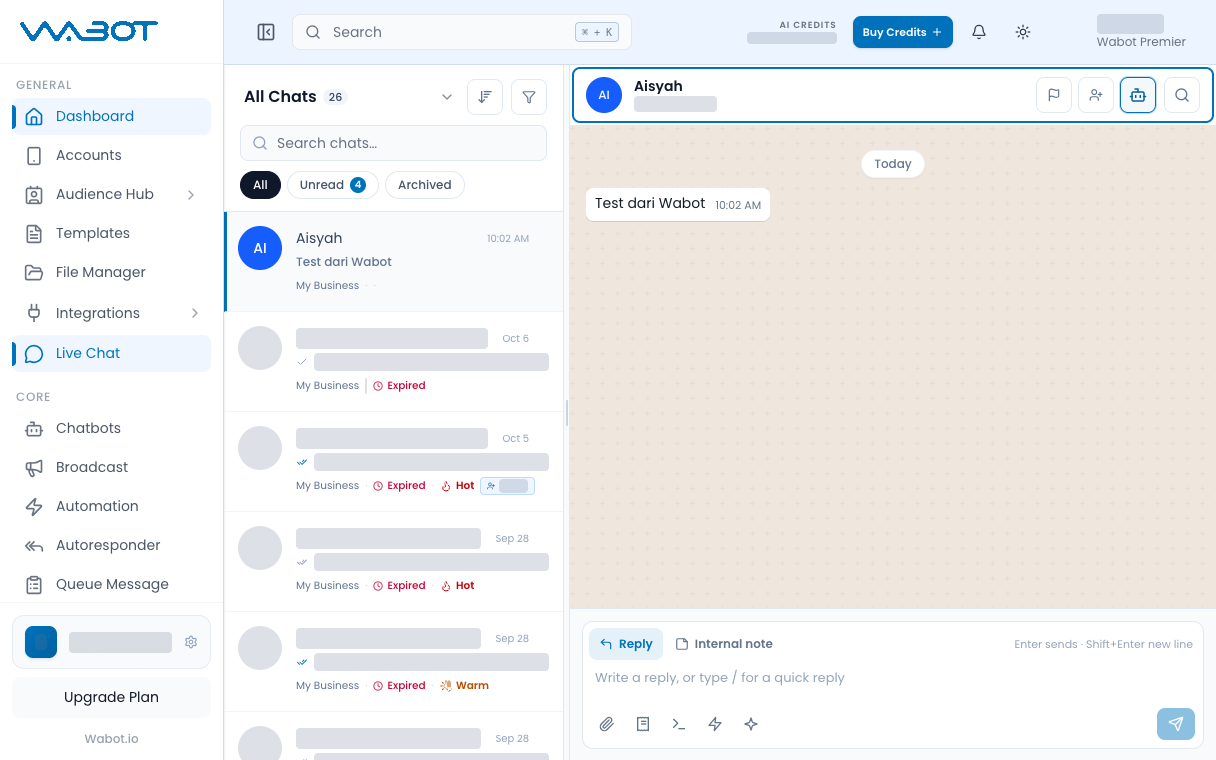
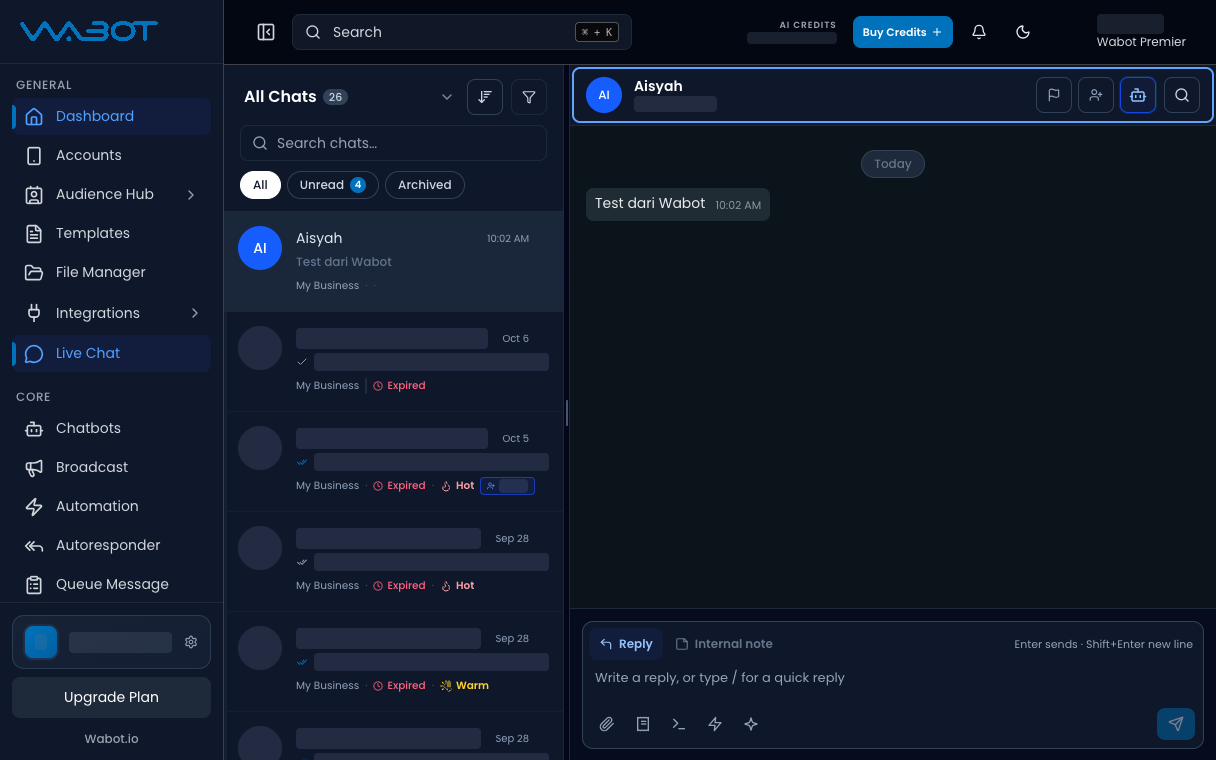
On the left menu, click Live Chat.
Click the thread you want to take over.
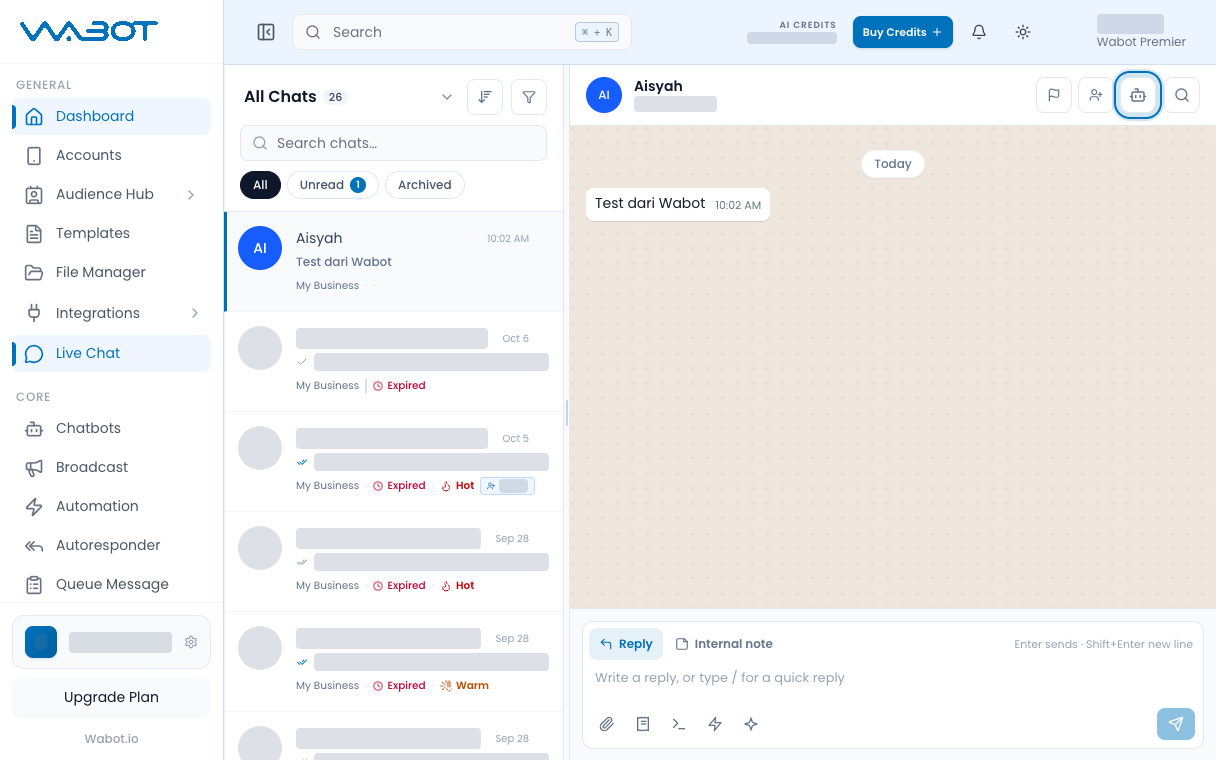
2. Check Bot Active
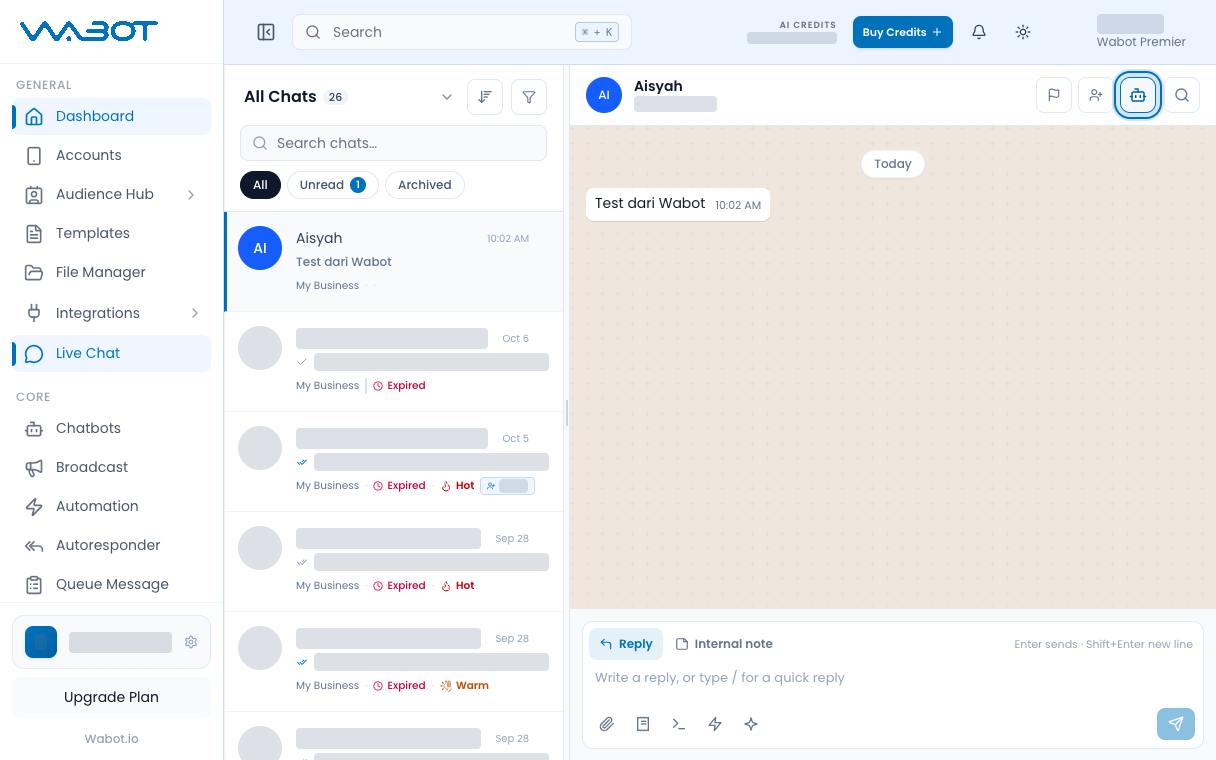
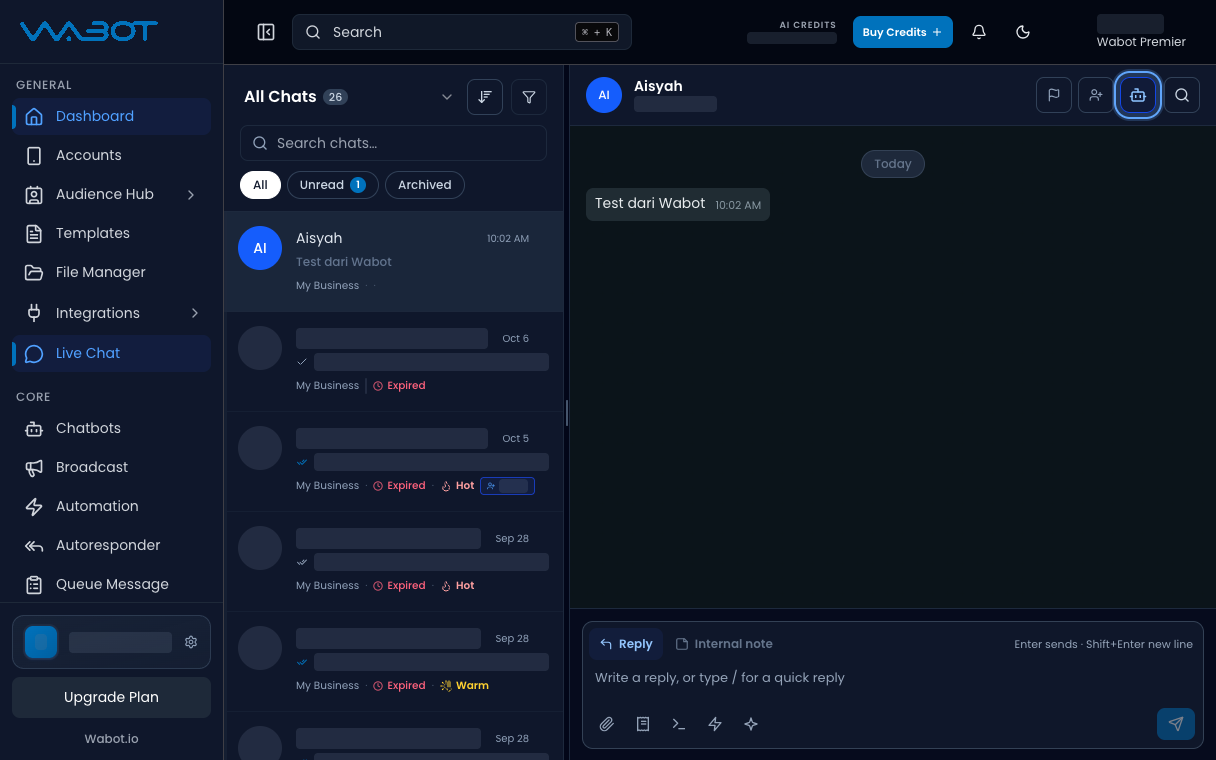
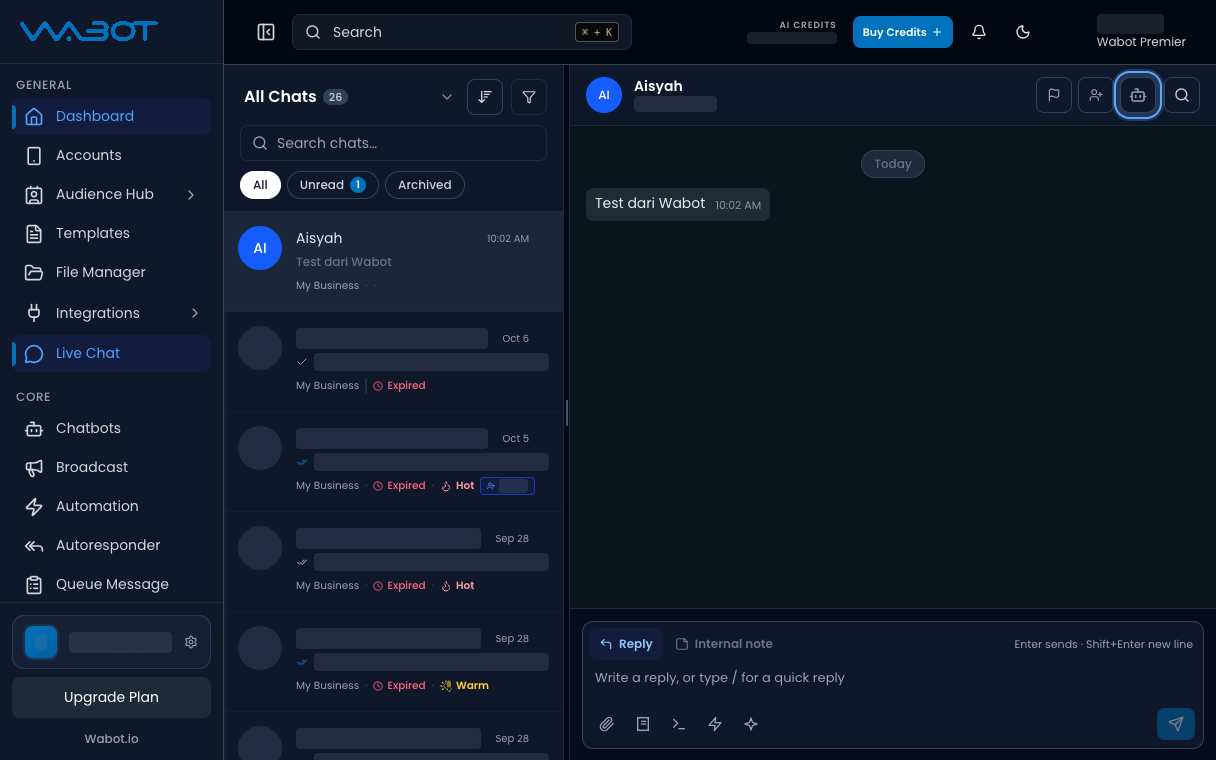
In the conversation header, find Bot Active.
If you see Bot Inactive, the bot is already off for this contact.
3. Turn the bot off
Click Bot Active.
Wait until the label changes to Bot Inactive.
4. Reply as a human
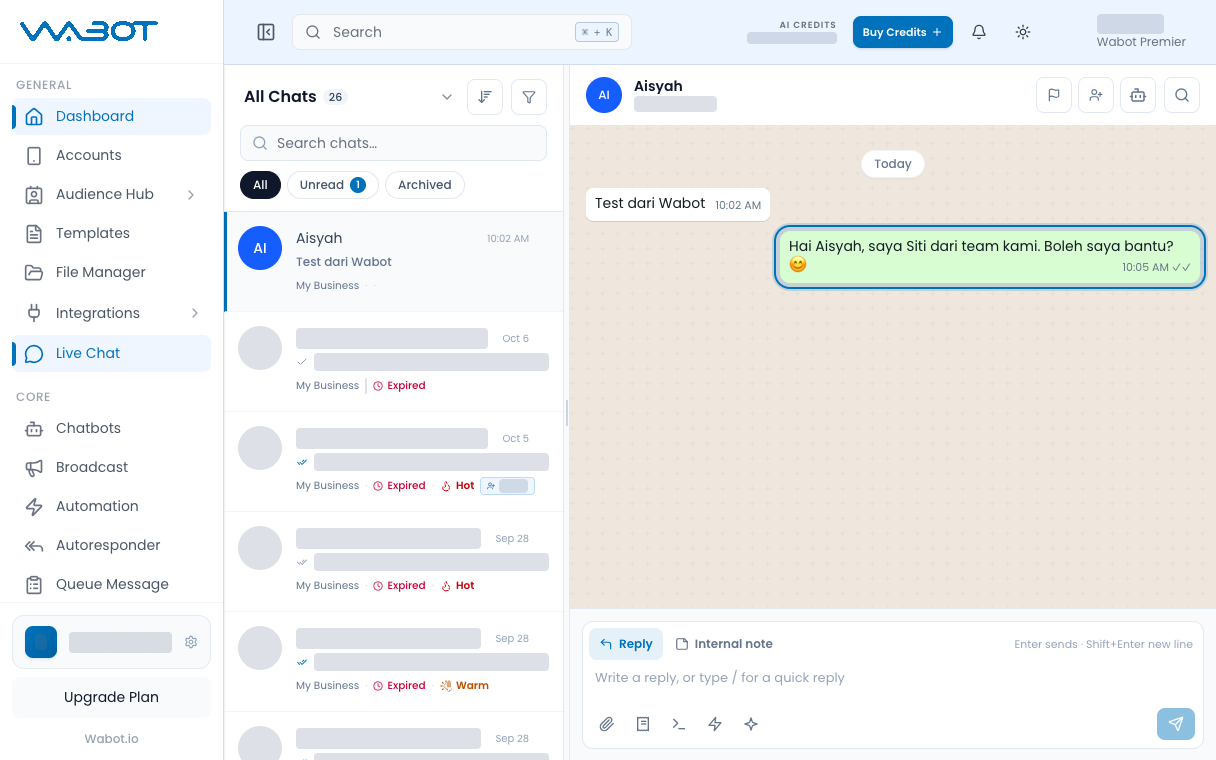
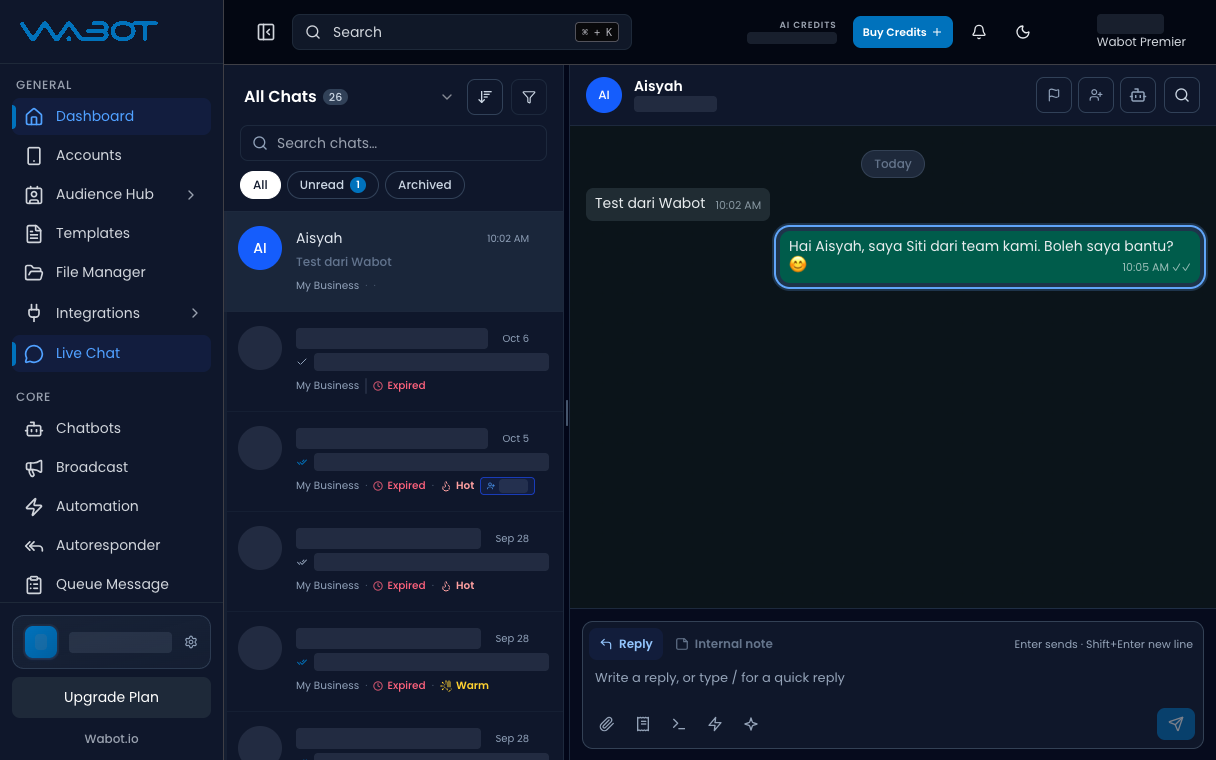
Type your message and send it.
Staf manusia di sini. Saya bantu terus.
Make sure it worked
The header shows Bot Inactive.
A new customer message does not get an automatic bot reply.
If it didn’t work
I cannot see the bot button
This account has no chatbot, or your login cannot change chatbot status.
The bot still replies
Open the header again. If it shows Bot Active, click it once more.
You can also type /stop in the box and choose Disable Chatbot.
Next
Give the thread to a teammate in Assign a conversation.