
Add an internal note
Write a Notes entry that only your team can see. It is not sent to the customer.
In this tutorial, you will add one internal note on a conversation.
Time needed: 5 minutes
Before you start
Make sure:
- You can open the conversation in Live Chat.
- The right contact panel is visible. On a small screen, open the contact info for this thread.
A note is for your team only. The customer never sees it on WhatsApp.
1. Open the conversation
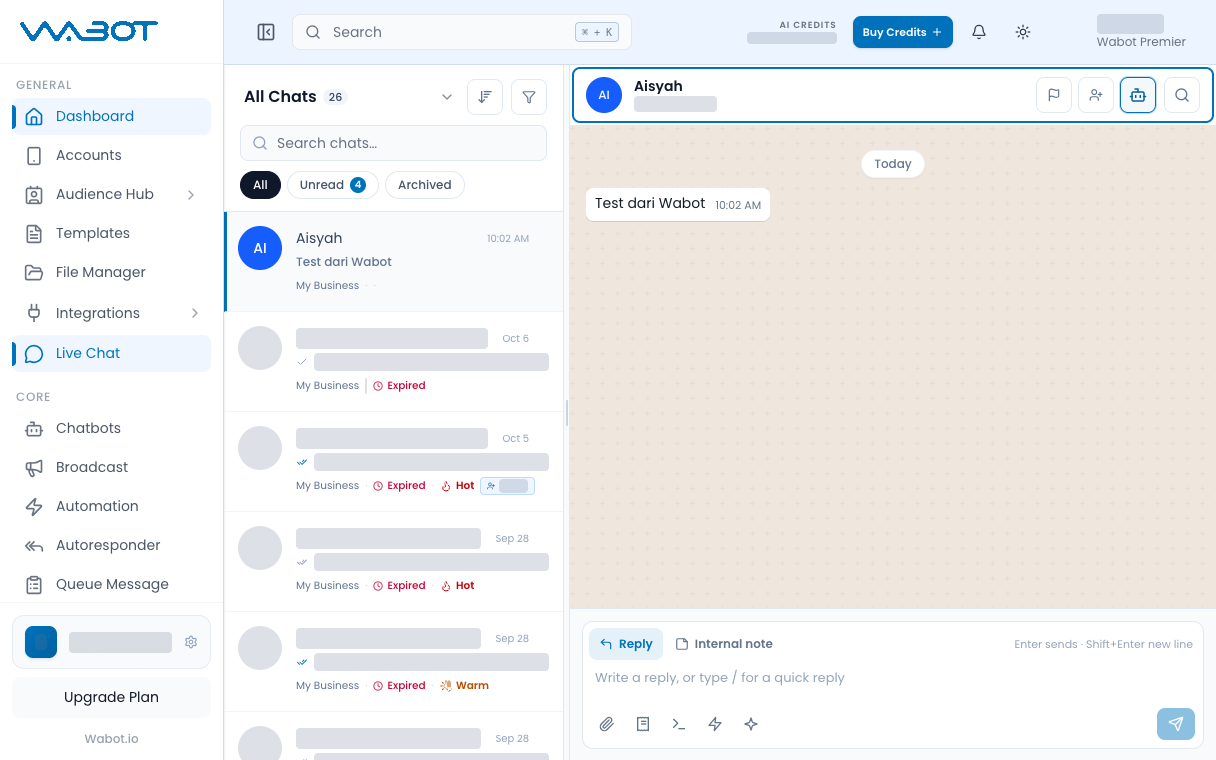
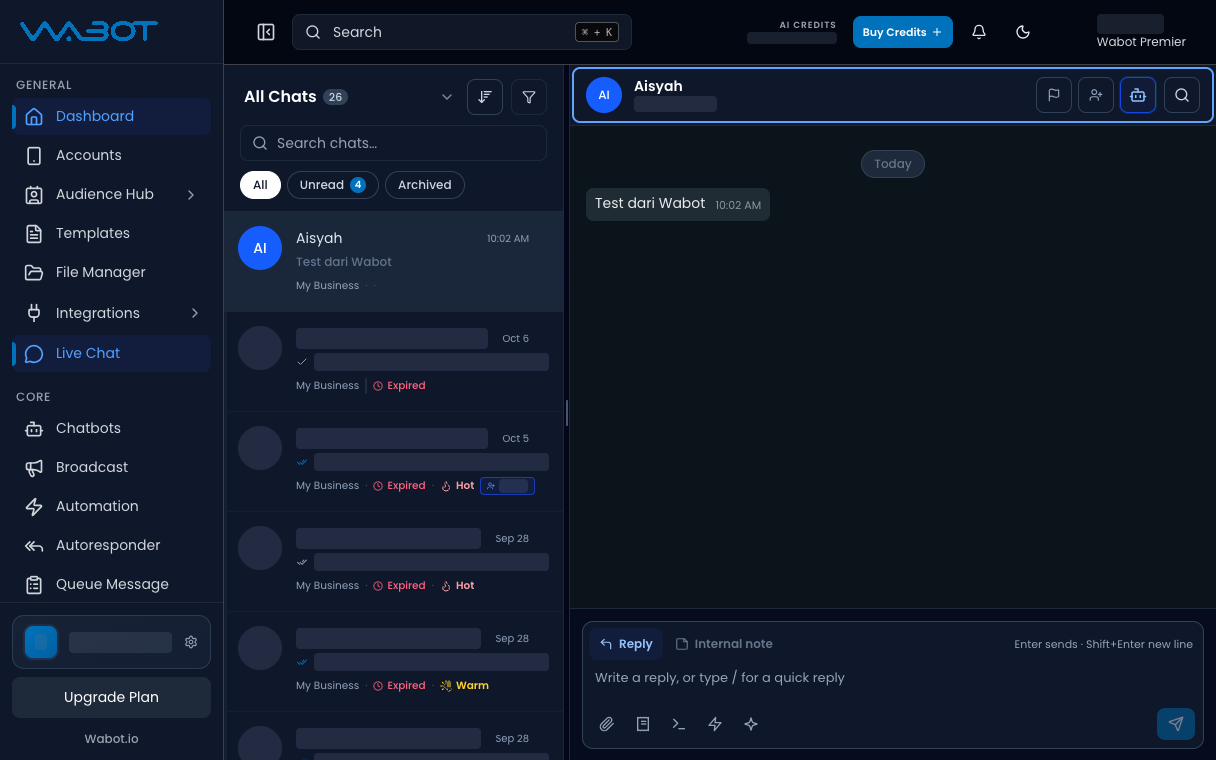
On the left menu, click Live Chat.
Click the thread.
2. Find Notes
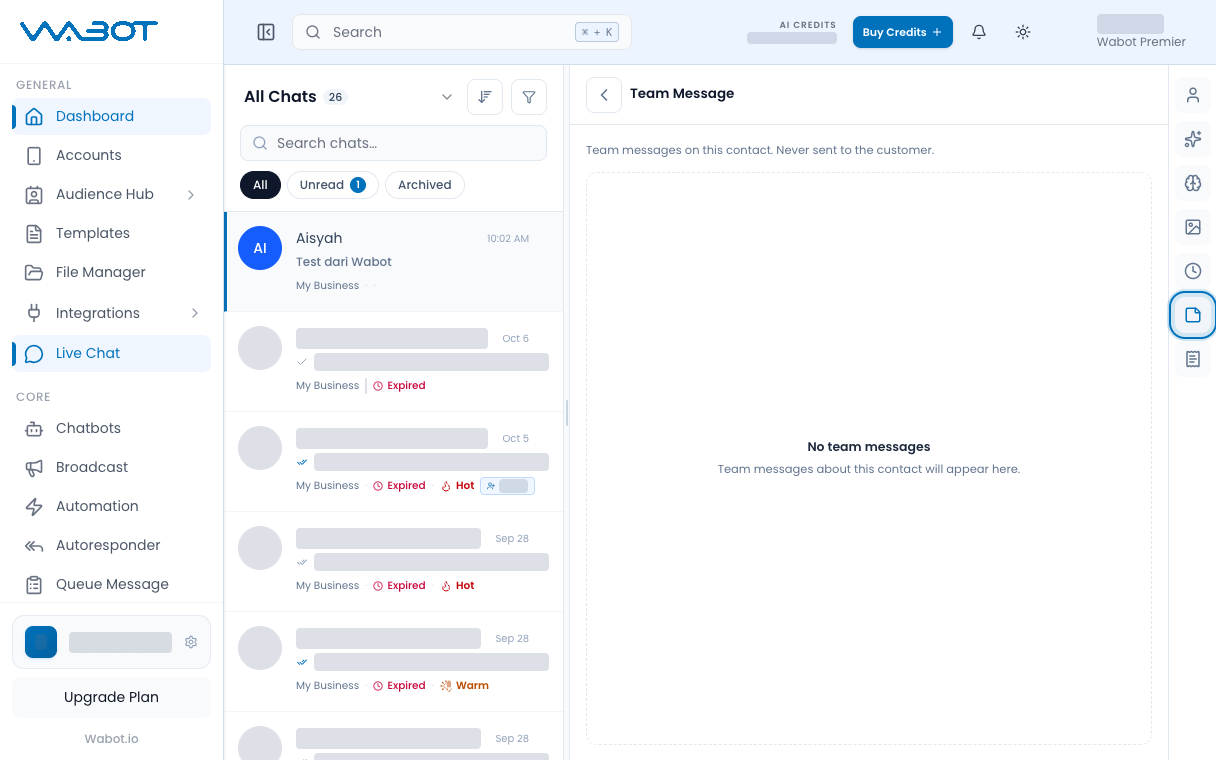
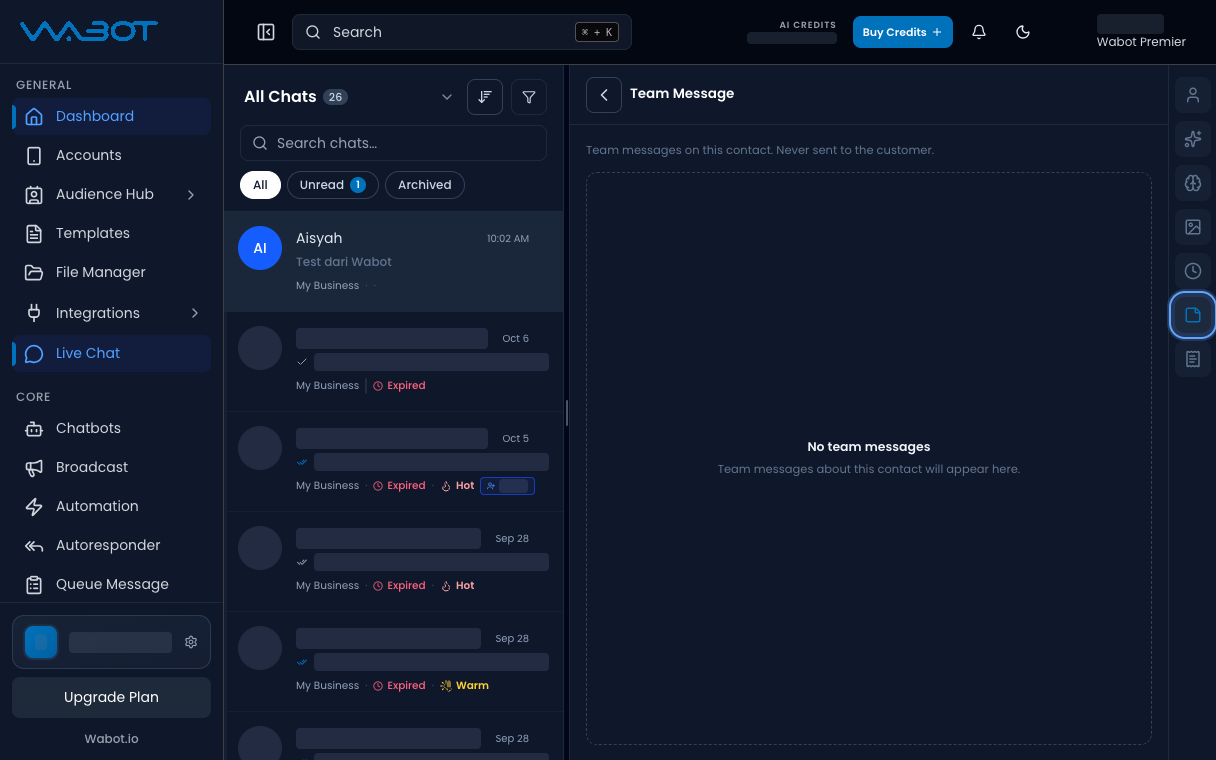
On the right panel, find Notes.
3. Add the note
Click Add note.
If this is the first note, type in the empty Notes box.
Write the context the next staff needs.
Customer tanya stok saiz L. Tunggu restock Isnin.
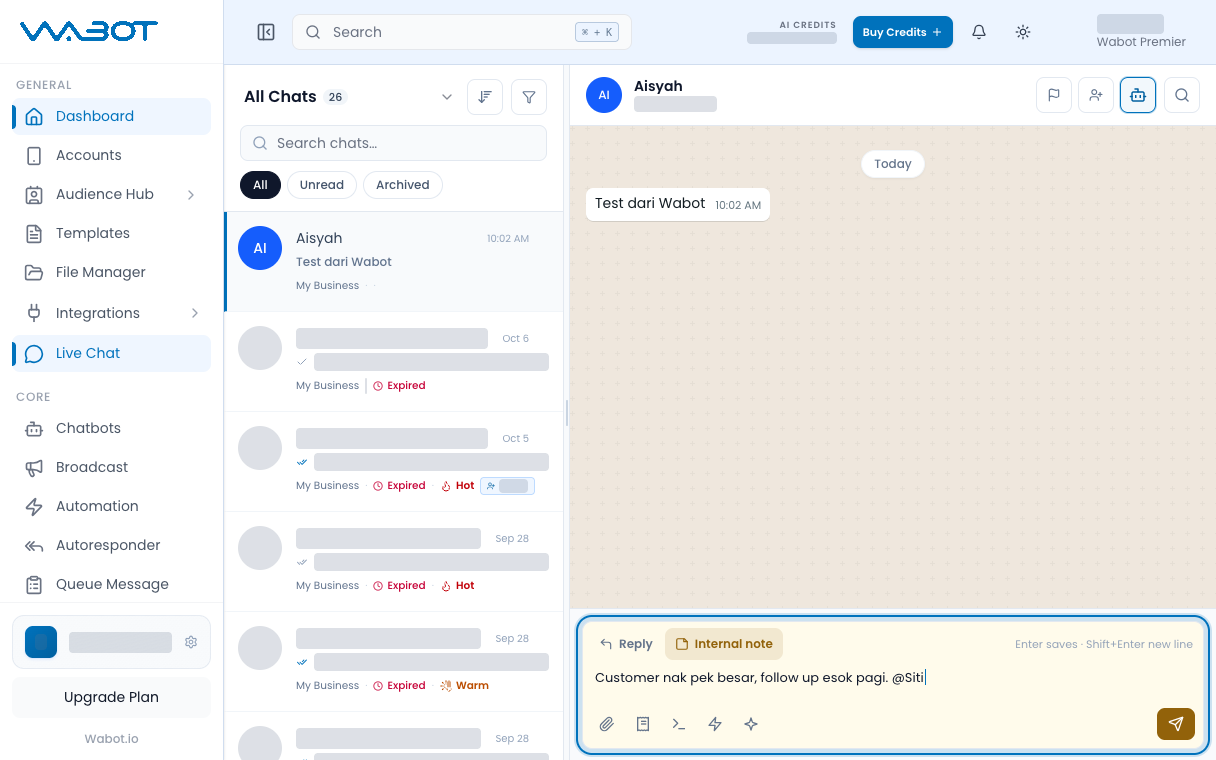
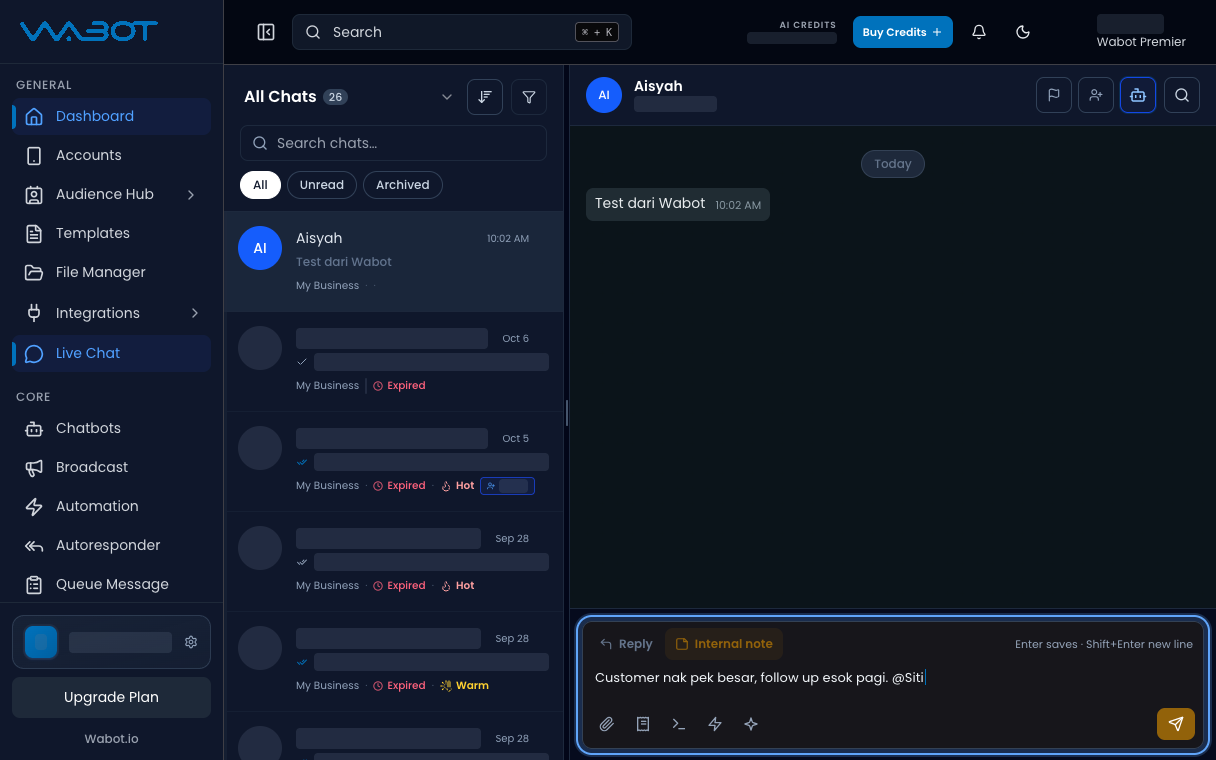
4. Save the note
Click Save.
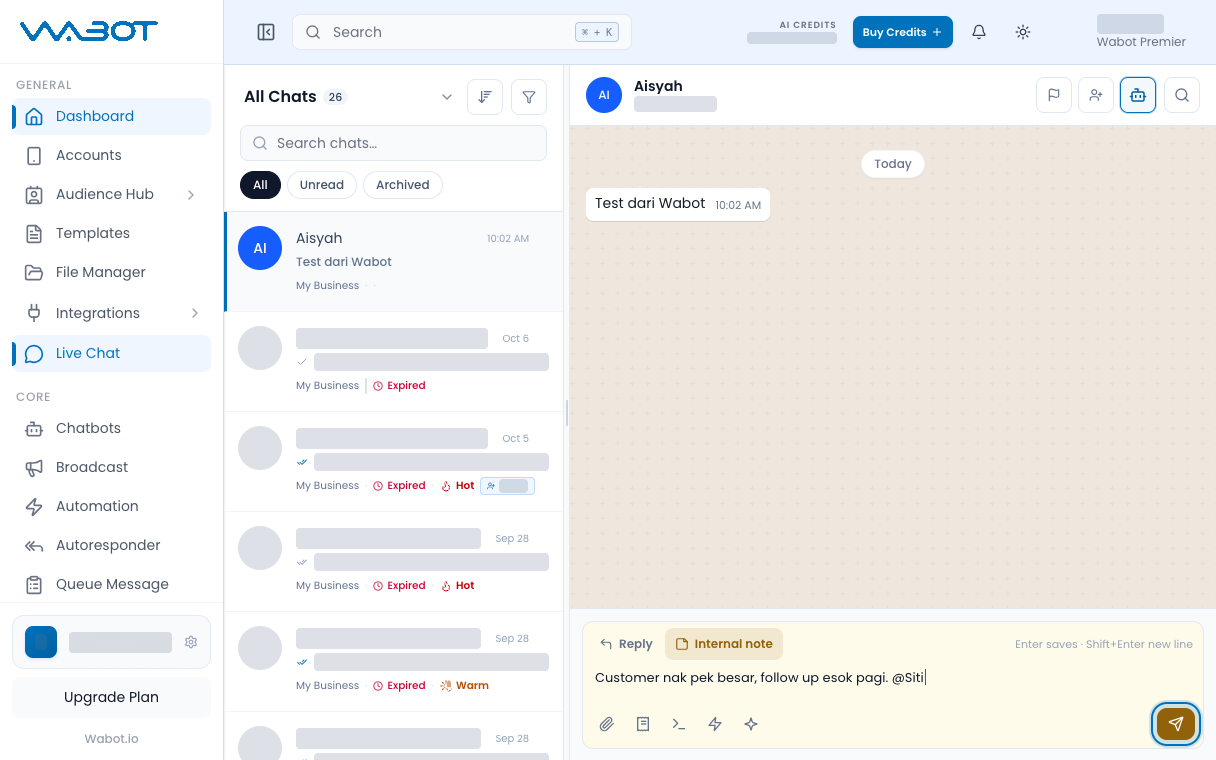
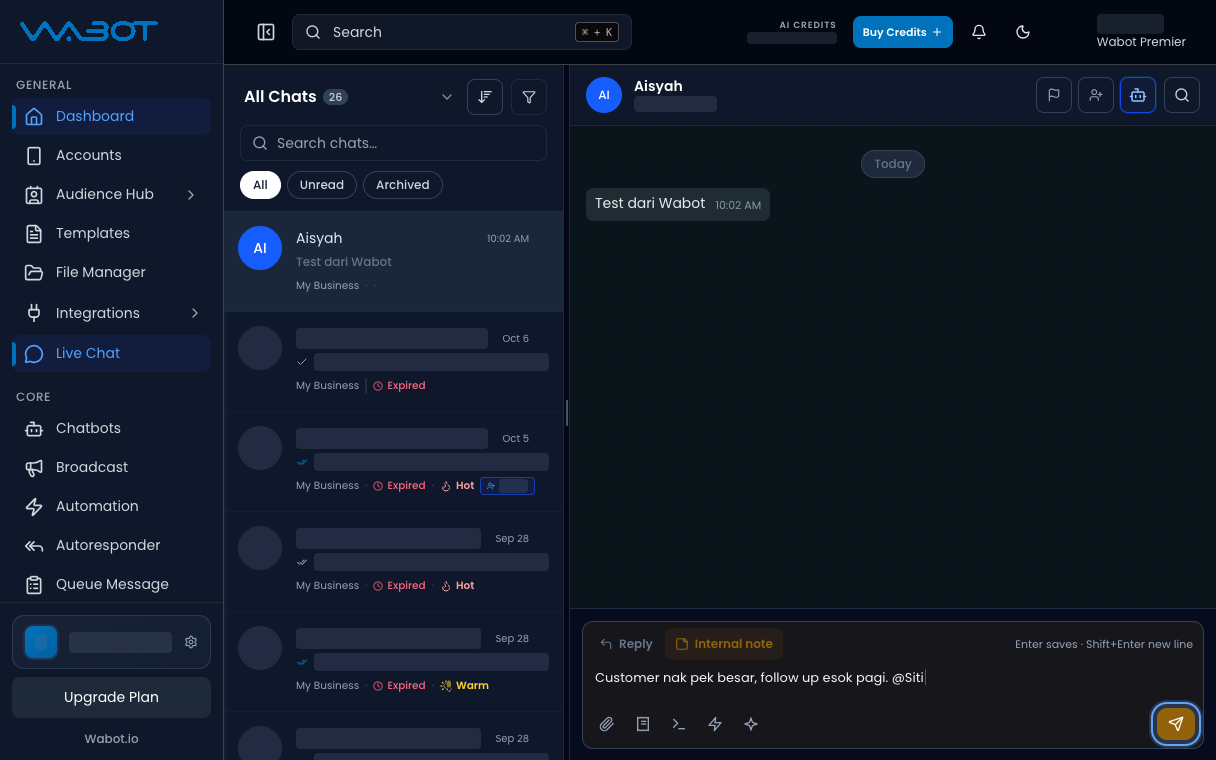
Make sure it worked
The text appears under Notes.
It does not appear as a WhatsApp bubble in the middle panel.
If it didn’t work
I cannot see Notes
Open the contact panel on the right. Guest chats hide Notes.
Save is blocked
The note box is empty. Type at least one sentence, then click Save.
On Unofficial API, you can also add Labels under Account Management. Official API hides Labels.
Next
Send a saved answer faster in Send a Quick Reply.